How to make a Google Sheets shift schedule?
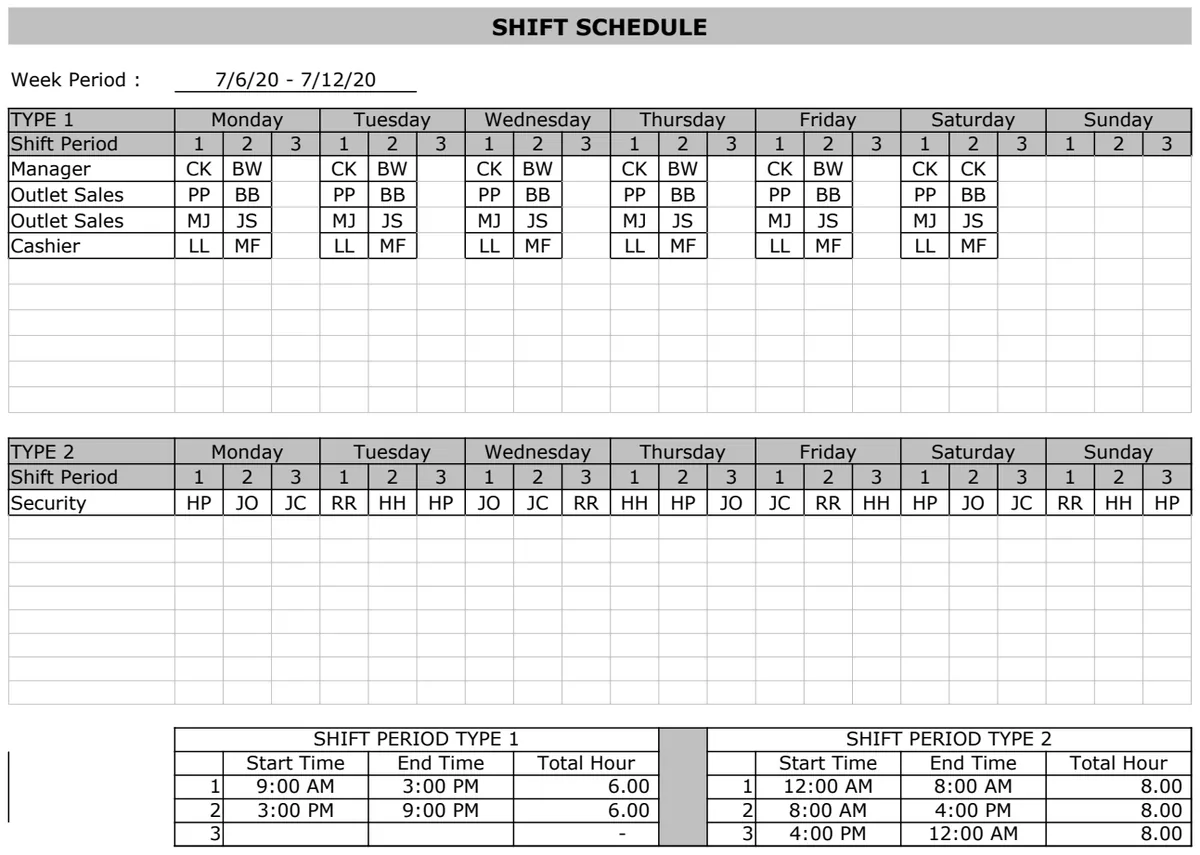
Build a functional Google Sheets shift schedule with employee assignments, start/end times, and automatic total hours worked.
By the end of this, you'll have a functional shift schedule in Google Sheets, complete with assigned employees, start and end times, and automatic calculation of total hours worked per employee each week. This guide will walk you through setting up a robust shift schedule template in Google Sheets, whether you're managing a small team or a larger operation. Many people search for a "shift schedule template Google Sheets" hoping for a quick fix, but building one that truly fits your needs offers far more flexibility.
A well-structured schedule reduces confusion, minimizes overtime costs, and ensures adequate coverage. Manually creating these can be time-consuming, prone to errors, and difficult to update on the fly. Google Sheets offers a powerful, free platform to create a dynamic scheduling system.
Setting Up Your Sheet Structure
First, open a new Google Sheet. You'll want to establish a clear layout. Let's start with the basic columns needed for any shift schedule.
- Employee Name: A simple column to list all your staff members.
- Date: This column will represent each day of the week or scheduling period.
- Shift Start Time: The time an employee begins their shift.
- Shift End Time: The time an employee finishes their shift.
- Break Duration (Minutes): If applicable, a column to note any unpaid break times.
- Total Hours Worked: This will be a calculated field.
- Notes/Assignments: A space for specific tasks, roles, or any other relevant information for that shift.
For a weekly schedule, you might have columns for Monday, Tuesday, Wednesday, and so on, with rows representing employees. Alternatively, you could have a single row for each shift instance, with columns for Employee Name, Date, Start Time, End Time, Break, and Total Hours. This latter approach is often more flexible for varying shift lengths and complexities.
A Practical Layout Example
Consider a layout where each row represents a specific shift assignment for an employee on a given day.
| Employee Name | Date | Day of Week | Shift Start Time | Shift End Time | Break Duration (Minutes) | Total Hours Worked | Notes | | :------------ | :--------- | :---------- | :--------------- | :------------- | :----------------------- | :----------------- | :---- | | Alice Smith | 2024-07-29 | Monday | 08:00 | 17:00 | 60 | =IF(AND(G2<>"",F2<>""), (HLOOKUP(D2,{"00:00","01:00",..."23:00"},1,TRUE)-HLOOKUP(C2,{"00:00","01:00",..."23:00"},1,TRUE))- (I2/60),"") | Opening Shift | | Bob Johnson | 2024-07-29 | Monday | 14:00 | 23:00 | 30 | =IF(AND(G3<>"",F3<>""), (HLOOKUP(D3,{"00:00","01:00",..."23:00"},1,TRUE)-HLOOKUP(C3,{"00:00","01:00",..."23:00"},1,TRUE))- (I3/60),"") | Closing Shift | | Alice Smith | 2024-07-30 | Tuesday | 09:00 | 18:00 | 60 | =IF(AND(G4<>"",F4<>""), (HLOOKUP(D4,{"00:00","01:00",..."23:00"},1,TRUE)-HLOOKUP(C4,{"00:00","01:00",..."23:00"},1,TRUE))- (I4/60),"") | Mid-day coverage |
In this example, the Date column uses a standard YYYY-MM-DD format. The Day of Week column can be populated using a formula like =TEXT(B2,"dddd") if your dates are in column B. The Total Hours Worked formula is crucial.
Calculating Total Hours Worked
The formula for Total Hours Worked needs to account for start and end times, and subtract break durations. Assuming your Shift Start Time is in column D, Shift End Time in column E, and Break Duration (Minutes) in column F, and the dates are in column B, a formula like this will work:
=IF(AND(D2<>"", E2<>""), (E2-D2)*24 - (F2/60), "")
Let's break this down:
IF(AND(D2<>"", E2<>""), ..., ""): This ensures the calculation only runs if both a start and end time are entered for that row. Otherwise, it leaves the cell blank.(E2-D2): When Google Sheets recognizes cells as times, subtracting them yields a fraction of a day.*24: Multiplying by 24 converts the fraction of a day into hours.(F2/60): This converts your break duration from minutes into hours.- (F2/60): Subtracts the break time from the total shift duration.
Make sure your Shift Start Time and Shift End Time columns are formatted as "Time" in Google Sheets (Format > Number > Time). Your Break Duration (Minutes) should be a number, and Total Hours Worked should be formatted as a "Number" (Format > Number > Number).
Adding Employee Totals
To see how many hours each employee has worked across all their shifts in the schedule, you can create a separate summary table.
- 01List Employees: In a new section of your sheet (or a separate sheet), list all your employee names in one column (e.g., Column J).
- 02Sum Their Hours: In the adjacent column (e.g., Column K), use the
SUMIFSfunction. If your employee names are in Column A and total hours worked in Column G, the formula would be:
=SUMIFS(G:G, A:A, J2)
This formula sums the hours in column G (Total Hours Worked) where the corresponding employee name in column A matches the employee name in cell J2. Drag this formula down to apply it to all employees listed in column J.
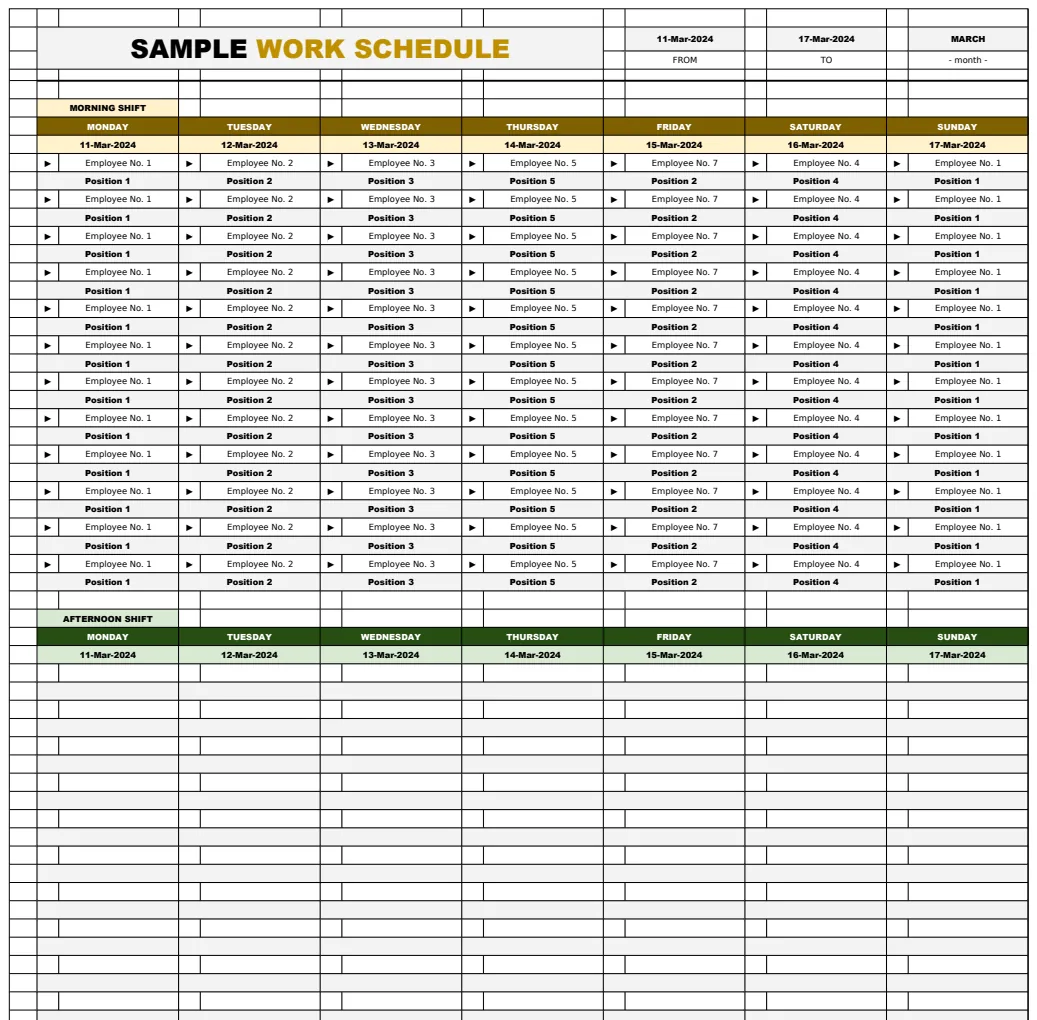
This summary table is incredibly useful for payroll, workload balancing, and tracking overtime. A template like the Sample Work Schedule Template often includes these summary calculations built-in.
Visual Cues with Conditional Formatting
Conditional formatting can make your schedule easier to read at a glance.
- Highlighting Overtime: You could set a rule for your "Total Hours Worked" column to turn yellow if the number exceeds a certain threshold (e.g., 40 hours for a standard work week).
- Identifying Gaps: If you have a specific column where you expect a shift to be assigned (e.g., "Shift Assignment"), you could highlight cells that are empty.
- Color-Coding Shifts: Assign different background colors to different types of shifts (e.g., morning, evening, night, or by role).
To apply conditional formatting:
- 01Select the range of cells you want to format (e.g., your
Total Hours Workedcolumn). - 02Go to
Format>Conditional formatting. - 03Under "Format rules," choose your condition (e.g., "Greater than" or "Text is empty").
- 04Enter the value or text, and choose your desired formatting style (background color, text color).
- 05Click "Done."
Handling Different Shift Types and Durations
Your shift schedule template Google Sheets might need to accommodate various shift lengths. The formula for "Total Hours Worked" already handles this dynamically. If you have fixed shifts (e.g., always 8 hours), you could pre-fill them or use helper columns.
For example, if you have predefined shift slots like "Morning (8 AM - 4 PM)," "Afternoon (12 PM - 8 PM)," and "Night (10 PM - 6 AM)," you could use an IF or IFS formula in the Shift Start Time and Shift End Time columns based on a selection in another column.
Say you have a "Shift Type" column (Column H). Your Shift Start Time (Column D) formula could look like this:
=IF(H2="Morning", TIME(8,0,0), IF(H2="Afternoon", TIME(12,0,0), IF(H2="Night", TIME(22,0,0), "")))
And a similar formula for Shift End Time (Column E). This automates entry but requires you to define those specific shift times.
Managing Employee Availability and Time Off
A robust schedule also needs to account for when employees are not available. You can add columns for:
- Days Off: Simply list "OFF" or "PTO" in the
Shift Start TimeorNotescolumn for those days. - Availability Constraints: You might have a separate sheet for employee availability. This data could then be referenced using
VLOOKUPorXLOOKUPto flag potential scheduling conflicts. For instance, if an employee indicates they can't work past 9 PM, you could add a conditional formatting rule to flag any shifts ending after that time for them.
This level of detail makes your schedule much more practical. For more advanced management of employee data alongside schedules, explore templates like the Employee Shift Schedule.
Common Pitfalls to Avoid
- Inconsistent Time Formatting: Ensure all time entries are recognized by Google Sheets as times. Mixed formats (e.g., "8:00 AM" vs. "0800") will break calculations. Use
TIMEVALUE()if needed to convert text to actual time values. - Ignoring Time Zones: If your team works across different time zones, a simple time calculation won't suffice. You'll need to standardize all times to a single zone (e.g., UTC) or build in explicit time zone conversions, which can get complex.
- Over-reliance on Manual Entry: While templates are flexible, too much manual input increases the chance of errors. Automate where possible with formulas or dropdowns.
- Not Reviewing Regularly: Even the best template needs a human touch. Review your schedule for fairness, coverage, and adherence to labor laws.
- Lack of Clear Notes: Vague notes lead to misunderstandings. Be specific about responsibilities or special instructions.
Advanced Features and Next Steps
Linking to Other Sheets
You can create separate sheets within the same Google Sheet file for different purposes:
- Employee Database: Store employee contact information, roles, pay rates, and hire dates.
- Shift Definitions: List your standard shift types with their start and end times.
- Time Off Requests: A place for employees to formally request leave, which you can then cross-reference when building the schedule.
Using IMPORTRANGE can pull data from other Google Sheets if your scheduling is distributed, but for a single system, internal sheet linking is more straightforward. The Employee Schedule Template - Shifts V1.1 is a good starting point if you need pre-built structures for these related aspects.
Using Dropdowns for Consistency
To ensure consistency in data entry, use data validation for columns like "Employee Name" or "Shift Type."
- 01Select the cells where you want the dropdowns.
- 02Go to
Data>Data validation. - 03Under "Criteria," choose "List from a range" or "List of items."
- 04If using a range, select the cells containing your list of employee names or shift types. If using items, type them in, separated by commas.
- 05Click "Done."
Now, instead of typing, users can select from a dropdown, which drastically reduces errors and speeds up data entry.
Can I Automatically Calculate Weekly Totals Per Employee?
Yes. If your schedule is structured with each row representing a single shift, and you have your employee summary table as described earlier, the SUMIFS function will automatically update as you add or change shift entries. For a schedule where you have columns for each day of the week and list shifts within those cells, it becomes more complex, often requiring text parsing formulas to extract individual shift hours before summing. The row-per-shift method is generally more conducive to automated calculations.
What If I Need To Track Overtime Differently?
If your overtime rules are complex (e.g., daily overtime, weekly overtime, different rates), you'll need to expand the "Total Hours Worked" calculation. You might add columns for "Daily Overtime Hours" and "Weekly Overtime Hours," using MAX functions to compare calculated hours against standard daily or weekly limits. For instance, if daily hours exceed 8, MAX(0, TotalHours - 8) would capture the overtime for that day. This can become quite intricate, and for very complex payroll calculations, dedicated HR software is often more suitable.
How Do I Share This Google Sheet with My Team?
Once your shift schedule template Google Sheets is set up, you can share it by clicking the "Share" button in the top right corner. You can grant specific people "Viewer," "Commenter," or "Editor" access. For a schedule that team members need to see but not modify, "Viewer" access is appropriate. If they need to input their availability or time-off requests, you might grant specific individuals editing rights to designated sections or sheets.
Is There a Template That Handles All of This Automatically?
While you can build a very sophisticated system in Google Sheets, pre-built solutions offer a head start. For a template that organizes weekly shifts with automatic date calculations and employee assignments, the Employee Schedule Template - Shifts V1.1 is a strong option. If you're planning across a whole year and need holiday integration, the Shift Work Calendar could be more fitting. All these templates, along with many others, are available with a one-time library access fee.