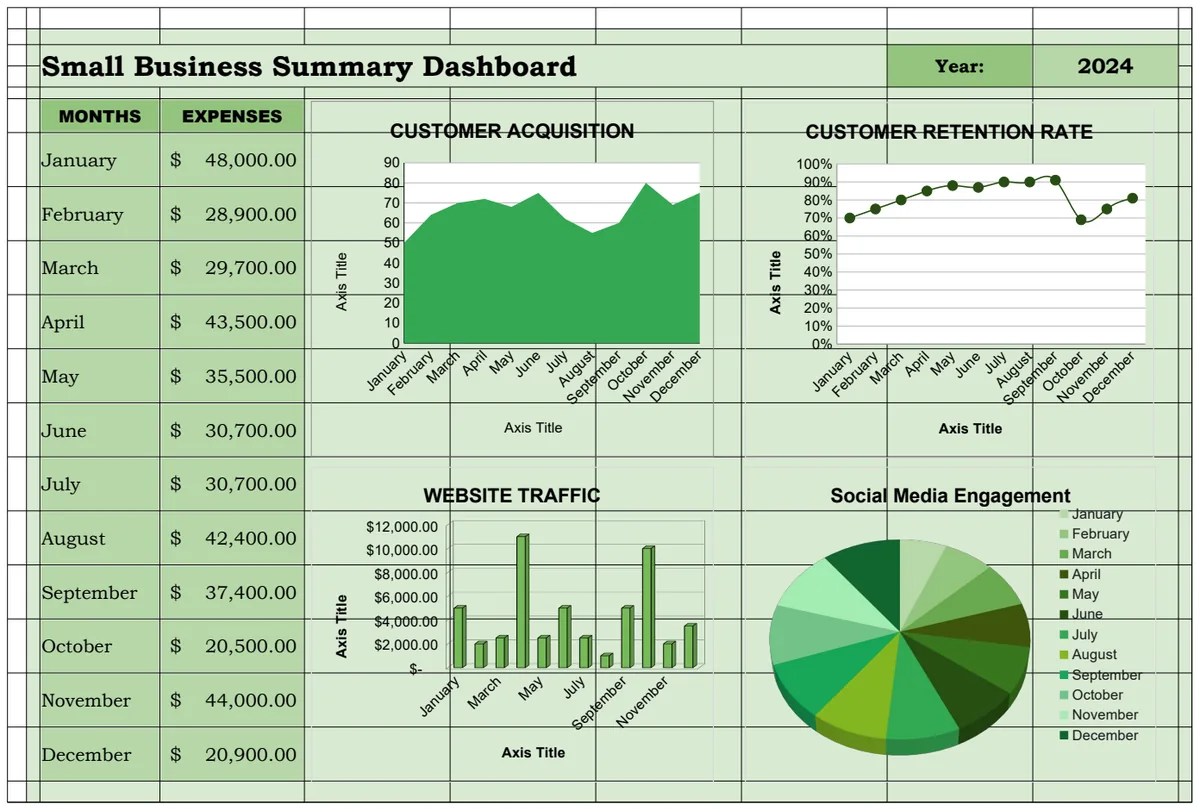
Unlock your finances with free spreadsheet templates
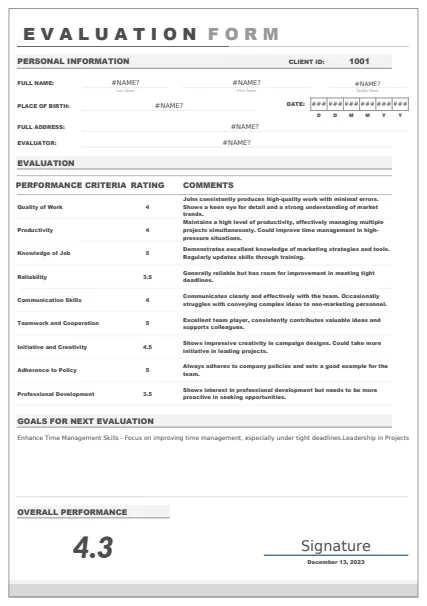
Finding useful free downloadable spreadsheet templates can be challenging, but quality options exist for budgeting and project management.
Many people assume that finding high-quality, truly useful free downloadable spreadsheet templates is a matter of luck or extensive searching. The reality is that while many free options exist, identifying those that are well-structured, customizable, and genuinely helpful requires a discerning eye. You're likely looking for templates that go beyond basic data entry and offer practical features for your specific needs, whether that's project management, budgeting, or content planning.
If you're on the hunt for free downloadable spreadsheet templates, you're not alone. The challenge often lies in sifting through a sea of generic or poorly designed files to find something that truly fits. The good news is that with a little guidance, you can significantly improve your chances of landing on a template that saves you time and effort, rather than creating more work.
What Makes a "Good" Free Template?
A genuinely useful free spreadsheet template isn't just a blank grid with some labels. It has a clear purpose, intuitive navigation, and built-in functionality that addresses common pain points. Consider these characteristics:
- Clear Structure and Formatting: Data is organized logically, with distinct sections for input, calculations, and output. Consistent formatting (fonts, colors, borders) makes it easy to read and understand.
- Formula Integrity: Key calculations are already set up correctly. You shouldn't have to rebuild fundamental formulas for common tasks like summing, averaging, or calculating percentages.
- Customization Potential: While pre-built, the best templates allow for easy modification. This means you can adjust categories, add or remove columns, and tweak formulas without breaking the entire sheet.
- User-Friendliness: Instructions, if any, are clear and concise. You can usually figure out where to enter your data and what to expect from the results without a manual.
- Avoidance of Macros (Often): Many truly free templates avoid complex macros for security and compatibility reasons. This is often a good sign, as it means the template relies on standard spreadsheet functions.
Common Pitfalls of Free Templates
While the appeal of "free" is undeniable, it's important to be aware of the potential drawbacks. Not all free downloadable spreadsheet templates are created equal, and some can lead to more frustration than they're worth.
- Overly Complex or Broken Formulas: You might find templates where formulas are incorrect, outdated, or simply too complicated to understand or fix. This can lead to inaccurate data and a lot of debugging.
- Lack of Customization: Some templates are so rigidly designed that changing even a single label requires a complete overhaul. This defeats the purpose of a template, which should be a starting point, not a straitjacket.
- Poor Data Organization: Input fields are mixed with calculation areas, making it hard to tell what you should be entering versus what the spreadsheet is calculating.
- Unnecessary Macros: While macros can add functionality, poorly implemented or malicious ones can pose security risks or cause compatibility issues across different spreadsheet software versions.
- Outdated Design: Templates from many years ago might use functions or formatting that are no longer standard, making them difficult to adapt to modern workflows.
Building Your Own from Scratch
Sometimes, the most efficient path is to build your own template. This ensures it perfectly matches your workflow and needs. Here’s a basic approach:
- 01Define Your Goal: What problem are you trying to solve? What data do you need to track? What insights do you want to gain?
- 02Outline Your Data Points: List every piece of information you need to record. These will become your column headers. For example, if you're tracking podcast episodes, you might need columns for Episode Title, Release Date, Guest Name, Download Count, Listener Feedback, and Marketing Channel.
- 03Structure Your Sheet: Create clear sections. A common setup includes:
- Input Sheet: Where you enter raw data.
- Summary/Dashboard Sheet: Where you view key metrics and insights, often using formulas that pull from the input sheet.
- Settings/Lookup Sheet (Optional): For dropdown lists or custom categories.
- 04Implement Formulas: Use standard spreadsheet functions. For example, to sum downloads by marketing channel, you might use
=SUMIFS(DownloadsColumn, MarketingChannelColumn, "SpecificChannel"). For more advanced lookups,=XLOOKUP()is your friend. - 05Apply Formatting: Use conditional formatting to highlight important data points (e.g., episodes with low download counts, tasks that are overdue). Freeze panes to keep headers visible as you scroll.
Leveraging Pre-built Solutions
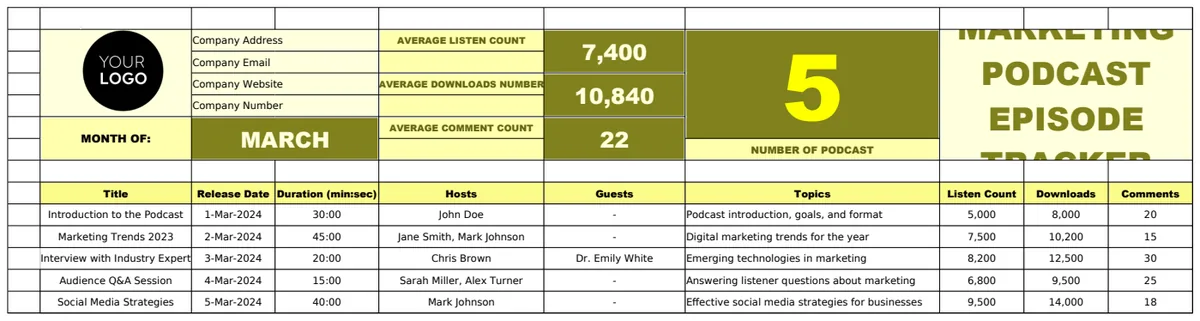
When your time is limited or you need a highly specialized function, a well-designed template can be a lifesaver. If you're managing content, for instance, a dedicated template can save you hours of setup. Consider how a Marketing Podcast Episode Tracker Template might streamline your work by providing pre-defined fields for episode details, performance metrics, and notes, allowing you to quickly assess what's working.
Key Formulas for Common Templates
Regardless of whether you find a free downloadable spreadsheet template or build your own, understanding a few core formulas will be essential.
- `=SUM()`: Adds up a range of numbers. Useful for total sales, total expenses, or total download counts.
- `=AVERAGE()`: Calculates the average of a range of numbers. Great for average order value or average time spent on tasks.
- `=COUNT()` / `=COUNTA()`: Counts the number of cells in a range that contain numbers (
COUNT) or any value (COUNTA). Useful for the number of entries or unique items. - `=SUMIFS()`: Sums cells based on one or more criteria. For example, summing sales from a specific region or downloads from a particular marketing campaign.
- `=COUNTIFS()`: Counts cells based on one or more criteria. Use this to count the number of tasks completed by a specific person or the number of projects in a certain status.
- `=IF()`: Performs a logical test and returns one value if the test is TRUE and another if it's FALSE. Use it to categorize data (e.g., "High Priority" if a deadline is near, "Low Priority" otherwise).
- `=XLOOKUP()`: Searches for a value in one range and returns a corresponding value from another range. This is a modern, powerful alternative to older lookup functions like VLOOKUP and HLOOKUP. It's perfect for pulling related information, like a client's contact details from a separate client list.
Customizing Your Spreadsheet
The beauty of spreadsheets is their adaptability. Once you've found or created a template, make it your own.
- Rename Columns: Change generic labels like "Column A" or "Metric 1" to descriptive terms like "Customer Name" or "Conversion Rate."
- Adjust Formulas: If a template's calculation doesn't quite fit your needs, modify the cell references or the function itself. For example, if you need to calculate profit margin instead of just profit, you'll adjust the formula accordingly.
- Add or Remove Columns: You might need more granular data. Add a column for "Payment Method" in a sales tracker. You might not need every detail provided. Remove a column for "Internal Code" if it's not relevant to your work.
- Conditional Formatting: Set up rules to visually flag important data. For example, highlight budget lines that are over 90% spent in red, or tasks due in the next 7 days in yellow.
- Data Validation: Use this feature to create dropdown lists for consistent data entry. For a project status, you might set up a list with options like "Not Started," "In Progress," "Completed," and "On Hold." This prevents typos and ensures uniformity.
Common Mistakes to Avoid
Even with the best intentions, users often fall into predictable traps when working with spreadsheets, especially when starting with free downloadable spreadsheet templates.
- Over-reliance on Manual Entry: Failing to automate repetitive data entry or calculations when formulas could easily handle it.
- Inconsistent Data: Entering the same information in slightly different ways (e.g., "New York" vs. "NY" vs. "N.Y."). This breaks lookup and filtering capabilities.
- Ignoring Formatting: Leaving spreadsheets in their default, unformatted state. This makes them hard to read and interpret quickly.
- Not Backing Up: Losing hours of work because a file was corrupted or accidentally deleted. Regularly saving and creating backups is crucial.
- Using Static Data: Copying and pasting data instead of linking it. When the source data changes, your template won't update, leading to outdated information.
What if I need a template for a very niche purpose?
If you can't find a free downloadable spreadsheet template for a highly specific need, consider building a core structure yourself and then adding specialized components. For example, if you need to track scientific experiment data, you might start with a basic template for logging entries and dates, then add columns for specific measurements, units, and error margins that are unique to your field. You can often find general-purpose templates that serve as excellent starting points.
How do I ensure the free templates I download are safe?
Always download files from reputable sources. Be cautious of templates from unknown websites or shared via unofficial channels. Before opening any downloaded file, ensure your antivirus software is up to date. If a template contains macros, exercise extra caution and only enable them if you fully trust the source and understand what the macros do. Many excellent free downloadable spreadsheet templates are available from established template providers or within the spreadsheet software itself.
Can I modify a template I downloaded and then share it?
Generally, yes. Most free templates are provided for you to adapt and use. However, always check the licensing terms if they are provided. Some templates might have restrictions on redistribution or commercial use. If you significantly modify a template and plan to share it, it's good practice to clearly state that it's a modified version and perhaps credit the original creator, especially if they requested it in their terms.
Where can I find more advanced templates if free ones aren't enough?
While this article focuses on finding and using free options, if your needs become more complex, you might explore premium template libraries. These often offer more sophisticated features, better design, and dedicated support. For a one-time fee of $9, you can access an extensive collection of professionally designed templates for various applications. You can see a full list at /templates.