5 essential columns for your free Excel cleaning schedule
Discover the 5 essential columns needed for a flexible cleaning schedule template in Excel, free for your home.
A truly useful cleaning schedule template for Excel, free or otherwise, must account for the fact that homes aren't static. A single, fixed list ignores how life happens, guests arriving unexpectedly, a busy work week, or a sudden burst of energy for deep cleaning. That’s why searching for a "cleaning schedule template Excel free" often leads to generic solutions that quickly become obsolete. You need a system that adapts.
The best approach is to create a flexible framework that you can tailor to your actual living situation and cleaning style. This means thinking about not just what needs cleaning, but how often, who is responsible, and how you’ll track progress without it feeling like a chore itself.
Building Your Flexible Cleaning Framework
Instead of a rigid, pre-filled schedule, let’s build a template that you can populate and adjust. We'll set up columns for the task, the frequency, the room, the assigned person (if applicable), and a checkbox or date to mark completion. This structure allows for easy modification.
For example, you might have a "Daily" section with tasks like "Wipe down kitchen counters" and "Make beds." Then a "Weekly" section with "Vacuum living room" and "Clean bathrooms." A "Monthly" section could include "Clean oven" or "Wash windows." The key is to create categories that make sense for your household.
Essential Columns for Your Template
When setting up your Excel or Google Sheet, consider these columns:
- Task: A clear, concise description of the cleaning job (e.g., "Scrub shower," "Dust bookshelves," "Empty all trash bins").
- Frequency: How often the task needs doing. Use terms like "Daily," "Every other day," "Weekly," "Bi-weekly," "Monthly," "Quarterly," "Annually," or even specific dates if needed.
- Room/Area: Where the task is performed (e.g., "Kitchen," "Master Bedroom," "Hallway," "Office," "Exterior").
- Assigned To: If you live with others, specify who is responsible. This could be a person's name or a rotating assignment.
- Status/Completion: A column to mark when the task is done. This could be a simple checkbox, a date entered upon completion, or a dropdown menu with options like "To Do," "In Progress," "Done."
- Notes/Details: Optional, but useful for specific instructions (e.g., "Use specific cleaner for granite," "Focus on baseboards," "Check under sink").
Setting Up Your Excel or Google Sheet
Let’s walk through creating this in a spreadsheet program.
- 01Open a New Sheet: Start with a blank workbook in Excel or Google Sheets.
- 02Create Headers: In the first row (Row 1), type your column titles. For instance:
- Cell A1: Task
- Cell B1: Frequency
- Cell C1: Room/Area
- Cell D1: Assigned To
- Cell E1: Status
- Cell F1: Completion Date
- Cell G1: Notes
- 03Format Headers: Make Row 1 bold for clarity. You might also want to freeze this row so it remains visible as you scroll down. In Excel, go to
View > Freeze Panes > Freeze Top Row. In Google Sheets, it'sView > Freeze > 1 row. - 04Populate Tasks: Start filling in your cleaning tasks, frequency, and room in the rows below. Be as specific as you need. For example:
- Row 2: "Wipe down kitchen counters," "Daily," "Kitchen," "Self," "" (empty for date), ""
- Row 3: "Clean toilet bowl," "Weekly," "Bathroom 1," "Self," "", ""
- Row 4: "Vacuum main living area," "Weekly," "Living Room," "Partner," "", ""
- Row 5: "Dust all surfaces," "Weekly," "All Bedrooms," "Self," "", ""
- Row 6: "Clean microwave interior," "Bi-weekly," "Kitchen," "Self," "", ""
- Row 7: "Mop kitchen floor," "Weekly," "Kitchen," "Self," "", ""
- Row 8: "Clean out refrigerator," "Monthly," "Kitchen," "Self," "", ""
- 05Implement Status Tracking: For the "Status" column (Column E), you can use data validation to create a dropdown list.
- Select the cells in Column E where you want the dropdown (e.g., E2:E100).
- In Excel: Go to
Data > Data Validation. Under "Allow," choose "List." In the "Source" box, typeTo Do,Done. Click OK. - In Google Sheets: Go to
Data > Data validation. Under "Criteria," choose "List of items." EnterTo Do,Donein the box. Click Save.
- 06Conditional Formatting for Visibility: To make completed tasks stand out, use conditional formatting.
- Select the range of cells you want to format (e.g., A2:G100).
- In Excel: Go to
Home > Conditional Formatting > New Rule. Select "Use a formula to determine which cells to format." Enter the formula=E2="Done"(assuming your "Status" column is E and your data starts on row 2). Click the "Format" button and choose a fill color (like light grey) or font style (like strikethrough). Click OK twice. - In Google Sheets: Go to
Format > Conditional formatting. Under "Format rules," choose "Custom formula is." Enter=E2="Done". Then, choose your formatting style (e.g., strikethrough text). Click Done.
This setup provides a dynamic "cleaning schedule template Excel free" that you can adapt. You can add, remove, or change tasks as your needs evolve.
Making It a True "Cleaning Schedule Template Excel Free"
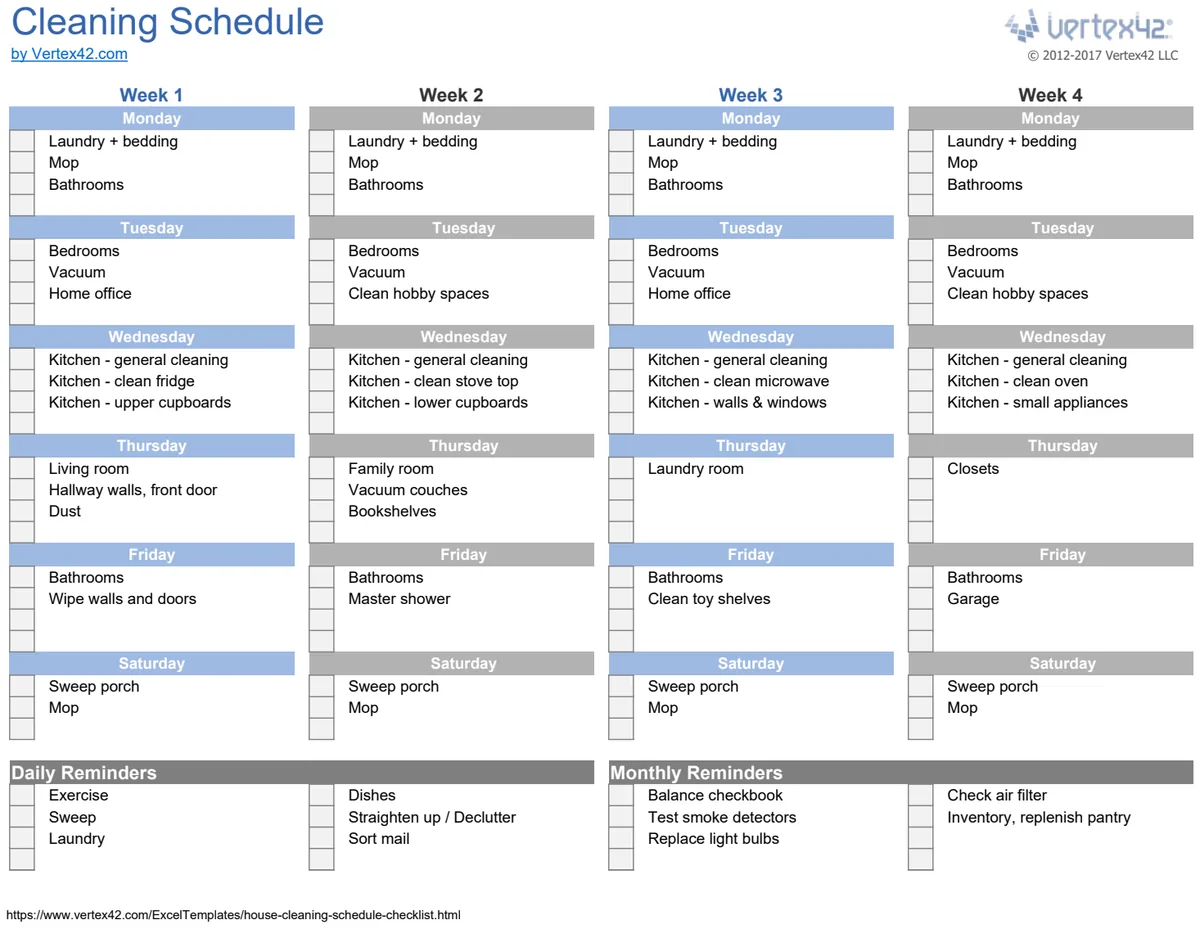
While you can build this yourself, sometimes having a pre-structured template is a great starting point. If you prefer a ready-made solution, you can find options. For instance, a House Cleaning Schedule template can give you a solid base to modify, pre-populated with common tasks and frequencies. These templates are designed to be flexible, allowing you to customize them to your specific home and routine, making your search for a "cleaning schedule template Excel free" much simpler.
Common Mistakes to Avoid
Many people fall into traps when creating or using cleaning schedules:
- Over-scheduling: Trying to clean too much too often leads to burnout. Be realistic about what you can accomplish.
- Vagueness: "Clean kitchen" is less effective than "Wipe down counters," "Scrub sink," and "Sweep floor."
- No Flexibility: Life happens. A schedule that can't adapt to illness, travel, or unexpected events will be abandoned.
- Assigning Blame, Not Responsibility: Frame tasks as shared responsibilities, not punishments.
- Forgetting Deep Cleaning: Schedules often focus on daily/weekly tasks, neglecting quarterly or annual deep cleans.
Tracking Progress Beyond Checkboxes
While checkboxes and completion dates are great, consider other ways to visualize your progress and stay motivated.
- Color-Coding: Beyond conditional formatting for "Done," you could color-code by room or by person responsible. This gives a quick visual overview.
- Task Counts: If you want to gamify it, you could add a column that counts how many tasks have been completed each week. A simple
=COUNTIF(E2:E100,"Done")formula in a separate summary area can show your weekly accomplishment rate. - Notes on Improvement: Use the "Notes" column not just for how-tos, but for noting when a task took longer than expected or when a particular cleaning product worked wonders. This data helps refine future scheduling.
For a broader view of managing your time and tasks, a Simple Weekly Schedule can complement your cleaning plan, ensuring you allocate time for all your responsibilities.
Advanced Customization and Management
Once you have your core cleaning schedule template set up, you can enhance it further.
- Sorting and Filtering: Excel and Google Sheets allow you to easily sort your tasks by frequency, room, or assignee. This is invaluable when you only have 30 minutes to clean and want to tackle all the kitchen tasks at once. Click the filter icon in the header row and choose your sorting criteria.
- Separate Sheets for Different Frequencies: For very large homes or complex cleaning needs, you might consider having separate sheets within your workbook for Daily, Weekly, Monthly, and Seasonal tasks. This keeps each view cleaner. A House Cleaning Checklist template could be adapted for this purpose.
- Integrating with Calendars: If you use a digital calendar, you could manually block out time for specific cleaning tasks. While not automated, it helps ensure the time is actually allocated.
Frequently Asked Questions
How can I make my cleaning schedule visually appealing?
Beyond conditional formatting, you can use alternating row colors (banded rows) to improve readability. Most spreadsheet programs have a built-in "Format as Table" option that applies this automatically. You can also experiment with different font styles or colors for headers and key information.
What if I have a very large house or multiple properties?
For multiple properties, you'll likely need separate templates or at least a "Property" column to differentiate tasks. For very large homes, breaking down tasks by zone or floor on separate sheets, or using a detailed "Room/Area" column with sub-areas (e.g., "Master Bathroom - Shower," "Master Bathroom - Vanity") will be more effective.
How do I ensure everyone in the household actually does their part?
Open communication is key. Discuss the schedule together, agree on responsibilities, and make sure everyone understands the expectations. Regular, brief check-ins can help. Consider making the tracking visible, perhaps by printing out a weekly summary or having the spreadsheet accessible on a shared device.
Can I use this for more than just cleaning?
Absolutely. The flexible structure of this template, with columns for Task, Frequency, Assignee, and Status, is adaptable to many other recurring tasks. You could use it for:
- Yard work: Mowing, weeding, planting.
- Pet care: Feeding schedules, grooming, vet appointments.
- Home maintenance: Changing air filters, checking smoke detectors, pest control.
- Personal goals: Exercise routines, study habits, mindfulness practices.
If you're looking for a template to organize your entire year at a glance, a Horizontal Yearly Calendar Light could help you plan major cleaning or maintenance projects across months.
The core idea is to create a system that works for you, not the other way around. A well-structured, adaptable spreadsheet is a powerful tool for managing household tasks and maintaining a clean, organized living space.