Sheets or Excel: Which pet expense tracker wins?
Discover which tool, Google Sheets or Excel, is best for your pet expense tracker spreadsheet template.
The Date column in your pet expense tracker spreadsheet template is more critical than you might realize. It’s not just for chronological order; it’s the backbone of your analysis. Without accurate dates, calculating monthly spending trends, identifying seasonal veterinary needs, or even splitting costs across tax years becomes a manual, error-prone chore.
Setting up a dedicated pet expense tracker spreadsheet template is a smart move. It moves beyond simple guesswork and gives you a clear picture of your financial commitment to your furry, feathered, or scaled companions. This isn't just about knowing how much you spent on kibble last month; it’s about understanding the true cost of care, from routine vet visits to unexpected emergencies.
The Core Components of a Pet Expense Tracker
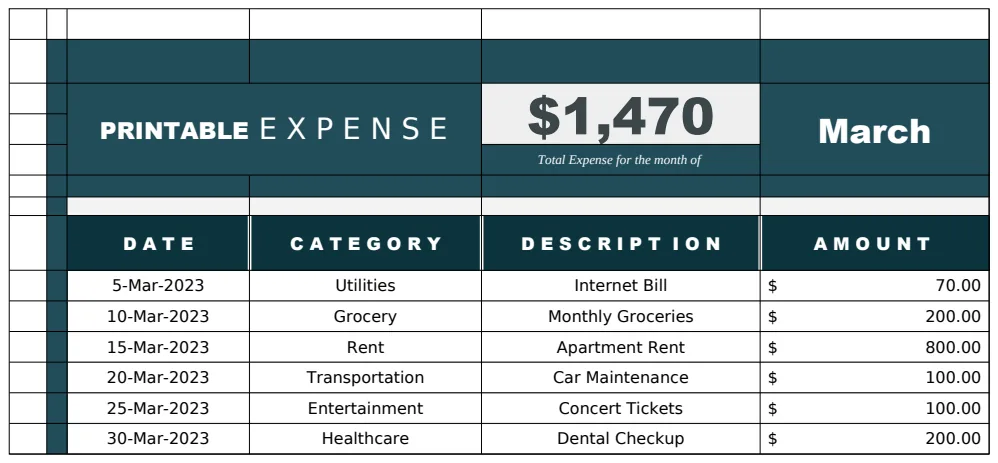
At its heart, a good pet expense tracker needs a few key columns to be truly effective. Think of these as the essential building blocks:
- Date: As mentioned, this is non-negotiable. It needs to be in a standard date format (e.g.,
MM/DD/YYYY). - Category: This is where you classify each expense. Common categories include Food, Vet Bills, Toys, Grooming, Medications, Boarding/Sitter, Licenses/Permits, and Miscellaneous. Be specific enough to be useful, but not so granular that data entry becomes a burden.
- Item/Description: A brief note about what the expense was for. For example, "Annual check-up," "Grain-free salmon kibble," "Flea treatment," or "New squeaky toy."
- Amount: The exact cost of the item or service. This should be formatted as currency.
- Payment Method: How you paid (e.g., Credit Card, Debit Card, Cash, Bank Transfer). This can be helpful if you’re trying to track spending on specific cards.
- Pet Name (Optional but Recommended): If you have multiple pets, assigning each expense to a specific animal is invaluable for understanding individual costs, especially if one pet has higher medical needs.
Setting Up Your Spreadsheet
You can start from scratch, but using a pre-built template can save significant time. A good starting point might be a general Expense Tracker Template, which you can then customize by adding pet-specific categories and the Pet Name column.
Here’s a basic walkthrough for setting up your columns in a new sheet:
- 01Open a new spreadsheet.
- 02In Row 1, enter your column headers:
- Cell A1:
Date - Cell B1:
Category - Cell C1:
Item/Description - Cell D1:
Amount - Cell E1:
Payment Method - Cell F1:
Pet Name
- 03Format the `Date` column: Select column A, right-click, and choose "Format cells" (or similar). Select "Date" and choose your preferred format (e.g.,
MM/DD/YYYY). - 04Format the `Amount` column: Select column D, right-click, and choose "Format cells." Select "Currency" and choose your local currency symbol.
- 05Consider Data Validation for `Category` and `Pet Name`: To ensure consistency and prevent typos, use data validation.
- For
Category: Create a separate sheet or a small list on the same sheet with your predefined categories (Food, Vet, Toys, etc.). Then, select theCategorycolumn (starting from A2 downwards), go to "Data" > "Data Validation," choose "List from a range," and point it to your list of categories. - For
Pet Name: Do the same for your list of pet names.
This setup provides a solid foundation for your pet expense tracker spreadsheet template.
Tracking Different Types of Pet Expenses
Your tracker should accommodate the full spectrum of pet-related costs.
- Food and Treats: This is a recurring expense, so tracking it helps you budget effectively. You might note specific brands or types if they vary significantly in price.
- Veterinary Care: This is often the largest and most unpredictable expense. Ensure you log everything from routine check-ups and vaccinations to emergency visits, surgeries, dental cleanings, and prescription medications. Keep receipts handy, as your vet might provide itemized invoices.
- Supplies: This includes a wide range of items like litter, bedding, collars, leashes, bowls, grooming tools, cleaning supplies, and waste bags.
- Toys and Entertainment: While not strictly essential, these contribute to your pet's well-being and happiness. Tracking them can help you see if you're overspending on items your pet quickly destroys or ignores.
- Grooming: This could range from professional grooming services to at-home supplies like shampoo and brushes.
- Training and Classes: If you're investing in obedience classes or specialized training, log these costs here.
- Pet Insurance: If you have a pet insurance policy, you’ll want to track the monthly premiums. You can also log any co-pays or deductibles paid.
- Boarding and Pet Sitting: For when you go on vacation or are away for extended periods.
- Licensing and Microchipping: Annual license fees and initial microchipping costs.
Analyzing Your Spending with Formulas
Once you start populating your spreadsheet, formulas are what transform raw data into actionable insights.
- Total Spending: A simple
SUMformula at the bottom of yourAmountcolumn will give you your overall pet expenditure. If you have a lot of data, you might useSUM(D2:D1000)assuming your amounts are in column D, starting from row 2. - Spending by Category: This is where
SUMIForSUMIFSbecomes your best friend. To find out how much you spent on "Vet Bills" in a given period, you'd use a formula like:
=SUMIF(B2:B1000, "Vet Bills", D2:D1000) This sums all amounts in column D where the corresponding cell in column B is exactly "Vet Bills." For more complex analysis (e.g., "Vet Bills" for a specific pet), you'd use SUMIFS.
- Spending by Pet: If you included the
Pet Namecolumn, you can easily see how much each animal costs. The formula would be similar to the category one:
=SUMIF(F2:F1000, "Buddy", D2:D1000) This sums expenses for your pet named "Buddy."
- Average Monthly Spending: To calculate this, you’ll need to sum your total expenses for a period and divide by the number of months. If your data spans several months, you can use a combination of
SUMIFSand date criteria, or pivot tables for a more robust solution. - Year-to-Date Spending: You can use
SUMIFSwith date criteria to sum expenses within the current year. For example, to sum expenses from January 1st of the current year to today's date:
=SUMIFS(D2:D1000, A2:A1000, ">="&DATE(YEAR(TODAY()),1,1), A2:A1000, "<="&TODAY())
This formula sums column D where the date in column A is greater than or equal to the first day of the current year and less than or equal to today's date.
Avoiding Common Mistakes
Even with a well-designed pet expense tracker spreadsheet template, users often fall into predictable traps:
- Inconsistent Categories: Using variations like "Vet," "Veterinarian," and "Vet Visit" instead of a single, standardized "Vet Bills" entry. This makes aggregation impossible.
- Forgetting Small Expenses: Those $5 bags of treats or single rolls of poop bags add up. If you don't log them, your total spending picture will be incomplete.
- Not Updating Regularly: A tracker is only useful if it's current. Waiting weeks or months to input data leads to forgotten expenses and inaccurate reporting. Aim for daily or weekly updates.
- Overly Complex Categories: Breaking down "Food" into "Dry Food," "Wet Food," "Special Diet Food," and "Treats" might be too much detail if you only buy one type of food. Find a balance.
- Ignoring the "Why": Simply logging numbers isn't enough. Use the "Item/Description" field to add context. Knowing you spent $300 on "Vet Bills" is less useful than knowing it was for "Dental Cleaning" or "Emergency Exam."
Advanced Features and Tips
Once you've mastered the basics, consider these enhancements:
- Conditional Formatting: Highlight large expenses (e.g., any vet bill over $500) in red, or expenses within a specific category. This makes important data pop out visually.
- Charts and Graphs: Use your spreadsheet software's charting tools to create pie charts for category breakdowns or line graphs for spending trends over time. This makes analysis much more intuitive.
- Pivot Tables: For very large datasets, pivot tables are incredibly powerful for summarizing and analyzing your data from multiple angles without writing complex formulas.
- Separate Sheets for Each Pet: If you have multiple pets with vastly different needs and costs, consider creating a dedicated sheet for each one, pulling an overall summary into a main dashboard sheet. This is a more advanced approach but offers maximum clarity.
- Linking to Other Templates: If you're tracking all your household finances, you might integrate this pet spending into a broader Finance Tracker Budget Template to see how pet costs fit into your overall budget.
Frequently Asked Questions
How often should I update my pet expense tracker?
Ideally, you should update your tracker daily or at least weekly. This ensures accuracy and prevents the common mistake of forgetting small or miscellaneous expenses. The more consistently you log, the more reliable your data will be.
Can I use a pet expense tracker for tax purposes?
In most regions, routine pet care expenses are not tax-deductible for individuals. However, if you operate a registered breeding business, a service animal, or a registered therapy animal, some expenses might be claimable. Consult with a tax professional for specific advice, but logging expenses in a detailed pet expense tracker spreadsheet template is the first step to having the necessary documentation.
What if I have a pet with chronic medical conditions?
For pets with ongoing health issues, detailed tracking is even more critical. Use the Item/Description field to note the specific condition or medication. You might also create sub-categories within "Vet Bills" or "Medications" for clarity, such as "Diabetes Supplies" or "Allergy Medication." This detailed approach helps you and your vet monitor treatment effectiveness and costs over time.
Is there a cost to using these spreadsheet templates?
OpenWorksheet offers a library of templates, including various expense trackers, for a one-time purchase of $9, granting unlimited downloads. You can adapt many of these, like the Printable Expense Template, to suit your pet’s needs. You can also build your own from scratch using the guidance provided.