A spreadsheet template to track your freelance projects
A robust freelance project tracker spreadsheet template is essential for managing deadlines, clients, and profitability effectively.
The moment you realize you've overcommitted, or a client's deadline has unexpectedly shifted, is precisely when a robust freelance project tracker spreadsheet template stops being a nice-to-have and becomes essential. This usually happens not because you're bad at estimating, but because the interconnectedness of tasks, client communication lags, and unforeseen scope creep aren't visible until they're already causing problems. Without a clear, centralized view, it's easy to lose track of what's due when, who's waiting on what, and which projects are actually making you money versus bleeding you dry.
A well-structured tracker addresses this by providing a single source of truth. It's not just about listing projects; it's about understanding their status, profitability, and resource allocation at a glance. This clarity prevents the overwhelm that comes from juggling too many moving parts, allowing you to proactively manage client expectations and your own workload.
Building Your Core Tracker Sheet
Let's start with the fundamental columns you'll need. Think of this as the backbone of your freelance operation. You'll want to capture the essentials for each project.
Here’s a breakdown of recommended columns:
- Client Name: Who is this project for?
- Project Name/Description: A concise title or brief description of the work.
- Project Start Date: When did the project officially begin?
- Original Due Date: The initial deadline agreed upon.
- Revised Due Date: If the deadline shifts, update it here.
- Status: Use a dropdown for consistency. Options could include: Not Started, In Progress, Waiting for Client, On Hold, Completed, Cancelled.
- Phase/Milestone: Break down larger projects into manageable stages (e.g., Discovery, Design, Development, Review, Launch).
- Hours Estimated: Your initial estimate for the time needed.
- Hours Logged: Total time spent so far. This will require a linked or separate time-tracking mechanism.
- Billable Rate: Your hourly rate for this specific project.
- Projected Revenue: Hours Estimated \* Billable Rate (or a fixed project fee).
- Actual Revenue: The total amount invoiced and paid for the project.
- Profit Margin (%), (Actual Revenue - Project Costs) / Actual Revenue: If you track project-specific costs (software, stock assets, etc.).
- Notes/Next Steps: A free-text field for important details or immediate actions.
Linking Time Logs for Accurate Billing
The "Hours Logged" column is only useful if it's accurate. Manually aggregating hours from various notes or timers is a recipe for errors. You need a system that automatically feeds this data into your tracker.
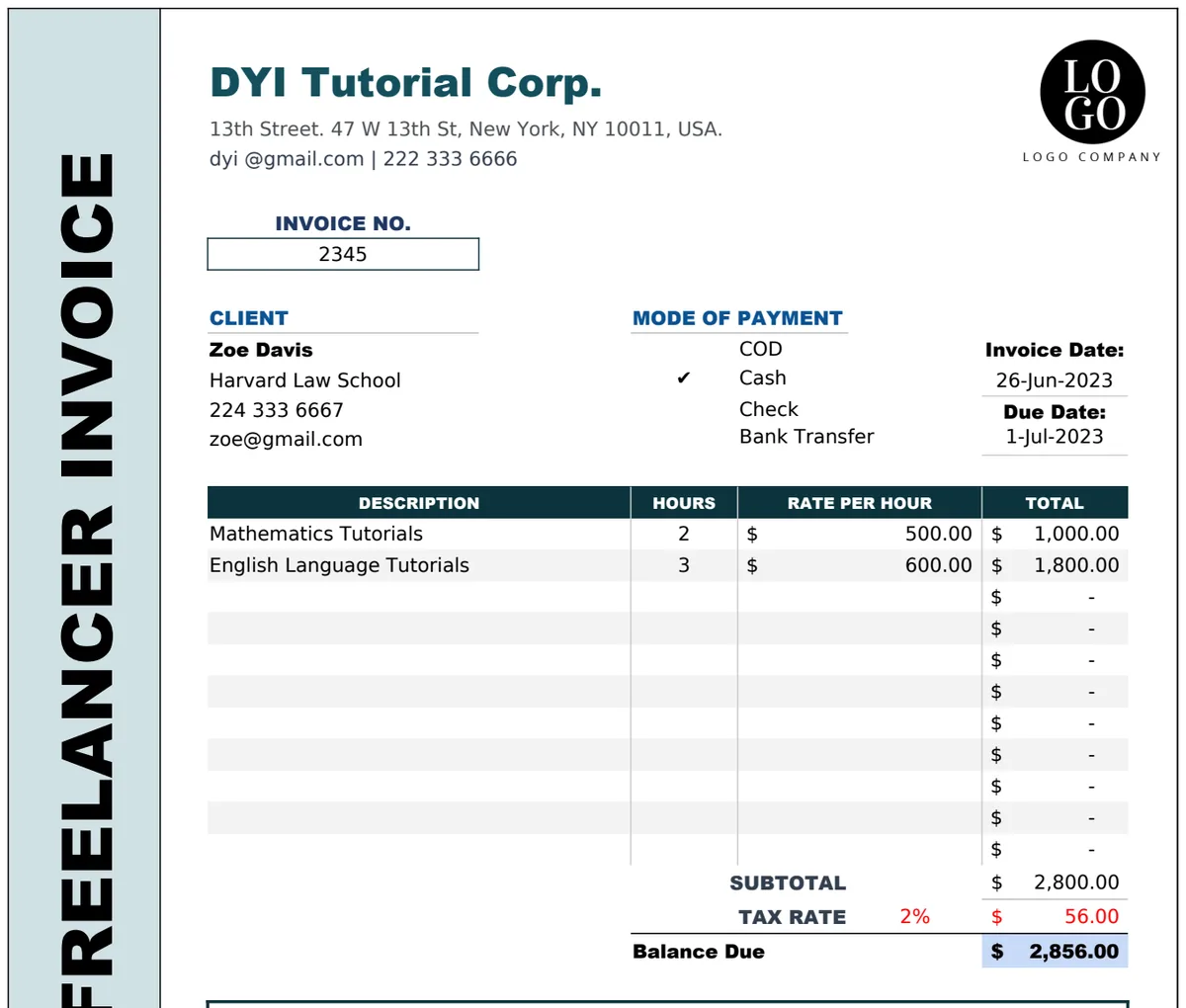
If you're frequently logging time and need to generate invoices from it, consider a template like the Time Log Invoice Tracker. This template is designed to capture billable hours per project and client, and then export that data in a format ready for invoicing. When integrated with your main tracker, the "Hours Logged" column can pull data dynamically.
For instance, if your time log sheet has a column for "Project Name" and "Hours," you could use a formula in your main tracker sheet's "Hours Logged" column. Assuming your main tracker is on Sheet1 and your time logs are on Sheet2, with Project Name in column B on Sheet1 and column A on Sheet2, and Hours in column F on Sheet1 and column B on Sheet2, a formula like this could work:
=SUMIF(Sheet2!A:A, Sheet1!B2, Sheet2!B:B)
This formula sums all hours from Sheet2 where the Project Name in column A matches the Project Name in cell B2 of Sheet1. You'd then drag this formula down for all your projects.
Visualizing Project Timelines and Progress
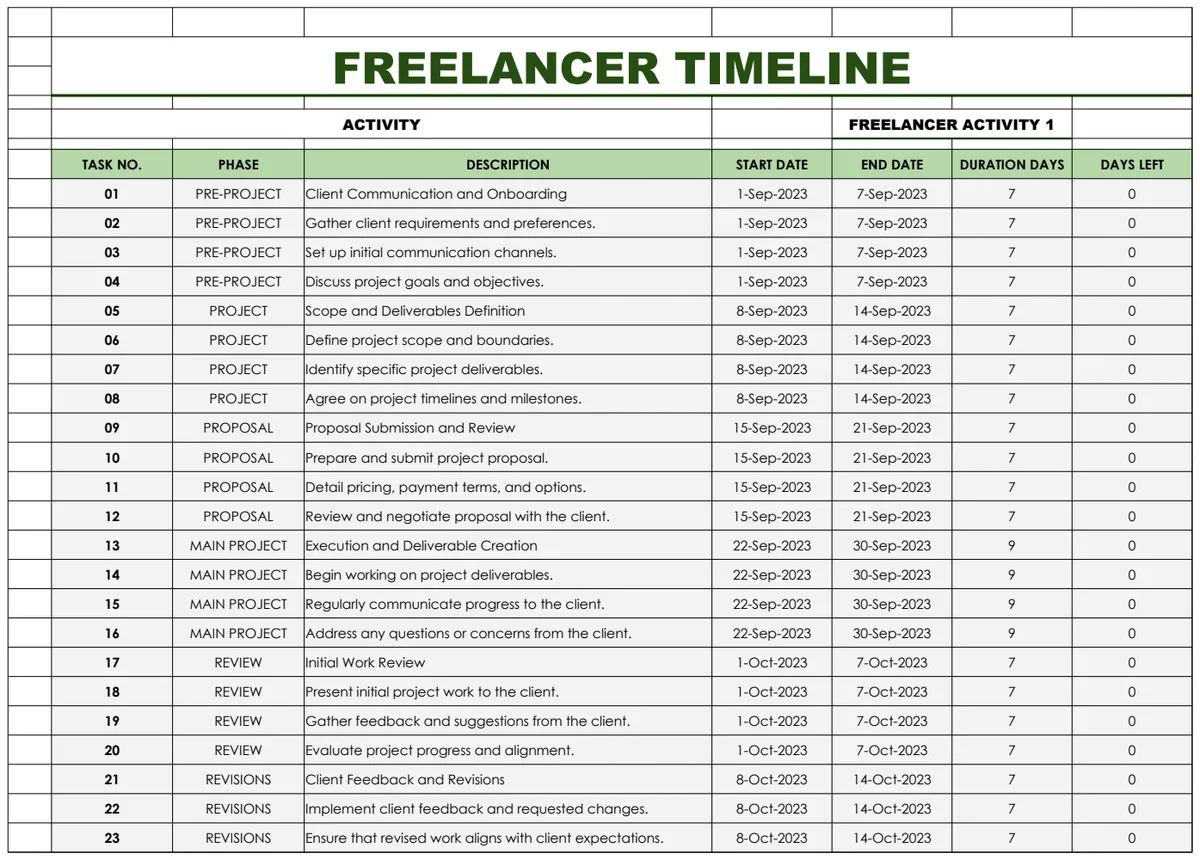
Beyond just listing deadlines, visualizing your project flow is crucial for managing expectations and identifying bottlenecks. A dedicated timeline view can be incredibly helpful.
If your projects often have multiple phases and dependencies, a template like the Freelancer Timeline Template can provide a Gantt-chart-like view. This visually represents project duration, key milestones, and how different tasks overlap. Embedding or linking key project data from your main tracker into this timeline ensures your visual representation is always up-to-date.
For more complex projects, especially those involving marketing campaigns or product development, a more detailed management system might be beneficial. Templates like the Startup Marketing Project Management Tracker Template offer features for real-time status updates, completion rates, and detailed phase tracking, which can be a sophisticated upgrade once your basic needs are met.
Tracking Project Profitability
Knowing your billable hours is one thing; understanding your actual profit is another. This requires a bit more detail, especially if you incur direct costs for projects.
Project Costs: Add columns to your tracker for:
- Direct Costs: Any expenses directly attributable to the project (e.g., stock photos, software licenses for a specific client project, freelance subcontractor fees).
- Total Project Cost: Sum of Direct Costs.
With these in place, you can calculate:
- Gross Profit: Actual Revenue - Total Project Cost.
- Profit Margin (%): (Gross Profit / Actual Revenue) \* 100.
You can then add conditional formatting to highlight projects with low profit margins. For example, set a rule to turn the "Profit Margin (%)" cell red if the value is below 20%, yellow if between 20-35%, and green if above 35%. This visual cue immediately draws your attention to projects that might need a pricing review or efficiency improvement.
Implementing Status Updates and Notifications
Keeping your "Status" column current is vital. However, without a system, it's easy for statuses to become outdated, leading to miscommunication or missed opportunities.
Consider adding a "Last Updated" column to your tracker. Each time you update a project's status or log new hours, you also update this date. You can then use formulas to flag projects that haven't been updated in a while.
For example, in a new column called "Stale Project?", you could use a formula that checks the "Last Updated" date against the current date. If your "Last Updated" date is in column M, and your "Stale Project?" column is O, you could use:
=IF(M2 < TODAY()-7, "Needs Review", "")
This formula flags any project where the "Last Updated" date is more than 7 days ago. You can adjust the "7" to whatever threshold makes sense for your workflow.
Common Mistakes to Avoid
Many freelancers fall into predictable traps when setting up and using a project tracker. Being aware of these can save you significant headaches.
- Overly Complex Setup: Trying to build a system that does too much too soon. Start with the core columns and add complexity only when a clear need arises. A template that is too complicated will be abandoned.
- Inconsistent Data Entry: Not logging hours regularly, forgetting to update statuses, or using inconsistent naming conventions for clients and projects. This renders the tracker unreliable.
- Ignoring "Waiting for Client" Status: Projects can languish indefinitely if you don't actively follow up on client responses. Your tracker should prompt you to check these regularly.
- Lack of Profitability Tracking: Focusing solely on revenue and deadlines without considering project costs and true profit margins. This can lead to taking on unprofitable work.
- Not Reviewing Regularly: A tracker is only useful if you actually look at it. Schedule weekly reviews of your project list to ensure everything is on track and to adjust priorities.
Expanding Your Tracker's Capabilities
Once your basic freelance project tracker spreadsheet template is functioning well, you might want to enhance its capabilities.
How to Handle Multiple Projects for the Same Client
If you have several ongoing projects for a single client, you can add a "Client Grouping" column or use pivot tables. A "Client Grouping" column allows you to easily filter your entire tracker by client. Alternatively, create a separate summary sheet that uses pivot tables to aggregate data (like total revenue, total hours logged) for each client across all their projects. This gives you a high-level view of your client relationships.
Integrating with Other Tools
While a spreadsheet is powerful, consider how it can connect to other tools you use. Many CRM systems or project management software offer integrations or export/import functions. For instance, if you use a separate tool for invoicing, ensure its data can be exported in a format compatible with your spreadsheet's import capabilities to keep your "Actual Revenue" column updated. The goal is to minimize manual data transfer.
Managing Long-Term vs. Short-Term Projects
For very long-term projects or retainer-based work, the "Original Due Date" might not be as relevant as a recurring billing cycle. You might add a "Billing Cycle" column (e.g., "Monthly," "Quarterly") and a "Next Billing Date." This helps ensure you don't miss recurring invoices for ongoing engagements. The Startup Marketing Project Management Tracker Template can be particularly useful for managing the complex, multi-phase nature of longer-term initiatives.
What If I Need a More Robust System?
If your freelance business is growing rapidly and a spreadsheet feels limiting, it's a sign to explore dedicated software. However, even advanced tools often draw inspiration from the core principles of a well-organized tracker. Before investing, consider what specific features you're missing from your spreadsheet. Are you struggling with team collaboration, complex task dependencies, or resource allocation? Identifying these needs will help you choose a tool that genuinely solves your problems, rather than just adding another subscription. The library offers a range of templates, with core functionality available for a one-time fee of $9, providing a cost-effective starting point for many needs.