Stop losing clients: your freelance tracker fix
Create a functional client tracker spreadsheet template freelance professionals need to manage clients, payments, and project status effectively.
By the end of this, you'll have a functioning client tracker spreadsheet, likely built in Excel or Google Sheets, that lets you see at a glance which clients owe you money, when your last communication was, and their project status. This is the core of a useful client tracker spreadsheet template freelance professionals rely on to stay organized and get paid.
A well-structured tracker prevents work from falling through the cracks. It’s more than just a list; it’s a system for managing your freelance business, ensuring you can focus on client work rather than chasing down details or forgetting to follow up.
Essential Columns for Your Tracker
You need a minimum set of columns to make your tracker effective. Think about the information you absolutely must know for each client.
- 01Client Name: The name of the business or individual.
- 02Contact Person: The specific person you interact with.
- 03Email Address: For quick reference and sending follow-ups.
- 04Phone Number: Another way to reach them.
- 05Project Name/Description: What are you working on for them?
- 06Project Status: Use clear, consistent terms like "Prospect," "Proposal Sent," "In Progress," "Awaiting Feedback," "Completed," "Invoiced," "Paid," or "On Hold."
- 07Last Contact Date: When did you last speak or email? This helps gauge engagement.
- 08Next Follow-Up Date: Crucial for proactive engagement and sales.
- 09Invoice Number: Link to specific invoices.
- 10Invoice Date: When was the invoice sent?
- 11Amount Due: The outstanding balance.
- 12Due Date: When is payment expected?
- 13Payment Status: "Unpaid," "Partially Paid," "Paid."
- 14Notes: A catch-all for important details, like preferred communication methods, specific project requirements, or past issues.
Setting Up Your Spreadsheet
Let's walk through creating a basic client tracker in a spreadsheet application like Excel or Google Sheets.
- 01Open a New Sheet: Start with a blank workbook.
- 02Add Headers: In the first row (Row 1), type in the essential column headers listed above. Make them bold so they stand out.
- 03Format Dates: Select the columns for "Last Contact Date," "Next Follow-Up Date," "Invoice Date," and "Due Date." Go to your spreadsheet's formatting options and choose "Date" format (e.g., MM/DD/YYYY or DD-Mon-YYYY). This ensures consistent data entry and allows for sorting by date.
- 04Format Currency: Select the "Amount Due" column. Format it as "Currency" so numbers display with a dollar sign ($) and appropriate decimal places.
- 05Data Validation for Status Columns: For columns like "Project Status" and "Payment Status," use data validation to create dropdown lists. This ensures consistency and prevents typos.
- In Google Sheets, select the column, go to Data > Data validation > Add rule. Choose "Dropdown (from a range)" or "Dropdown." Enter your status options (e.g., "Prospect," "In Progress," "Completed," "Invoiced," "Paid").
- In Excel, select the column, go to Data > Data Validation. Under "Allow," choose "List." In the "Source" box, type your status options separated by commas (e.g., Prospect,In Progress,Completed,Invoiced,Paid).
Using Formulas for Insight
Once your data is in, formulas can turn your tracker into a powerful management tool.
Calculating Days Overdue
You can easily see which invoices are late. Suppose your "Due Date" is in column J and your "Payment Status" is in column K. In a new column, say "Days Overdue" (Column L), you can use a formula.
For Row 2, this formula would work:
``Excel =IF(AND(K2="Unpaid", J2<TODAY()), TODAY()-J2, "") ``
This formula checks two conditions: is the "Payment Status" "Unpaid" AND is the "Due Date" earlier than today's date? If both are true, it calculates the number of days overdue. Otherwise, it leaves the cell blank. You can then drag this formula down to apply it to all your rows.
Summing Amounts Due
To quickly see your total outstanding income, use the SUMIF or SUMIFS function. If your "Amount Due" is in column I and "Payment Status" is in column K, you could use:
``Excel =SUMIF(K2:K100, "Unpaid", I2:I100) ``
This sums all values in the range I2:I100 where the corresponding cell in K2:K100 is "Unpaid." Adjust the row numbers (100 in this example) to cover all your potential client entries.
Conditional Formatting for Visual Cues
Conditional formatting is a game-changer for quickly identifying urgent items.
- Overdue Invoices: Select your "Due Date" column (J). Go to Conditional Formatting. Set a rule to highlight cells red if the date is less than today's date AND the "Payment Status" column (K) is "Unpaid."
- Upcoming Payments: You might want to highlight invoices due within the next 7 days in yellow. Set a rule to highlight cells yellow if the "Due Date" is between today and today + 7 days, and the "Payment Status" is "Unpaid."
- Project Status: Color-code your "Project Status" column. For example, "In Progress" could be blue, "Awaiting Feedback" could be orange, and "Completed" could be green.
This visual approach lets you scan your tracker and immediately see what needs your attention, making it far more effective than just looking at raw data.
Tracking Client Communication
Beyond just payments and project status, knowing when you last spoke to a client is vital for nurturing relationships.
- Last Contact Date: Enter the date you last had a meaningful interaction (email, call, meeting).
- Next Follow-Up Date: This is proactive. If you just finished a project and know you'll want to check in about future work in a month, put that date here. If you sent a proposal, set a date a week later to follow up.
- Conditional Formatting on Follow-Up Dates: Use conditional formatting to highlight "Next Follow-Up Date" cells that are today or in the past, reminding you to reach out.
This level of detail helps prevent clients from feeling forgotten and can lead to repeat business. For ongoing client relationships, consider a dedicated CRM, but for most freelance needs, a well-designed client tracker spreadsheet template freelance professionals can adapt is sufficient.
Common Mistakes to Avoid
Many freelancers make similar errors that diminish the usefulness of their trackers.
- Inconsistent Status Updates: Not updating the "Project Status" or "Payment Status" regularly means your data is unreliable.
- Vague Project Descriptions: "Client Work" isn't helpful. Be specific, like "Website Redesign - Phase 1" or "Blog Post Series - Q3."
- Forgetting to Add New Clients: If a new client isn't in the tracker, they don't exist in your system.
- Not Using Dates Consistently: Entering dates in different formats (e.g., "Jan 5," "01/05/2026," "5th Jan") will break sorting and formula calculations. Stick to one format and use date validation.
- Over-Complicating It: While more columns can be useful, too many can make the spreadsheet unwieldy and hard to maintain. Start with the essentials and add only what you genuinely need.
Advanced Features and Integrations
Once you have the basics down, you can explore enhancements.
Tracking Multiple Projects Per Client
If you have clients with many ongoing projects, you might consider:
- Adding a "Project ID" column: To uniquely identify each project.
- Duplicating rows: For each project if project-specific details like due dates or status differ significantly.
- Using a separate "Projects" sheet: Link back to the client's main entry.
Linking to Invoices
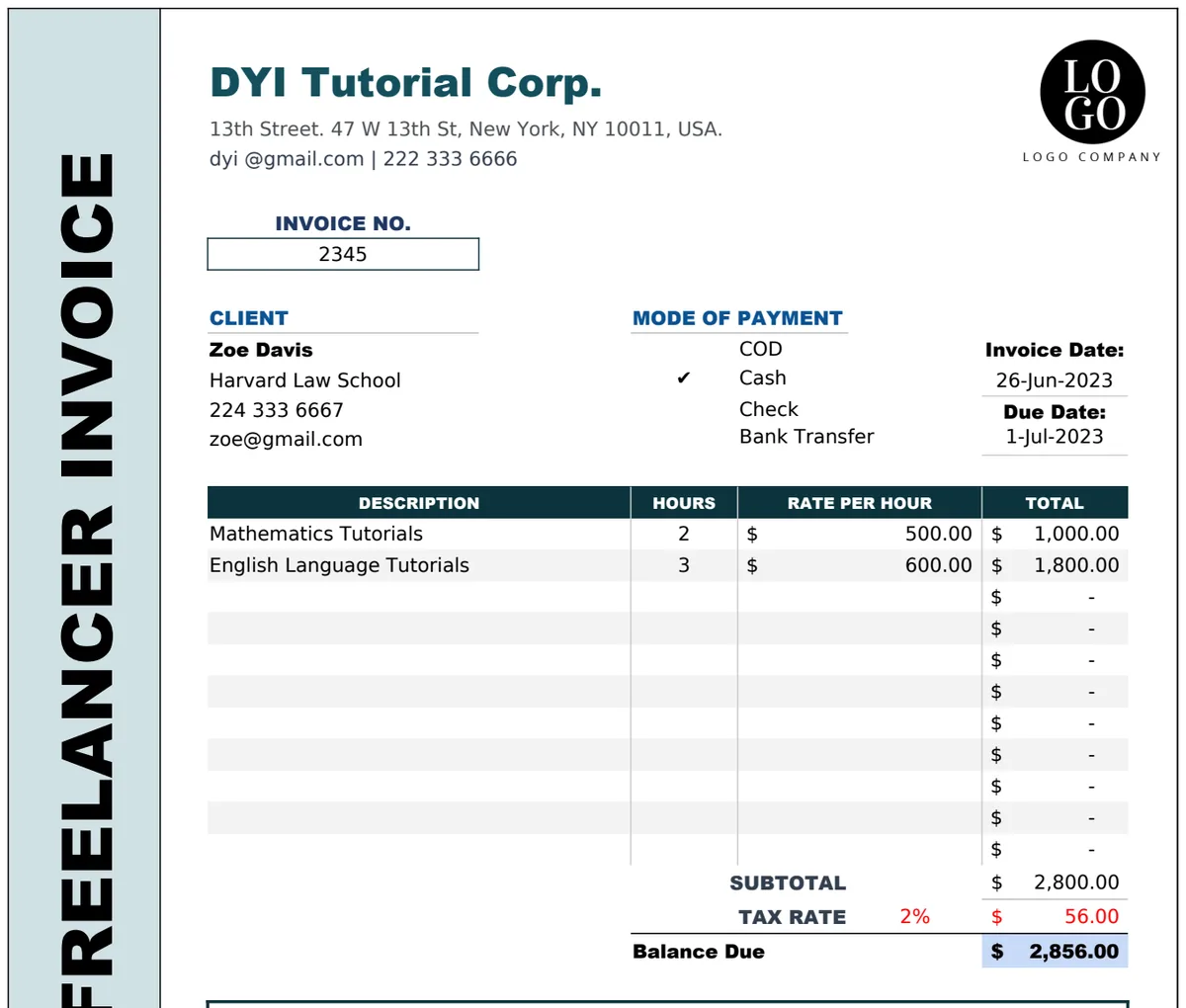
To maintain a clear audit trail, you can link your tracker to your invoices. If you use a template like the Freelancer Invoice Template, you'll have invoice numbers. You can then include the invoice number in your tracker. For even deeper integration, some spreadsheet setups allow you to hyperlink directly to the invoice file if they are stored in a cloud service.
If you're managing revenue across many clients for different service packages, a dedicated Client Revenue Tracker or a Multi-Client Billing & Revenue Tracker might offer more specialized insights.
Using Filters and Sorting
Mastering your spreadsheet's filter and sort functions is key.
- Filtering: Easily view only "Unpaid" invoices, or all projects "In Progress" for a specific client.
- Sorting: Arrange clients alphabetically, by last contact date, or by due date to prioritize tasks.
Mobile Access
For Google Sheets, the mobile app allows you to update your tracker on the go. For Excel, ensure your file is saved in a cloud-synced location (like OneDrive or Dropbox) for similar access.
### Frequently Asked Questions
How often should I update my client tracker?
You should aim to update it daily or at least every other day. Key updates include adding new leads, marking communications, changing project statuses, and entering new invoices. The more current your data, the more useful your tracker will be.
Can I use this for project management?
While a client tracker can help manage project statuses, it's not a full-fledged project management tool. For complex projects with multiple tasks, dependencies, and team collaboration, you'd need dedicated software. However, for many solo freelancers, it's sufficient for tracking progress and deadlines.
What if I have a lot of clients?
If your client list grows beyond 50-100, performance might slow down, and it can become visually overwhelming. At that point, consider:
- 01Splitting into multiple sheets: Perhaps one for active clients and one for prospects.
- 02Moving to a database or CRM: Tools like Airtable, Notion, or dedicated CRM software offer more scalability and advanced features for managing large volumes of client information.
- 03Using a pre-built template: A robust Client Revenue Tracker might handle more data than a simple custom sheet.
This flexibility means you can adapt your system as your freelance business evolves. The initial investment in setting up a good client tracker spreadsheet template freelance professionals can rely on pays dividends in saved time and fewer missed opportunities.