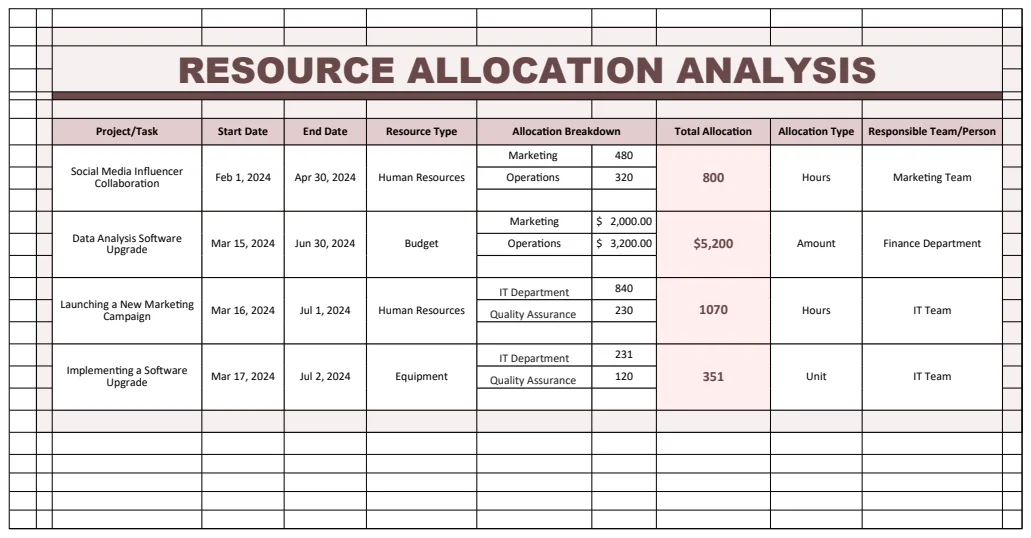
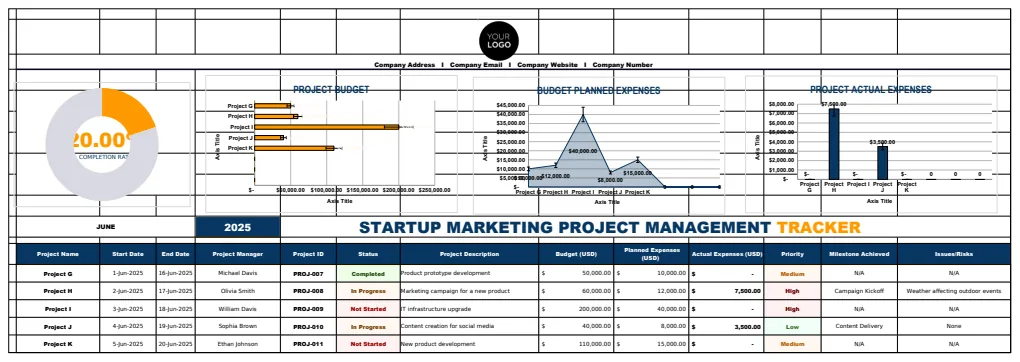
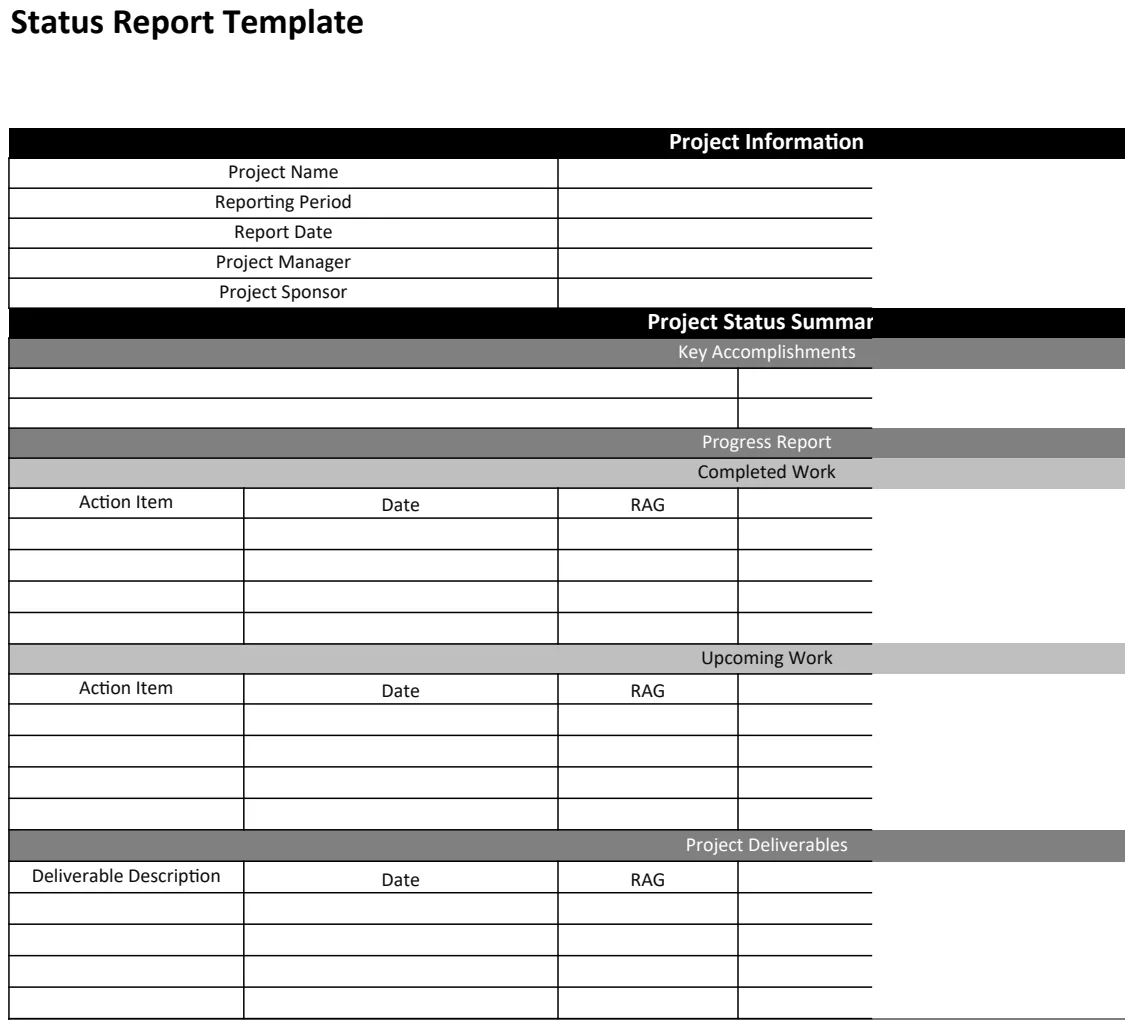
A task tracker spreadsheet for easy project management.
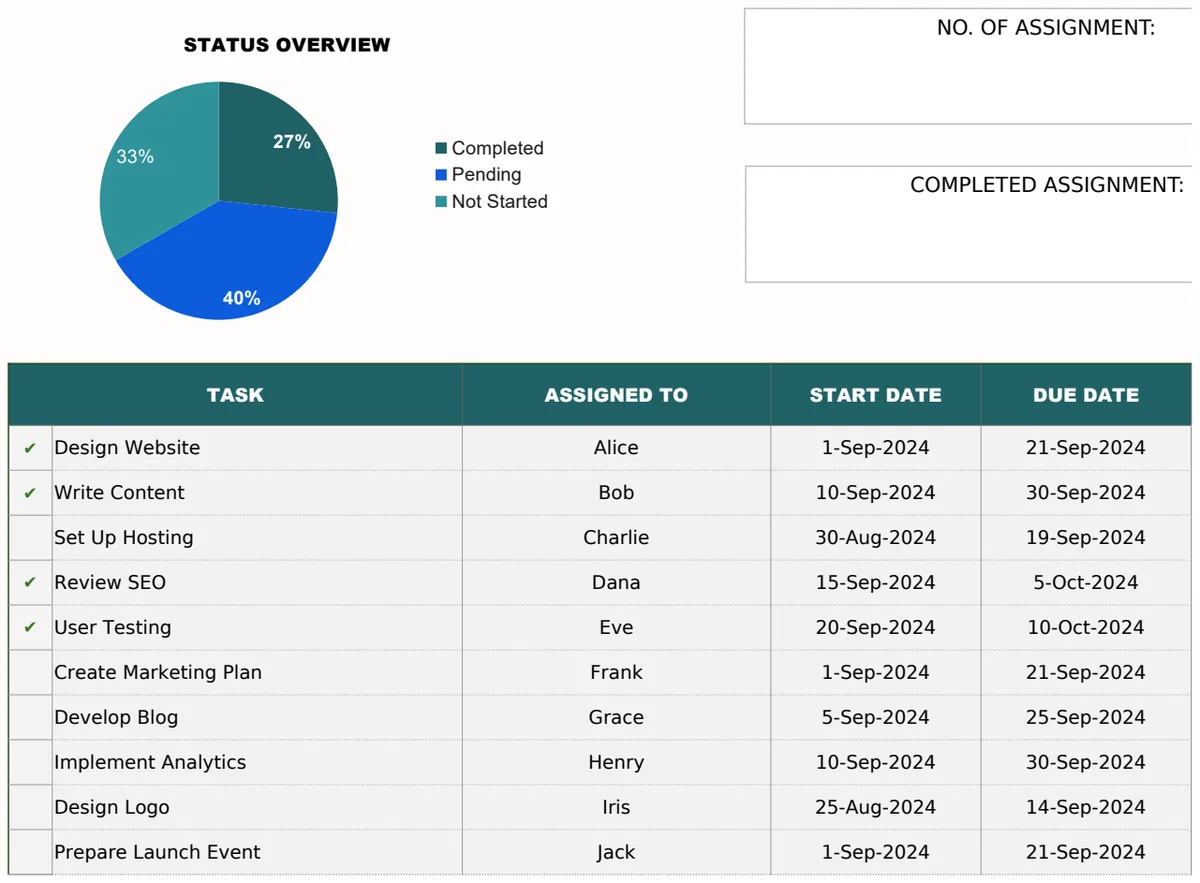
A task tracker spreadsheet template free can be surprisingly powerful for managing projects and breaking down complex tasks.
Many people assume a "task tracker spreadsheet template free" must be basic. In reality, even a simple spreadsheet can provide significant value by breaking down complex projects into manageable steps, assigning ownership, and tracking progress against deadlines. The key isn't the cost, but the structure and discipline you bring to it.
If you're looking for a robust solution that goes beyond basic lists, the Task Assignment Tracker Excel Template offers features like a team member overview, detailed task breakdowns, and even a visual Gantt chart timeline. It’s designed to give you a clear picture of who is doing what and when it’s due, which is often the missing piece in many free solutions.
Building Your Own Task Tracker
You don't need to be an Excel wizard to build a functional task tracker. Start with a clear objective: what information is most critical for you to see at a glance? Most effective trackers include a few core components.
Begin by setting up your columns. Think about the lifecycle of a task. At a minimum, you'll want:
- Task Name: A concise description of the work.
- Assigned To: Who is responsible for completing the task.
- Due Date: The target completion date.
- Status: Where the task stands (e.g., Not Started, In Progress, Blocked, Completed).
- Priority: How urgent the task is (e.g., High, Medium, Low).
This basic structure forms the foundation. From here, you can add columns for estimated effort, actual completion date, notes, or links to related documents.
Enhancing Your Tracker with Formulas and Formatting
Once you have your columns, formulas can automate tasks and highlight important information.
Status Tracking
Conditional formatting is your best friend here. You can set up rules so that tasks automatically change color based on their status. For example:
- Green: For tasks with "Completed" status.
- Yellow: For tasks with "In Progress" status.
- Red: For tasks with "Blocked" status or tasks that are past their due date and not yet completed.
To do this in Excel or Google Sheets, select the range of cells you want to format (e.g., your entire task list, or just the "Status" column). Go to "Conditional Formatting" and choose "New Rule." For status highlighting, you'd typically use a "Format cells based on their values" rule, selecting "Text contains" or "Equal to" for your status text.
Calculating Overdue Tasks
You can also use formulas to flag overdue items. Add a column called "Overdue?" and use a formula like this in the first row of your data (assuming your Due Date is in column C and Status is in column D):
=IF(AND(C2<TODAY(), D2<>"Completed"), "Yes", "No")
This formula checks if the due date (C2) is before today's date and if the status (D2) is not "Completed." If both are true, it flags the task as "Yes." You can then apply conditional formatting to this "Overdue?" column to turn the entire row red if it says "Yes."
Choosing the Right Template for Your Needs
While building your own tracker is feasible, sometimes a pre-built template saves significant time and offers features you might not have considered.
For instance, if you manage multiple small projects or recurring tasks, the Simple Task Tracker is an excellent starting point. It focuses on the essentials, priority, dates, and completion percentage, helping you stay organized without overwhelming you with options. It’s a prime example of how a well-structured task tracker spreadsheet template free can be incredibly effective for personal or small team use.
If your needs are more complex, involving team assignments and project timelines, a more advanced solution is beneficial. The Task Assignment Tracker Excel Template includes features like a team member overview and a Gantt chart, which are invaluable for visualizing project flow and resource allocation.
For tracking urgent action items that require clear ownership and follow-up, the Action Item Tracker or the slightly different Action Item Tracker are designed precisely for that purpose. They help ensure nothing slips through the cracks.
Common Mistakes to Avoid
Even with a great template, users often fall into common traps that diminish the tracker's effectiveness.
- Lack of Regular Updates: The biggest pitfall is creating a tracker and then forgetting to update it. A task tracker is only useful if it reflects the current reality of your projects. Schedule time daily or weekly to review and update statuses.
- Overly Complex Tasks: Breaking tasks down into too granular a level can be as problematic as having tasks that are too broad. Aim for tasks that are achievable within a few days to a week. If a task takes longer, it might be a sub-project that needs its own breakdown.
- Unrealistic Due Dates: Setting deadlines without considering actual capacity or potential roadblocks is a recipe for frustration. Be honest about timelines and build in buffer where possible.
- Ignoring "Blocked" Status: When a task is blocked, it needs immediate attention. If you have a "Blocked" status but don't act on those items, the tracker becomes a list of problems rather than a tool for solutions.
Advanced Features and Considerations
As you get more comfortable with your task tracking system, you might want to explore more advanced features.
Using Lookup Functions
If you have a separate list of team members, you can use VLOOKUP or XLOOKUP to automatically populate their names when you type an ID or a partial name, reducing typing errors and ensuring consistency. For example, if you have a list of team members in a sheet named "Team List" with names in column A and IDs in column B, and your task tracker has a "Team ID" column, you could use:
=XLOOKUP(E2, 'Team List'!B:B, 'Team List'!A:A, "Not Found")
This would pull the team member's name into your task tracker based on the ID in cell E2.
Progress Tracking
Beyond a simple "Completed" status, you might want to track progress percentage. This can be a simple number entry (0-100%) or calculated. For example, if a task has sub-tasks, you could have a separate list of sub-tasks, and the main task’s progress percentage could be calculated as =(COUNTIF(SubtaskStatusRange, "Completed") / COUNTA(SubtaskRange)) * 100. This requires a more sophisticated setup but offers a finer-grained view of progress.
Filtering and Sorting
Mastering the filter and sort functions in your spreadsheet software is crucial. You’ll want to quickly:
- See all tasks assigned to you.
- View tasks due this week.
- Identify high-priority items.
- Filter for tasks that are blocked.
Don’t let your tracker become a massive, unmanageable list. Regular filtering and sorting will keep the relevant information at the forefront.
Integrating with Other Tools
While a spreadsheet is powerful, it might not be the end of the road. For larger teams or more complex workflows, consider how your spreadsheet tracker could feed into or integrate with other project management tools. This might involve exporting data, using APIs (if you have the technical skill), or simply using the spreadsheet as a robust planning tool before migrating tasks to a dedicated platform. For many, however, a well-maintained task tracker spreadsheet template free or a low-cost template is more than sufficient.
When to Upgrade
If you find yourself spending more time managing the tracker than doing the work, or if your team’s needs outgrow the capabilities of a spreadsheet (e.g., complex dependencies, real-time collaboration across many users, automated workflows), it might be time to look at dedicated project management software. The library of templates at OpenWorksheet offers a range of options, from simple to advanced, and the entire library is available for a one-time payment of $9, providing unlimited downloads for all your project management needs.
Frequently Asked Questions
How do I make sure everyone on my team uses the task tracker?
Consistency is key. Establish clear expectations about updating task statuses and due dates. Make it a part of your regular team meetings to review the tracker. Lead by example by using it yourself and referencing it during discussions.
What if a task is dependent on another task being completed?
You can indicate dependencies by adding a "Depends On" column. This column would list the Task ID or Task Name of the preceding task. While a spreadsheet can't automatically enforce these dependencies like dedicated software, it serves as a visual reminder for everyone involved. You can then manually ensure the dependent task isn't started until its prerequisite is done.
Can I track time spent on tasks in a spreadsheet?
Yes, you can add a "Time Spent" column and have team members log their hours. For more automated time tracking, you would typically need specialized software, but for a general overview, manual logging in a spreadsheet works. You could even add a formula to calculate the difference between "Time Spent" and an "Estimated Time" column to identify where estimates are consistently off.