Chart of accounts setup in under an hour
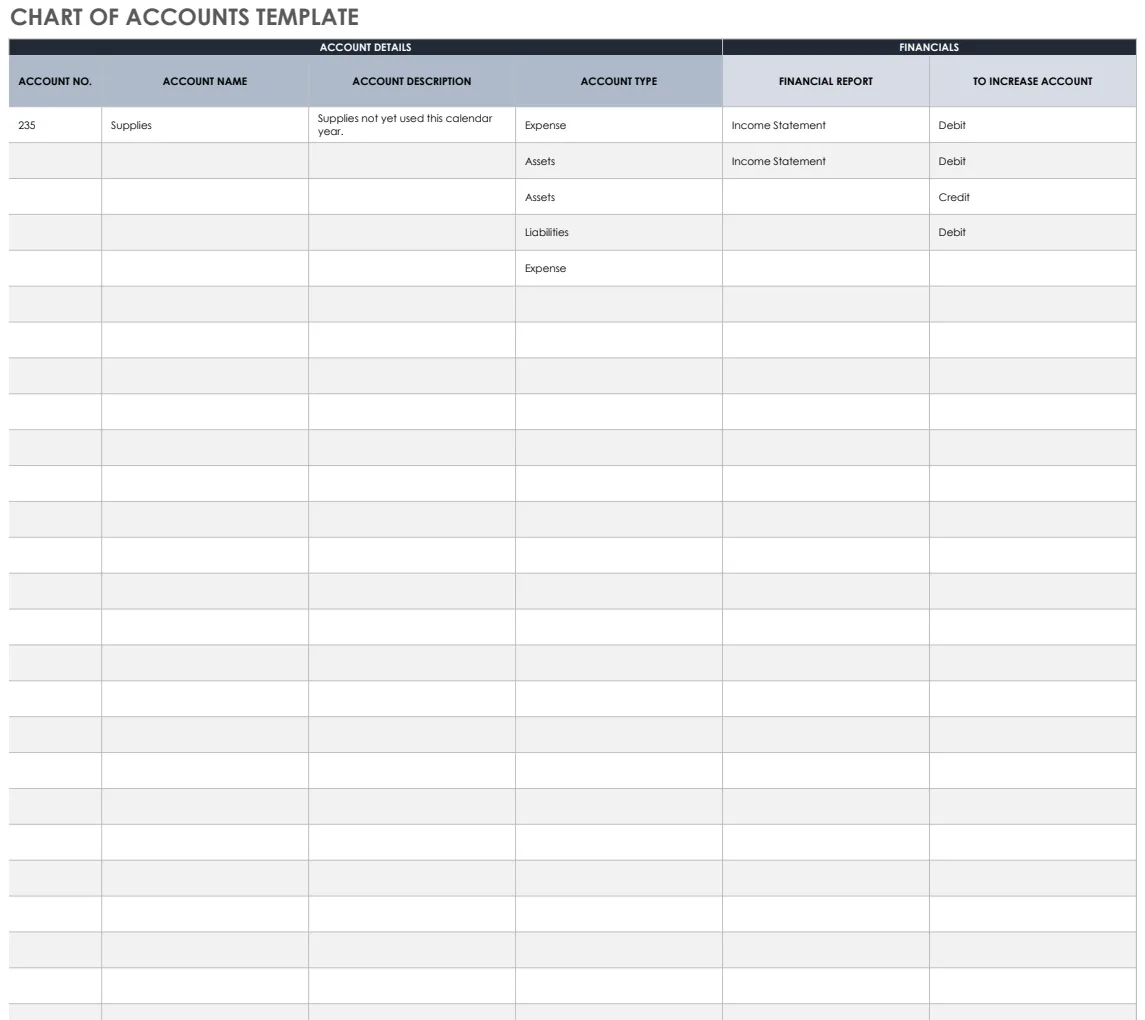
Avoid static lists. This guide shows you how to create a dynamic chart of accounts that truly helps your business finances.
The single most common failure of a "chart of accounts template Excel free" is that it becomes a static list rather than a dynamic tool. This happens because the accounts are entered as plain text, making it impossible to easily categorize or sum transactions later. Without a proper structure and numbering system, you're left with a disorganized list that doesn't actually help you understand your financial position.
A well-designed chart of accounts is the backbone of your financial tracking. It provides a framework for recording every financial transaction your business makes, from sales revenue to operating expenses. Think of it as a digital filing cabinet where every account has a specific home. Using a template that facilitates this structure, rather than just listing account names, will save you immense time and prevent errors down the line. Many people search for a chart of accounts template Excel free without realizing the importance of the system behind the accounts themselves.
Understanding Account Numbering
The core of a functional chart of accounts is its numbering system. This isn't just for show; it's how you group similar accounts and create a hierarchy. A common structure looks something like this:
- 1000-1999: Assets (What your business owns)
- 1100: Current Assets (Assets expected to be converted to cash within a year)
- 1110: Cash
- 1120: Accounts Receivable
- 1130: Inventory
- 1500: Fixed Assets (Long-term assets)
- 1510: Property, Plant, and Equipment
- 2000-2999: Liabilities (What your business owes)
- 2100: Current Liabilities (Debts due within a year)
- 2110: Accounts Payable
- 2120: Salaries Payable
- 2500: Long-Term Liabilities
- 2510: Loans Payable
- 3000-3999: Equity (Owner's stake in the business)
- 3100: Owner's Capital
- 3200: Retained Earnings
- 4000-4999: Revenue (Income generated from operations)
- 4100: Sales Revenue
- 4200: Service Revenue
- 5000-5999: Cost of Goods Sold (Direct costs of producing goods sold)
- 5100: Cost of Sales
- 6000-6999: Operating Expenses (Costs of running the business, not directly tied to production)
- 6100: Salaries and Wages
- 6200: Rent Expense
- 6300: Utilities Expense
- 6400: Marketing Expense
- 7000-7999: Other Income/Expenses (Non-operating items)
- 7100: Interest Income
- 7200: Interest Expense
This numbering scheme allows you to easily sort your accounts by type and to expand your chart of accounts as your business grows without disrupting the existing order. For instance, if you need to add a new type of asset, you can insert it within the 1000s range without renumbering everything else.
Building Your Chart of Accounts in Excel
When you're looking for a chart of accounts template Excel free, you want one that's set up to accept this kind of structured numbering. Here’s a step-by-step approach to creating or adapting a template:
- 01Set up Essential Columns: In your Excel sheet, create the following columns:
- Account Number: This will hold your numeric identifier (e.g., 1110).
- Account Name: The descriptive name of the account (e.g., "Cash").
- Account Type: Categorize each account (e.g., "Asset," "Liability," "Revenue," "Expense"). This is crucial for reporting.
- Description/Notes: An optional column for further details about the account's purpose.
- 02Populate with Standard Accounts: Start by entering the basic accounts that most businesses need. Use the numbering system described above. For a service business, you might start with Cash, Accounts Receivable, various Expense accounts (Rent, Utilities, Salaries), and Revenue. A merchandising business will add Inventory and Cost of Goods Sold.
- 03Implement Account Types: Ensure your "Account Type" column is consistent. You can even use data validation to create a dropdown list of approved types (Asset, Liability, Equity, Revenue, Expense). This prevents typos and ensures uniformity.
- 04Consider Sub-Accounts: If your business is complex, you might need sub-accounts. For example, under "Marketing Expense," you might have "Advertising," "Social Media," and "Website." Your numbering can reflect this: 6410 for Advertising, 6420 for Social Media, etc.
- 05Add Formulas for Summaries (Optional but Recommended): While a basic chart of accounts is just a list, its real power comes when linked to transaction data. If you plan to use this with a journal or ledger, you might add columns that pull summary data. For instance, you could have a column that sums up the balance for each account based on your journal entries. This is where a well-structured template shines.
Linking to Transactional Data
The true value of a chart of accounts template Excel free is its ability to integrate with your daily transactions. Without this link, it's just an inert list. This is where templates designed for actual accounting work become invaluable.
Imagine you're recording a sale. You'll debit "Cash" or "Accounts Receivable" (an Asset account) and credit "Sales Revenue" (a Revenue account). Each entry in your journal or ledger needs to reference the correct account number and name from your chart of accounts.
If you're using a template that's just a list of names, you'll have to manually type everything each time. This is error-prone. A better approach is to use a General Journal Template V13 which is built with chart of accounts integration in mind. When you enter a transaction, you can select the account from a dropdown list that pulls directly from your chart of accounts. This drastically reduces errors and speeds up data entry.
For businesses that deal with physical goods, tracking inventory and cost of goods sold is critical. A Chart of Accounts template that's designed to be expanded or integrated with other modules, like those found in our accounting section, can help you manage these specific accounts more effectively.
Mistakes to Avoid
When setting up or using a chart of accounts, even a free template, several common pitfalls can derail your efforts:
- Overly Broad or Narrow Accounts: Creating accounts that are too general (e.g., "Miscellaneous Expenses") makes it hard to analyze spending. Conversely, having too many highly specific accounts (e.g., "Paper Clips - Blue," "Paper Clips - Red") can become unwieldy. Find a balance that provides meaningful detail without excessive complexity.
- Inconsistent Naming Conventions: Using "Rent Expense," "Office Rent," and "Lease Payment" for the same type of expense confuses analysis. Stick to a clear and consistent naming system.
- Ignoring Account Types: Failing to correctly categorize accounts as Asset, Liability, Equity, Revenue, or Expense will lead to incorrect financial statements.
- Not Planning for Growth: Starting with a very basic chart of accounts is fine, but ensure your numbering system and template structure allow for easy addition of new accounts as your business expands.
- Manual Data Entry Errors: As mentioned, relying on manual typing for account numbers and names in your transaction logs is a recipe for errors. Use dropdowns and lookups whenever possible.
Expanding Your Accounting System
A basic chart of accounts is a starting point. As your business grows and its transactions become more complex, you'll likely need more sophisticated tools.
If you manage a retail or wholesale business, you'll need to go beyond just a basic P&L. An Accounting Merchandising P&L Report template can help you track gross profit, operating expenses, and net income with greater detail, often integrating directly with your chart of accounts for accurate reporting.
For businesses that need to track specific types of transactions like cash receipts, cash disbursements, sales, and purchases, special journals are essential. Templates like the Accounting Merchandising Special Journals automate the posting of these transactions to your general ledger and chart of accounts, saving significant manual effort and reducing errors.
Frequently Asked Questions
How many accounts should be in my chart of accounts?
There's no magic number. The ideal number depends on your business's complexity. A small service business might function with 20-40 accounts, while a larger manufacturing or retail operation could easily have 100 or more. The key is to have enough detail to understand your financial performance without creating an unmanageable list.
Can I use a free chart of accounts template indefinitely?
You can certainly start with a free template. For many small businesses, a well-structured Excel or Google Sheets chart of accounts is sufficient for a long time. However, as your business scales, you might find that dedicated accounting software offers more robust features for reporting, reconciliation, and compliance. Our library provides templates that can bridge the gap, offering advanced structures and integrations.
What's the difference between a chart of accounts and a general ledger?
The chart of accounts is the list of all possible accounts. The general ledger is the record of all transactions posted to each of those accounts. Think of the chart of accounts as the index of a book, and the general ledger as the actual pages of the book, with each entry detailing what happened in a specific account.
How often should I review and update my chart of accounts?
You should review your chart of accounts at least annually, typically when preparing for tax season or closing out your fiscal year. Look for accounts that are no longer used, accounts that have become too broad or too narrow, or if new types of transactions require new accounts. Keeping it relevant ensures it continues to serve your business effectively.