A simple sales tax tracker spreadsheet for small business
A simple sales tax tracker spreadsheet template can help small businesses manage tax liability and avoid last-minute filing panic.
The moment you realize you owe sales tax often comes not with a sale, but with the tax filing deadline. This happens because tracking tax liability transaction by transaction, across different jurisdictions and tax rates, is inherently complex and easily overlooked in the day-to-day hustle of running a business. A robust sales tax tracker spreadsheet template can prevent this last-minute panic.
You need a system that captures each sale, correctly assigns the applicable tax rate, and then aggregates that information for reporting. Without it, you risk underpaying, overpaying, or missing filing deadlines altogether, leading to penalties and interest. This is where a well-structured spreadsheet becomes indispensable.
Building Your Sales Tax Tracker: Core Components
At its heart, a sales tax tracker spreadsheet template needs to record essential details for every taxable transaction. Think of it as your detailed ledger for sales tax. The columns you'll need are straightforward but critical:
- Date: When the sale occurred. Essential for tracking by period.
- Transaction ID/Invoice Number: A unique identifier for each sale. This helps cross-reference with your sales records.
- Customer Name/ID: If you track customers, this can be useful for identifying specific client tax obligations, especially for B2B sales.
- Product/Service Sold: A brief description.
- SKU (Stock Keeping Unit): If applicable, for inventory-based businesses.
- Quantity: How many units were sold.
- Unit Price: The price of a single item.
- Total Sale Amount (Before Tax): The subtotal for the line item or transaction.
- Jurisdiction/State: Crucial for determining the correct tax rate. This might be the customer's shipping address or your business's nexus location.
- Tax Rate Applied: The specific percentage used (e.g., 7.5%).
- Sales Tax Collected: The calculated amount of tax for that transaction (
Total Sale Amount * Tax Rate Applied). - Payment Method: Sometimes relevant for understanding revenue streams.
- Notes: Any specific details about the transaction that might affect taxability.
Calculating Sales Tax Automatically
Manually calculating sales tax for each transaction is tedious and prone to error. Your spreadsheet should automate this. If you have columns for Total Sale Amount (Before Tax) and Tax Rate Applied, you can use a simple formula in your Sales Tax Collected column. Assuming your tax rate is in column J and the sale amount is in column H, for row 2, the formula would be:
=H2 * J2
This formula should be copied down for every transaction. If your tax rates change throughout the year, you might need a more sophisticated approach, perhaps a lookup table for tax rates based on date and jurisdiction.
Handling Different Tax Rates and Jurisdictions
This is where sales tax tracking gets complicated. Many businesses operate in states with different tax laws, or sell to customers in various jurisdictions, each with its own rate and rules on what is taxable.
For instance, some states tax services, others only goods. Some have local (city/county) taxes on top of state taxes. Your sales tax tracker spreadsheet template needs to accommodate this.
A common strategy is to have a separate lookup table or a dedicated section on your sheet that lists states, their general sales tax rates, and potentially any common local additions. You can then use formulas like VLOOKUP or XLOOKUP to pull the correct tax rate based on the Jurisdiction/State column for each transaction.
For example, if your tax rates are listed in a separate sheet named "Tax Rates" with columns "State" and "Rate", and your transaction sheet has the state in column I, you could use:
=XLOOKUP(I2, 'Tax Rates'!A:A, 'Tax Rates'!B:B, 0)
This assumes the state is in column A of "Tax Rates" and the rate is in column B. The 0 at the end ensures it returns an error if the state isn't found, prompting you to add it.
Aggregating Data for Filing
Once you've recorded all your transactions, you need to sum them up for tax filing. This typically involves reporting total taxable sales and total sales tax collected, often broken down by state or jurisdiction, and by filing period (monthly, quarterly, annually).
You can use functions like SUMIFS to achieve this. For example, to sum the sales tax collected for a specific state (say, "California") in a given month (say, January), assuming your "Date" column is A, "Jurisdiction/State" is I, and "Sales Tax Collected" is K:
=SUMIFS(K:K, I:I, "California", A:A, ">="&DATE(2026,1,1), A:A, "<="&DATE(2026,1,31))
This formula sums column K only for rows where column I is "California" AND column A falls within January 2026. You would create similar formulas for each jurisdiction you collect tax for and for each reporting period.
Common Mistakes to Avoid
Many entrepreneurs stumble when setting up their sales tax tracking. Here are a few pitfalls to watch out for:
- Ignoring Taxability Rules: Not all products or services are taxable. Failing to research and apply these rules means you might collect tax on non-taxable items or vice-versa, leading to discrepancies.
- Inconsistent Jurisdiction Tracking: If you don't consistently record the correct jurisdiction for each sale (e.g., customer ship-to address vs. your business location), you'll struggle to file correctly in multiple states.
- Outdated Tax Rates: Sales tax rates change. Not updating your spreadsheet with new rates means you'll collect and remit the wrong amounts.
- Forgetting Filing Deadlines: A sales tax tracker isn't just for collection; it's for timely remittance. Mark your filing due dates clearly.
- Not Reconciling with Accounting Software: If you use accounting software, ensure your spreadsheet data can be reconciled. Manual entry into a spreadsheet can sometimes lead to transcription errors if not cross-checked.
When to Consider a Dedicated Solution
While a well-built sales tax tracker spreadsheet template can be very effective, especially for businesses with a limited number of taxable jurisdictions, there comes a point where manual tracking becomes too burdensome.
If you sell in more than a handful of states, handle a high volume of transactions, or deal with complex taxability rules (like varying rates for different product types within the same state), you might find yourself spending too much time managing the spreadsheet. At this stage, dedicated sales tax software or more advanced accounting solutions become more practical. These tools often integrate directly with e-commerce platforms and accounting systems, automating much of the data collection and calculation process. For businesses needing to generate invoices with integrated tax calculations, a template like the Invoice with Sales Tax can be a good starting point before scaling up.
Advanced Features and Template Options
Beyond the basics, you can enhance your sales tax tracker. Consider adding columns for "Taxable Amount" if some items in a transaction are non-taxable. You could also incorporate conditional formatting to highlight transactions where tax was not collected or where the rate seems unusual.
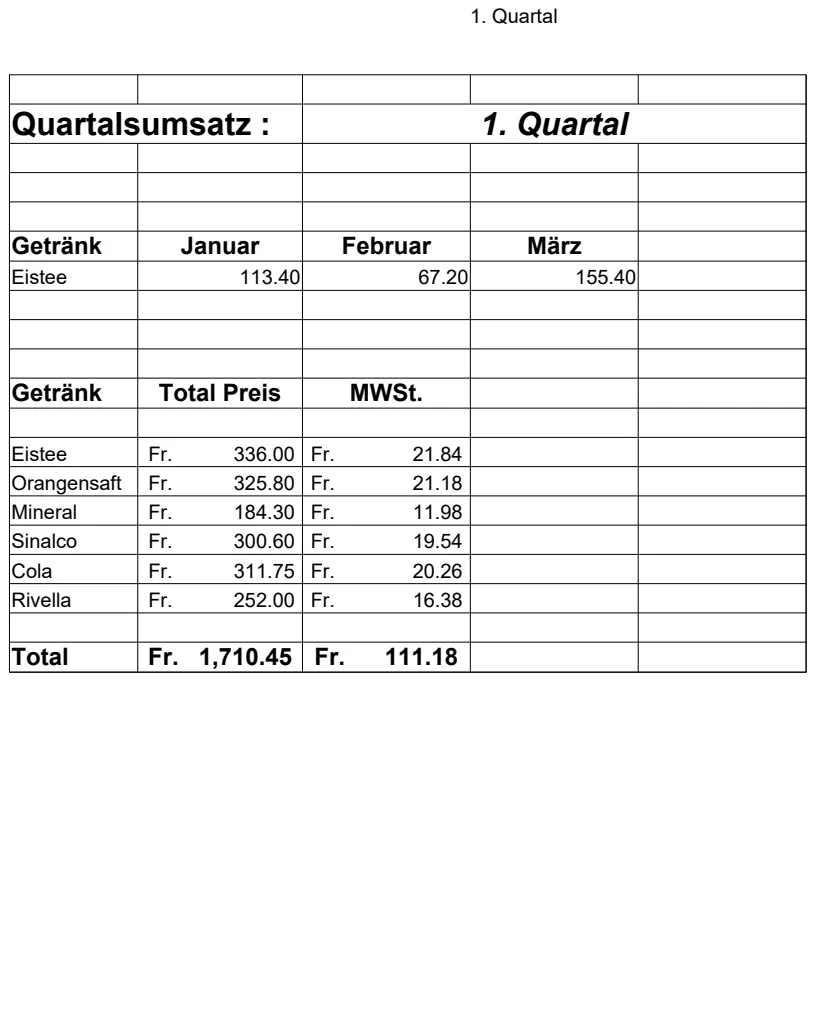
For businesses with a clear, recurring sales cycle, a template designed for that rhythm can be incredibly helpful. For example, the Quarterly Sales Tracker with Monthly Breakdown is structured to handle sales data across three months, automatically rolling up totals for quarterly reporting. If your focus is on daily operations and detailed transaction logs, the Daily Sales Tracker might be more suitable. For a more comprehensive financial overview that includes sales tax, the Business Bookkeeping Excel Spreadsheet offers integrated income, expense, and inventory tracking alongside sales tax management.
These templates can save you significant setup time, providing pre-built structures and formulas that you can then customize to your specific business needs. Access to a library of such templates, including advanced sales tax tracking solutions, is available with a one-time purchase for unlimited downloads.
Frequently Asked Questions
How do I determine which state's sales tax I should collect?
You generally collect sales tax based on economic nexus rules, which means if you have a significant physical presence or economic activity (a certain dollar amount of sales or number of transactions) in a state, you likely owe sales tax there. It's crucial to research the specific nexus rules for each state where you make sales.
What if a customer is tax-exempt?
For tax-exempt customers (e.g., certain non-profits or resellers), you should obtain a valid resale or exemption certificate from them and keep it on file. In your sales tax tracker, you would either enter a 0% tax rate for their transactions or use a specific note to indicate their exempt status, ensuring you don't collect or remit tax on those sales.
How often should I update my sales tax rates?
Sales tax rates can change at the state and local levels, often with little notice. It's best practice to check for updates at least quarterly, or whenever you learn of a rate change, and immediately update your spreadsheet's tax rate lookup table or individual transaction formulas.
Can I use my sales tax tracker to file my taxes?
Yes, that's the primary purpose. Your aggregated data from the tracker should provide the necessary totals for taxable sales and tax collected, which you will then report on your official sales tax return forms filed with the relevant tax authorities. Ensure your tracker's totals align with your accounting records.