Create a simple expense tracker in Excel today
Feeling lost starting your first Excel project? Find free templates for beginners to track expenses and learn how they work.
The struggle often begins when you need to track something specific for the first time, like your personal project expenses or a small business's inventory, and realize you have no structure. You might open a blank Excel sheet, stare at the grid of cells, and feel completely lost on where to start with formulas, formatting, or even just organizing your data logically. This is precisely why many beginners search for Excel templates for beginners free, hoping for a ready-made solution that requires minimal setup.
Finding a template can save you hours of initial setup, but the real value comes from understanding how it works and how to adapt it. A good template isn't just a pretty layout; it's a functional tool designed to simplify data tracking and analysis. For instance, a basic budget template might already include categories like "Rent," "Groceries," and "Utilities," with columns for "Budgeted Amount," "Actual Spent," and "Difference." This structure helps you immediately see where your money is going.
Why Templates Are Your First Best Step
When you're starting with spreadsheets, the sheer number of features can be overwhelming. Formulas, charts, pivot tables, conditional formatting, it’s a lot. Templates provide a pre-built framework that handles much of this complexity for you. You don't need to know how to write a complex SUMIFS formula from scratch to benefit from a template that uses it. You can see the formula in action, understand its purpose in context, and then learn by adapting it. This hands-on approach is far more effective than trying to learn every function in isolation. Think of it like learning to cook: starting with a recipe (the template) is easier than trying to invent dishes from scratch.
Moreover, templates enforce good data hygiene. They often have specific columns for specific types of information, guiding you to enter data consistently. For example, a template for tracking sales might have columns for "Date," "Product Name," "Quantity Sold," "Price Per Unit," and "Total Revenue." If you try to enter the product name in the "Quantity Sold" column, the template's structure (and perhaps some basic data validation) will flag it as an error, preventing you from making mistakes that could derail your analysis later. This built-in guidance is invaluable for beginners.
Essential Types of Templates for Beginners
For beginners, focusing on a few key areas will provide the most immediate benefit. These are typically areas where manual tracking is tedious and prone to errors, and where a structured approach can yield significant insights.
Personal Finance and Budgeting
This is perhaps the most popular category for free templates. A well-designed personal budget template allows you to track income, expenses, and savings. Look for templates that include:
- Income Tracker: Columns for "Source," "Amount," and "Date Received."
- Expense Tracker: Columns for "Date," "Category" (e.g., "Groceries," "Utilities," "Entertainment"), "Description," and "Amount."
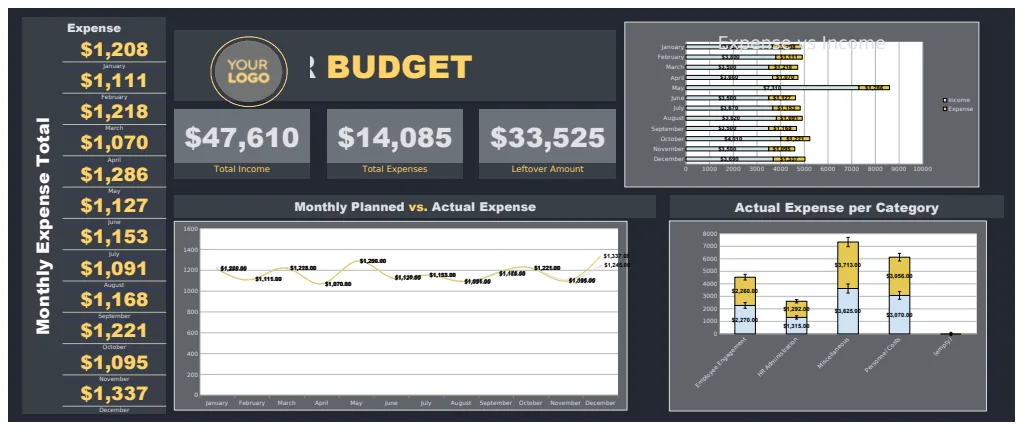
- Monthly Summary: Automated calculations showing total income, total expenses, and net savings for the month.
- Yearly Overview: A dashboard or summary sheet that aggregates monthly data to show annual spending patterns and savings goals.
A common formula you'll find here is =SUMIF(ExpenseCategoryColumn, "Groceries", ExpenseAmountColumn). This sums up all expenses categorized as "Groceries." A more advanced version might use =SUMIFS(ExpenseAmountColumn, ExpenseCategoryColumn, "Groceries", DateColumn, ">="&StartDate, DateColumn, "<="&EndDate) to sum expenses within a specific date range.
Project Management and Task Tracking
If you're managing a personal project, a freelance gig, or even a small team task list, project templates are a lifesaver. Key components include:
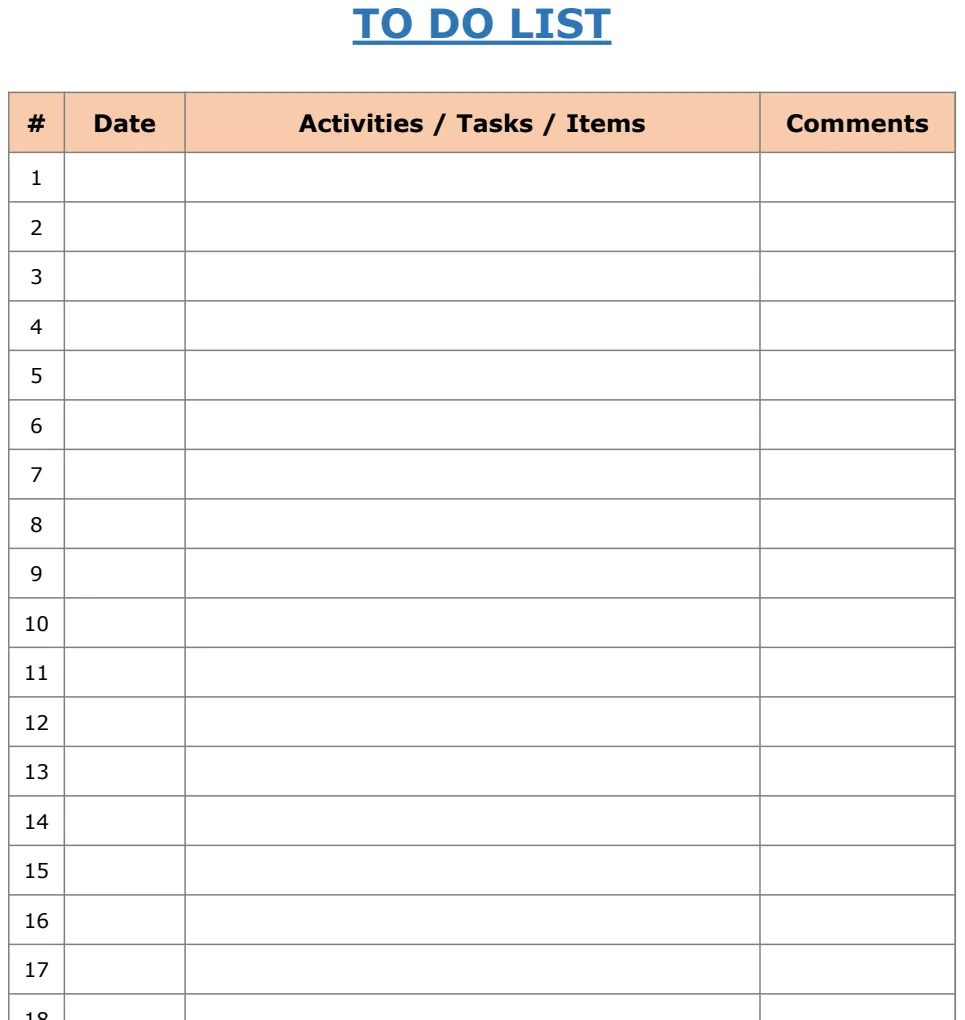
- Task List: Columns for "Task Name," "Assigned To," "Due Date," "Status" (e.g., "Not Started," "In Progress," "Completed"), and "Priority."
- Timeline/Gantt Chart: While more advanced, some templates offer basic visual timelines.
- Progress Tracker: A simple percentage complete calculation, often driven by the status of sub-tasks.
A useful formula for tracking project completion might be =COUNTIF(StatusColumn, "Completed") / COUNTA(TaskNameColumn). This calculates the percentage of tasks that are marked as "Completed" out of the total number of tasks. Conditional formatting is also crucial here, perhaps coloring rows red if a task is overdue (current date > due date) and the status is not "Completed."
Inventory Management
For small businesses, hobbyists selling items, or even managing a personal collection, inventory templates help keep track of what you have. Essential columns include:
- Item Name/SKU: A unique identifier for each item.
- Description: Details about the item.
- Quantity on Hand: The current stock level.
- Reorder Level: The minimum quantity before you need to restock.
- Cost Per Unit: Your purchase cost.
- Selling Price: The price you sell it for.
- Total Value: Calculated as
Quantity on Hand * Cost Per Unit.
A common formula here is =IF(QuantityOnHandCell <= ReorderLevelCell, "Reorder", "OK"). This simple IF statement tells you when stock is running low. You might also use a VLOOKUP or XLOOKUP to pull pricing information from a separate product list into your inventory sheet. For example, =XLOOKUP(ItemNameCell, ProductList!ItemNameColumn, ProductList!SellingPriceColumn, "Not Found") would fetch the selling price for an item.
Simple CRM (Customer Relationship Management)
For freelancers or small service providers, keeping track of clients and interactions is vital. A basic CRM template might include:
- Client Name: The name of your contact.
- Company: Their company name.
- Email/Phone: Contact details.
- Last Contact Date: When you last spoke or emailed.
- Next Follow-up Date: When you plan to reach out again.
- Status: (e.g., "Lead," "Active Client," "Past Client").
Formulas here could involve calculating days since last contact: =TODAY() - LastContactDateCell. Conditional formatting can then highlight clients who haven't been contacted recently.
Where to Find Free Templates
Many online platforms offer free Excel and Google Sheets templates. Here are a few reliable places to start your search:
- Microsoft Office Templates: Microsoft provides a vast library of free templates directly within Excel. Go to
File > Newand search for terms like "budget," "invoice," "project tracker," or "inventory." - Google Workspace Marketplace: Similar to Microsoft, Google offers templates for Google Sheets. Access them through Google Sheets itself (
File > New > From template gallery) or search the Marketplace. - Dedicated Template Websites: Numerous websites specialize in free spreadsheet templates. Search for "free Excel budget template," "free Google Sheets inventory template," etc. Be a bit discerning; some sites might have older or less polished templates.
- OpenWorksheet: This site offers a curated selection of templates designed for various business and personal needs, often with clear instructions and examples, including for beginners.
When downloading, pay attention to the file format (.xlsx for Excel, .ods for OpenOffice, or simply use Google Sheets directly). Ensure the template is compatible with your software.
Understanding Key Components of a Template
Once you've downloaded a template, don't just start filling it in. Take a few minutes to understand its structure and the formulas that make it work.
Worksheets and Their Purpose
Most templates are organized into multiple worksheets (tabs at the bottom of the screen). You'll typically find:
- Data Entry Sheet: Where you input raw data (e.g., expense transactions, sales records).
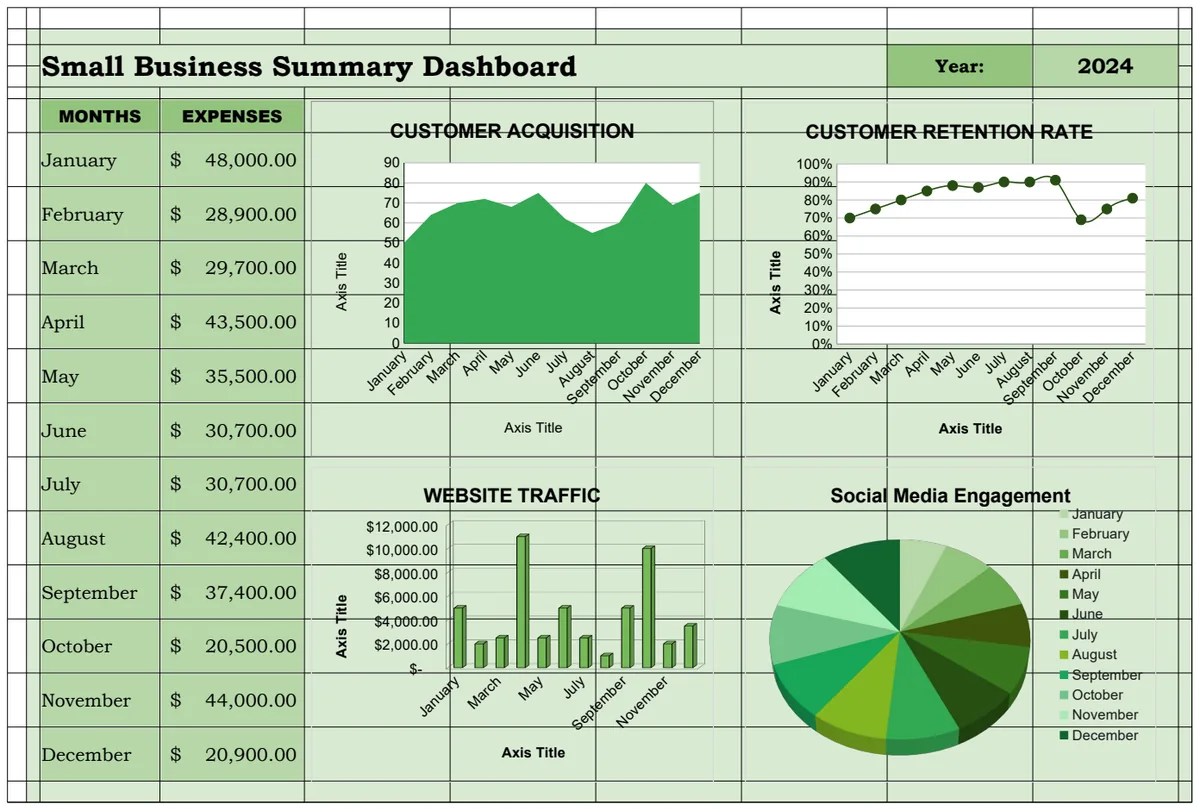
- Summary/Dashboard Sheet: This sheet uses formulas to pull data from the entry sheet and present it in a more digestible format, often with charts and key performance indicators (KPIs).
- Configuration/Settings Sheet: Sometimes included for setting up dropdown lists, defining categories, or inputting initial values.
- Instructions/About Sheet: Explains how to use the template. Always read this first!
For example, in a budget template, you might enter each expense on a sheet named "Transactions," and then a "Monthly Summary" sheet will use formulas like =SUMIFS(Transactions!Amount, Transactions!Category, "Groceries") to calculate total grocery spending for the month.
Formulas and Functions
Templates rely heavily on formulas to automate calculations. Common functions you'll encounter include:
- `SUM`: Adds up a range of numbers.
=SUM(A1:A10) - `AVERAGE`: Calculates the average of a range.
=AVERAGE(B1:B10) - `COUNT` / `COUNTA`: Counts the number of cells in a range.
COUNTAcounts non-empty cells, which is often used to count the number of entries.=COUNTA(C1:C10) - `SUMIF` / `SUMIFS`: Sums cells based on one or multiple criteria.
=SUMIFS(AmountColumn, CategoryColumn, "Groceries", DateColumn, ">="&StartDate) - `COUNTIF` / `COUNTIFS`: Counts cells based on one or multiple criteria.
=COUNTIF(StatusColumn, "Completed") - `IF`: Performs a logical test and returns one value if TRUE, another if FALSE.
=IF(D2>E2, "Over Budget", "On Track") - `VLOOKUP` / `XLOOKUP`: Searches for a value in one range and returns a corresponding value from another range.
XLOOKUPis more modern and flexible.=XLOOKUP(A2, ProductIDColumn, ProductNameColumn, "N/A") - `TODAY`: Returns the current date. Useful for calculating time elapsed or overdue dates.
=TODAY()
Understanding these basic functions will make adapting templates much easier. If a template has a formula you don't understand, click on the cell containing the formula, and then look at the formula bar (usually at the top of the spreadsheet window) to see it clearly.
Formatting and Conditional Formatting
Templates often use formatting to make data easier to read and understand. This includes:
- Number Formatting: Ensuring currency values are displayed with dollar signs and two decimal places, or percentages are shown correctly.
- Cell Borders and Shading: Used to visually separate sections or highlight important data.
- Conditional Formatting: This is a powerful feature that automatically changes the appearance of cells based on specific rules. For example, a cell might turn red if its value is negative, green if it's above a target, or yellow if it's approaching a reorder level.
A common conditional formatting rule might be: "Format cells in the 'Status' column that contain 'Overdue' with a red fill." This instantly draws your attention to critical issues.
Customizing Your Template: A Walkthrough
Let's say you've downloaded a free "Monthly Budget" template. It has columns for "Date," "Category," "Description," "Amount," and "Payment Method." You want to add a column to track whether an expense is tax-deductible for your freelance work.
- 01Open the Template: Launch the template in Excel or Google Sheets.
- 02Locate the Data Entry Sheet: Find the tab where you input your transactions. It might be called "Expenses," "Transactions," or "Log."
- 03Insert a New Column:
- Right-click on the header of the column to the right of where you want your new column. For example, if you want the new column after "Amount," right-click on the header for "Payment Method."
- Select "Insert" from the context menu. A new, blank column will appear.
- 04Name the New Column: Click on the header cell of the new column and type "Tax Deductible?". Press Enter.
- 05Add Data Validation (Optional but Recommended): To ensure consistency, you can create a dropdown list for this column.
- Click on the "Tax Deductible?" header.
- Go to the "Data" tab (in Excel) or "Data" menu (in Google Sheets) and select "Data Validation."
- Under "Allow" or "Criteria," choose "List."
- In the "Source" or "List of items" box, type
Yes,No. - Click "OK." Now, when you click on a cell in this column, you'll see a dropdown arrow allowing you to select "Yes" or "No."
- 06Apply Formatting: Select the entire new column (click its header). Apply the same number or fill formatting as the adjacent columns for a consistent look.
- 07Update Related Formulas (If Necessary):
- Check if any summary or reporting sheets rely on the column order or a fixed range.
- For example, if a formula was summing up to column E (Amount), and you inserted a new column F, the formula might need to be updated.
- If your new column is "Tax Deductible?" and you want to sum only non-tax-deductible expenses, you might need to modify a
SUMIFSformula. Suppose you have a formula like=SUMIF(CategoryColumn, "Groceries", AmountColumn). You might change it to=SUMIFS(AmountColumn, CategoryColumn, "Groceries", TaxDeductibleColumn, "No"). - If the template uses entire column references (e.g.,
SUM(E:E)), inserting a column might not require changes, as the column reference will automatically adjust. However, it's good practice to verify.
This simple addition customizes the template to your specific needs without requiring you to rebuild it from scratch.
Common Mistakes Beginners Make with Templates
Even with a template, it's easy to fall into common traps. Being aware of these can help you avoid them.
- Not Reading Instructions: Many templates come with an "Instructions" or "Read Me" sheet. Skipping this is a primary cause of misuse.
- Entering Data in the Wrong Place: Accidentally typing over formulas on summary sheets or entering data in the wrong column on the entry sheet. Always double-check where you are inputting information.
- Over-Reliance Without Understanding: Using a template blindly without trying to understand the formulas or how the data flows. This limits your learning and makes it hard to adapt later.
- Ignoring Data Validation: If a template has data validation (like dropdowns), not using it consistently leads to errors and inconsistent data.
- Not Backing Up: Before making significant changes or after inputting a lot of data, save a backup copy of your template file.
- Expecting Perfection: Free templates are great, but they might have minor quirks or not perfectly match your unique workflow. Be prepared for some level of customization.
Frequently Asked Questions
How do I make a template update automatically when I add new data?
Templates are designed to do this. Ensure you're entering new data on the designated "data entry" or "transactions" worksheet. Any summary sheets or dashboards that use formulas like SUMIFS, AVERAGEIFS, or XLOOKUP should automatically refresh as long as they reference the correct columns or ranges that include your new data. If a formula is referencing a fixed range (e.g., A1:A50) and you add data beyond row 50, you'll need to manually adjust the formula's range to include the new rows. Using entire column references (e.g., A:A) or structured table references (if the template uses them) generally avoids this issue.
Can I use a template for more than one year?
Yes, but it depends on the template's design. For budget or expense trackers, you'll likely need to create a new copy of the template for each year, or modify the template to include a "Year" column and adjust summary formulas to filter by year. Some advanced templates have built-in year-switching functionality on a dashboard. For inventory or CRM templates, they are often year-agnostic; you just keep adding data. It's best to check the template's instructions or test adding data for a new year to see how it behaves.
What if a template's formulas are too complex for me to understand?
Start by isolating the formula. Click on the cell containing it and look at the formula bar. Try to break it down: identify the functions used (SUMIFS, IF, VLOOKUP, etc.) and the cell ranges they refer to. You can often find excellent free resources online explaining individual Excel or Google Sheets functions. For example, searching "Excel SUMIFS explained" will yield many tutorials. If a formula is still baffling, consider if you can achieve a similar result with simpler functions or if a portion of the template's complexity is unnecessary for your current needs. You might even simplify or replace a complex formula with a more basic one if it meets your requirements.