Create your timesheet in Excel in under an hour
Stop struggling with generic timesheet templates. Create your own accurate Excel timesheet quickly and efficiently.
Manually calculating employee hours in a spreadsheet or using a free, generic timesheet template Excel free download can quickly become a headache, especially as your team grows. While a basic template might work for a single employee or a simple project, it often lacks the necessary features for accurate payroll, overtime tracking, and compliance. A structured approach is far more reliable.
For businesses needing to track employee time, especially for hourly staff, a dedicated timesheet solution often saves more time and prevents costly errors than a simple free download. This is particularly true when managing multiple employees, complex pay rules, or project-based billing. The administrative burden of managing paper timesheets or poorly designed spreadsheets can quickly outweigh any perceived initial savings.
Why a Basic Template Might Not Be Enough
You might be searching for a "timesheet template Excel free download" because you need a straightforward way to record hours. And for very small operations, that might suffice. However, most businesses quickly run into limitations. Consider these common pain points:
- Inaccurate Calculations: Free templates often rely on simple formulas that don't account for variations like paid breaks, overtime rules (which can differ by state or even project), or rounding rules. A misplaced formula or an incorrect entry can lead to payroll errors.
- Lack of Detail: Many free templates only capture start and end times. They might not have dedicated fields for different types of leave (sick, vacation, personal), project codes, or client billing details. This makes detailed reporting and cost allocation difficult.
- Data Entry Errors: Manually typing in dates, times, and employee names is prone to typos. These small errors can snowball into significant issues when calculating total hours and pay.
- Compliance Risks: Labor laws, especially concerning overtime and record-keeping, are complex. A generic template is unlikely to incorporate the specific fields or calculation logic needed to ensure compliance, potentially exposing your business to legal risks.
- Scalability Issues: As your team expands, managing individual spreadsheets for each employee becomes unmanageable. Collaboration, data consolidation, and overview become extremely challenging.
Essential Columns for Employee Timesheets
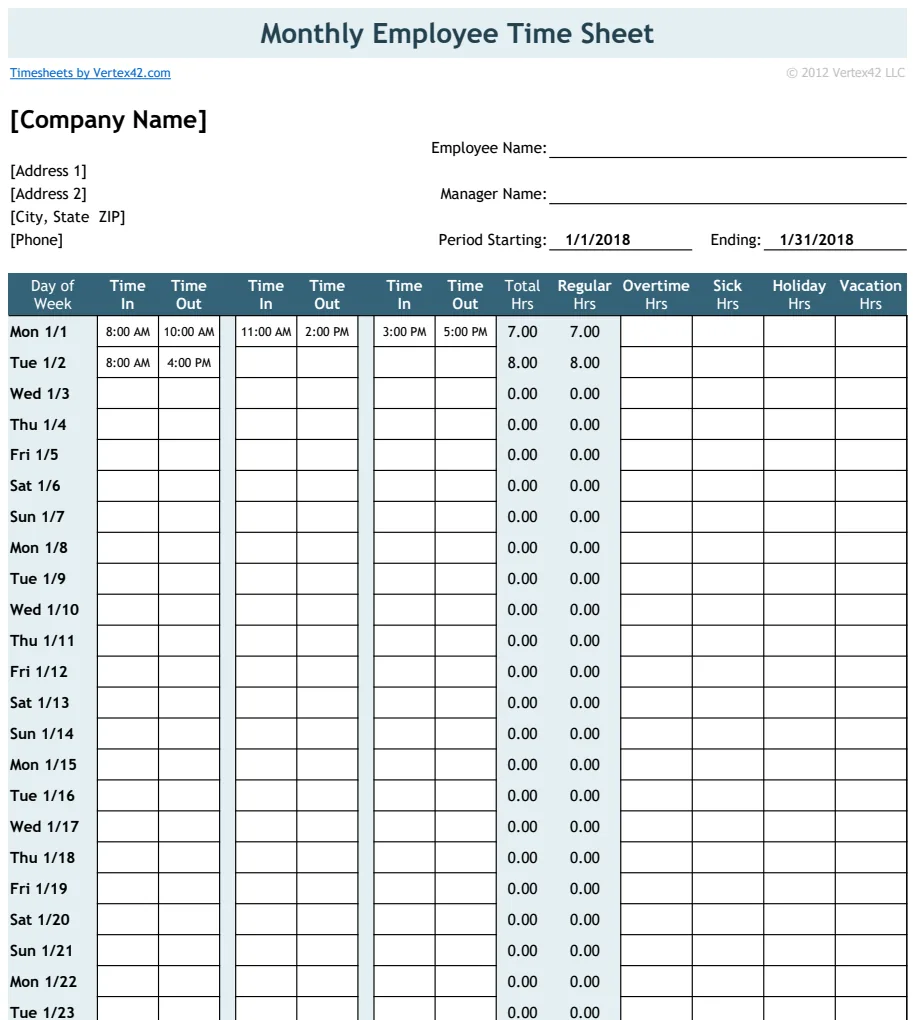
When you're setting up a timesheet, whether it's a custom build or a template you're adapting, certain columns are crucial for robust tracking. Think beyond just "In" and "Out."
- Employee Name/ID: Clearly identifies who the timesheet belongs to.
- Date: Essential for daily tracking and organizing by pay period.
- Day of the Week: Helpful for quickly identifying patterns or confirming data.
- Clock-In Time: The exact time the employee started their shift.
- Break Start Time: When an employee begins an unpaid break.
- Break End Time: When an employee returns from an unpaid break.
- Clock-Out Time: The exact time the employee ended their shift.
- Regular Hours: Automatically calculated hours worked, excluding overtime and sometimes paid breaks.
- Overtime Hours: Hours worked beyond the standard daily or weekly threshold.
- Total Hours: Sum of regular and overtime hours for the day.
- Project/Task Code (Optional): For billing or internal cost allocation.
- Notes/Comments: Space for employees to explain anomalies, like arriving late or leaving early.
- Supervisor Approval (Optional): A checkbox or date field for manager sign-off.
Calculating Total Hours Correctly
The core of any timesheet is accurately calculating the total hours worked. This involves more than just subtracting clock-out from clock-in. You need to account for breaks.
Let's say you have the following columns:
- Column C: Clock-In Time
- Column D: Break Start Time
- Column E: Break End Time
- Column F: Clock-Out Time
- Column G: Total Hours
A common formula to calculate daily hours, excluding a break between D and E, might look something like this in cell G2 for Row 2:
=(F2-C2)-(E2-D2)
This formula calculates the total duration between clock-out and clock-in (F2-C2) and then subtracts the duration of the break (E2-D2). It's vital to ensure your times are entered in a format Excel recognizes as time (e.g., 9:00 AM or 09:00). If breaks are paid, you would simply omit the break deduction: =(F2-C2).
For a more robust solution that handles multiple breaks or complex scenarios, a template like the Timesheet Calculator Template can automate these calculations, including overtime, saving you significant manual effort.
Handling Overtime
Overtime calculation is where many free templates fall short. Labor laws dictate when overtime pay is triggered, often after 8 hours in a day or 40 hours in a week, depending on your location.
To calculate overtime automatically, you'll typically need a few more helper columns or a more advanced formula.
Imagine you have:
- Column G: Total Hours for the day
- Column H: Regular Hours for the day
- Column I: Overtime Hours for the day
In cell H2, you might have a formula like:
=IF(G2>8, 8, G2)
This formula states: if the Total Hours (G2) are greater than 8, then the Regular Hours are 8; otherwise, the Regular Hours are equal to the Total Hours.
In cell I2, for Overtime Hours:
=IF(G2>8, G2-8, 0)
This formula states: if the Total Hours (G2) are greater than 8, then Overtime Hours are the Total Hours minus 8; otherwise, Overtime Hours are 0.
These formulas assume an 8-hour workday threshold. For weekly overtime, you'd need to sum the daily regular and overtime hours and then apply a similar logic based on the 40-hour weekly threshold. This quickly becomes complex, which is why a pre-built solution is often better. The Employee Timesheet with 2 Breaks Monthly handles these types of calculations, including semi-monthly pay periods.
Project Tracking and Billing
If you bill clients by the hour or track costs by project, your timesheet needs to accommodate this. A simple "In" and "Out" doesn't provide enough detail. You'll need columns specifically for:
- Project Name/ID: A dropdown list or text field to select or enter the relevant project.
- Task Description (Optional): Further breakdown of the work performed on the project.
- Billable Hours: Often, this is the same as regular and overtime hours, but you might have non-billable tasks (like internal meetings) that should be tracked separately.
Integrating this data allows you to generate accurate invoices and analyze project profitability. If you need a comprehensive system that includes employee management alongside time tracking, solutions like the Copy of Hourly Timesheet Template offer this integrated approach.
Common Mistakes When Using Timesheet Templates
Even with a good template, errors can occur. Being aware of these pitfalls can save you a lot of trouble.
- Incorrectly formatted dates and times: Excel can be picky.
10/12/2026might be interpreted differently by different systems or even different versions of Excel. Using a consistent format likeMM/DD/YYYYorYYYY-MM-DDis key, and ensuring Excel recognizes them as dates. Similarly, time formats likeH:MM AM/PMorHH:MMare crucial. - Formula Errors: A single incorrect cell reference, an omitted parenthesis, or a wrong operator in a formula can invalidate all subsequent calculations. Always test your formulas with known inputs and expected outputs.
- Ignoring Labor Laws: Relying on a template that doesn't account for specific local overtime rules, break requirements, or record-keeping mandates is a significant risk.
- Not Reviewing Data: Assuming the calculated totals are correct without a manual review, especially for overtime or unusual hours, can lead to payroll mistakes and employee dissatisfaction.
- Lack of Clear Instructions: Employees need to understand how to fill out the timesheet accurately. Ambiguity leads to errors.
Moving Beyond Basic Downloads
While searching for a "timesheet template Excel free download" is a common starting point, for most businesses, it's just that, a starting point. The real value comes from a system that accurately calculates hours, handles overtime, tracks project details, and ensures compliance.
If you find yourself spending more time fixing timesheet errors than you'd like, or if your team is growing, it might be time to consider a more dedicated solution. Templates that offer built-in calculators, payroll integration, and clear formatting can prevent headaches and ensure your payroll is accurate and compliant. The library at OpenWorksheet offers a range of professional templates, starting at a one-time fee of $9 for unlimited downloads, designed to handle these complexities efficiently. For a visually clean and straightforward option, the Blue Timesheet is a popular choice for basic weekly tracking.
What if I need to track different pay rates for the same employee?
This is a common requirement for project-based work or when employees take on different roles. You would typically add columns for "Pay Rate" and "Hours at Rate" for each distinct rate. Then, you'd calculate the earnings for each segment and sum them up. Many advanced templates include sections for multiple pay rates or allow for custom field additions to accommodate this.
How do I handle paid versus unpaid breaks?
Paid breaks are simply included in the total work time, so you wouldn't deduct them. For unpaid breaks, as shown in the formula example, you subtract the duration of the break from the total time between clock-in and clock-out. Ensure your template clearly distinguishes between the two and that your formulas reflect this.
Can I use a template for remote employees?
Yes, but with added considerations. For remote employees, the emphasis shifts from physical clock-ins to self-reporting and potentially project tracking. Ensuring consistent reporting and having clear policies on work hours and availability becomes even more critical. You might also consider integrating with time-tracking software that offers screenshots or activity monitoring if that aligns with your company policy and needs, though a robust spreadsheet template can still be effective for many remote teams.