Excel performance review template: free and fast setup
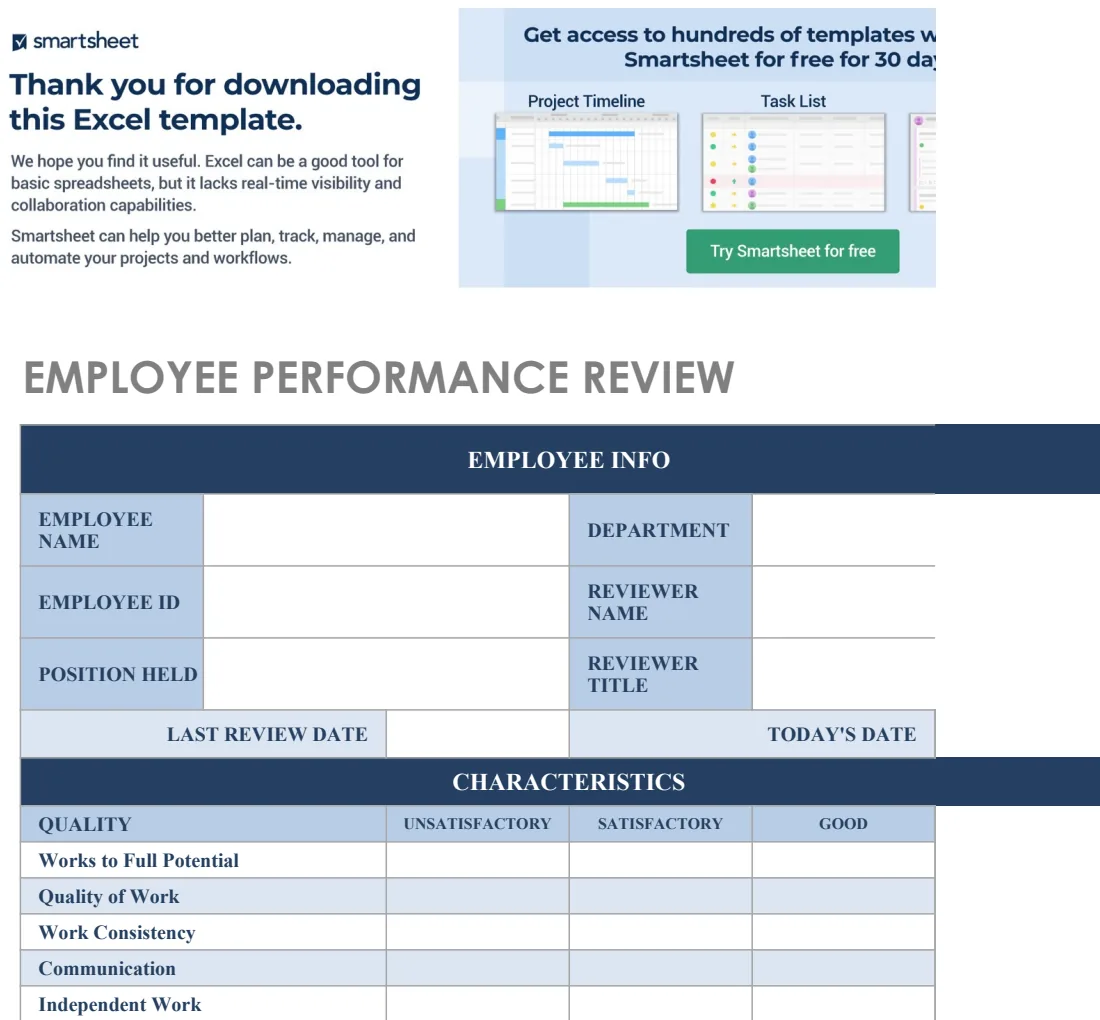
This guide helps you create a functional, customizable Excel performance review template for structured evaluations.
By the time you finish reading, you’ll have a functional, customizable Excel spreadsheet ready to conduct employee performance reviews, complete with sections for self-assessment, manager feedback, goal tracking, and development plans. This tool will help you move beyond subjective commentary and toward a structured, data-informed evaluation process that benefits both the employee and the organization. If you're searching for a performance review template Excel free, you've come to the right place to build your own or understand what makes a good one.
Many small businesses and startups begin their performance review process using ad-hoc documents or even just email chains. This approach quickly becomes unmanageable as the team grows, leading to inconsistencies in feedback, missed development opportunities, and potential legal risks. A well-designed template ensures that all employees are evaluated on similar criteria, making comparisons fairer and development plans more targeted. It also creates a historical record of performance, which is invaluable for promotion decisions, compensation adjustments, and identifying training needs.
Structuring Your Performance Review Template
At its core, a performance review template needs to capture specific information clearly. Think about the key components you’ll need for each review. This typically includes:
- Employee Information: Name, Job Title, Department, Review Period, Date of Review.
- Reviewer Information: Name and Title of the person conducting the review.
- Key Responsibilities/Job Duties: A section listing the employee’s primary tasks as outlined in their job description.
- Performance Against Responsibilities: For each responsibility, a rating scale and space for comments.
- Goals and Objectives: Review of goals set during the previous period and assessment of achievement.
- Development Plan: New goals, training needs, and areas for professional growth.
- Overall Performance Rating: A summary rating.
- Signatures: Employee and Manager signatures, with dates.
You can create this structure from scratch in Excel or Google Sheets. Start by setting up columns for each of these elements. For example, you might have a column labeled "Responsibility," another "Manager Rating (1-5)," and a third "Employee Comments."
Rating Scales and Criteria
Deciding on a rating scale is crucial. A common approach is a 1-to-5 scale, but be sure to define what each number means. For instance:
- 1 - Needs Improvement: Performance consistently falls below expectations. Significant improvement is required.
- 2 - Below Expectations: Performance occasionally falls short of expectations. Some improvement needed.
- 3 - Meets Expectations: Performance consistently meets job requirements and expectations. This is the standard.
- 4 - Exceeds Expectations: Performance consistently surpasses expectations.
- 5 - Outstanding: Performance far exceeds expectations in all areas.
It’s equally important to define the criteria for each rating. This prevents subjective interpretations. For a performance review template Excel free that you build yourself, you might add a separate sheet or a dedicated section within the template to list these definitions. This ensures consistency across reviews and reviewers.
Incorporating Employee Self-Assessment
A good performance review isn't a one-way street. Including a section for the employee to conduct a self-assessment is vital. This allows them to reflect on their own performance, highlight achievements they might not think the manager is fully aware of, and identify areas where they feel they need support.
When you set up your template, create parallel sections for self-assessment and manager assessment. For example, alongside "Manager Rating (1-5)" for a specific responsibility, have a "Self-Assessment Rating (1-5)" and "Employee Comments" column. This encourages dialogue and can reveal discrepancies in perception that need to be addressed. You can find robust options for structured evaluations, like the IC Employee Performance Review, which are designed with these elements in mind.
Developing SMART Goals
The "Goals and Objectives" section is where you look forward. This is an opportunity to set new targets for the next review period. The most effective goals are SMART:
- Specific: Clearly defined, leaving no room for misinterpretation.
- Measurable: Quantifiable so progress can be tracked.
- Achievable: Realistic given the employee's role and resources.
- Relevant: Aligned with the employee's job duties and company objectives.
- Time-bound: With a clear deadline or timeframe.
Your template should have columns for each of these components when outlining new goals. For example: "Goal Description," "Measurement Metric," "Target Value," "Achievable (Y/N)," "Alignment," and "Due Date." This ensures that goals are not just aspirational but actionable.
Building the Excel/Google Sheets Template: A Step-by-Step Example
Let’s build a simplified version. Open a new Excel or Google Sheet.
- 01Sheet Name: Rename the first sheet to "Performance Review."
- 02Header Information: In row 1, starting from column A, enter:
- A1: Employee Name:
- B1: [Leave blank for input]
- C1: Job Title:
- D1: [Leave blank for input]
- E1: Department:
- F1: [Leave blank for input]
- G1: Review Period:
- H1: [Leave blank for input]
- I1: Date of Review:
- J1: [Leave blank for input]
- 03Responsibility Assessment Section: Starting from row 3, set up the following columns:
- A3: Key Responsibility
- B3: Manager Rating (1-5)
- C3: Employee Self-Rating (1-5)
- D3: Manager Comments
- E3: Employee Comments
- 04Populate Responsibilities: In column A, starting from A4, list 3-5 key responsibilities for a typical role. For example:
- A4: Manage Project Timelines and Deliverables
- A5: Client Communication and Relationship Management
- A6: Team Collaboration and Support
- A7: Process Improvement Identification
- 05Add Rating Definitions: On a new sheet (Sheet2), name it "Rating Scale." In cell A1, enter "Rating Definitions." In column A, list the numbers 1 through 5. In column B, enter the corresponding definitions (e.g., "1 - Needs Improvement"). You can use data validation in the "Manager Rating" and "Employee Self-Rating" columns (B4:B7 and C4:C7 in this example) to create dropdowns pulling from this "Rating Scale" sheet, ensuring only valid numbers are entered.
- 06Development Plan Section: Below the responsibility ratings (e.g., starting from row 9), set up columns for development:
- A9: Development Area
- B9: Specific Actions/Training
- C9: Resources Needed
- D9: Target Completion Date
- 07Overall Assessment: Below the development plan (e.g., row 13):
- A13: Overall Performance Summary:
- B13: [Span multiple columns for manager's summary text]
- A14: Employee Comments on Overall Summary:
- B14: [Span multiple columns for employee's comments]
- 08Signatures: At the bottom of the sheet (e.g., row 17):
- A17: Employee Signature:
- B17: [Leave blank for signature]
- C17: Date:
- D17: [Leave blank for date]
- E17: Manager Signature:
- F17: [Leave blank for signature]
- G17: Date:
- H17: [Leave blank for date]
This basic structure gives you a solid foundation for a performance review template Excel free. You can expand it with more detailed sections or custom criteria.
Avoiding Common Mistakes
When implementing performance reviews, many organizations stumble. Here are a few pitfalls to watch out for:
- Recency Bias: Focusing only on recent performance and forgetting the entire review period. Ensure your template encourages reflection on the full period.
- Lack of Specificity: Vague feedback like "good job" or "needs to improve" is unhelpful. Always require concrete examples and actionable advice. The comments sections in your template are crucial here.
- Inconsistent Application: Using the template for some employees but not others, or applying criteria unevenly. Train your managers and ensure the template is used universally.
- No Follow-Up: Conducting the review and then filing it away. The development plan and subsequent check-ins are where real growth happens.
- Over-reliance on Numbers: While ratings are useful, they shouldn't replace qualitative feedback. The comments sections are where the nuance lies.
Enhancing Your Template with Advanced Features
Once you have the basic structure, consider adding features that make your template more powerful and user-friendly.
Conditional Formatting for Ratings
To quickly visualize performance levels, you can use conditional formatting. Select the cells for "Manager Rating" and "Employee Self-Rating." Apply rules so that:
- If the rating is 1, the cell turns red.
- If the rating is 2, the cell turns yellow.
- If the rating is 3, the cell turns green.
- If the rating is 4 or 5, the cell turns a darker green.
This visual cue helps managers and employees immediately see where performance aligns with expectations and where it deviates.
Calculating an Overall Score (Optional)
If your responsibilities are weighted, you can add a section to calculate an overall score. This requires assigning a weight to each responsibility. For example, if "Manage Project Timelines" is 40% of the job, and the manager rates it a 4, that contributes 0.4 * 4 = 1.6 to the overall score. You’d sum these weighted scores for all responsibilities. Be cautious with this; it can oversimplify performance and should be used in conjunction with detailed comments.
Version Control and Archiving
For a growing organization, managing multiple versions of reviews can be challenging. While Excel itself doesn't offer robust version control, establishing clear naming conventions for saved files (e.g., EmployeeName_Review_YYYY-MM-DD.xlsx) and a consistent archiving process is essential. Alternatively, a dedicated HR system handles this automatically, but for a DIY approach, meticulous file management is key. If you're evaluating sales performance specifically, a dedicated template like the Sales Rep Performance Review Template can offer specialized metrics.
Integrating with Other HR Processes
Think about how this review fits into your broader HR strategy. The outcomes of performance reviews should inform training needs, succession planning, and compensation adjustments. A template like the Employee Evaluation Form Template is designed with these broader considerations in mind, allowing for more structured data capture that can feed into these other processes.
Frequently Asked Questions
How do I make sure my performance review template is fair?
Fairness comes from clear, objective criteria and consistent application. Define your rating scales precisely, ensure responsibilities are well-documented, and train your managers on how to use the template objectively. Including employee self-assessments also adds a layer of fairness by giving the employee a voice.
Can I use this template for different types of employees (e.g., hourly vs. salaried)?
Yes, you can adapt the template. For hourly or entry-level roles, you might focus more on task completion and adherence to procedures. For salaried or management roles, you’ll likely emphasize leadership, strategic thinking, and goal achievement. The core structure remains, but the specific "Key Responsibilities" and "Development Areas" will change.
What if an employee disagrees with their review?
This is where the detailed comments sections and the discussion during the review meeting are critical. Encourage open dialogue. If disagreements persist, have a clear escalation path, perhaps involving a senior manager or HR representative. The goal isn't necessarily agreement, but understanding and a path forward.
How often should I conduct performance reviews?
While annual reviews are common, many organizations are moving to more frequent check-ins, such as quarterly or semi-annually. This allows for more timely feedback and adjustments to development plans. A robust template can be reused for each review cycle, simply by clearing the previous period’s data or creating a new copy.