Excel vs. Google Sheets: Which AP tracker fits you?
Choosing the right accounts payable tracker Excel template or Google Sheets solution is key to efficient invoice management and avoiding rework.
The most critical decision when setting up an accounts payable tracker in Excel is how you'll structure your data columns to avoid costly manual rework later. Most people overcomplicate it initially, creating separate sheets for vendors or invoices that should live on a single, sortable table. A well-designed accounts payable tracker Excel template should centralize everything: vendor details, invoice specifics, due dates, payment status, and approval workflows. This single source of truth prevents confusion and makes reconciliation a breeze.
This approach allows for powerful sorting and filtering. You can instantly see all outstanding invoices for a specific vendor, filter by due date to manage cash flow, or track down an invoice by number. Without this foundational structure, your tracker quickly becomes a digital filing cabinet rather than a dynamic management tool.
Essential Columns for Your Tracker
To build an effective accounts payable tracker, you need a specific set of columns. Think about the entire lifecycle of an invoice, from receipt to payment. Here's a breakdown of what you should include:
- Invoice Number: The unique identifier from the vendor. Crucial for cross-referencing.
- Vendor Name: Clearly identify who you owe money to.
- Vendor Contact Info: A column for the primary contact or AP department email/phone is handy.
- Invoice Date: The date the invoice was issued by the vendor.
- Due Date: The date payment is expected. This is your primary cash flow driver.
- Invoice Amount: The total amount due.
- Purchase Order (PO) Number: If your business uses POs, link them here.
- Description/Purpose: A brief note on what the invoice is for (e.g., "Monthly Software Subscription," "Office Supplies Q3").
- Approval Status: This is key for workflow. Options might include "Pending Approval," "Approved," "Rejected."
- Approved By: Who signed off on the invoice.
- Payment Date: The actual date the payment was sent.
- Payment Method: How you paid (e.g., ACH, Check, Credit Card).
- Payment Reference: A check number, transaction ID, or confirmation number.
- Notes: Any additional relevant details.
Having these columns allows you to maintain a comprehensive overview. For instance, you could use a formula like =IF([@[Payment Date]]="","", [@[Due Date]]-[@[Payment Date]]) in a "Days Paid After Due" column to identify late payments.
Setting Up Approval Workflows
One of the most significant benefits of a robust accounts payable tracker Excel template is its ability to manage approval processes efficiently. Without a clear system, invoices can sit idle, leading to late fees or strained vendor relationships.
You can implement approval status tracking directly within your spreadsheet. Start with a simple dropdown list in the "Approval Status" column. For more complex organizations, you might add additional columns like "Approver 1," "Approval 1 Date," "Approver 2," and "Approval 2 Date."
Conditional formatting can then highlight invoices based on their status. For example:
- Red fill for "Rejected."
- Yellow fill for "Pending Approval."
- Green fill for "Approved."
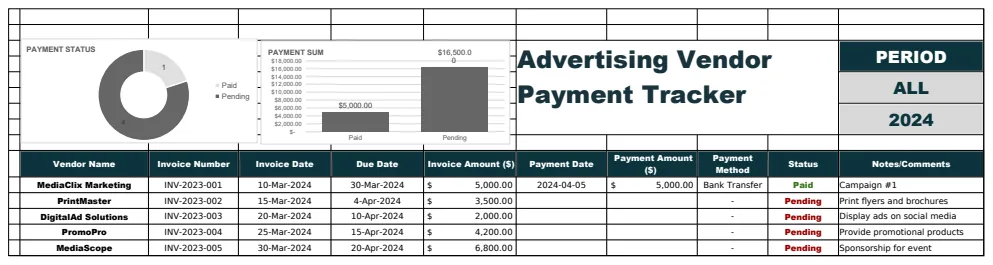
This visual cue makes it easy for the AP team to see what needs attention. If you're dealing with a large volume of vendor invoices, especially for recurring services like advertising, a dedicated template can be a lifesaver. The Advertising Vendor Payment Tracker Template includes specific fields for ad campaigns and media buys, which can simplify tracking those unique expenses.
Tracking and Managing Payments
Once an invoice is approved, the next step is payment. Your tracker should capture all necessary details to ensure accurate and timely disbursement.
When you initiate a payment, immediately update the "Payment Date" and "Payment Method" columns. If you're paying by check, enter the check number in the "Payment Reference" column. For electronic transfers (ACH, wire), record the transaction ID or confirmation number. This information is invaluable for bank reconciliations and for quickly answering vendor inquiries about payment status.
You can use formulas to automatically calculate the days between the due date and the payment date. A formula like =IF([@[Payment Date]]="", TODAY()-[@[Due Date]], [@[Payment Date]]-[@[Due Date]]) can show how many days an invoice is overdue (if Payment Date is blank) or how many days late it was paid. Negative numbers would indicate early payment, which can be useful for identifying early payment discount opportunities.
Using Formulas for Insights
Beyond basic tracking, Excel's formulas can transform your accounts payable tracker into a powerful reporting tool. Here are a few examples:
- Total Outstanding Amount: Use
SUMIFto add up all invoice amounts where the "Payment Date" is blank. For example,=SUMIF(E:E, "", D:D)assuming "Payment Date" is in column E and "Invoice Amount" is in column D. - Overdue Invoices: A
COUNTIFformula can tell you how many invoices are past their due date and unpaid.=COUNTIFS(E:E, "", D:D, "<="&TODAY())would count invoices with no payment date that are due today or earlier. - Total Paid: Simply sum the "Invoice Amount" column for all rows where "Payment Date" is not blank.
=SUMIF(E:E, "<>", D:D)where E is Payment Date and D is Invoice Amount.
These simple formulas provide immediate insights into your financial obligations. For a more sophisticated view, consider a dashboard. The Finance Accounts Payable Dashboard Template takes this a step further, offering visual representations of key metrics.
Common Mistakes to Avoid
Even with a well-structured template, certain habits can undermine your accounts payable tracking. Be mindful of these common pitfalls:
- Inconsistent Data Entry: Failing to fill in all required fields for every invoice. This includes missing payment dates or incorrect vendor names.
- Delayed Updates: Not entering payments or approval statuses immediately. This creates a lag between reality and what your tracker shows, leading to errors.
- Over-reliance on Manual Entry: While essential, manual entry can be error-prone. Look for opportunities to automate, such as using Excel's data validation for dropdowns.
- Lack of Regular Review: Not periodically reviewing the tracker for accuracy, completeness, and to identify trends (like consistent late payments to a specific vendor).
- Not Reconciling with Bank Statements: The ultimate check is to ensure your tracker's payment records match your bank or credit card statements.
Avoiding these issues will ensure your accounts payable tracker Excel template remains a reliable tool for managing your company's outgoing cash.
Advanced Features and Customization
Once you have the basics down, you can explore more advanced features to further enhance your accounts payable process.
Aging Reports
An aging report categorizes outstanding invoices based on how long they've been due (e.g., 0-30 days, 31-60 days, 61-90 days, 90+ days). You can create this using a combination of IF and AND functions or by adding helper columns that calculate the number of days overdue. This is crucial for forecasting cash flow and prioritizing payments.
For example, a column labeled "Days Overdue" could use the formula =IF([@[Payment Date]]="", TODAY()-[@[Due Date]], ""). Then, you could use a SUMIFS formula on a separate summary sheet to pull totals for each aging bucket.
Vendor Performance Tracking
Beyond just tracking payments, you can use your accounts payable tracker to assess vendor performance. Columns for "On-Time Payment Rate" (calculated using COUNTIFS for on-time payments divided by total payments) or "Average Payment Turnaround Time" can reveal valuable insights. This data helps in negotiations and vendor selection.
Integrating with Other Systems
While this guide focuses on Excel, remember that many accounting software solutions offer built-in AP modules. If you're using such software, ensure your manual tracking complements it, or consider if a dedicated Accounts Payable Dashboard Template could provide the specific insights you need without full software integration. The goal is always to have the most accurate, accessible data possible.
Frequently Asked Questions
What is the most critical piece of information to track for accounts payable?
The due date is paramount. Knowing when each invoice is due allows you to manage cash flow effectively, plan outgoing payments, and avoid late fees or penalties. Your tracker must make this information immediately visible.
Can I track multiple currencies in one tracker?
Yes, you can. Add a "Currency" column and then use formulas like SUMIFS with an additional criteria for the currency type. For calculating total cash outflow, you would need to convert all amounts to a single base currency using current exchange rates, which can be done manually or with an external data feed if you have a premium Excel version or are using Google Sheets with the GOOGLEFINANCE function.
How do I handle recurring invoices?
For recurring invoices (like subscriptions), you can enter them once and then copy the row each period, updating only the invoice date, due date, and invoice number. Alternatively, some advanced templates might use formulas to automatically generate future entries based on a set schedule, though this adds complexity.
Is it better to use Excel or accounting software for AP?
For very small businesses with low invoice volume, a well-maintained Excel template can be sufficient and cost-effective. As your business grows, accounting software offers greater automation, better audit trails, and integration with other financial functions, making it a more scalable solution. The core principles of tracking invoice details and due dates remain the same, regardless of the tool.