How to find a free Excel gradebook template download
Find the perfect free gradebook template Excel download to manage student assignments and scores efficiently. Simplify your grading.
The moment you realize you've got 150 assignments to track for 30 students across four classes, the search for a "gradebook template Excel free download" begins. It happens because most educators start with paper or a very basic spreadsheet, and the sheer volume of data quickly overwhelms manual tracking. Without a structured system, you risk errors, inconsistent grading, and a lot of lost time.
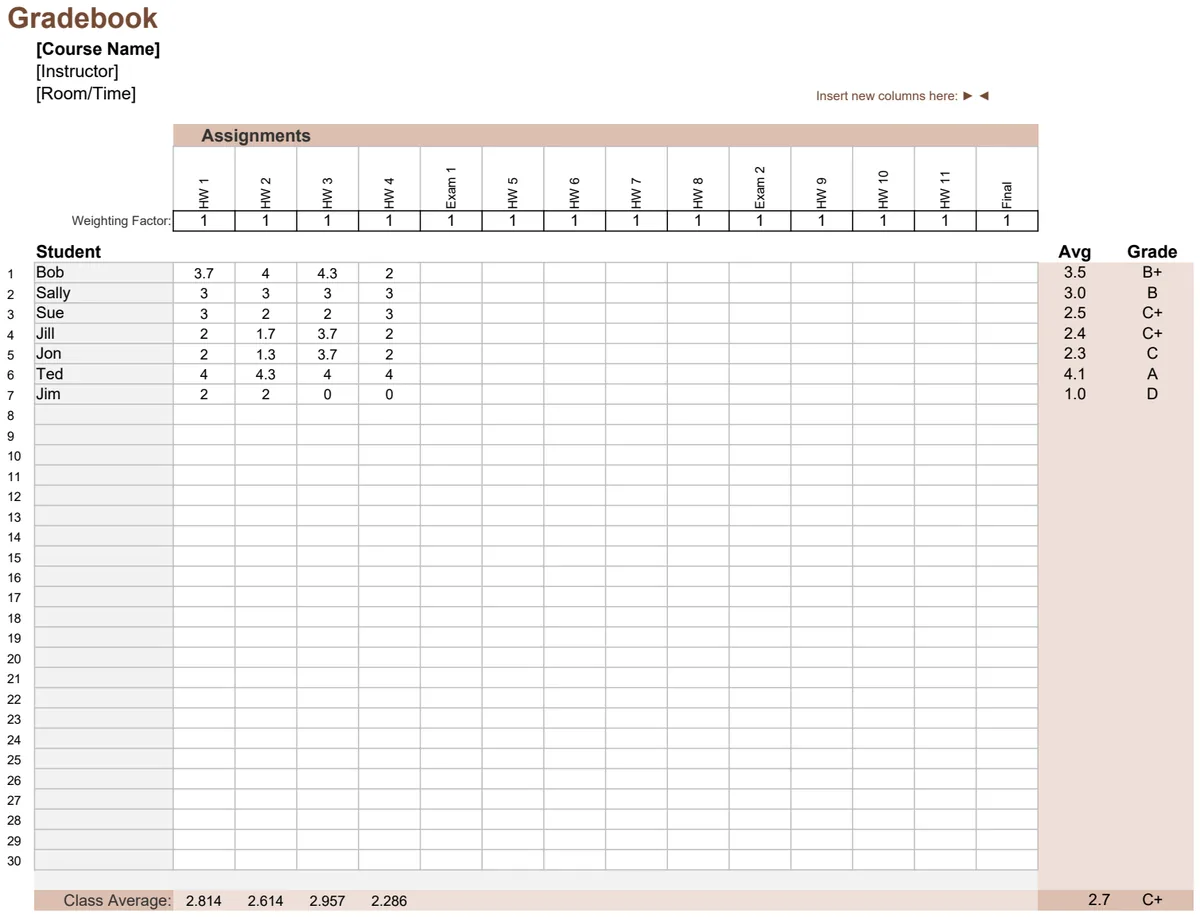
A well-designed gradebook template in Excel or Google Sheets can transform this chaos into order. It provides a clear overview of each student's progress, automates calculations, and frees you up to focus on teaching. You can track individual assignment scores, calculate weighted averages, and even determine final letter grades with accuracy.
Why a Template is Better Than Starting from Scratch
Building a gradebook from the ground up in Excel can be surprisingly complex. You need to consider how to input data, how to apply different weighting schemes for assignments (e.g., homework worth 10%, tests worth 40%, final exam worth 50%), and how to display student progress clearly. A pre-built template has already solved these common problems. It offers a structured layout, pre-written formulas for common calculations, and often includes features like conditional formatting to highlight passing or failing grades at a glance. This saves you hours of setup time and ensures you have a robust system from day one.
Essential Components of a Good Gradebook Template
When you're looking for a gradebook template, keep an eye out for these key features. They'll make your life much easier and ensure you're getting accurate results.
- Student Roster: A clear list of all your students, typically with columns for student ID, first name, and last name.
- Assignment List: A dedicated section to list all assignments, quizzes, tests, and projects. It’s important that this section allows you to input the maximum possible score for each item.
- Score Entry Columns: For each student, you need columns corresponding to each assignment where you can enter their score.
- Automatic Calculation of Averages: The template should automatically calculate averages for different categories of assignments (e.g., homework average, quiz average) and an overall course average.
- Weighting Options: The ability to assign different weights to various assignment categories is crucial for accurate final grade calculation.
- Final Grade Calculation: A column that automatically computes the student's final grade based on the weighted averages.
- Letter Grade Assignment: A feature that converts the final numerical grade into a letter grade (A, B, C, etc.) based on a customizable grading scale.
- GPA Calculation (Optional but useful): Some templates go further to calculate a Grade Point Average (GPA) for students, especially if you teach across multiple courses or subjects. You might find a Gradebook GPA Calculator particularly helpful for this.
Setting Up Your Gradebook: A Step-by-Step Example
Let's walk through setting up a basic gradebook template. Imagine you've downloaded a template with the following columns: StudentID, FirstName, LastName, Assignment1, Assignment2, Quiz1, Midterm, FinalExam, HomeworkAverage, TestAverage, FinalGrade, LetterGrade.
- 01Populate Student Roster: In columns A through C, enter your student IDs, first names, and last names. For a class of 25 students, this means filling 25 rows.
- 02Define Assignments: In row 1 (or a separate "Assignments" sheet), list your assignment names in columns D through J, for example: "Homework 1", "Homework 2", "Pop Quiz 1", "Midterm Exam", "Final Exam".
- 03Input Maximum Scores: Directly below each assignment name in row 1, enter the maximum possible score for that assignment. So, for "Homework 1" (column D), you might enter
10if it's out of 10 points. For "Midterm Exam" (column G), you might enter100. - 04Enter Student Scores: For each student (row 2 onwards), go across columns D through J and enter the score that student received for each assignment. If a student was absent and received a zero, enter
0. If an assignment was excused, you might leave it blank or enter a specific code like "EX" if your template supports it. - 05Configure Formulas: This is where the template shines. Ensure the formulas in columns
HomeworkAverage,TestAverage, andFinalGradeare correctly set up.
- Homework Average (Column K): This formula might look something like
=IFERROR(AVERAGE(D2:E2), ""). This takes the average of scores in columns D and E (Homework 1 and 2) for that student.IFERRORprevents#DIV/0!errors if no scores are entered. - Test Average (Column L): This might average quiz scores:
=IFERROR(AVERAGE(F2), ""). For this simple example, let's assume only one quiz. - Final Grade (Column M): This is where weighting comes in. A simplified example might be:
=IFERROR((K2*0.2) + (L2*0.3) + (G2*0.5) + (H2*0.5), ""). This assumes homework is 20%, quizzes 30%, midterm 50%, and final exam 50%. Note: You'll need to adjust the weights and cell references to match your specific template and grading policy.
- 06Assign Letter Grades (Column N): The
LetterGradecolumn will use a formula like=VLOOKUP(M2, GradingScale, 2, TRUE). This formula looks up the student'sFinalGrade(M2) in a separate table namedGradingScale(which you'd define elsewhere in your sheet, mapping score ranges to letters like 90-100=A, 80-89=B, etc.) and returns the corresponding letter grade.
Common Mistakes to Avoid
Many educators fall into a few common traps when using or creating gradebook templates. Being aware of these can save you a lot of headaches.
- Inconsistent Data Entry: Not using the same format for scores, or entering text in score fields, can break formulas. Always enter numerical scores.
- Incorrect Formulas: Typos in formulas, wrong cell references, or not understanding how the weighting is applied will lead to inaccurate final grades. Double-check every formula, especially the weighting calculations.
- Not Updating Maximum Scores: If you change the point value of an assignment mid-semester, you must update the maximum score in your template. Otherwise, your averages will be skewed.
- Forgetting Excused Absences or Late Work: Have a clear system for marking these. Leaving a score blank might be treated as a zero by the
AVERAGEfunction, which is usually not what you want. Consider a dedicated column for notes or using specific codes. - Overly Complex Templates: While advanced features are nice, ensure the template is easy enough for you to manage consistently. If it's too complicated, you're less likely to use it correctly. For simpler needs, a Gradebook Percentage template might be sufficient.
Customizing Your Gradebook for Your Needs
A good template is a starting point, not a final product. You'll likely need to customize it.
- Grading Scales: Your school or district likely has a specific grading scale (e.g., 90-100 is an A, 80-89 is a B). Make sure your template's
LetterGradecalculation reflects this precisely. You might need to create a separate table for this scale and useVLOOKUPorXLOOKUPto reference it. - Assignment Weighting: The most common customization is adjusting the weights for different assignment categories. If your midterm is worth 30% instead of 50%, you'll need to update the
FinalGradeformula accordingly. - Additional Columns: You might want to add columns for student attendance, behavior notes, or parent contact logs. These can be added without affecting the core grading calculations.
- Conditional Formatting: Beyond basic highlighting, you can use conditional formatting to visually flag students who are falling behind, assignments that are missing, or students who are performing exceptionally well. For example, set all cells in the
FinalGradecolumn to red if the value is below 60.
When to Consider a More Specialized Template
While a general-purpose gradebook template can handle many situations, sometimes your needs are more specific. If you're teaching multiple courses and need to track a cumulative GPA, a standard template might not be enough. In such cases, a dedicated Gradebook GPA Calculator that handles multiple courses and your specific GPA calculation rules would be a much better fit. Similarly, if all your assignments truly have equal weight and you just need a straightforward average, an Equal-Weight Gradebook Calculator simplifies the setup by removing the need to define complex weighting schemes.
What if I need to track grades for more than one subject?
If you teach multiple subjects, you have a few options. You could create a separate gradebook file for each subject. Alternatively, a more advanced template might have a "Course" column, allowing you to list grades for different subjects within the same spreadsheet, though this can become complex. For managing GPA across subjects, a specialized GPA calculator template is usually the most efficient solution.
Can I use these templates in Google Sheets?
Yes, most Excel templates can be opened and used in Google Sheets with minimal to no modification. Google Sheets has equivalent functions for Excel's common formulas. Simply upload your .xlsx file to Google Drive and open it with Google Sheets. You might notice minor formatting differences, but the core functionality will remain intact.
How do I handle dropped grades?
To handle dropped grades, you'll typically modify the AVERAGE function in your category average columns. Instead of =AVERAGE(D2:E2), you might use =AVERAGEIF(D$1:E$1, "<>Drop", D2:E2) if you have a "Drop" indicator in row 1 for assignments to be excluded, or you might manually adjust the range to exclude the specific assignment column if only one is dropped. Some advanced templates include specific features or columns to mark grades that should be dropped from calculations.