Master your classroom with a free Excel lesson plan template
Discover how to create or find a dynamic Excel lesson plan template free download to save valuable preparation time.
The single most important structural decision for an effective lesson plan template in Excel is how you handle dates and recurring elements. Most free downloads get this wrong by creating static grids that force you to re-enter information daily or weekly, wasting valuable preparation time. You're probably searching for a "lesson plan template Excel free download" because you need a better system, one that automates as much as possible and lets you focus on teaching.
This guide will walk you through setting up a flexible and powerful lesson plan system in Excel, or show you how to find pre-built solutions that work. We'll cover how to structure your sheet for maximum efficiency, use formulas to automate tasks, and avoid common pitfalls that make free templates feel more like a burden than a benefit.
Why Excel for Lesson Planning?
Spreadsheets offer a unique blend of structure and flexibility that's hard to beat for lesson planning. Unlike rigid paper planners or basic word documents, Excel allows you to:
- Organize systematically: Create distinct sections for objectives, materials, activities, assessments, and differentiation.
- Automate repetitive tasks: Use formulas to link dates, pull in standards, or calculate time blocks.
- Adapt easily: Modify your plan as needed without redrawing entire pages.
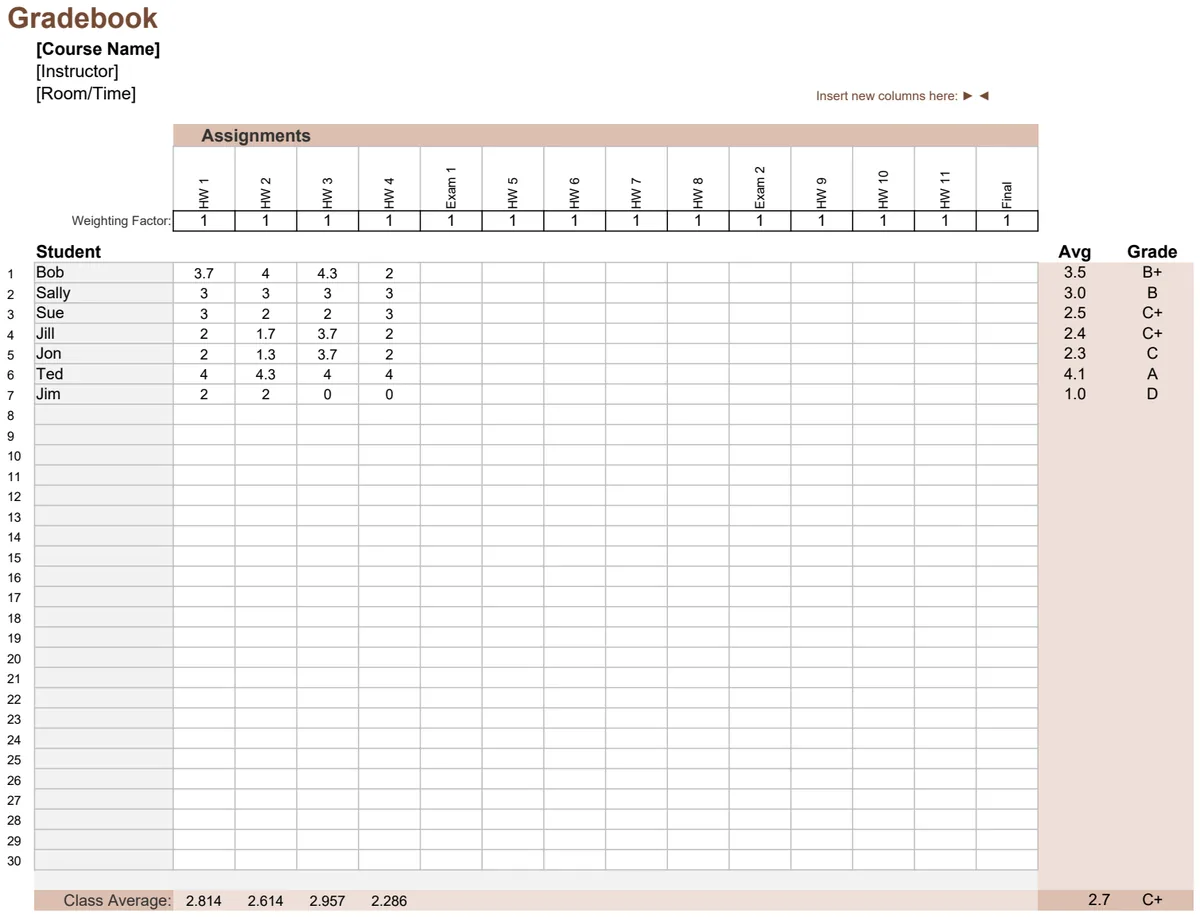
- Integrate data: Connect with other sheets for gradebooks, student lists, or resource libraries.
While finding a good "lesson plan template Excel free download" can feel like a treasure hunt, understanding the underlying principles will help you either customize what you find or build your own.
Structuring Your Master Lesson Plan Sheet
Forget the idea of a single sheet for every single lesson. A more efficient approach is to create a master planning sheet that holds all your core information and then use linked or filtered views for specific weeks or units.
Consider these essential columns for your master sheet:
- Lesson Title/Topic: A clear, concise name for the lesson.
- Subject: e.g., Math, Science, English Language Arts, History.
- Grade Level: The target grade(s).
- Date Planned: The date you intend to teach this lesson. This is crucial for sorting and filtering.
- Learning Objective(s): What students should know or be able to do by the end. Use clear, measurable language.
- Standards Addressed: Link to state, national, or district standards.
- Materials/Resources: List all necessary books, handouts, online tools, manipulatives, etc.
- Instructional Activities (Step-by-Step): Break down the teaching sequence. This is often the most detailed section.
- Introduction/Hook: How will you engage students?
- Direct Instruction: Your explanation or modeling.
- Guided Practice: Students work with your support.
- Independent Practice: Students apply learning on their own.
- Closure: How will you wrap up and check for understanding?
- Assessment: How will you measure learning? (e.g., formative quiz, exit ticket, observation, summative test).
- Differentiation/Support: Strategies for students who need extra help or enrichment.
- Time Allotment: Estimated time for each activity.
- Notes/Reflections: Space for your own thoughts before or after teaching.
The key here is that this master sheet isn't necessarily what you print for a single day. It's your central repository.
Automating with Formulas and Features
This is where Excel truly shines. Instead of manually copying and pasting, let formulas do the work.
1. Date-Based Filtering: The simplest way to create weekly or daily views is to use Excel's built-in filter function. By having a "Date Planned" column, you can easily filter your master sheet to show only lessons for a specific week.
- Step 1: Select your entire data range, including headers.
- Step 2: Go to the "Data" tab and click "Filter."
- Step 3: Click the dropdown arrow that appears in the "Date Planned" header.
- Step 4: Choose "Date Filters" and then select "Between..." to input a date range for your week.
This instantly shows you only the lessons relevant to that period.
2. Using `UNIQUE` and `FILTER` (Microsoft 365/Excel 2021+): If you have a newer version of Excel, dynamic array functions can create separate, automatically updating views.
Imagine you have a separate sheet named "Weekly View." In cell A1 of "Weekly View," you could enter:
=FILTER(MasterSheetDataRange, (MasterSheetDataRange[Date Planned] >= StartOfWeekDateCell) * (MasterSheetDataRange[Date Planned] <= EndOfWeekDateCell))
This formula pulls all rows from your "MasterSheetDataRange" where the "Date Planned" falls within the specified start and end dates (which you'd define in other cells on your "Weekly View" sheet).
3. `XLOOKUP` for Resource Linking: If you have a separate "Resources" sheet, you can use XLOOKUP to pull in detailed descriptions or links. For example, in your master plan, if your "Materials/Resources" column just has a name like "Worksheet_03," you could have another column with a formula like:
=XLOOKUP(A2, ResourcesSheet!A:A, ResourcesSheet!B:B, "Resource Not Found")
This looks for the value in cell A2 (your material name) in the first column of your "Resources" sheet and returns the corresponding value from the second column (e.g., a file path or detailed description).
4. Conditional Formatting: Highlight upcoming lessons, overdue tasks, or lessons needing specific materials. For example, to highlight lessons planned for the current week:
- Select your "Date Planned" column.
- Go to "Home" > "Conditional Formatting" > "New Rule."
- Choose "Use a formula to determine which cells to format."
- Enter a formula like:
=AND(E2>=TODAY(), E2<=TODAY()+6)(assuming E2 is your first "Date Planned" cell and you want to highlight the next 7 days). - Set your desired formatting (e.g., light yellow fill).
Pre-Built Templates: A Shortcut Worth Considering
While building your own system is powerful, it takes time. If you need a functional "lesson plan template Excel free download" immediately, or want a professionally designed starting point, explore dedicated template libraries.
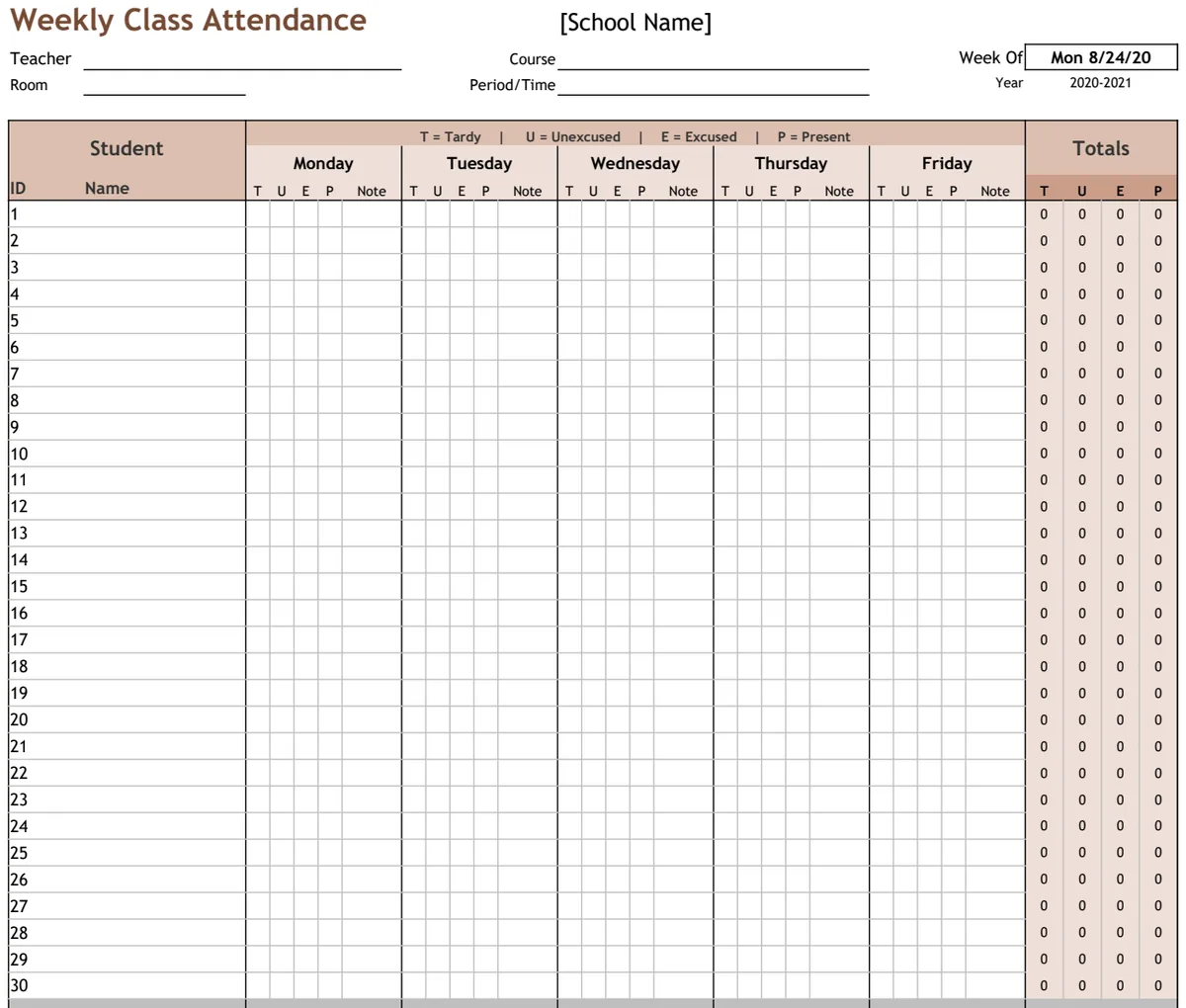
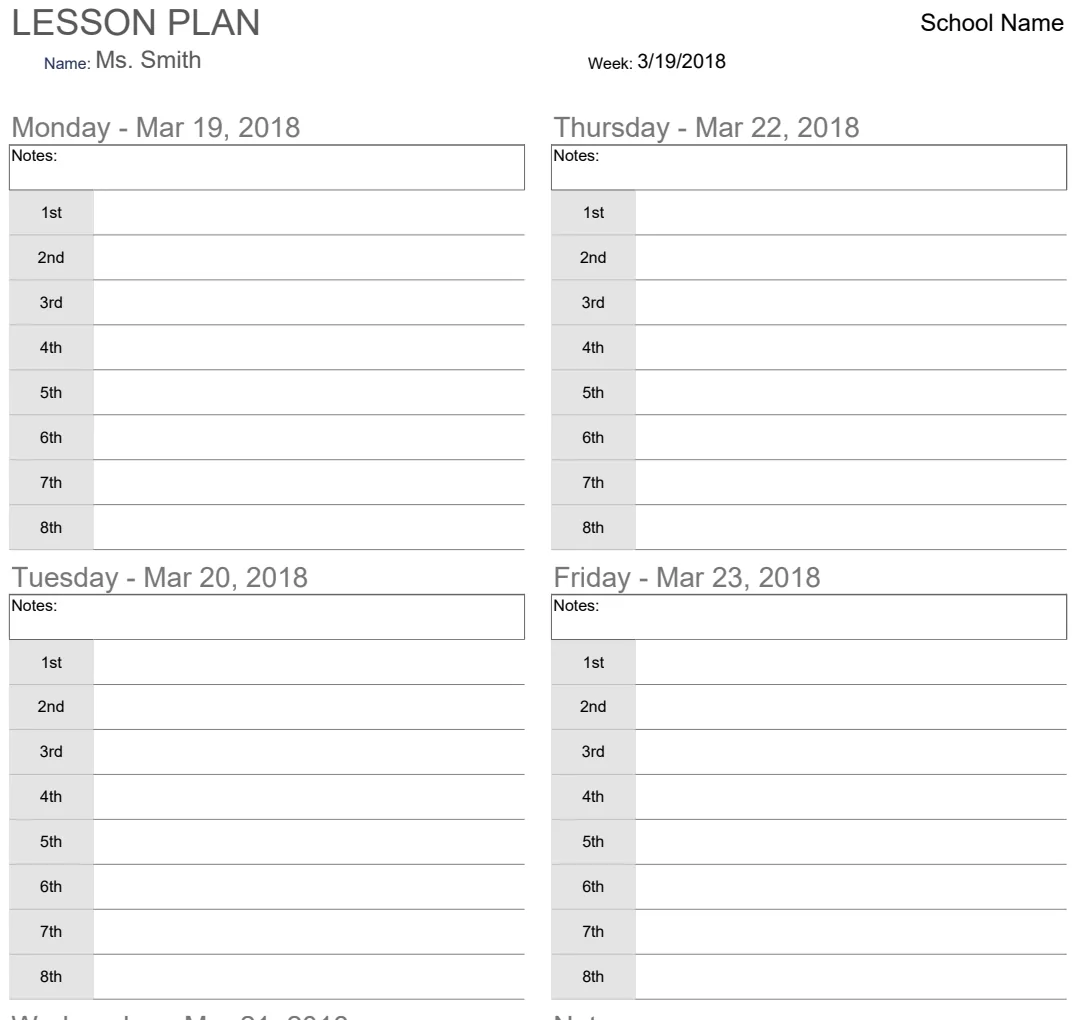
For instance, you might find a Weekly Lesson Plan that allows you to map out your entire week, day by day, with specific columns for objectives, activities, and assessments. This can be a significant time-saver. Another option is a more general Lesson Schedule, which is excellent for tracking topics, teachers, and dates across multiple classes or subjects.
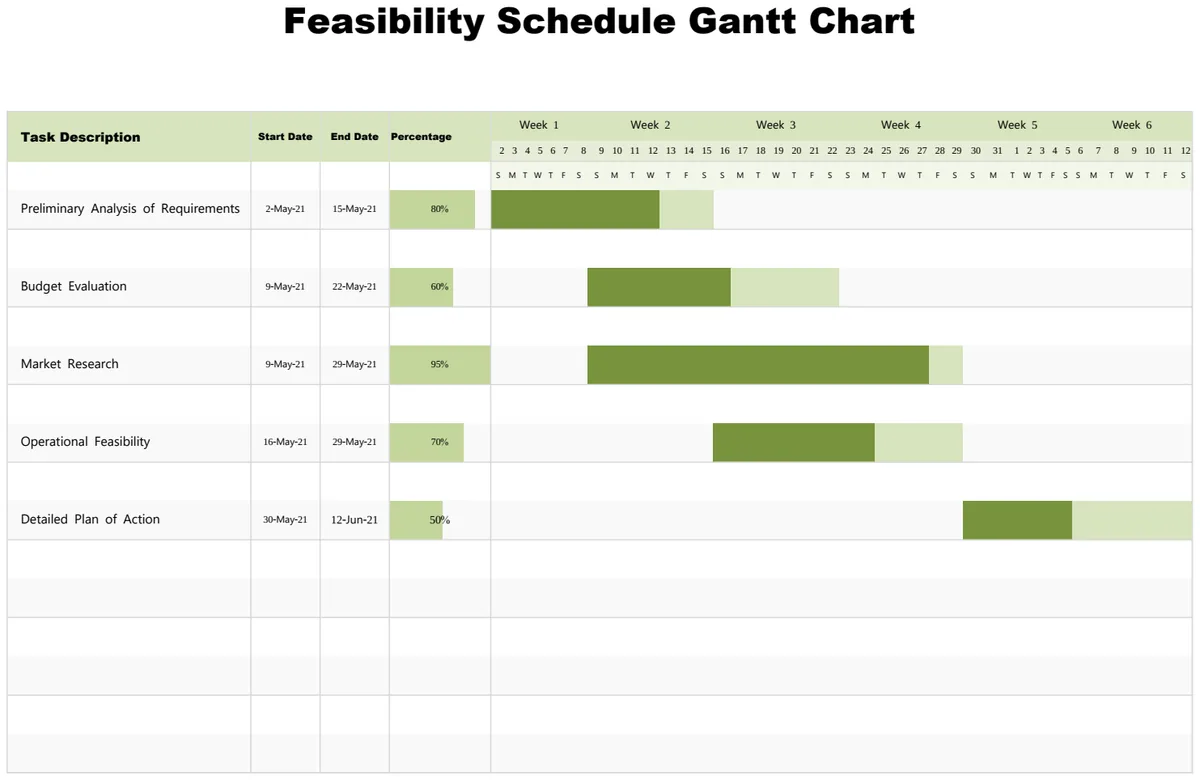
If you prefer a visual, timeline-based approach, a template like the Gantt Chart of Daily Subjects Letter can help visualize the flow of your day or week. These templates are designed with educators in mind and often include thoughtful pre-built structures.
The advantage of these templates is that they've already solved many of the structural challenges. You can download, adapt, and start planning immediately.
Avoiding Common Pitfalls
Many educators download a "lesson plan template Excel free download" only to abandon it. Here are the most common reasons why:
- Too much manual entry: The template requires you to type the same information repeatedly. This is the biggest killer of productivity.
- Lack of flexibility: It's designed for one specific type of lesson and can't be easily adapted for different subjects or activities.
- Overly complex: Too many columns or features that you don't actually need, making it confusing to use.
- Not mobile-friendly: If you plan on a tablet or phone, a complex Excel sheet might not display well. Consider Google Sheets in this case.
- No clear way to link or reference: You can't easily pull in standards, resources, or student data.
A good template should simplify your life, not add to your workload.
Frequently Asked Questions
Can I really get a good lesson plan template for free?
Yes, you absolutely can. Many websites offer free Excel templates. The key is to look beyond just the download link and assess the template's structure. Does it have logical columns? Can you easily filter or sort? Is it overly simplistic or unnecessarily complicated? The quality varies greatly, so be prepared to sort through a few options.
How do I make my lesson plan reusable?
The best way to make lesson plans reusable is to build a master planning sheet with distinct components (objectives, activities, assessments) rather than writing out a unique plan for every single instance of a lesson. Once you have this master list, you can easily copy and paste or use formulas to pull relevant lessons into weekly or unit-specific views. Consider creating a separate sheet for common activities or resources that you can reference.
What's the difference between a lesson plan and a lesson schedule?
A lesson plan typically details the what, why, and how of a single lesson or a series of lessons within a unit. It includes learning objectives, teaching strategies, materials, and assessment methods. A lesson schedule, on the other hand, is more about the when. It outlines the sequence of subjects or activities throughout a day, week, or term, often including timings and teacher assignments. While distinct, they are complementary; a good schedule is informed by well-thought-out lesson plans.
Is there a cost associated with using templates from your library?
Our library offers a one-time purchase of $9 for unlimited downloads of all our templates, including various lesson planning and scheduling tools. This provides access to professionally designed sheets that can save you considerable setup time compared to building from scratch or adapting poorly structured free downloads.