Meal plan spreadsheet template for stress-free weeks
Discover how to use a meal prep planner spreadsheet template as a dynamic tool for nutrition, shopping, and budgeting.
The most common mistake people make with a meal prep planner spreadsheet template is treating it like a simple to-do list. It needs to be a dynamic tool, not just a static record. If your template doesn't connect your planned meals to your grocery needs or account for pantry stock, you're missing out on its real value.
A well-designed meal prep planner spreadsheet template should do more than just list meals. It should be your central hub for nutrition planning, grocery shopping, and even budget tracking. Imagine effortlessly seeing what ingredients you need for the week, knowing you already have half of them in your pantry, and avoiding those impulse buys that derail your healthy eating goals. That's the power of a truly functional template.
Building a Functional Meal Prep Planner
Let's break down how to make your meal prep planner work for you. It starts with understanding the core components and how they interact. You need more than just a grid of days and meals; you need a system.
Essential Columns for Your Planner
At a minimum, your spreadsheet should include columns for:
- Day of the Week: Monday, Tuesday, etc.
- Meal Type: Breakfast, Lunch, Dinner, Snack.
- Recipe Name/Description: This is key for consistency.
- Main Ingredients: List the primary components to help with planning and shopping.
- Prep Time: A realistic estimate of how long it takes to prepare.
- Cook Time: How long the actual cooking process takes.
- Servings: How many people the recipe feeds.
- Notes/Variations: For personal preferences, leftovers, or modifications.
Connecting to Your Grocery List
This is where many templates fall short. A truly effective meal prep planner spreadsheet template will allow you to automatically generate a grocery list. You can achieve this with a combination of data validation and formulas.
For example, you might have a separate sheet for your recipes, each with a list of ingredients and quantities. Then, in your main planner, you can link the "Main Ingredients" column to your recipe database. When you select a recipe for Monday's dinner, its ingredients can be pulled into a dedicated "Grocery List" tab.
Beyond the Basics: Advanced Features
To really maximize your planner, consider these additions:
- Pantry Tracker: A separate sheet where you list items you already have. You can then cross-reference this with your generated grocery list to eliminate duplicate purchases.
- Nutritional Information: If you're tracking macros or calories, include columns for these details, potentially pulling data from a recipe database or manual entry.
- Cost Per Meal/Week: By assigning estimated costs to ingredients, you can track your food budget more effectively.
- Leftover Planning: Designate specific meals as "leftovers" to avoid unnecessary cooking and reduce waste.
How to Automate Your Grocery List
Automating your grocery list is a significant time-saver. Here’s a common approach using a linked recipe book.
Scenario: You have a "Recipes" sheet and your main "Meal Plan" sheet.
- 01Recipe Sheet Setup:
- Column A: Recipe Name (e.g., "Chicken Stir-fry")
- Column B: Ingredient 1 (e.g., "Chicken Breast")
- Column C: Quantity 1 (e.g., "1 lb")
- Column D: Ingredient 2 (e.g., "Broccoli")
- Column E: Quantity 2 (e.g., "2 cups")
- ...and so on for all your ingredients per recipe.
- 02Meal Plan Sheet Setup:
- Create a column for "Recipe Name" where you select your planned meals. Use Data Validation (List from a range) to pull names from your "Recipe Sheet" column A. This ensures consistency.
- Create a column for "Ingredients Needed" on your "Meal Plan" sheet.
- 03The Formula: In the "Ingredients Needed" column on your "Meal Plan" sheet, you'll use a formula that looks up the ingredients for the selected recipe. A formula like this (in Google Sheets, adjust for Excel) can work:
``Excel =IFERROR(TEXTJOIN(", ", TRUE, FILTER(Recipes!$B$2:$Z$100, Recipes!$A$2:$A$100=A2), FILTER(Recipes!$B$2:$Z$100, Recipes!$A$2:$A$100=A2) ), "") `` Explanation:
FILTER(Recipes!$B$2:$Z$100, Recipes!$A$2:$A$100=A2): This part looks at your "Recipes" sheet. It finds all the ingredient names (columns B through Z, rows 2 to 100) where the recipe name in column A matches the recipe name in cell A2 of your current row on the "Meal Plan" sheet.TEXTJOIN(", ", TRUE, ...): This takes all the found ingredients and joins them into a single text string, separated by a comma and a space.TRUEtells it to ignore empty cells.IFERROR(..., ""): This makes sure that if no recipe is selected or found, the cell remains blank instead of showing an error.
You would then adapt this formula to pull quantities as well, or have a separate formula for quantities. A more advanced setup would use SUMIFS or QUERY to aggregate ingredients if you plan the same recipe multiple times in a week.
- 04Consolidating the Grocery List: On a separate "Grocery List" tab, you can use a formula like
UNIQUEcombined withTRANSPOSEandSPLITto pull all the unique ingredients from your "Ingredients Needed" column on the "Meal Plan" sheet.
For instance, if your "Ingredients Needed" are in column G of your "Meal Plan" sheet, on your "Grocery List" sheet in cell A1, you might have: ``Excel =UNIQUE(TRANSPOSE(SPLIT(JOIN(", ", FILTER('Meal Plan'!G2:G, 'Meal Plan'!G2:G<>"")), ", "))) ` This formula joins all the ingredient strings, splits them by comma and space, and then uses UNIQUE` to list each ingredient only once.
Popular Meal Planning Templates
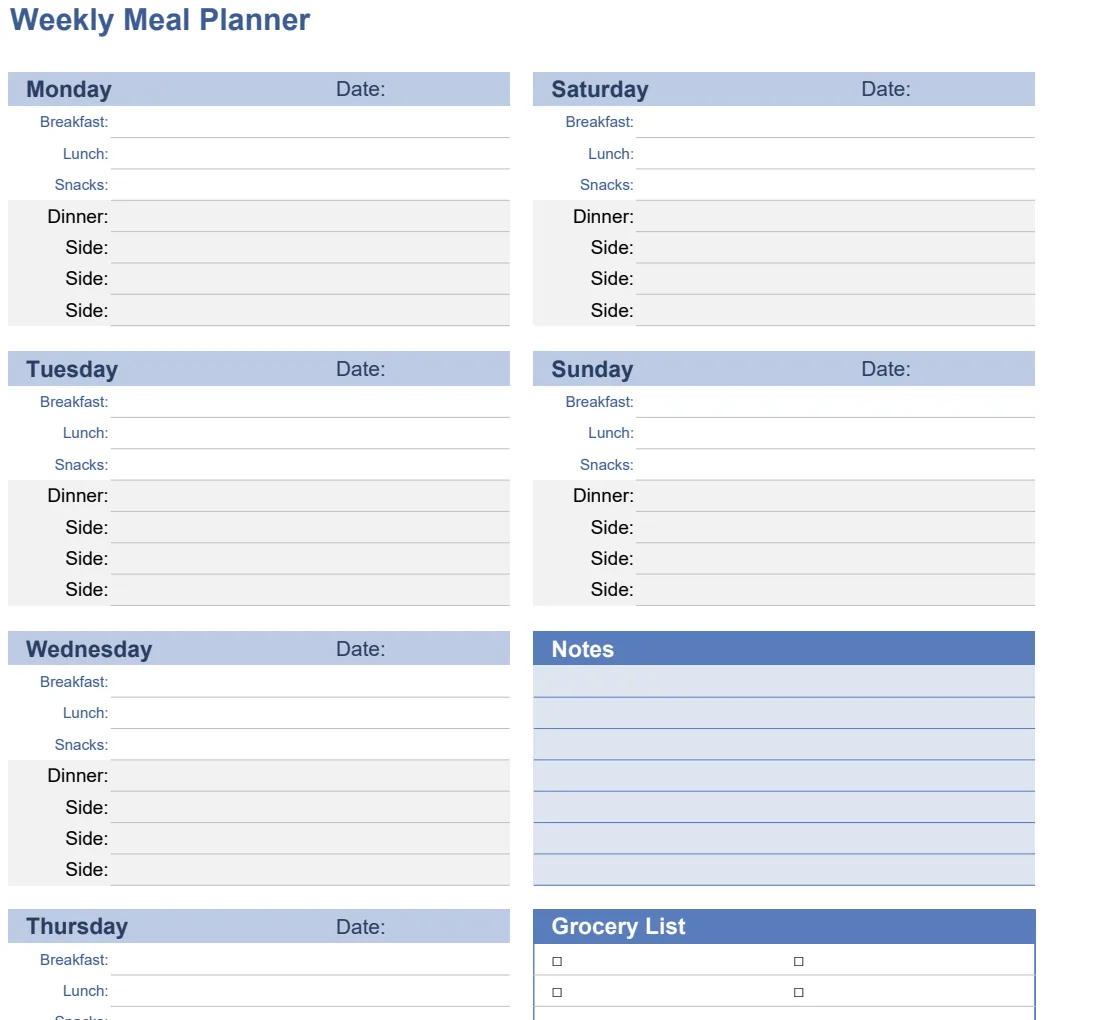
If building this from scratch feels daunting, pre-built templates can save you significant time. The Weekly Meal Planner Template offers a straightforward way to log your meals day by day, with sections for breakfast, lunch, dinner, and sides. It’s a solid starting point for anyone new to organized meal planning.
For families, the Simple Weekly Meal Planner is designed to accommodate multiple people and includes space for snacks. It’s intuitive and easy to share around the household. If you prefer a broader view, the Monthly Menu Planner allows you to map out your meals for the entire month, which is excellent for strategic grocery shopping and reducing last-minute stress.
Common Pitfalls to Avoid
Even with a good template, you can stumble. Here are a few common mistakes:
- Over-Scheduling: Trying to plan every single meal and snack perfectly for 30 days straight will lead to burnout. Start with a week or two and build from there.
- Unrealistic Prep Times: Be honest about how long tasks actually take. If a recipe says "prep time: 15 minutes," but you know it takes you 30, adjust accordingly.
- Ignoring Leftovers: Not factoring in planned leftovers is a recipe for food waste and extra cooking. Designate meals as "leftovers" to reuse components or entire dishes.
- Not Updating the Pantry: If you don't maintain your pantry inventory, your automated grocery list will be inaccurate, defeating a major purpose of the template.
- Forgetting Flexibility: Life happens. Don't be afraid to swap meals around or deviate from the plan if needed. The planner is a guide, not a rigid rulebook.
Integrating with Your Life
Think of your meal prep planner spreadsheet template as a tool to simplify, not complicate, your life.
How Often Should I Update My Planner?
Most people find updating their planner weekly to be the most effective rhythm. Dedicate about 30-60 minutes each week, perhaps on a Sunday, to plan the upcoming week's meals, check your pantry, and create your grocery list. This consistency prevents the task from becoming overwhelming.
What If I Have Dietary Restrictions?
If you have dietary restrictions (e.g., gluten-free, vegetarian, keto), your template needs to accommodate this. You can add a "Dietary Notes" column or a tag system to your recipe book. When planning, you'll filter or sort your recipes by these tags to ensure you're only selecting appropriate options for your needs.
Can I Use This for Budgeting?
Absolutely. The key is to assign estimated costs to your ingredients. You can add a "Cost Per Serving" column to your recipe book and then use SUMIFS in your meal planner to calculate the total cost for each meal or the entire week. This provides clear visibility into your food spending.
What if I Don't Cook Every Meal?
That’s perfectly fine. A good meal prep planner spreadsheet template should be flexible. If you know you’ll be eating out on Tuesday or relying on pre-made meals on Wednesday, simply mark those days or meals as "Eating Out," "Takeaway," or "Pre-made." This keeps your planner accurate and helps you avoid over-buying ingredients you won't use. If you're looking for a template that helps manage both planning and shopping, consider the Monthly Menu Planner with Grocery List.
You can download any of our templates for a one-time fee of $9, giving you unlimited access to our entire library.