An Excel sheet for logging your gym workouts and gains
This gym progress tracker Excel template helps you log workouts, monitor gains, and visualize your fitness journey effectively.
You realize your gym progress is stalling not when you look at the scale, but when you look at your hastily scribbled notebook. It's full of numbers, sure, but they don't tell a coherent story because organizing that data manually in a spreadsheet is a chore you've been avoiding. The core problem is that raw workout data lacks context; without a system to track how you performed those lifts, when you achieved personal bests, and how your body composition is changing, your efforts can feel directionless. This is where a well-structured gym progress tracker Excel template becomes invaluable.
Building a tracker from scratch can feel overwhelming. You want to log sets, reps, weight, and maybe even notes on form or fatigue, but you also want to see trends over time. Without a clear structure, you end up with a chaotic mess of data that’s impossible to analyze. A pre-built template provides that essential framework, allowing you to focus on your training rather than the mechanics of data entry.
Why a Gym Progress Tracker is More Than Just Numbers
It’s easy to think of a gym progress tracker as just a place to record your lifts. But its real power lies in its ability to reveal patterns and inform your training decisions. When you consistently log your workouts, you start to see which exercises yield the best results for you, when you tend to plateau, and how external factors like sleep or diet might be affecting your performance. This data-driven approach is far more effective than simply guessing what’s working.
Imagine you’ve been doing the same bench press routine for months. Your notebook shows you hit 200 lbs for 5 reps last week. But was that a struggle? Did you feel strong? A good tracker prompts you to record these details. If you note that last week felt like a massive effort, but two weeks prior, 195 lbs for 5 reps felt easier, you've got actionable insight. Perhaps your recovery isn't optimal, or your nutrition needs a tweak. Without this context, you might just keep pushing the same weight, wondering why you're not progressing.
Essential Components of a Good Tracker
A truly effective gym progress tracker Excel template should include several key elements to capture comprehensive data. You need more than just a list of exercises.
Here are the core components you should look for or build into your own tracker:
- Date: Crucial for tracking progress over time and identifying trends.
- Exercise Name: Clearly identify each movement (e.g., Barbell Squat, Overhead Press, Deadlift, Pull-ups, Bench Press).
- Sets: The number of distinct rounds of repetitions performed.
- Reps: The number of times you performed the exercise within a set.
- Weight: The amount of weight lifted for that set.
- Rest Time: The duration of rest between sets. This can significantly impact performance and recovery.
- RPE (Rate of Perceived Exertion): A subjective measure of how difficult a set felt on a scale of 1-10. This adds a qualitative layer to the quantitative data.
- Notes: A space for important details like form cues, fatigue levels, specific equipment used, or any pain experienced.
- Body Metrics (Optional but Recommended): Columns for weight, body fat percentage, and key measurements (e.g., waist, chest, biceps) provide a holistic view of your progress beyond just strength.
Structuring Your Excel or Google Sheet
When setting up your gym progress tracker Excel template, think about how you’ll most easily input and view information. A common and effective structure uses a single sheet for logging daily workouts, with a separate sheet for summarizing progress and body metrics.
Workout Log Sheet:
- Column A: Date
- Column B: Exercise
- Column C: Set Number
- Column D: Reps
- Column E: Weight (in lbs or kg)
- Column F: RPE (1-10)
- Column G: Rest (in seconds)
- Column H: Notes
Body Metrics Sheet:
- Column A: Date
- Column B: Body Weight (lbs/kg)
- Column C: Body Fat %
- Column D: Waist Circumference (inches/cm)
- Column E: Chest Circumference (inches/cm)
- Column F: Notes
This separation prevents your daily logs from becoming cluttered with long-term trend data. You can then use formulas on the Body Metrics sheet to automatically calculate average weight loss per week or month.
Calculating Key Performance Indicators (KPIs)
The real magic happens when you use formulas to analyze your logged data. Even a basic gym progress tracker Excel template can be enhanced with calculations that provide immediate insights.
Finding Your 1RM (One-Rep Max): You can estimate your 1RM using common formulas. For example, the Epley formula is:
1RM = Weight * (1 + Reps / 30)
If you lift 150 lbs for 8 reps on squats, your estimated 1RM would be: 150 * (1 + 8 / 30) = 150 * (1 + 0.267) = 150 * 1.267 = 190 lbs.
You can implement this in a separate summary sheet or even within your workout log if you create a column to calculate it per exercise entry. Be cautious with this calculation; it’s an estimate, and attempting to lift your calculated 1RM without proper training or spotters can be dangerous.
Tracking Volume: Total workout volume for an exercise can be calculated as:
Volume = Sets * Reps * Weight
This gives you a measure of the total work performed. You can sum this up for each exercise per session or per week to track your overall training load. For example, if you do 3 sets of 10 reps at 100 lbs on bench press, your volume is 3 * 10 * 100 = 3000 lbs.
Progress Over Time: Use formulas like AVERAGEIF or MAXIFS to see your best lifts for a given exercise over a specific period. For instance, to find the maximum weight you lifted for "Barbell Squat" in the last month:
=MAXIFS(WeightColumn, ExerciseColumn, "Barbell Squat", DateColumn, ">="&TODAY()-30)
(This assumes your columns are set up correctly. You’ll need to adjust WeightColumn, ExerciseColumn, and DateColumn to match your sheet’s ranges.)
This allows you to quickly see if you’re actually getting stronger. You can create a dedicated "Progress Summary" sheet that pulls this data dynamically.
Visualizing Your Progress
Numbers are good, but charts are better for spotting trends at a glance. Excel and Google Sheets make it easy to create visual representations of your hard work.
- Line Charts: Ideal for tracking body weight over time, or for plotting your estimated 1RM for a specific lift across weeks or months. Select your Date column and your Weight or 1RM column, then insert a Line Chart.
- Bar Charts: Useful for comparing total volume for different exercises within a single week, or for showing progress in sets/reps for a particular lift.
- Scatter Plots: Can be effective for seeing the relationship between two variables, like RPE and weight lifted for a given exercise.
A well-designed gym progress tracker Excel template should ideally include a few pre-built charts that automatically update as you add new data. If you're building your own, consider dedicating a separate "Charts" sheet to keep things clean.
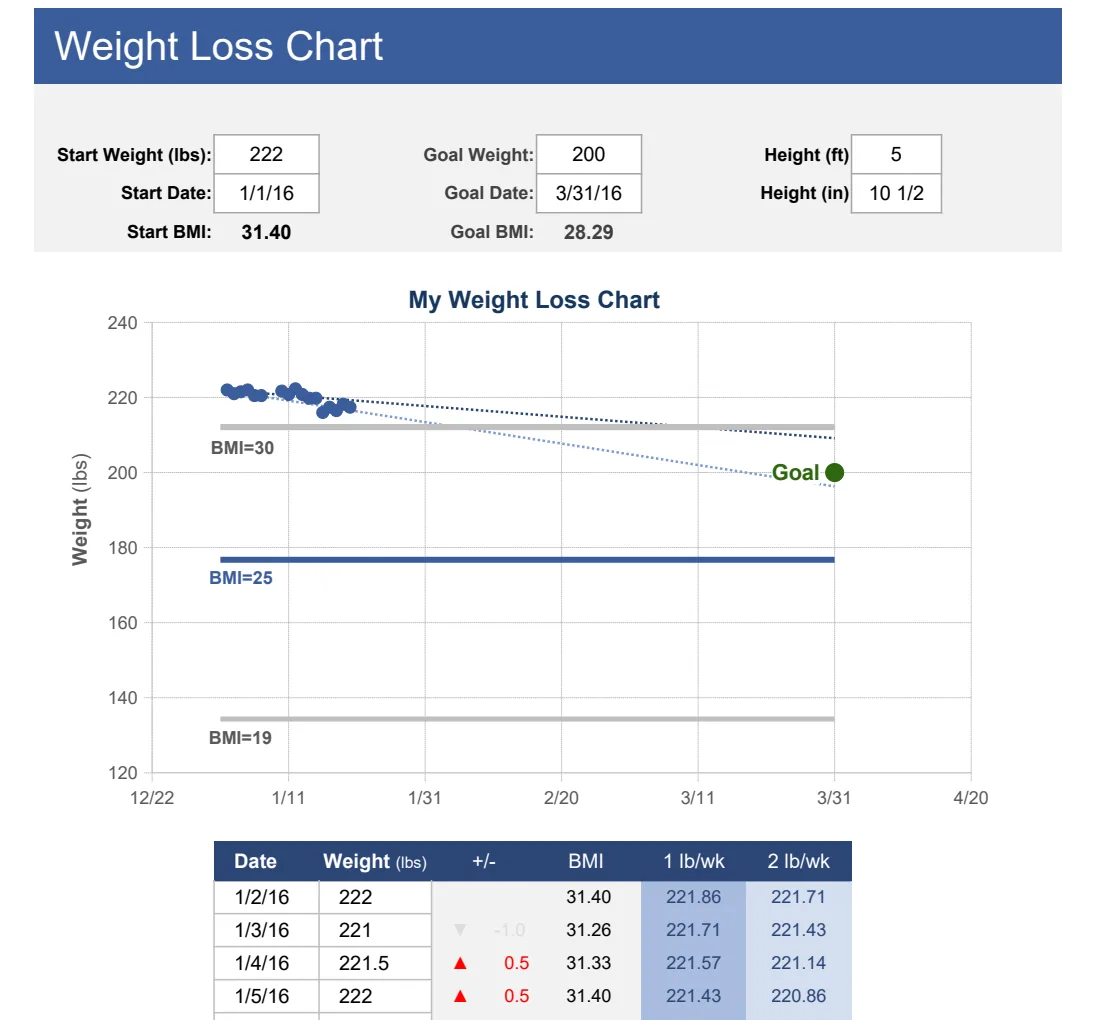
If your goal is primarily weight loss or body composition changes, a dedicated Weight Loss Chart Tracker can be a simpler and more focused alternative.
Common Mistakes to Avoid
Even with a template, you can trip yourself up. Be mindful of these pitfalls:
- Inconsistent Logging: Missing workouts or forgetting to log details makes the data unreliable. Treat logging as part of your workout routine.
- Over-complicating the Tracker: Trying to track too many obscure metrics can lead to burnout and abandonment. Stick to the essentials that help you make training decisions.
- Ignoring RPE and Notes: These qualitative data points are goldmines. They explain why a certain weight felt easy or hard, which is vital for understanding progress beyond raw numbers.
- Not Reviewing Data: The tracker is useless if you never look at it. Schedule time weekly or bi-weekly to review your progress and adjust your training plan.
- Comparing Yourself to Others: Your journey is unique. Use the tracker to compare your current self to your past self, not to someone else's highlight reel.
Frequently Asked Questions
How often should I update my gym progress tracker?
Ideally, you should log your workout details immediately after each session. For body metrics like weight or measurements, weekly is usually sufficient, though daily weigh-ins can be useful for observing fluctuations if you don't get discouraged by daily variance.
Can I use this for different types of training, like cardio or HIIT?
Yes, absolutely. While the example focused on strength training, you can adapt the columns. For cardio, you might track duration, distance, pace, and heart rate. For HIIT, you could log work/rest intervals and the specific exercises performed during those intervals. The key is to log the metrics that are most relevant to your training goals.
What if I want to track project management alongside my fitness goals?
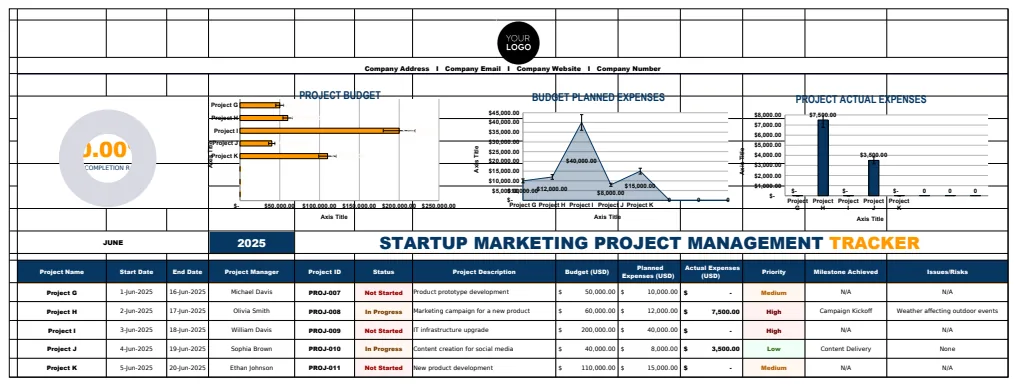
That's a different focus, and you'd want a specialized tool. For instance, if you're managing marketing projects, the Startup Marketing Project Management Tracker Template can help you monitor timelines and task statuses. Similarly, for team onboarding, the Onboarding Checklist Tracker HR Template is designed for that specific purpose. Trying to merge unrelated data types into a single sheet often leads to confusion.
Is there a cost for using a gym progress tracker Excel template?
Many basic templates can be found for free online, or you can build your own using standard spreadsheet software. If you're looking for a variety of pre-built templates for fitness, project management, or other needs, a one-time purchase for unlimited downloads from a library like ours can be a cost-effective solution. For example, you might find a Sample Workflow Gantt Chart useful for visualizing any project timelines you have.