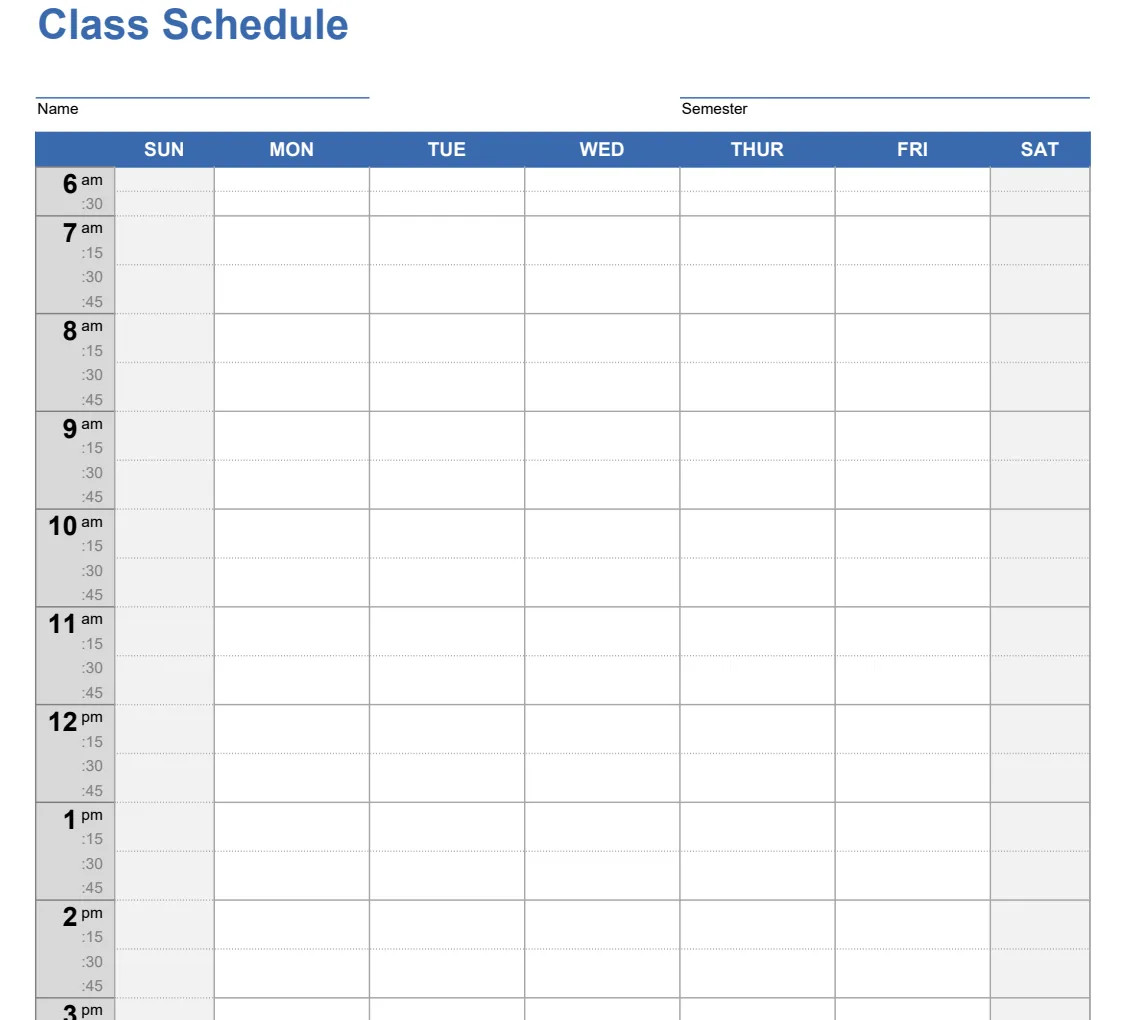
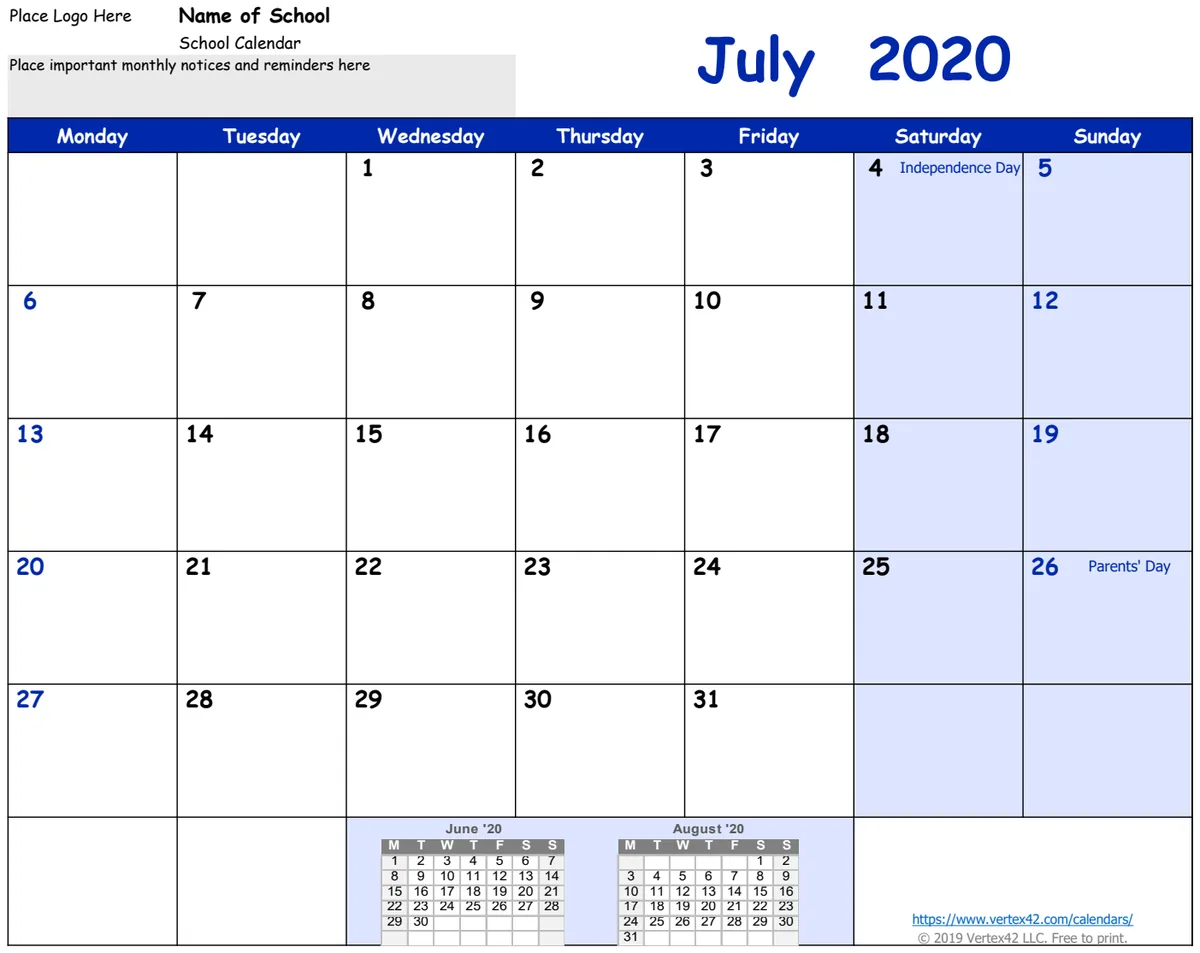
Need a free Excel yearly calendar template?
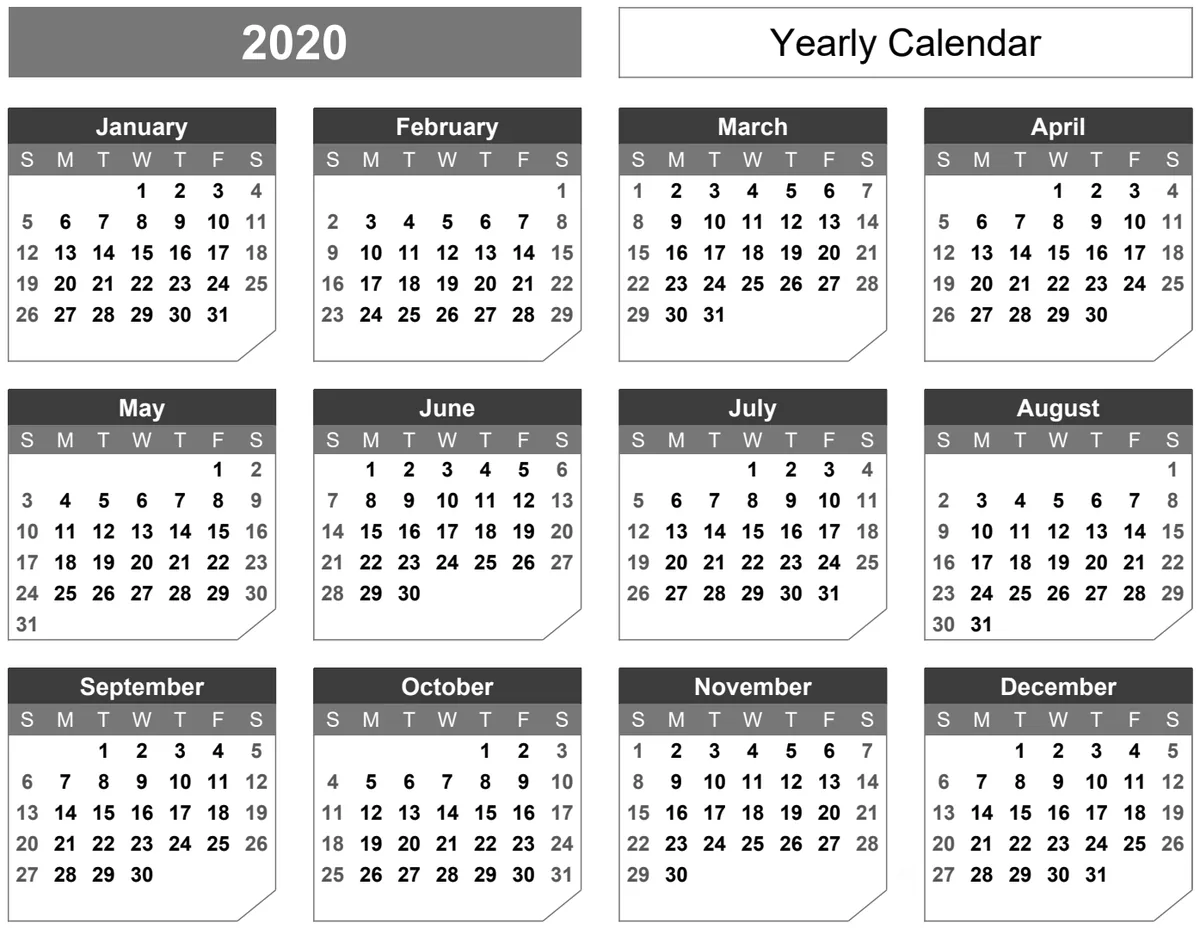
Tired of static yearly calendars? Discover dynamic Excel templates that automatically update, saving you time and preventing errors.
The most common pitfall with free yearly calendar templates in Excel is their static nature, often requiring manual updates for each new year or holidays. This leads to errors, missed events, and a frustrating lack of flexibility. If you've searched for a "yearly calendar template Excel free download," you've likely encountered templates that look good but quickly become unmanageable as your needs evolve.
Finding a template that automatically adjusts for leap years, different starting days of the week, or even customizable holiday markings can save you hours of tedious work. The best templates are not just visual aids; they are functional tools built with dynamic formulas that react to your input, making them genuinely useful year after year.
Understanding Dynamic Date Calculations
A truly effective yearly calendar template doesn't just display dates; it calculates them. This means formulas are working behind the scenes to determine the correct day of the week for January 1st, account for the 29th day in February during leap years, and correctly place all subsequent dates. When you select a year, the entire calendar should automatically reconfigure. This eliminates the risk of manual data entry errors, which are incredibly common when trying to adapt a generic template.
For instance, the YEAR() function in Excel can extract the year from a chosen date, and then this value can be used in other formulas like DATE(YEAR, MONTH, DAY) to construct the correct date for each cell. Similarly, WEEKDAY() can help determine the starting day of the week for each month, which is crucial for proper alignment. Templates that lack these dynamic calculations will quickly become obsolete, forcing you to hunt for another "yearly calendar template Excel free download."
Key Components of a Flexible Template
Beyond automatic date calculation, a good template offers several features that enhance usability.
- Year Selection: A dedicated cell where you can type or select the year you want to view. This single input should update the entire calendar.
- Holiday Marking: The ability to easily mark specific dates as holidays, birthdays, or important events, often through conditional formatting.
- Start Day Customization: Options to set the week to begin on Sunday or Monday, accommodating different regional or personal preferences.
- Notes/Event Space: Columns or dedicated areas alongside the calendar grid for jotting down reminders, tasks, or event details for each day.
If you're looking for a visually appealing yet functional option, the Yearly Calendar Landscape Chamfer Theme offers a full-year view with automatic date calculations and the flexibility to change the year.
Building Your Own Dynamic Calendar
While ready-made templates are convenient, building your own can offer unparalleled customization. Here’s a basic approach to creating a dynamic yearly calendar in Excel.
- 01Set up the Year Input: In a designated cell (e.g.,
B1), label it "Select Year" and enter a sample year like2024. - 02Create the Calendar Grid: Design your grid. A common layout is 12 months, each with 7 columns (days of the week) and up to 6 rows. You might have a large grid for the entire year or individual month grids. For a full-year view, you'll likely need a wider layout.
- 03Generate Month and Day Headers: In the cells where you want month names (e.g.,
A4for January), use a formula like=TEXT(DATE($B$1,ROW(A1),1),"mmmm"). This will pull the month name based on the selected year and the row number. For the days of the week (e.g.,B3:H3), you can simply type "Sun", "Mon", etc., or use=TEXT(COLUMN(B1),"ddd")if you want them to adjust based on a starting date. - 04Calculate and Display Dates: This is the most complex part. For a landscape, full-year view, you might have a cell for the first day of the year. Let's say this is
B5. You'll need a formula that calculates the correct day of the week for January 1st of the selected year. A common method involves usingWEEKDAY(DATE($B$1,1,1))and then offsetting your date display.
A simpler approach for a month-by-month grid is to find the first day of the month and then use a combination of DATE() and WEEKDAY() to populate the cells. For example, in cell B7 (representing the first Sunday of January): =IF(AND(WEEKDAY(DATE($B$1,1,1))=1,COLUMN(B1)=1),1,IF(AND(WEEKDAY(DATE($B$1,1,1))=2,COLUMN(B1)=2),1, ... )) This becomes very complex. A more manageable method uses helper cells or a different structure.
A more robust method for populating dates within a month grid (assuming cell B1 has the year, and A4 has the month number, e.g., 1 for January):
- Find the date of the first day of the month:
=$B$1&"-"&A4&"-01"(formatted as date). - Find the weekday of that first day:
=WEEKDAY(FirstDayOfMonthCell). - In your grid cells, use an
IFstatement combined withDATE()andROW()/COLUMN()to display the correct day number. For instance, if your grid starts atB6and the first day of the month is a Wednesday (weekday 4), and Sunday is column 2:
=IF(AND(COLUMN(B6)-COLUMN($A$6) < WEEKDAY(FirstDayOfMonthCell), ROW(B6)=ROW($B$6)),"", IF(ROW(B6)=ROW($B$6), COLUMN(B6)-COLUMN($A$6)-WEEKDAY(FirstDayOfMonthCell)+2, IF(ROW(B6)>ROW($B$6), INDEX(DateArray,ROW(B6)-ROW($B$6),COLUMN(B6)-COLUMN($A$6)),""))) This example is highly simplified and would require significant adjustment for a full-year template.
For a pre-built, reliable solution, consider the Yearly Calendar with Notes template, which includes interactive features and space for your planning.
Avoiding Common Mistakes
When working with any calendar template, free or paid, several common errors can derail your planning:
- Overwriting Formulas: The most frequent mistake is accidentally deleting or overwriting the formulas that drive the calendar's calculations. Always protect your formula cells (Review tab > Protect Sheet).
- Ignoring Leap Years: Free templates often don't account for leap years. If you use a template for a leap year and it wasn't designed for it, February will be incorrect.
- Manual Holiday Entry: Relying on manual input for holidays is prone to errors and requires updating every year. Look for templates that use conditional formatting rules linked to a holiday list.
- Incorrect Formatting: Dates can sometimes be stored as text, especially if copied and pasted from other sources. Ensure all date-related cells are formatted correctly as dates.
- Unnecessary Complexity: Trying to cram too much information into a single view can make the calendar hard to read. Sometimes, a simpler layout is more effective.
Customizing for Your Needs
Even the best templates might not perfectly match your specific requirements. Fortunately, Excel offers powerful tools for customization.
- Conditional Formatting: This is your best friend for highlighting important dates. You can create rules that automatically color a cell if it falls on a weekend, matches a specific holiday from a separate list, or meets other criteria you define. For example, to highlight all Saturdays and Sundays, you could create a rule using the formula
=OR(WEEKDAY(A1)=1,WEEKDAY(A1)=7)(assumingA1is the first date cell in your grid). - Data Validation: Use data validation to restrict input in the "Select Year" cell to only numbers or a specific range of years, preventing errors.
- Adding Event Details: If a template lacks space for notes, you can often add a separate sheet that lists dates and corresponding events. Then, use a formula like
VLOOKUPorXLOOKUPto pull event details into a dedicated column next to your calendar grid on the main sheet. The Family Calendar (Any Year, Sun-Sat) is designed with customization in mind for tracking multiple events.
What if I need to track multiple years simultaneously?
Most yearly calendar templates are designed for a single year view at a time. If you need to compare multiple years or track events across them, you might need a different approach. Consider creating separate sheets for each year, or building a master schedule on a separate tab that lists all events with their corresponding dates and years, and then using formulas to pull relevant information into a yearly view. Some advanced templates might offer this functionality, but often it requires custom development.
Can I use a yearly calendar template for project planning?
Absolutely. While designed for general yearly overviews, these templates can be adapted for project timelines. You would typically use the date cells to represent project milestones or deadlines. Conditional formatting can then be used to visually track progress, upcoming deadlines, or project phases. For more detailed project management, however, dedicated project management software or more complex Excel templates with Gantt chart features might be more suitable.
How do I ensure my "yearly calendar template Excel free download" is safe to use?
When downloading any free template, especially from unofficial sources, exercise caution. Look for templates from reputable websites that specialize in Excel resources. Be wary of templates that require enabling macros from unknown publishers, as these could contain malicious code. If you're downloading from a trusted library like OpenWorksheet, you can be more confident in the quality and security of the files. The templates available there offer robust functionality for a one-time fee for unlimited downloads.
What's the difference between a landscape and portrait yearly calendar template?
The primary difference is the orientation and layout. A landscape yearly calendar template is wider than it is tall, typically displaying all 12 months across a single, very wide sheet or a few connected sheets. This format is excellent for seeing the entire year at a glance, making it easy to spot annual trends or plan long-term. A portrait yearly calendar template is taller than it is wide. It usually presents months in a vertical stacking order or breaks the year into several portrait-oriented pages. This layout can be more space-efficient on screen or when printed on standard letter-sized paper and is often easier to read for detailed monthly planning. The Yearly Calendar Portrait Chamfer Theme provides a beautifully designed portrait option.