Need an Excel recurring invoice template?
Learn how to build a functional recurring invoice template in Excel by separating static client data from variable invoice details.
The core of a functional recurring invoice template Excel setup isn't the fancy formatting; it's the logical separation of static client data from the variable invoice details. Most people try to cram everything into one giant sheet, which makes it impossible to manage automatically. You need a system, not just a spreadsheet.
To effectively manage ongoing client billing without manual recalculation each period, you'll want a robust recurring invoice template Excel setup. This means dedicating specific areas of your workbook to store client information and then linking that data into your invoice generation process. This approach saves hours and drastically reduces errors.
Structuring Your Recurring Invoice System
A well-designed recurring invoice system hinges on a few key components: a client database, a service or product list, and the invoice template itself. Think of it like a mini-CRM and invoicing engine combined within Excel.
Your Client Database sheet should hold all the static information for each client you bill repeatedly. This includes:
- Client Name
- Client Address
- Client Contact Person
- Client Email Address
- Client Phone Number
- Unique Client ID (crucial for linking data)
- Payment Terms (e.g., Net 30)
- Default Currency
The Services/Products List sheet is where you define what you're billing for. This is especially helpful if you offer a variety of services or products.
- Service/Product Name
- Description
- Unit Price
With these two foundational sheets, you can then build your actual invoice.
Building Your Invoice Template Sheet
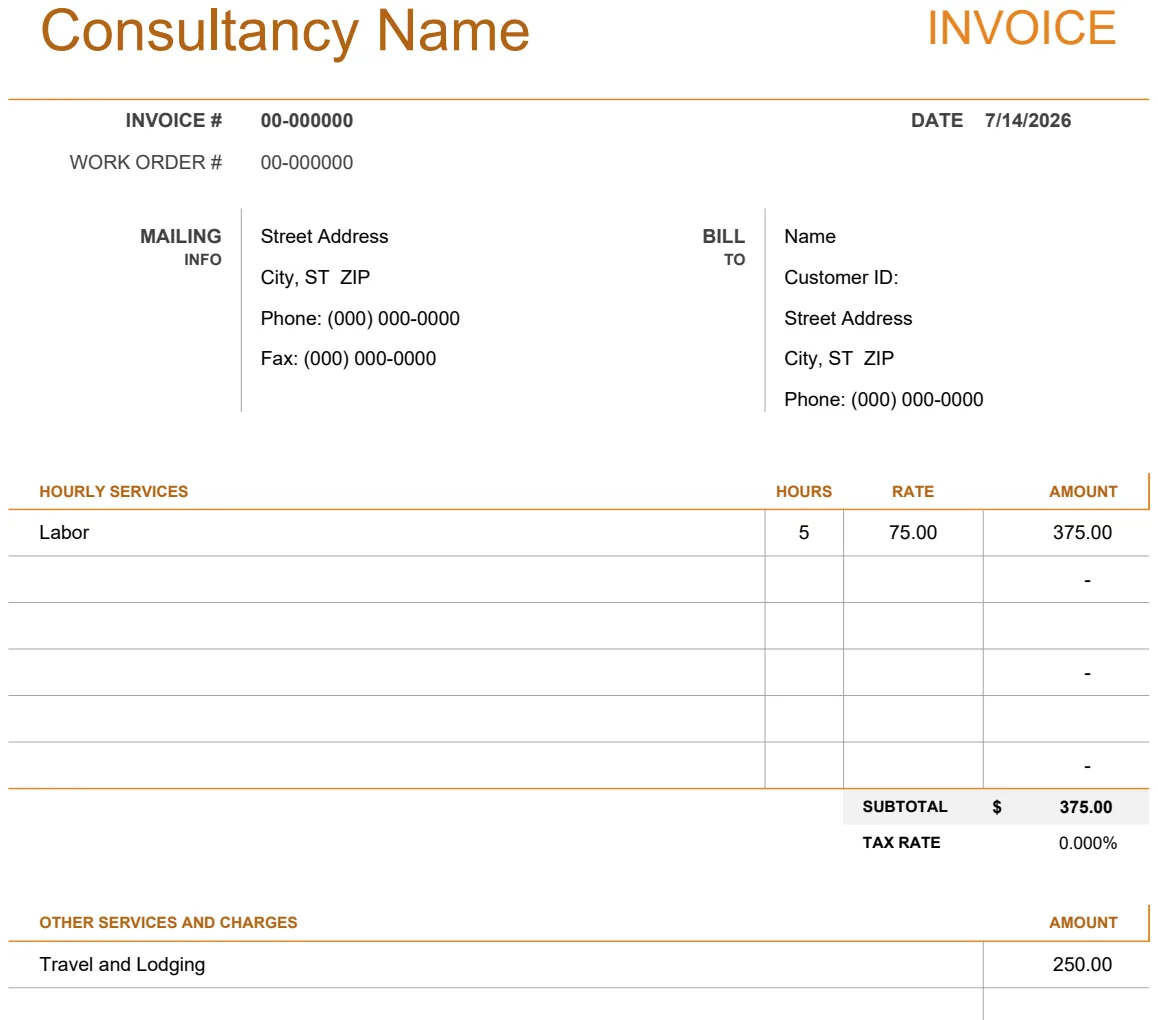
Let's call this sheet "Invoice Template". This is where the magic happens, pulling data from your other sheets to construct each invoice. You'll need several sections here:
- 01Invoice Header:
- Your Company Name and Logo (can be an image inserted into a cell).
- Your Company Address, Phone, and Email.
- Invoice Number (you'll likely want a system to auto-increment this or generate it based on date and client ID).
- Invoice Date.
- Due Date (calculated based on Invoice Date and your Payment Terms from the Client Database).
- 02Client Information:
- This section will pull directly from your Client Database using a lookup function. You'll need a cell to enter the Client ID (or Client Name, if you prefer to look that up first), and then formulas to pull the rest.
- Client Name:
=XLOOKUP(A1, 'Client Database'!$A:$A, 'Client Database'!$B:$B, "Client Not Found")(assuming Client ID is in cell A1 of your Invoice Template, and Client IDs are in column A and Client Names in column B of 'Client Database'). - Client Address:
=XLOOKUP(A1, 'Client Database'!$A:$A, 'Client Database'!$C:$C, "Client Not Found") - Client Email:
=XLOOKUP(A1, 'Client Database'!$A:$A, 'Client Database'!$E:$E, "Client Not Found")
- 03Line Items: This is the most dynamic part. You'll typically have columns for:
- Item/Service: This can be a dropdown list populated from your Services/Products list, or you can type it in and use a lookup to pull the description and price.
- Description: Pulled from your Services/Products list based on the Item/Service selected.
- Quantity: Manually entered or calculated. For recurring invoices, this might be a fixed number (e.g., 1 for a monthly software subscription).
- Unit Price: Pulled from your Services/Products list.
- Line Total:
=Quantity * Unit Price.
- 04Totals Section:
- Subtotal:
=SUM(Line Item Totals). - Tax Rate: You can hardcode this or pull it from a settings sheet.
- Tax Amount:
=Subtotal * Tax Rate. - Discount: If applicable, manually entered or calculated.
- Total Amount Due:
=Subtotal + Tax Amount - Discount.
- 05Payment Information/Notes:
- Bank transfer details, payment instructions, thank you message.
Automating Recurring Invoices
The real power of a recurring invoice template Excel setup comes from automation. While Excel doesn't have a built-in "send recurring invoice" button, you can automate the creation and population of invoices.
- Client ID Lookup: As mentioned, use
XLOOKUPorVLOOKUPto pull client details based on a Client ID. This is fundamental. - Service/Product Price Lookup: Similarly, use
XLOOKUPto pull unit prices from your Services/Products list based on the service name selected in the line items. - Due Date Calculation: If your invoice date is in cell
C5and your payment terms (e.g., 30 days) are in cellD5(or pulled from the client sheet), your due date formula could be=C5+D5. - Generating New Invoices: For a truly recurring system, you might have a "Master" invoice template. Each month, you could duplicate this sheet, rename it (e.g., "Invoice - ClientA - Jan2026"), update the invoice date and number, and then simply adjust quantities if needed. The client data and prices will auto-populate.
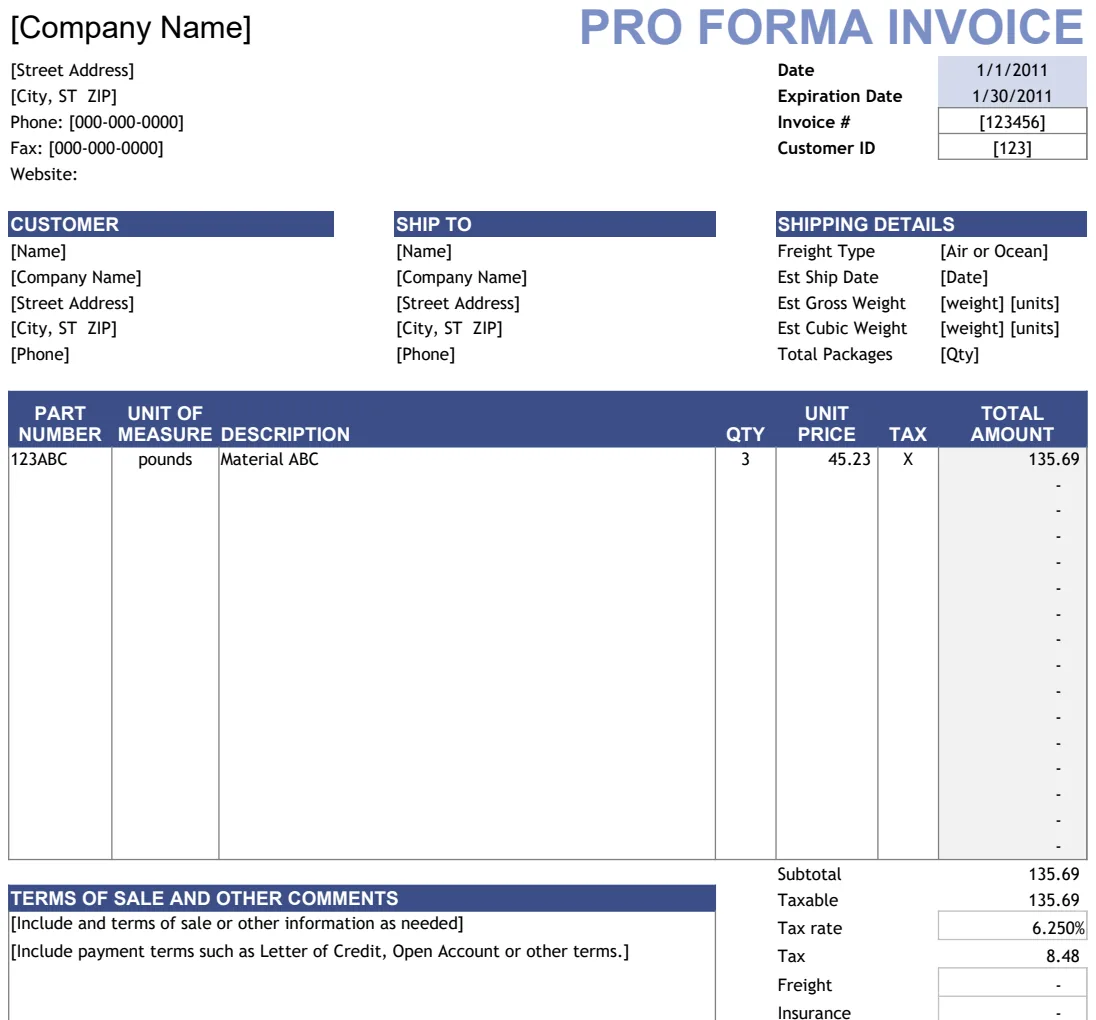
Consider a template like the Business Invoice Template which offers features for customer databases and product catalogs, forming a solid base for this kind of automated system.
Handling Different Billing Cycles
You'll have clients billed weekly, monthly, quarterly, or annually. How do you manage this within your recurring invoice template Excel framework?
- Add a "Billing Cycle" Column to Client Database: Include columns like "Billing Frequency" (e.g., "Monthly", "Quarterly") and "Next Billing Date".
- Use Formulas for Next Billing Date: Based on the "Next Billing Date" and "Billing Frequency", you can calculate the due date for the next invoice. For example, if the "Next Billing Date" is in
G2and "Billing Frequency" is inH2, you might use a formula like: =IF(H2="Monthly", EDATE(G2,1), IF(H2="Quarterly", EDATE(G2,3), IF(H2="Annually", EDATE(G2,12), G2)))- This formula uses
EDATEto add months. You'll need to ensure your "Next Billing Date" is updated after you generate an invoice. - Filtering and Sorting: You can then filter your client list by "Billing Frequency" to see who needs an invoice generated this period.
Common Mistakes to Avoid
Many users struggle with recurring invoicing in spreadsheets due to a few common pitfalls.
- No Centralized Client Data: Trying to type client addresses directly into each invoice is a recipe for typos and inconsistencies. Always use a dedicated client list and lookup functions.
- Hardcoding Prices: If your service prices change, you'll have to update every single invoice manually. A service/product list with lookup formulas is essential.
- Not Using Unique Identifiers: Relying solely on client names for lookups can fail if names are similar or spelled slightly differently. A unique Client ID is far more reliable.
- Overly Complex Formulas: While powerful, extremely complex nested
IForVLOOKUPchains can become difficult to debug. Keep formulas as clear and segmented as possible. Consider helper columns if necessary. - Forgetting to Update: The best automated system breaks down if you forget to update the "Next Billing Date" or other crucial fields. Schedule regular checks.
Advanced Tips and Customization
Once you have the basics down, you can enhance your recurring invoice template Excel setup further.
- Conditional Formatting: Use conditional formatting to highlight invoices that are overdue, or to visually distinguish between different client types. For instance, you could highlight the "Total Amount Due" cell red if the "Due Date" is in the past and the invoice hasn't been paid.
- Data Validation for Dropdowns: Use Data Validation on your "Item/Service" column in the line items section to create a dropdown list pulled from your Services/Products sheet. This prevents mistyping service names and ensures accurate price lookups.
- Invoice Numbering System: Consider a more sophisticated invoice numbering system. You could combine the client ID with the date and a sequential number. For example,
CLIENTID-YYYYMM-001. This can be managed with formulas, or by simply incrementing the last number manually when creating a new invoice for that client in a given month. - Tracking Payments: Add a "Payment Status" column (e.g., "Draft", "Sent", "Paid", "Overdue") to your invoice tracking sheet and use conditional formatting to update it.
Frequently Asked Questions
How do I make sure my recurring invoices are sent on time?
While Excel itself can't send emails, you can set up reminders. Maintain a "Next Billing Date" in your client database and use Excel's conditional formatting to highlight clients whose "Next Billing Date" is approaching. You can then manually trigger the invoice creation process. For true automation, you would need to explore third-party tools that integrate with Excel or use more advanced scripting, but for many, a structured manual process is sufficient.
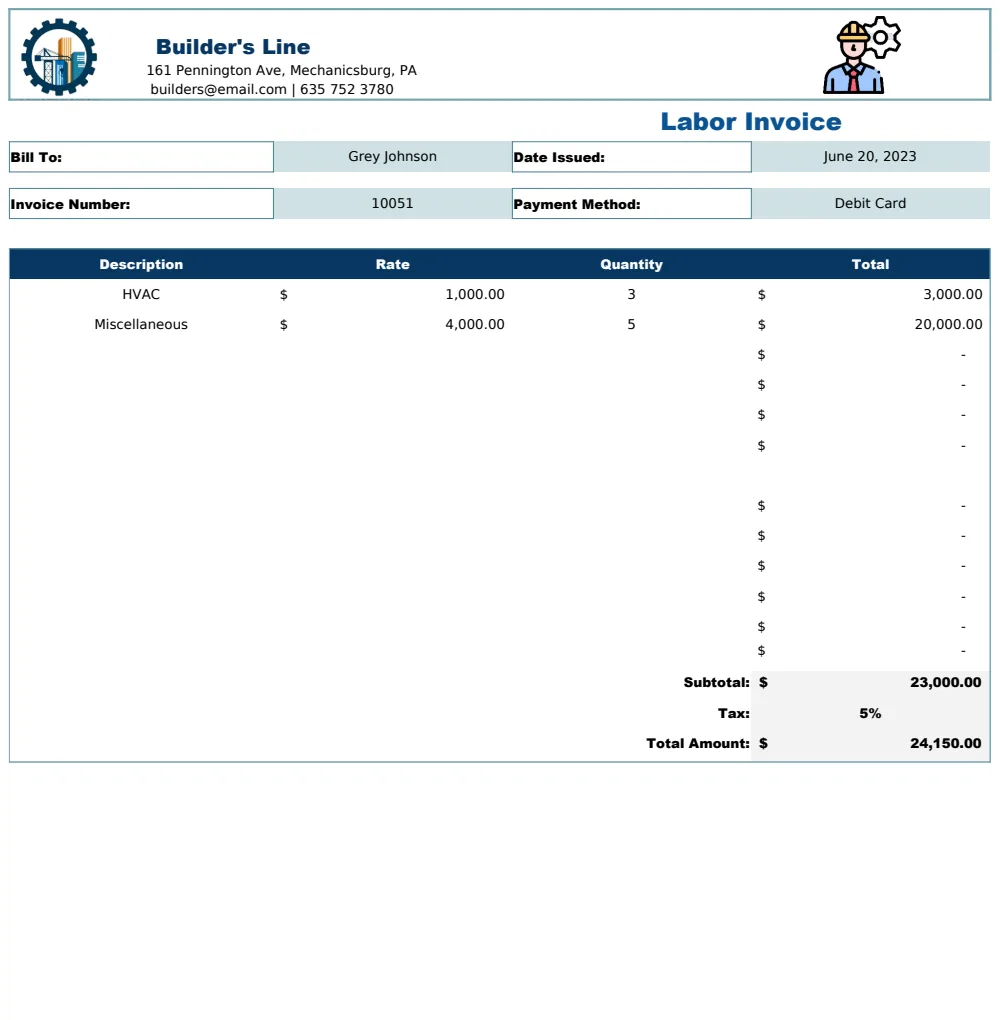
Can I use a template like the Labor Invoice Template for recurring services?
Yes, you absolutely can adapt templates like the Labor Invoice Template for recurring services. The key is to treat the recurring service as a single line item with a quantity of 1 and a price reflecting the recurring fee. You would then set up your system to generate a new invoice with updated dates for that client at the appropriate interval, pulling in the same service details.
What if I need to track multiple recurring services for one client?
This is where your line item section becomes critical. For each recurring service you offer a client, you would add a new row in the line items section of your invoice template. You would select the service, and the description and unit price would auto-populate. You'd then enter the quantity (often 1 for recurring subscriptions) and the line total would calculate automatically. This is where a template like the Final Invoice Template with Product List Management can be particularly helpful for managing a large catalog of services.
Is there a cost for using these spreadsheet templates?
Our library offers templates that are available for a one-time purchase of $9, providing unlimited downloads for any template you need. You can find a professional Invoice Template among them that can serve as a starting point for your recurring billing needs, or explore other specialized options.