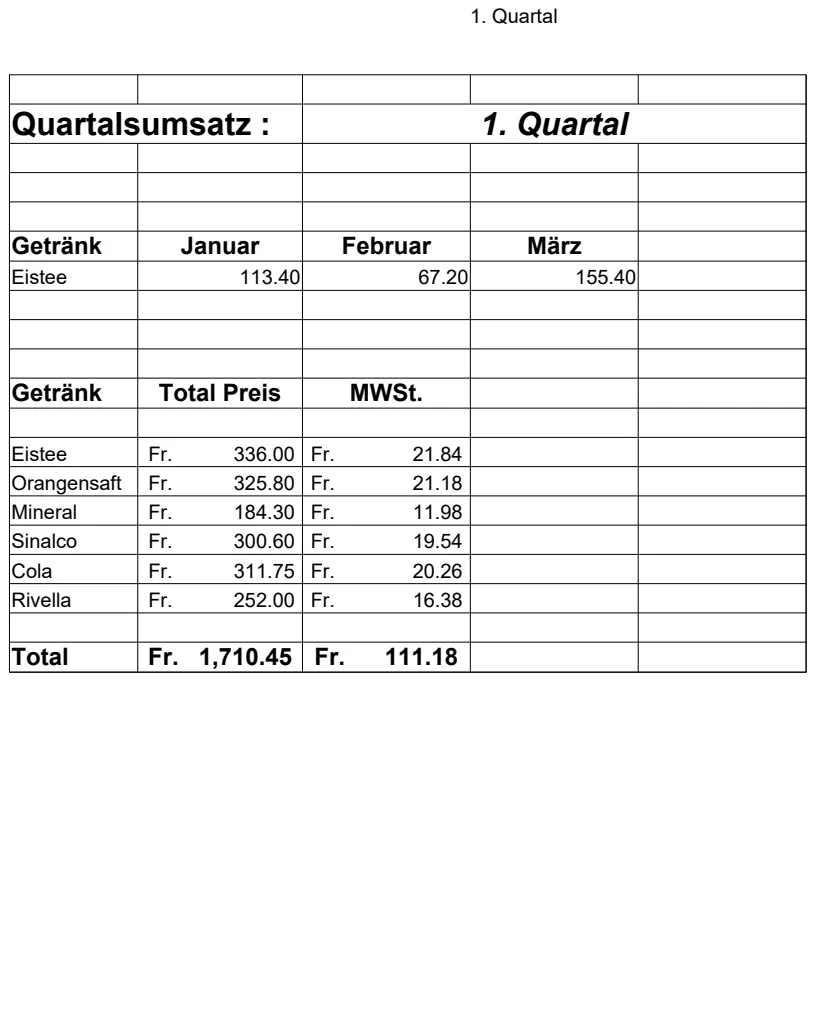
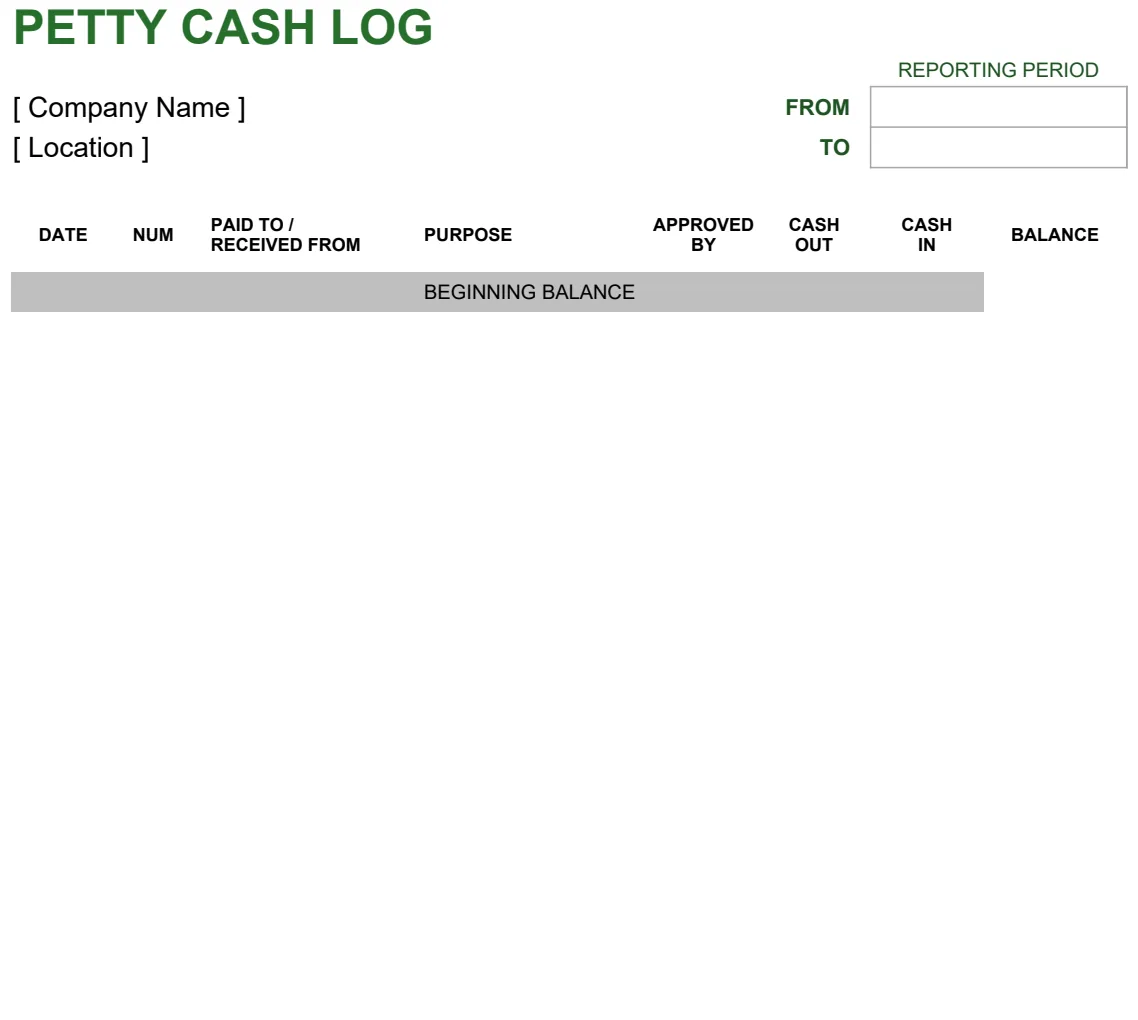
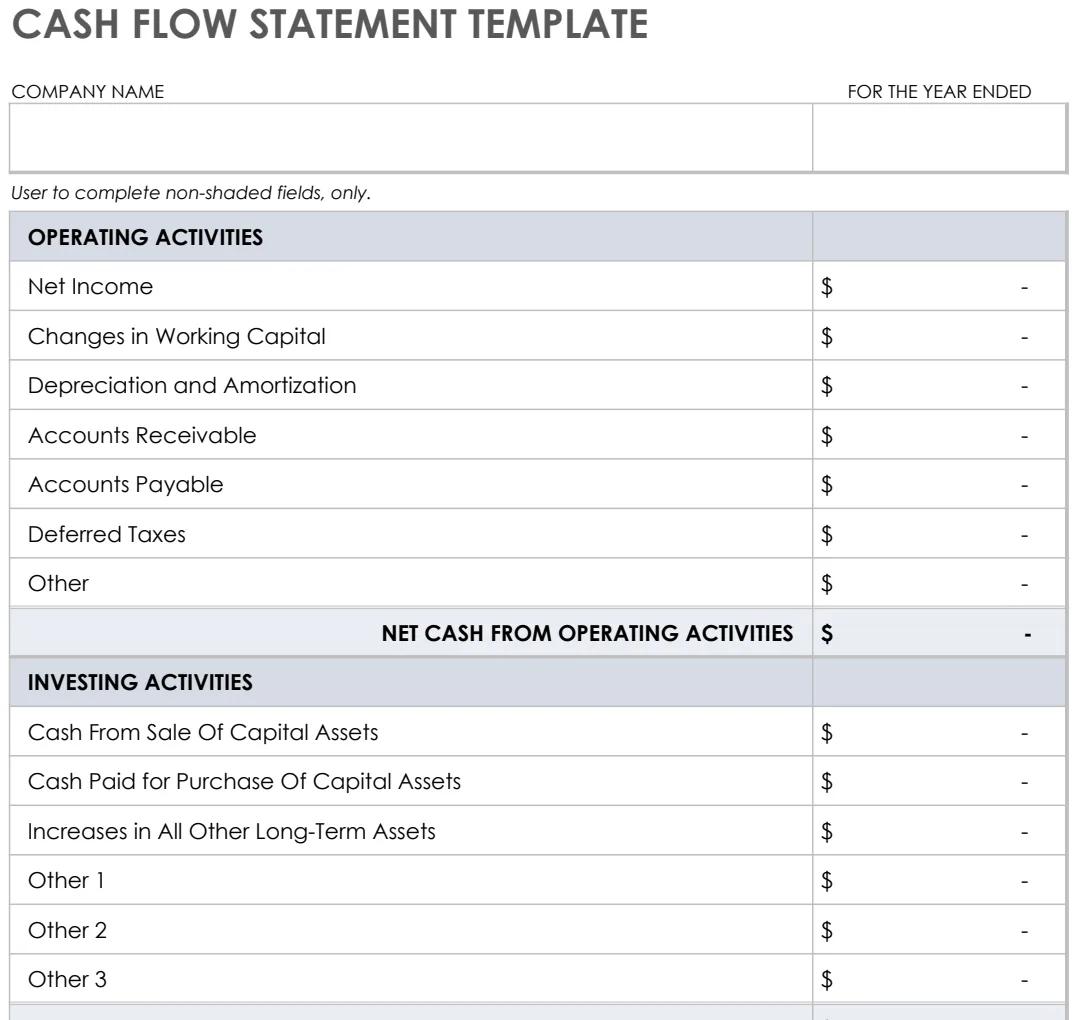
Simple spreadsheet template for small business bookkeeping
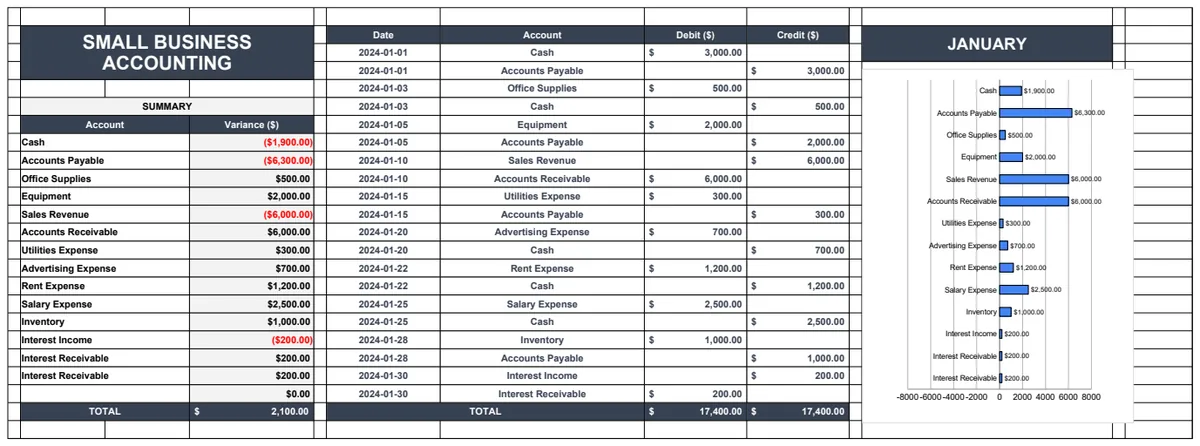
This simple spreadsheet template for small business bookkeeping focuses on crucial setup details like consistent date formatting for accurate financial insights.
The Date column in your bookkeeping spreadsheet is more critical than it appears. If it's not consistently formatted, especially across imported bank statements, your sorting, filtering, and especially your date-based calculations like month-over-month comparisons will break. A simple inconsistency, like "1/5/2024" versus "01-05-24", can cause a perfectly good formula to return an error or misinterpret data. This is a fundamental detail for any effective small business bookkeeping spreadsheet template.
Setting up a robust small business bookkeeping spreadsheet template goes beyond just recording transactions. It’s about creating a system that provides actionable insights. This means structuring your sheet to capture not just the amount and date, but also the category, client or vendor, and payment method. Without these details, you're just looking at a list of numbers, not a financial picture.
Structuring Your Transaction Log
The core of any bookkeeping system is the transaction log. Think of this as your digital checkbook register, but far more powerful. Each row represents a single financial event, an income earned or an expense incurred.
Here's a common structure that works well:
- Date: The date the transaction occurred. Use a consistent format (e.g., YYYY-MM-DD or MM/DD/YYYY).
- Description/Payee: A clear, concise description of what the transaction was for (e.g., "Invoice #1023", "Office Supplies - Staples", "Client Payment - ABC Corp").
- Category: This is crucial for analysis. Assign each transaction to a predefined category (e.g., "Sales Revenue", "Consulting Income", "Rent", "Utilities", "Marketing", "Software Subscriptions"). You'll want a separate tab to list and manage these categories.
- Subcategory (Optional): For more granular tracking, you can add a subcategory (e.g., under "Marketing", you might have "Social Media Ads", "Print Materials").
- Account: If you track multiple bank accounts or credit cards, specify which account the transaction relates to.
- Amount (Income): Enter positive numbers for money coming in.
- Amount (Expense): Enter positive numbers for money going out. Many prefer to use a single "Amount" column and a "Type" column (Income/Expense), but separating them can simplify some calculations.
- Payment Method: How was the transaction paid or received? (e.g., "Credit Card", "Bank Transfer", "Check", "Cash").
- Reference Number: For invoices, check numbers, or transaction IDs.
- Notes: Any additional context you need to remember.
Using a template like the Business Bookkeeping Excel Spreadsheet can pre-configure many of these columns for you, saving significant setup time.
Categorization is Key to Insights
Without proper categorization, your transaction log is just a data dump. Assigning each income and expense to a logical category is what transforms raw data into meaningful financial information. This allows you to see where your money is coming from and where it's going.
Common Income Categories:
- Sales Revenue
- Service Income
- Consulting Fees
- Interest Income
Common Expense Categories:
- Rent/Mortgage
- Utilities (Electricity, Gas, Water)
- Internet/Phone
- Salaries/Wages
- Contractor Fees
- Marketing & Advertising
- Office Supplies
- Software Subscriptions
- Travel Expenses
- Insurance
- Taxes
- Bank Fees
- Loan Payments (Principal portion is not an expense, but interest is)
Your categories should align with your business model and what you need to track for tax purposes or for making business decisions. A well-designed small business bookkeeping spreadsheet template will offer a framework for this.
Handling Income and Expenses: Formula Magic
Once your transactions are logged with categories, you can start building summaries. This is where formulas become your best friend.
Summing Income by Category: If your income is in column F and your category is in column C, you can sum income for a specific category (e.g., "Sales Revenue") using SUMIF. Assuming your data is in rows 2 through 100:
=SUMIF(C2:C100, "Sales Revenue", F2:F100)
If you have multiple income categories you want to sum, SUMIFS is more appropriate, especially if you want to filter by date range or account as well. For example, to sum "Consulting Income" for the month of January from a sheet named "Transactions":
=SUMIFS(Transactions!F2:F100, Transactions!C2:C100, "Consulting Income", Transactions!A2:A100, ">="&DATE(2024,1,1), Transactions!A2:A100, "<="&DATE(2024,1,31))
Summing Expenses by Category: The same logic applies to expenses. If your expenses are in column G and categories in C:
=SUMIF(C2:C100, "Rent", G2:G100)
Calculating Net Profit: To find your net profit for a period, you'll need to sum all income and subtract all expenses.
=SUM(F2:F100) - SUM(G2:G100)
This basic calculation is fundamental, but you'll often want to break it down by month or quarter, which leads to more complex but invaluable summaries. A template like Easy Bookkeeping often includes pre-built summary dashboards that automate these calculations.
Tracking Accounts Receivable and Payable
Beyond daily transactions, you need to know who owes you money (Accounts Receivable - AR) and who you owe money to (Accounts Payable - AP).
Accounts Receivable: This typically involves tracking invoices you've sent that haven't been paid yet. You might have a separate sheet for this, or a dedicated section in your main template. Key columns include:
- Invoice Number
- Invoice Date
- Client Name
- Due Date
- Invoice Total
- Amount Paid
- Balance Due (Invoice Total - Amount Paid)
- Status (e.g., "Outstanding", "Paid", "Overdue")
Formulas can then calculate the total outstanding AR and identify overdue invoices.
Accounts Payable: This is the flip side, bills you've received but haven't paid. Similar columns are needed:
- Vendor Name
- Bill Date
- Due Date
- Bill Total
- Amount Paid
- Balance Due (Bill Total - Amount Paid)
- Status (e.g., "Unpaid", "Paid", "Past Due")
Monitoring these lists helps you manage cash flow, ensuring you have funds to pay bills on time and follow up on outstanding customer payments.
Reconciling Bank Statements
Bank reconciliation is a vital step to ensure your spreadsheet records accurately reflect your bank's records. This process catches errors, omissions, and potential fraud.
The Process:
- 01Get your bank statement for the period you want to reconcile (usually a month).
- 02Compare each transaction on your bank statement to the corresponding entry in your spreadsheet's transaction log.
- 03Mark off matching transactions in both your spreadsheet and on the bank statement.
- 04Identify discrepancies:
- Transactions in your spreadsheet but not on the bank statement: These could be outstanding checks or payments that haven't cleared yet.
- Transactions on the bank statement but not in your spreadsheet: These are likely errors or omissions. You'll need to add them to your spreadsheet, categorizing them correctly.
- Differences in amounts: This could be due to bank fees, interest earned, or data entry errors.
- 05Adjust your spreadsheet: Make necessary corrections, add missing transactions, and record any bank fees or interest.
- 06Calculate the difference: Your goal is for the adjusted balance in your spreadsheet to match the ending balance on your bank statement. The difference should be zero.
Regular reconciliation, ideally monthly, is a cornerstone of accurate bookkeeping.
Common Mistakes to Avoid
Even with a good small business bookkeeping spreadsheet template, errors happen. Being aware of common pitfalls can save you a lot of headaches.
- Inconsistent Categorization: Using slightly different names for the same category (e.g., "Office Supplies" vs. "Supplies - Office") will split your data and skew your reports. Create a master list of categories and stick to it.
- Not Reconciling Regularly: Letting bank statements pile up makes reconciliation a monumental, often error-prone, task.
- Ignoring Small Expenses: While individually small, unrecorded expenses can add up significantly over time, distorting your profit picture.
- Mixing Personal and Business Finances: This is a cardinal sin. Always use separate accounts and track them distinctly.
- Failing to Back Up Your Spreadsheet: If your computer crashes or your file gets corrupted, you could lose months of data. Implement a regular backup routine.
- Over-Complicating the Spreadsheet: While advanced features are great, start with a clear, simple structure. You can always add complexity later. A tool like the Accounting Spreadsheet offers a good balance of functionality and clarity.
Frequently Asked Questions
How often should I update my bookkeeping spreadsheet?
Ideally, you should update your bookkeeping spreadsheet daily or at least a few times a week. This ensures your records are current and makes the reconciliation process much easier when your bank statements arrive. For a small business, consistency is more important than the exact frequency, but frequent updates prevent data from becoming overwhelming.
Can a spreadsheet really handle all my small business accounting needs?
For many very small businesses or freelancers, a well-structured spreadsheet can indeed handle all their core bookkeeping needs, especially if they use a comprehensive template. It allows for tracking income, expenses, generating basic financial reports, and managing invoices. However, as a business grows, with more complex transactions, inventory management, payroll, or multiple employees, dedicated accounting software often becomes more efficient and provides more robust features.
What's the difference between bookkeeping and accounting?
Bookkeeping is the process of recording financial transactions. It's about accurately logging every sale, purchase, and payment. Accounting, on the other hand, is the broader practice of summarizing, analyzing, and interpreting these financial records. Accountants use the data provided by bookkeepers to create financial statements, prepare tax returns, and offer strategic financial advice. Your spreadsheet serves as the bookkeeping ledger.
How do I choose the right small business bookkeeping spreadsheet template?
Consider your business's complexity. Do you need to track inventory? Do you have multiple bank accounts? Do you need to manage payroll? Look for a template that has the columns and pre-built summaries you need. Ensure it's easy to understand and customize. Many templates, like the Small Business Accounting Template, are designed with these varying needs in mind. Remember that our library offers a one-time purchase for unlimited downloads, so you can explore options.