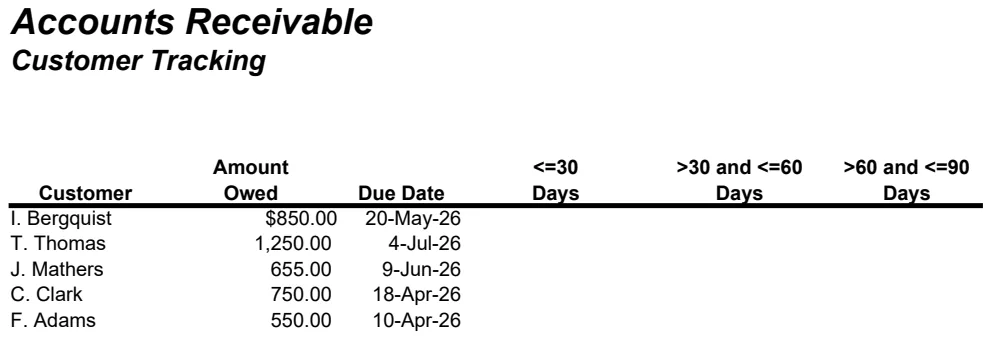
A customer says they never received an invoice from February. You search your sent mail, find it, and discover they also paid something in March that nobody matched to anything. Ten minutes later you are not sure what they owe, and you cannot send a polite reminder because you cannot state the number.
A statement of account solves that conversation. It is one page listing every invoice, payment and credit on a customer's account with a running balance, so both sides see the same figure. Paired with an accounts receivable aging report, which shows how long each balance has been outstanding, it also tells you who to chase first. This guide explains the format, builds both in Excel with the formulas, and works through a full example.
Statement of account vs invoice
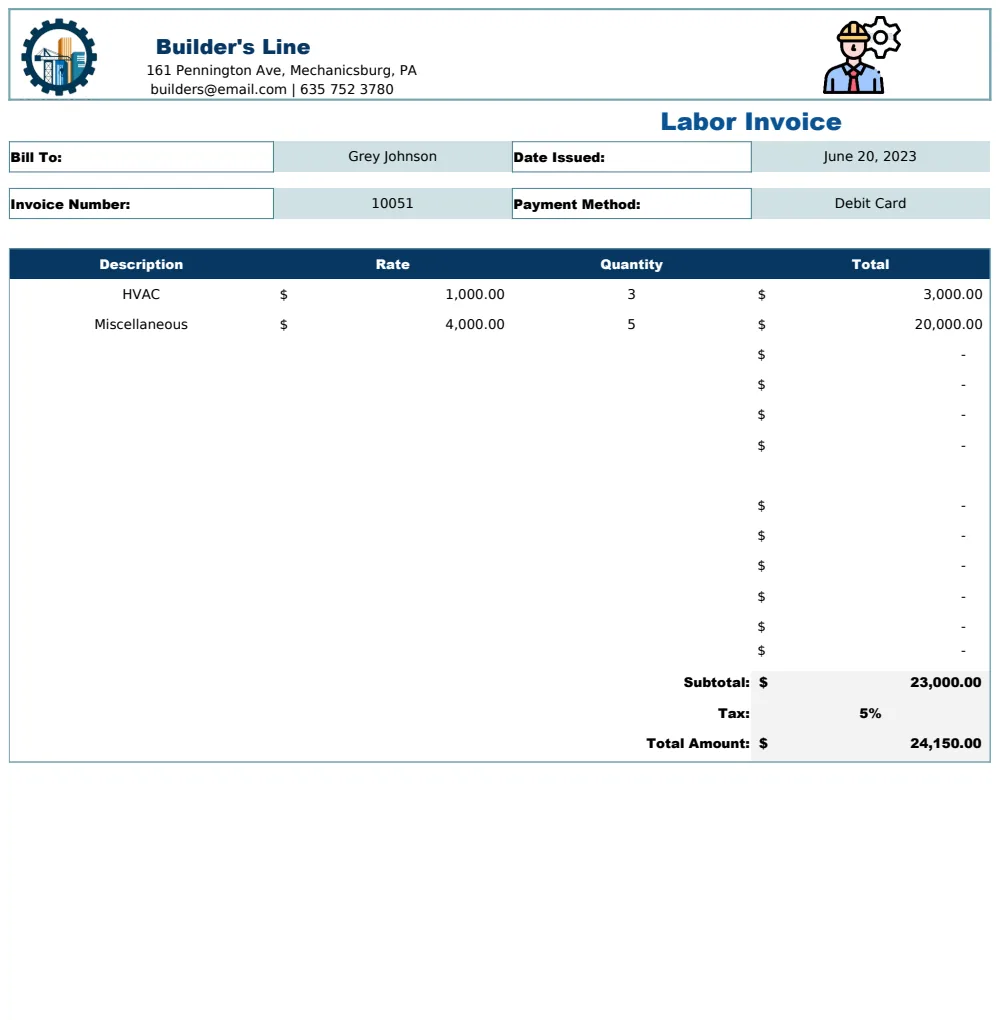
An invoice is a bill for one transaction. A statement of account is a summary of the whole account over a period:
- Invoice: one sale, one amount, one due date.
- Statement of account: all invoices, payments, credit notes and adjustments, with a running balance and the total due.
Statements are not a replacement for invoices. They are a reminder and a reconciliation tool: customers use them to check their own records, and finance teams use them to catch missing payments before they become disputes.
What a customer statement should include
A statement that customers can pay from, and trust, has these parts:
- Your details: company name, address, contact and bank details for payment
- Customer details: name, address and account number
- Statement date and period: for example, 1 February to 31 March
- Balance brought forward: what was owed at the start of the period
- Transactions: date, document type (invoice, payment, credit), reference, description, amount
- Running balance: the balance after each line
- Balance due: the closing figure
- Aging summary: how much is current and how much is overdue, by age
- Payment terms and a payment message: for example, "Please pay overdue amounts within 7 days"
- Remittance slip: a tear-off section with the customer name, amount due and how to pay
The balance brought forward is the detail most hand-made statements skip. Without it, a statement for a single month cannot reconcile to the customer's balance.
A worked example: one customer's account
A fictional print shop sells on net 30 terms. Here is one customer's open items at 31 March 2027.
Statement for February and March
| Date | Document | Amount | Balance |
|---|---|---|---|
| 1 Feb | Balance brought forward | 4,200 | 4,200 |
| 3 Feb | INV-1058 | 3,100 | 7,300 |
| 22 Feb | INV-1066 | 2,600 | 9,900 |
| 12 Mar | INV-1079 | 5,400 | 15,300 |
| 29 Mar | INV-1088 | 1,800 | 17,100 |
The brought-forward 4,200 is INV-1041, raised on 5 January. The balance due is 17,100.
Aging as at 31 March
Each invoice is aged from its due date, which is the invoice date plus 30 days.
| Invoice | Invoice date | Due date | Days past due | Bucket | Amount |
|---|---|---|---|---|---|
| INV-1041 | 5 Jan | 4 Feb | 55 | 31 to 60 | 4,200 |
| INV-1058 | 3 Feb | 5 Mar | 26 | 1 to 30 | 3,100 |
| INV-1066 | 22 Feb | 24 Mar | 7 | 1 to 30 | 2,600 |
| INV-1079 | 12 Mar | 11 Apr | not yet due | Current | 5,400 |
| INV-1088 | 29 Mar | 28 Apr | not yet due | Current | 1,800 |
Totals by bucket: Current 7,200, 1 to 30 days 5,700, 31 to 60 days 4,200, 61 to 90 days 0, over 90 days 0. That adds up to 17,100, matching the statement. A report whose total does not match the ledger has an error somewhere, so build that check into the sheet.
About 58 percent of the balance, 9,900 of 17,100, is overdue. That is the number to take into a collections conversation.
How to build the statement in Excel
Keep one Transactions list as the single source of truth, with these columns: Date, Customer, Type (Invoice, Payment, Credit note, Write-off), Reference, Applies to (the invoice a payment or credit settles), Amount and Due date.
Sign the amounts so invoices are positive and payments and credits are negative. Then:
Balance brought forward for a customer and start date:
=SUMIFS(Amount, Customer, SelectedCustomer, Date, "<" & StartDate)
Transactions in the period: with Excel 365 you can list them with FILTER:
=FILTER(Transactions, (Customer=SelectedCustomer)*(Date>=StartDate)*(Date<=EndDate))
Without dynamic arrays, number the matching rows in a helper column and pull each one with INDEX and SMALL.
Running balance:
=BroughtForward + SUM($E$12:E12)
where column E holds the amounts and the range grows as you fill down.
Customer address and terms: look them up from a Customers sheet with XLOOKUP, or INDEX and MATCH in older versions, so the statement rebuilds when you pick another customer.
How to build the aging report
First, work out what is still open on each invoice. A payment applied to an invoice reduces it:
=InvoiceAmount + SUMIFS(Amount, AppliesTo, InvoiceRef)
Payments are negative, so the open amount is the invoice plus them. Anything left at zero is closed and can be ignored.
Then age each open invoice from its due date as at the report date:
=ReportDate - DueDate
And assign a bucket:
=IF(Days<=0, "Current", IF(Days<=30, "1-30", IF(Days<=60, "31-60", IF(Days<=90, "61-90", "90+"))))
Finally, total each bucket by customer with SUMIFS, or a pivot table. Three practical choices matter:
- Age by due date or by invoice date. Aging from the due date shows how late the money is. Aging from the invoice date shows how old the debt is. Pick one and say which on the report.
- Bucket limits. 30, 60 and 90 days are conventional, but a business with 7-day terms may want tighter buckets.
- Run it as at any date. Make the report date an input, so you can reproduce last month's aging when someone asks.
Unapplied payments and credits
Customers do not always quote an invoice number. A payment that cannot be matched still reduces what they owe, but it cannot be tied to a specific invoice.
In our example, suppose the customer sends 1,500 with no reference. Their net balance falls to 17,100 − 1,500 = 15,600, but the aging still shows 4,200 in the 31 to 60 bucket, because no invoice has been settled. The right treatment is to show the 1,500 as a separate unapplied credit line and chase the customer to say which invoice it covers. Hiding it inside the buckets makes old debt look newer than it is.
DSO: how fast customers really pay
Days sales outstanding measures the average number of days it takes to collect payment:
DSO = Receivables ÷ Credit sales in the period × Days in the period
Example: receivables are 84,500 and sales invoiced over the last 90 days are 211,000.
84,500 ÷ 211,000 × 90 = 36 days
On net 30 terms, a DSO of 36 means customers are paying about six days late on average. Track it monthly. A rising DSO is an early warning that cash flow is about to tighten, and it is a number lenders also look at.
In Excel, the sales figure is a SUMIFS over invoices dated in the last 90 days:
=SUMIFS(Amount, Type, "Invoice", Date, ">" & ReportDate - 90, Date, "<=" & ReportDate)
Deciding who to chase first
Not all overdue balances deserve the same urgency. A simple priority score gives older debt more weight:
Score = (1 to 30 days × 1) + (31 to 60 days × 2) + (61 to 90 days × 3) + (over 90 days × 4)
This is an illustration, not a standard. Choose weights that suit your business.
For our customer: 5,700 × 1 + 4,200 × 2 = 14,100. A second customer has 12,000 overdue, all in the 1 to 30 bucket, which scores 12,000. The first customer ranks higher even though they owe less overdue money, because part of the debt is already 55 days late.
Sort the list by score, then check three more things before you pick up the phone: the oldest overdue invoice, the date of the last payment and whether the customer is over their credit limit.
A sensible reminder rhythm
Use a rhythm you can keep, and keep the tone professional:
- A few days before the due date: a friendly heads-up for large invoices.
- 1 to 7 days overdue: a polite reminder with the statement attached.
- 15 to 30 days overdue: a second reminder, and a phone call for larger balances.
- 45 days or more: a firm final notice that states the amount and the next step.
Late fees and interest generally need to be agreed in your terms before you can charge them, and the rules on collecting debt differ by country, so check yours before you add penalties or involve a collection agency.
Mistakes that make receivables hard to manage
- Typing balances into the statement. Build it from the ledger so it cannot disagree.
- No balance brought forward. The statement will not match the customer's records.
- Applying payments to the wrong invoice, which hides old debt.
- Aging from the wrong date, or not saying which date you used.
- Ignoring unapplied credits.
- Skipping the reconciliation check. The aging total must equal the ledger.
- Chasing the biggest balance, not the oldest. Age and amount both matter.
- Never looking at DSO. It shows trends long before a customer actually defaults.
A statement and aging workbook, ready to use
You can build all of this yourself, but linking transactions, statements, aging, customer limits and a collections list without a broken reference takes many hours. The Statement of Account & AR Aging Report keeps the sales ledger, customer statements and aging report in one Excel workbook.
Record invoices, debit notes, payments, credit notes and write-offs on the Transactions tab, with the invoice number a payment or credit applies to. The Statement tab produces a customer statement with your bank details, the balance brought forward from any start date, every transaction with a running balance, the amount current and overdue by age, a payment message and a remittance slip. Pick another customer and it rebuilds, ready to print or save as PDF.
The aging report splits open items into current, 1 to 30, 31 to 60, 61 to 90 and over 90 days, by due date or invoice date, as at any date. Unapplied payments and credits are shown separately, each customer gets a credit limit check and status, and a check confirms the aging total agrees with the ledger. The Collections tab ranks customers by a priority score with the oldest overdue item, last payment date and a suggested next step. The Dashboard shows total receivables, overdue amount, DSO, an aging chart, invoiced against collected by month and the largest balances. It holds 100 customers and 3,000 transactions, locks the formulas without a password and contains no macros.
For simpler needs, these templates may be enough:
Common questions
What is a statement of account?
It is a summary sent to a customer listing invoices, payments and credits over a period, with a running balance and the amount due. Unlike an invoice, it covers all activity on the account.
How do I make a statement of account in Excel?
Keep one transactions list with invoices as positive amounts and payments and credits as negative. Pick a customer and a start date, calculate the balance brought forward with SUMIFS, list the transactions in the period and add a running balance column. A template builds all of this and rebuilds for each customer.
What is an accounts receivable aging report?
It is a report that splits what each customer owes by how long it has been outstanding, usually into current, 1 to 30, 31 to 60, 61 to 90 and over 90 days past due.
How is DSO calculated?
DSO equals receivables divided by credit sales in a period, multiplied by the number of days in that period. For example, 84,500 of receivables against 211,000 of sales over 90 days gives 36 days.
How often should I send customer statements?
Monthly is common, with a statement also sent whenever you chase an overdue balance. Large or slow-paying accounts may justify sending one more often.
Does it work in Google Sheets?
The workbook is built for Microsoft Excel 2016 or later (desktop or Excel for the web). You can import it into Google Sheets, but sheet protection does not carry over, so the locked formulas are easier to overwrite there by accident.
Clear statements and a weekly look at the aging report turn collections from an awkward chore into a routine. You can preview the Statement of Account & AR Aging Report free; downloading it is included in the OpenWorksheet monthly plan, along with the rest of the library. All figures in this guide are examples for a fictional business, and debt collection and late-fee rules vary by country, so check yours.