Stop wasting time with volunteer scheduling errors
Learn to build a functional, customizable volunteer schedule in Excel to streamline your team's coordination efforts.
By the end of this guide, you’ll have a functional, customizable volunteer schedule in Excel that clearly assigns tasks, dates, and contact information, making your volunteer coordination significantly smoother. You'll be able to easily track who is assigned where and when, and quickly generate reports for your team. Finding a truly effective volunteer schedule template Excel free can be a challenge, but building one yourself with these steps is straightforward.
This isn't about finding a generic file; it's about creating a system that fits your organization's specific needs. Whether you manage a small community garden, a large annual event, or ongoing support services, a well-structured schedule is key to efficient operations. We’ll cover setting up the core components, adding essential details, and using Excel's features to manage your volunteers effectively.
Setting Up Your Core Schedule Sheet
Start with a new Excel workbook. Your primary sheet, which you might name "Volunteer Schedule," will house the main details. You’ll need columns to track essential information for each volunteer shift.
Consider these essential columns:
- Date: The specific date the volunteer shift occurs.
- Day of Week: Automatically generated from the date for quick reference.
- Start Time: The beginning of the volunteer's shift.
- End Time: The end of the volunteer's shift.
- Volunteer Name: The name of the person assigned to the shift.
- Contact Info: A phone number or email for that volunteer.
- Role/Task: A clear description of what the volunteer needs to do (e.g., "Registration Desk," "Greeter," "Setup Crew," "Snack Distribution").
- Location: Where the volunteer is needed (e.g., "Main Entrance," "Activity Room B," "Kitchen").
- Notes/Requirements: Any specific instructions or qualifications for the role.
- Status: (Optional) Use this to track if a volunteer has confirmed, is pending confirmation, or has cancelled.
Automating Day of the Week Calculation
You can save yourself time by having Excel automatically populate the "Day of Week" column. In the cell next to your first "Date" entry (assuming your dates start in cell A2 and days of the week in B2), enter the following formula:
=TEXT(A2,"dddd")
Drag this formula down for all your rows. This formula takes the date in cell A2 and formats it to display the full name of the day (e.g., "Monday," "Tuesday"). This is incredibly useful for quickly seeing the weekly layout.
Populating Volunteer Information
For the "Volunteer Name" column, you'll likely be entering names manually. However, for "Contact Info," it’s wise to have a separate sheet where you store all your volunteer contact details. Let’s call this sheet "Volunteer Roster."
On your "Volunteer Roster" sheet, set up columns like:
- Volunteer Name
- Phone Number
- Skills/Availability Notes
Then, back on your "Volunteer Schedule" sheet, you can use a lookup function to pull the correct contact information. If your "Volunteer Name" on the schedule is in column E and your "Volunteer Roster" sheet has names in column A and phone numbers in column B, you could use the XLOOKUP function in your "Contact Info" column (let's say F2):
=XLOOKUP(E2,'Volunteer Roster'!A:A,'Volunteer Roster'!B:B,"Not Found",0)
This formula looks for the name in E2 on the "Volunteer Schedule" sheet within the names listed in column A of the "Volunteer Roster" sheet. If it finds a match, it returns the corresponding phone number from column B of the "Volunteer Roster." If no match is found, it displays "Not Found." This ensures your contact information is always up-to-date without retyping.
Managing Roles and Tasks Effectively
The "Role/Task" column is critical. Be as specific as possible. Instead of "Help Out," use "Set up tables for 10 AM session" or "Welcome guests and direct them to registration." This clarity prevents confusion and ensures volunteers know exactly what is expected of them.
If you have a recurring set of roles, you can create a data validation list for this column. This ensures consistency and speeds up data entry. On a separate hidden sheet, list all your common roles. Then, on your "Volunteer Schedule" sheet, select the "Role/Task" column, go to the "Data" tab, choose "Data Validation," select "List" from the "Allow" dropdown, and point the "Source" to your list of roles.
Utilizing Conditional Formatting for Clarity
Conditional formatting can transform your schedule from a static list into a dynamic, easy-to-read dashboard.
Here are a few ideas:
- Highlighting Upcoming Shifts: Select your "Date" column (e.g., A2:A100). Go to "Conditional Formatting" -> "New Rule" -> "Use a formula to determine which cells to format." Enter a formula like
=A2>=TODAY()to format all future dates in green. You could also add another rule for=A2=TODAY()to highlight today's shifts in yellow. - Visualizing Volunteer Status: If you’re using the "Status" column, you can color-code it. For example, "Confirmed" could be green, "Pending" could be orange, and "Cancelled" could be red. Select the "Status" column, create a new rule, and use formulas like
=F2="Confirmed"(assuming Status is in F2) to apply the desired fill color. - Identifying Overlapping Shifts: While less common for volunteer schedules, if you have multiple roles happening concurrently, you could use conditional formatting to highlight potential overlaps in start or end times if they appear in the same row or if you have a column dedicated to a specific resource.
Creating a Sign-Up Version
Sometimes, you don't assign volunteers directly but rather allow them to sign up for shifts. This is where a sign-up sheet comes in handy. You can adapt the main schedule by removing the "Volunteer Name" and "Contact Info" columns and instead have a column for "Signed Up By."
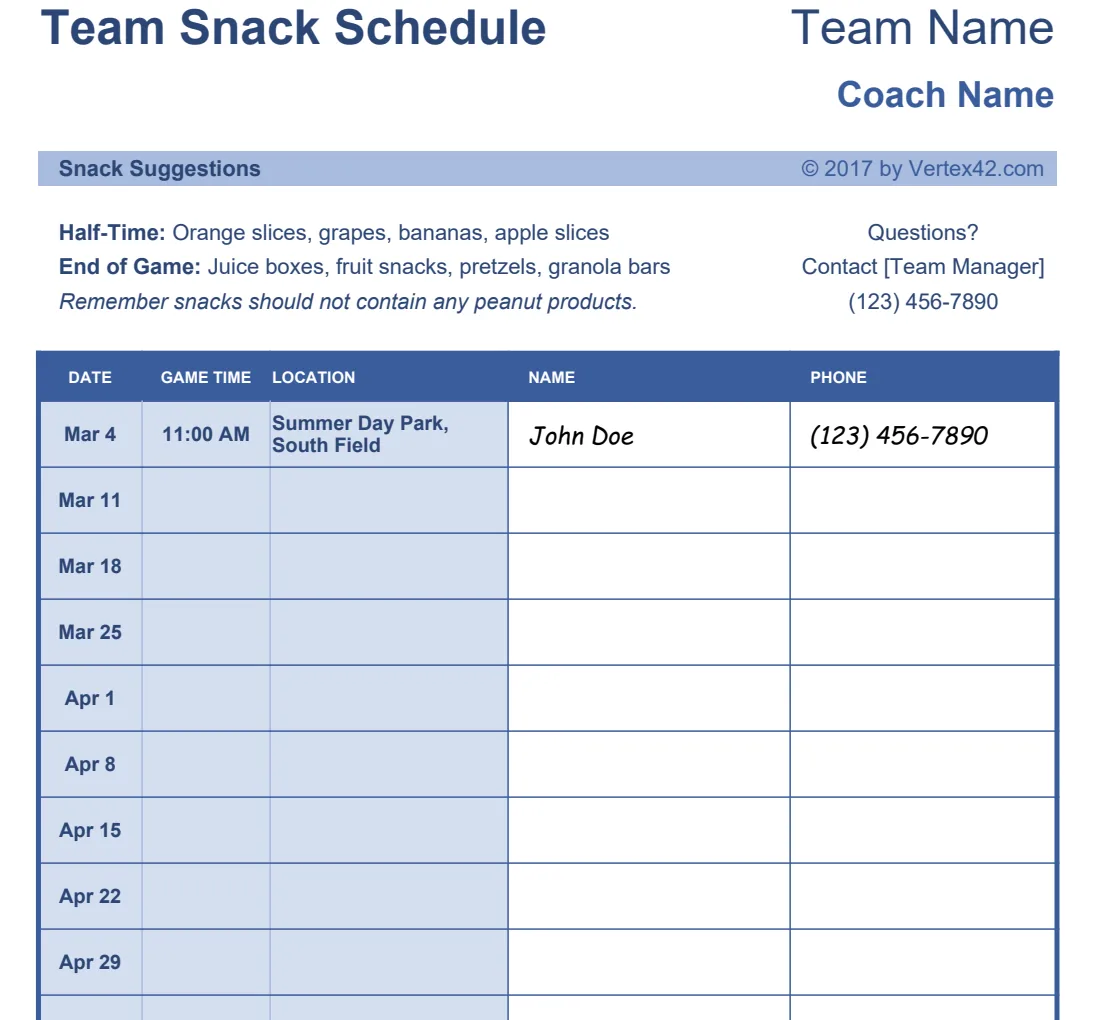
For events where volunteers might sign up for specific tasks or time slots, a template like the Team Snack Schedule Sign-Up Sheet or the Classroom Snack Schedule & Sign-Up Sheet can provide a good structural example, even if your tasks are different. The core idea of a clear date, time, and a space for a name to be entered remains the same.
Preventing Common Mistakes
- Vague Role Descriptions: As mentioned, "general help" is unhelpful. Be precise.
- Outdated Contact Information: Regularly update your "Volunteer Roster" sheet. If you’re not using a lookup function, manually updating contact details is prone to errors.
- Lack of Buffer Time: If a task requires setup or cleanup, ensure the shift duration accounts for this, or assign separate setup/cleanup roles.
- Over-scheduling or Under-scheduling: Review your schedule to ensure you have enough volunteers for anticipated needs without overwhelming your volunteer pool.
- Not Considering Volunteer Availability: While a sign-up sheet addresses this naturally, if you’re assigning roles, try to coordinate with your volunteers’ known availability beforehand.
Advanced Tips and Next Steps
Printing and Sharing Your Schedule
Once your schedule is complete, you'll want to print or share it. For printing, go to "File" -> "Print." It’s a good idea to adjust the page setup to "Landscape" orientation and use "Fit Sheet on One Page" under scaling options to ensure everything is legible. You can also use "Freeze Panes" (View tab) to keep your header row and first few columns visible as you scroll through the sheet. Sharing can be done via email attachment or by saving it to a shared drive.
Managing Multiple Events or Programs
If your organization runs multiple events or ongoing programs, you might consider having a separate sheet for each, or adding a "Program/Event" column to your main schedule. For recurring weekly or daily tasks, like those in a school setting, a template like the Period Schedule might offer inspiration for structuring daily recurring items.
Using Excel's Filtering and Sorting
Excel’s built-in filtering and sorting tools are invaluable. Click the "Data" tab and then "Filter." Dropdown arrows will appear in your header row. You can use these to quickly view all shifts for a specific volunteer, all tasks for a particular date, or all volunteers assigned to a specific role. Sorting can arrange your schedule chronologically or alphabetically by volunteer name.
When to Consider a Dedicated Volunteer Management System
While a volunteer schedule template Excel free is a great starting point and can be very effective for smaller organizations or specific events, larger nonprofits with complex needs might eventually benefit from dedicated volunteer management software. These systems often handle sign-ups, communication, tracking volunteer hours, and reporting more automatically. However, for many, a well-built Excel sheet is more than sufficient.
If you find yourself needing more sophisticated scheduling tools or robust event management features, exploring specialized software might be worthwhile. However, for immediate needs, building or adapting a template in Excel is a practical and cost-effective solution. Our library of templates, available for a one-time fee of $9 for unlimited downloads, offers many starting points for various organizational needs, though you can certainly build a custom solution from scratch using the methods described here.