Track employee vacations in under an hour.
Discover how a well-structured employee vacation tracker spreadsheet template is essential for managing team time off effectively.
A spreadsheet meant for tracking a single employee's PTO becomes unwieldy fast when you need to manage a team. You need a system that handles accruals, requests, and departmental oversight without manual calculations for every entry. This is where a well-structured employee vacation tracker spreadsheet template becomes essential for HR and managers alike.
Building a functional system from scratch can feel daunting, but the core components are straightforward. You'll need columns for employee names, dates, leave types, and approval status. Beyond that, adding features like automatic accrual calculations or a visual calendar view significantly boosts usability, saving hours of administrative time each month.
Essential Columns for Your Tracker
At a minimum, your employee vacation tracker spreadsheet template should include the following columns to capture critical data:
- Employee Name: The full name of the staff member requesting or taking leave.
- Employee ID: A unique identifier for each employee, useful for larger organizations or integration with other HR systems.
- Department: The department the employee belongs to. This is crucial for reporting and managing team availability.
- Leave Type: Specify the reason for absence (e.g., Vacation, Sick Leave, Personal Day, Jury Duty, Bereavement).
- Start Date: The first day of the leave period.
- End Date: The last day of the leave period.
- Total Days Requested: The total number of working days requested for this leave instance.
- Accrued PTO Balance: The employee's current Paid Time Off balance before this request is processed.
- PTO Deducted: The number of PTO days deducted for this specific leave request.
- Remaining PTO Balance: The employee's PTO balance after this request is processed.
- Request Date: The date the employee submitted the leave request.
- Approval Status: This could be a dropdown with options like "Pending," "Approved," "Declined," or "Cancelled."
- Approved By: The name or ID of the manager who approved the request.
- Approval Date: The date the request was approved or declined.
- Notes: Any additional relevant information about the request.
Setting Up Accrual Logic
Accruing leave automatically is a significant time-saver. While simple spreadsheets can track balances manually, a more advanced approach involves formulas that update balances based on employment duration or a set period (e.g., monthly, bi-weekly).
For a monthly accrual of 1.67 days (common for 20 days/year), you might have a separate sheet or section for each employee. Column A could be the month/year, Column B the starting balance, Column C the accrual for that month, and Column D the ending balance. The formula in D2 would be =B2+C2, and in B3, it would be =D2. Column C would contain your fixed accrual amount, say 1.67.
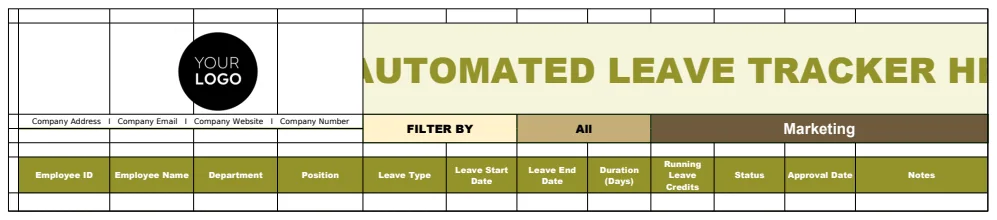
If you're looking for a more automated solution that handles accruals, credits, and various leave types out-of-the-box, consider a template like the Automated Leave Tracker HR Template. It's designed to manage these complexities efficiently.
Tracking Vacation Schedules Visually
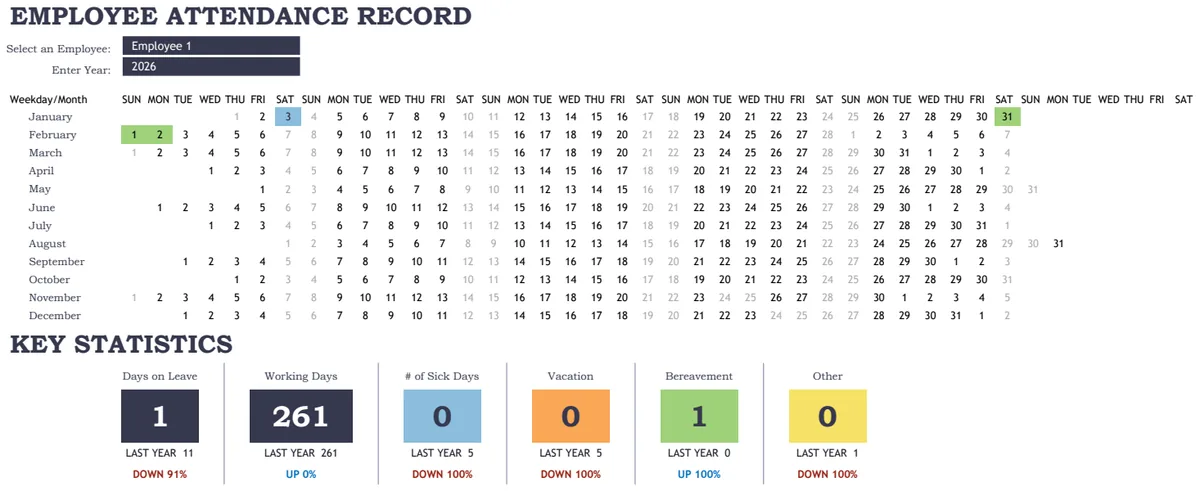
Beyond just logging requests, visualizing who is out and when is critical for workforce planning. A separate tab or section can act as a team calendar. This could be a simple grid where days are columns and employees are rows. You can then use conditional formatting to highlight cells based on the "Approval Status" column from your main tracker.
For example, if your main tracker has a "Start Date" in cell E2 and an "End Date" in cell F2 for an employee named "Alice," you could set up conditional formatting on a calendar sheet. A rule might state: if the date in a calendar cell falls between E2 and F2 (inclusive) and the "Approval Status" is "Approved," then fill that calendar cell with a specific color, like light blue. This gives an immediate overview of team availability.
A dedicated template like the Vacation Schedule Template can pre-configure this visual element, making it much easier to manage.
Implementing Approval Workflows
The "Approval Status" column is key. It ensures that no leave is taken without proper authorization. A simple dropdown list in Excel or Google Sheets, using Data Validation, is effective.
- 01Select the cells in the "Approval Status" column where you want the dropdown to appear.
- 02Go to the "Data" tab.
- 03Click on "Data Validation."
- 04Under "Allow," choose "List."
- 05In the "Source" box, type your options, separated by commas:
Pending,Approved,Declined. - 06Click "OK."
This prevents typos and ensures consistency, making it easier to filter and report on requests.
Calculating PTO Deductions and Balances
This is where formulas become your best friend. Assuming your "Start Date" is in E2, "End Date" in F2, and "Accrued PTO Balance" (before deduction) is in H2:
- 01Total Days Requested (Column G): To calculate the number of working days between two dates, excluding weekends. A common formula is
=NETWORKDAYS(E2, F2). If you need to exclude holidays, you'd add a range of holiday dates as a third argument:=NETWORKDAYS(E2, F2, HolidayList!$A$2:$A$10). - 02PTO Deducted (Column I): This is usually the same as "Total Days Requested," but you might have specific rules for partial days. For simplicity,
=G2. - 03Remaining PTO Balance (Column J): This is the crucial formula that updates the balance.
=H2 - I2.
Ensure your "Accrued PTO Balance" is correctly populated before this request is processed. This might involve a separate section or a lookup function if you have a master balance sheet.
Common Mistakes to Avoid
- Not Accounting for Weekends/Holidays: Simply subtracting end dates from start dates will overcount leave. Always use functions like
NETWORKDAYSfor accurate calculations. - Manual Balance Updates: Relying on manual updates for "Accrued PTO Balance" is prone to errors and time-consuming. Automate this as much as possible.
- Inconsistent Leave Types: Not clearly defining and consistently using leave types (Vacation, Sick, Personal) makes reporting difficult.
- Lack of Clear Approval Status: Leaving the approval status ambiguous leads to confusion and potential unauthorized absences.
- Ignoring Departmental Needs: A system that doesn't consider departmental coverage can lead to understaffing during peak vacation times.
Advanced Features and Considerations
- Year-End Rollover: How will unused PTO be handled at the end of the year? Some companies allow rollover, others have a "use it or lose it" policy. Your template should accommodate these rules.
- Accrual Rate Changes: Employees might accrue PTO at different rates based on tenure. The template needs to handle these variations, perhaps with a lookup table.
- Integration with Payroll: For larger organizations, integrating leave data with payroll systems can prevent errors in salary calculations.
- Reporting and Analytics: Beyond just tracking, you'll want to generate reports on total leave taken by department, type, or employee. This helps identify trends and manage resources.
If you manage a team and need a robust system that goes beyond basic tracking, especially for onboarding new hires or recognizing existing staff, you might explore other specialized templates. For instance, the Onboarding Checklist Tracker HR Template helps manage the initial employee journey, while the Operations Employee Recognition Tracker Template can track performance-related rewards.
What if an employee takes an unpaid leave day?
For unpaid leave, you would simply select "Unpaid Leave" from your "Leave Type" dropdown. In your formulas, you would typically ensure that the "PTO Deducted" column shows 0, and the "Remaining PTO Balance" remains unchanged. Your "Total Days Requested" might still be calculated for record-keeping, but it won't impact their PTO balance.
How do I handle different accrual rates for employees?
You can manage different accrual rates by creating a separate table (e.g., on another sheet) that maps Employee IDs or names to their specific accrual rates or tiers based on years of service. Then, use a lookup function like VLOOKUP or XLOOKUP in your main tracker to pull the correct accrual rate for each employee when calculating their monthly or periodic PTO accrual.
Can I track multiple leave types beyond vacation?
Absolutely. The "Leave Type" column is designed for this. You can add categories like "Sick Leave," "Personal Day," "Jury Duty," "Maternity Leave," "Bereavement," etc. Your formulas for PTO deduction would then only apply to specific leave types (like "Vacation" or "Personal Day" if it deducts from PTO), while others might not affect PTO balance or might be handled through separate tracking mechanisms.
Is there a way to get a quick overview of upcoming leave?
Yes. Beyond the visual calendar, you can use pivot tables or summary formulas. A pivot table on your main tracker, summarizing "Start Date" by "Employee Name" and "Leave Type," can quickly show upcoming approved leave. Alternatively, you can use formulas like FILTER (in newer Excel/Google Sheets versions) to pull all rows where "Approval Status" is "Approved" and "Start Date" is within the next 30 days.