An Excel attendance tracker that simplifies payroll.
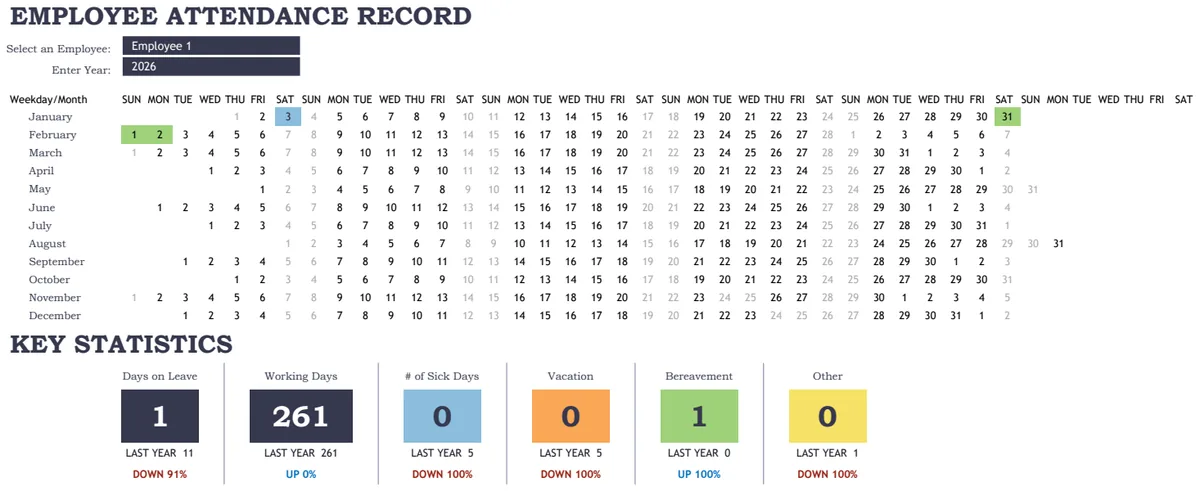
An employee attendance tracker Excel template centralizes daily presence and leave data, simplifying payroll and resource planning.
The moment you realize you can't quickly tell who's in the office and who isn't is usually when ad-hoc tracking methods fall apart. This happens because most informal systems rely on scattered notes, emails, or verbal confirmations, which are prone to human error and difficult to consolidate. A structured approach, like an employee attendance tracker Excel template, becomes essential for clarity.
A well-designed template centralizes this information, offering a single source of truth for daily presence, planned absences, and unexpected leave. It moves beyond simple check-ins to provide valuable data for payroll, resource planning, and compliance.
Why Basic Methods Fail
When you're managing even a small team, relying on memory or a shared whiteboard for attendance quickly becomes unmanageable. Imagine a situation where two employees call in sick on the same day, but one calls your mobile and the other emails your personal account. Without a central log, it's easy to miss one, leading to payroll errors or incorrect assumptions about team capacity. This is especially true if your team works remotely or has flexible schedules. The lack of a standardized input method means data is inconsistent, making it impossible to generate reliable reports.
Key Components of an Effective Tracker
A robust employee attendance tracker Excel template should go beyond just listing names and dates. Consider these essential columns:
- Employee Name: Full name of the staff member.
- Employee ID (Optional but Recommended): A unique identifier for each employee.
- Date: The specific day for which attendance is being recorded.
- Status: This is crucial. Common options include:
- Present (P): Employee worked a full or partial day.
- Absent (A): Employee did not work and did not have approved leave.
- Sick Leave (SL): Employee is on approved sick leave.
- Vacation (V): Employee is on approved vacation.
- Holiday (H): Company-recognized holiday.
- Late (L): Employee arrived after the designated start time (optional, for more granular tracking).
- Early Leave (EL): Employee left before the designated end time (optional).
- Reason for Absence (if applicable): A brief note for SL, V, or other non-standard absences.
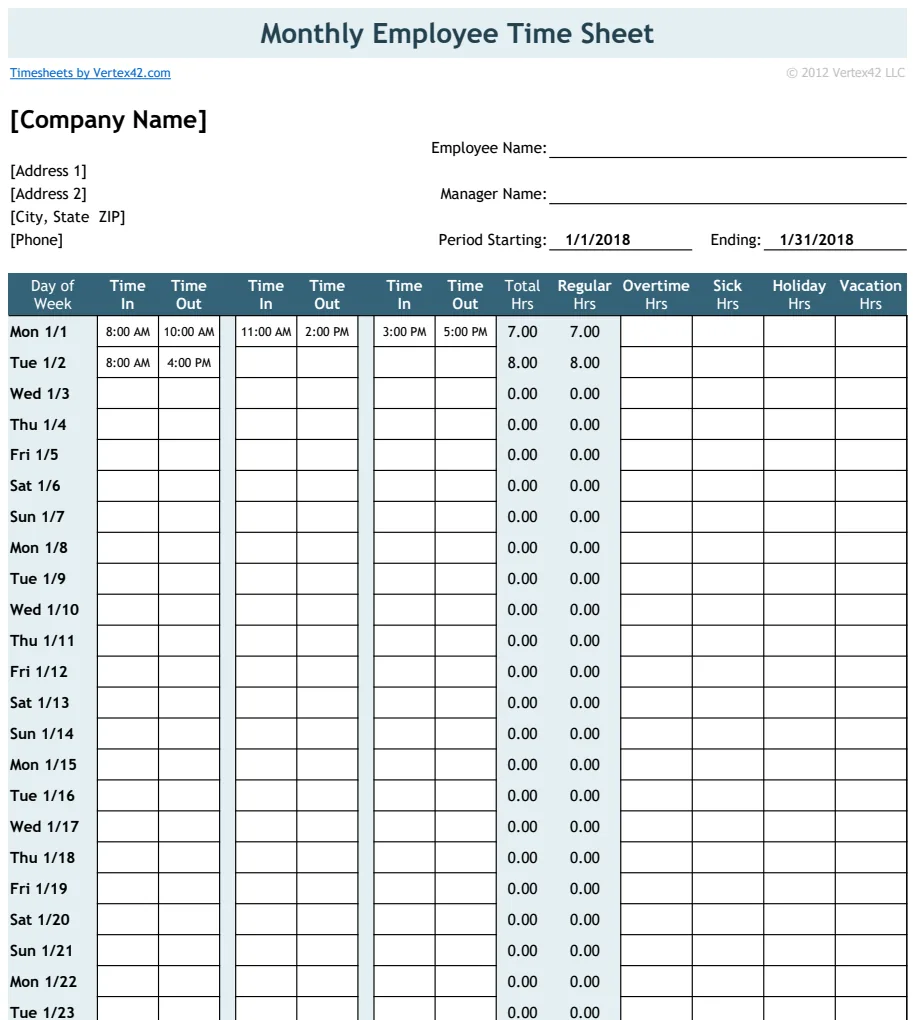
- Hours Worked (Optional): For salaried employees, this might be less critical, but for hourly staff, it's vital for payroll.
- Manager Approval (Optional): A checkbox or date indicating leave requests were approved.
Setting Up Your Own Tracker
You can build a functional tracker yourself. Here’s a straightforward approach using basic Excel features:
- 01Create a New Workbook: Open Excel and start a fresh sheet.
- 02Set Up Headers: In row 1, enter your column headers (Employee Name, Date, Status, etc.).
- 03Employee List: On a separate sheet (or further down the same sheet), create a list of all employee names. This will be useful for data validation.
- 04Data Validation for Status: Select the cells in your "Status" column where you'll be entering data. Go to the "Data" tab, click "Data Validation," and choose "List" for the "Allow" option. In the "Source" box, enter your list of status options, separated by commas (e.g., P,A,SL,V,H). This ensures only valid entries are accepted.
- 05Date Formatting: Format your "Date" column to display dates clearly (e.g., "MM/DD/YYYY" or "DD-MMM-YYYY").
- 06Conditional Formatting: To make the tracker visually intuitive, use conditional formatting. Select the "Status" column, go to "Home" > "Conditional Formatting" > "Highlight Cells Rules" > "Text that Contains."
- Set a rule for "P" (Present) to fill with green.
- Set a rule for "SL" (Sick Leave) to fill with yellow.
- Set a rule for "V" (Vacation) to fill with blue.
- Set a rule for "A" (Absent) to fill with red.
- Set a rule for "H" (Holiday) to fill with gray.
- 07Formulas for Summary: You can add summary rows or separate sheets to count total days present, absent, or on leave. For example, to count the number of sick days for a specific employee, you could use a formula like
=COUNTIFS(C:C, "SL", A:A, "Employee Name"), assuming "Status" is in column C and "Employee Name" is in column A.
This manual setup provides a solid foundation. For more advanced features like automated leave request processing or detailed reporting, a pre-built template can save significant time. Consider exploring an Employee Attendance Tracker that integrates these functionalities.
Tracking Different Absence Types
Distinguishing between different types of absences is vital for accurate record-keeping and compliance.
- Sick Leave: Requires clear documentation, especially for extended periods, to ensure compliance with company policy and local regulations.
- Vacation/Paid Time Off (PTO): Needs to be planned and approved in advance. The tracker should show approved leave to prevent conflicts and ensure adequate staffing.
- Unplanned Absences: These are absences without prior notice (e.g., sudden illness, emergencies). They often have different implications for company policy and may require follow-up.
- Holidays: Company-wide holidays should be clearly marked and accounted for so they aren't confused with other types of leave.
An Employee Attendance Tracker Template can help standardize how these are logged, making reporting much simpler.
Common Mistakes to Avoid
When managing attendance, several pitfalls can trip you up. Being aware of them can help you build a more reliable system.
- Inconsistent Data Entry: Using different abbreviations for the same status (e.g., "Sick," "S," "Sick Day") or failing to enter data promptly leads to confusion and errors. Strict adherence to your defined status codes is critical.
- Lack of Centralization: Allowing attendance information to be scattered across emails, sticky notes, and verbal messages means data gets lost or misrepresented. A single, digital record is non-negotiable.
- Ignoring Data Validation: Without data validation, typos can creep into your status column, rendering formulas and counts inaccurate. Using dropdown lists for status fields prevents this.
- Not Accounting for Time Zones or Remote Workers: If your team is distributed, ensure your tracking method accounts for different working hours and availability.
- Overly Complex Formulas: While powerful, overly complicated formulas can be hard to debug and maintain. Start simple and add complexity only if necessary.
Advanced Features and Templates
For businesses with more complex needs, certain templates offer advanced capabilities that go beyond basic tracking.
- Automated Calculations: Some templates automatically calculate total days present, absent, sick, or on vacation for each employee over a period (week, month, year).
- Leave Request Workflows: More sophisticated systems can include modules for employees to submit leave requests, which managers can then approve or deny directly within the spreadsheet or a linked system.
- Reporting Dashboards: Visual dashboards with charts and graphs can quickly highlight attendance trends, identify frequent absentees, or show overall team availability.
- Holiday Calendars: Integrated holiday calendars automatically mark company holidays, ensuring they are correctly accounted for and don't require manual entry each time.
If your organization requires detailed tracking of absences by month, with clear day-of-week visibility and year-to-date totals, an Employee Leave Tracker might be more suitable. For teams where tracking leave requests and absences across the whole team with automated holiday recognition is key, an Excel Leave Tracker 2021 For 20 Employees template can provide a quick and effective solution.
What if an employee forgets to report their absence?
If an employee forgets to report their absence, it's important to have a clear policy on how to handle this. Typically, you would follow up with the employee directly to get the necessary information and then update the attendance record. Your tracker should allow for retroactive entry. Ensure your policy outlines the steps for both the employee and the manager in such situations.
Can I use this for remote employees?
Yes, an employee attendance tracker Excel template is highly adaptable for remote employees. The key is to establish clear communication protocols for reporting work status, whether it’s a daily check-in email, a dedicated Slack channel, or updating a shared document. The template itself serves as the central repository for this information, regardless of where the employee is located.
How do I handle partial days or late arrivals?
To handle partial days or late arrivals, you can add specific status codes to your tracker, such as "Late," "Early Leave," or even "Partial Day." You might also add columns for "Actual Start Time" and "Actual End Time" if you need to calculate exact hours worked. Conditional formatting can then be applied to these statuses to visually flag them on your attendance sheet.
What if I need to track more than 20 employees?
Most well-designed employee attendance tracker Excel template solutions can scale beyond 20 employees. If you're building your own, Excel can handle thousands of rows, so the limit is usually practical rather than technical. Pre-built templates often specify the number of employees they are optimized for, but many can be easily adjusted or are designed to accommodate larger teams. For extensive needs, you might consider dedicated HR software, but for many small to medium businesses, a well-structured Excel template is perfectly sufficient.