What makes a good project risk register template in Excel?
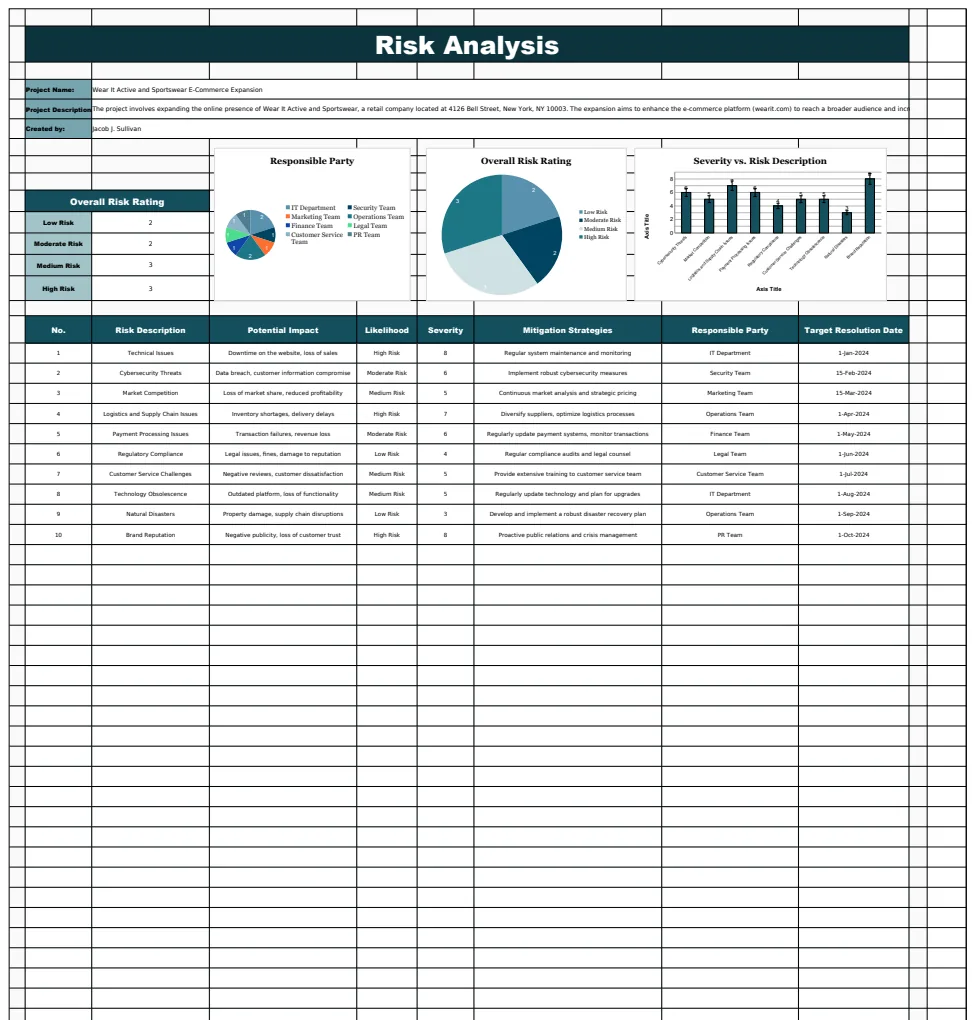
A good project risk register template Excel is a dynamic tool, not just a list, for proactive management and clear data entry.
Often, a project risk register template Excel sits unused because the initial risk identification is too broad, leading to an overwhelming, unmanageable list. The real work starts with distinguishing between potential problems and actual, actionable risks. A good register isn't just a list; it's a dynamic tool for proactive management.
To be effective, your project risk register template Excel needs clear columns that guide consistent data entry and analysis. Think of it like setting up a clear filing system before you start collecting documents. Without this structure, even the best intentions can lead to a chaotic and ultimately useless spreadsheet.
The Core Components of a Useful Risk Register
At its heart, a risk register is a living document that tracks potential threats to your project's success. It’s not just about listing what might go wrong; it’s about understanding those possibilities deeply enough to act. A robust register typically includes several key data fields.
Let’s break down the essential columns you’ll want in your project risk register template Excel. These are the building blocks for effective risk management:
- Risk ID: A unique identifier for each risk (e.g., R001, R002). This is crucial for referencing and tracking.
- Risk Description: A clear, concise statement of the potential problem. Avoid vague language. Instead of "Bad weather," use "Prolonged heavy rainfall delaying critical site preparation."
- Category: Grouping risks helps identify patterns. Common categories include Technical, Schedule, Budget, Resource, External, and Stakeholder.
- Likelihood: How probable is it that this risk will occur? Use a defined scale, such as:
- 1, Very Low (Less than 10% chance)
- 2, Low (10-30% chance)
- 3, Medium (30-60% chance)
- 4, High (60-90% chance)
- 5, Very High (Greater than 90% chance)
- Impact: If the risk occurs, what will be the severity of its effect on project objectives (schedule, cost, scope, quality)? Use a similar scale:
- 1, Insignificant
- 2, Minor
- 3, Moderate
- 4, Major
- 5, Catastrophic
- Risk Score (or Priority): This is often calculated by multiplying Likelihood by Impact (e.g., Likelihood 4 x Impact 3 = Score 12). This score helps you prioritize which risks need the most attention.
- Mitigation Strategy: What steps will you take to reduce the likelihood or impact of the risk? Be specific.
- Contingency Plan: If the risk does occur, what is your backup plan? This is your "Plan B."
- Owner: Who is responsible for monitoring this risk and implementing the mitigation/contingency plans? Assigning a specific person is vital.
- Status: Track the current state of the risk (e.g., Open, In Progress, Monitored, Closed, Realized).
- Date Identified: When was the risk first logged?
- Date Closed: When was the risk no longer a threat or successfully managed?
Setting Up Your Excel Risk Register
Creating your own project risk register template Excel in Excel is straightforward. Start with a new workbook and set up your columns as described above.
- 01Create Headers: In the first row (Row 1), enter the column names for your register (Risk ID, Risk Description, Category, Likelihood, Impact, Risk Score, Mitigation Strategy, Contingency Plan, Owner, Status, Date Identified, Date Closed).
- 02Format Headers: Make the headers bold and perhaps use a fill color to distinguish them from the data. Freeze the top row so headers remain visible as you scroll. To do this, select Row 2, then go to the "View" tab and click "Freeze Panes" > "Freeze Top Row."
- 03Add Data Validation: For columns like "Likelihood," "Impact," and "Status," use data validation to create dropdown lists. This ensures consistency.
- For Likelihood and Impact: Select the cells, go to the "Data" tab, click "Data Validation." In the "Allow" dropdown, choose "List." In the "Source" box, enter your scale values separated by commas (e.g.,
1,2,3,4,5). - For Status: Similarly, create a list like
Open,In Progress,Monitored,Closed,Realized.
- 04Implement Formulas:
- Risk Score: In a new column (let’s call it "Risk Score"), enter a formula to calculate the priority. If Likelihood is in column D and Impact is in column E, the formula in F2 would be
=IF(AND(ISNUMBER(D2),ISNUMBER(E2)),D2*E2,""). This formula checks if both Likelihood and Impact are numbers before multiplying them, preventing errors. - Conditional Formatting: Use conditional formatting to visually highlight high-priority risks. Select the "Risk Score" column, go to "Home" tab > "Conditional Formatting" > "New Rule." Choose "Format only cells that contain" and set rules like:
- Cell Value > 15 (e.g., Red fill)
- Cell Value between 10 and 15 (e.g., Yellow fill)
- Cell Value < 10 (e.g., Green fill)
- 05Add a Table: Select all your data (including headers) and press
Ctrl+T(orCmd+Ton Mac) to format it as a table. This makes sorting, filtering, and adding new rows much easier, and formulas automatically extend.
Common Pitfalls to Avoid
Many project teams struggle to keep their risk registers useful. Here are a few common mistakes:
- Vague Descriptions: As mentioned, "Risk of delay" isn't helpful. Be specific about what could cause the delay and what the consequence is.
- No Owner: If a risk has no assigned owner, it will likely be forgotten. Accountability is key.
- One-Time Entry: A risk register is not a document you fill out once and forget. It needs regular review and updates. Risks change, new ones emerge, and some become irrelevant.
- Overly Complex Scales: While detailed scales are good, over-complicating Likelihood and Impact can lead to inconsistent scoring and arguments. Keep it simple and clearly define what each level means.
- Ignoring Low-Priority Risks: Even low-priority risks can escalate. While you focus on the highest scores, keep an eye on others that might be developing.
- Not Integrating with Project Plans: The mitigation and contingency plans identified in the register should be reflected in your overall project schedule and budget.
Alternative Approaches and Tools
While a well-structured Excel sheet can be very effective, there are other tools that might suit your needs, especially for larger or more complex projects.
If you’re looking for a template that already has advanced features for risk assessment, including likelihood and impact scoring, and allows for responsible party assignments, the Risk Analysis Template is a solid choice. It’s designed to help you systematically identify, assess, and track potential project risks.
For projects where visualizing risk status is paramount, a template with automated dashboards can be incredibly helpful. The Project Risk Template allows you to identify, track, and prioritize risks by severity and status, providing a clear overview of your risk landscape.
If your focus is on a structured, step-by-step process for risk management, a template that guides you through each phase can be beneficial. The Risk Assessment Steps Template provides a framework for systematically identifying, analyzing, and managing risks, ensuring no critical step is missed.
When to Use a Dedicated Tool
While a project risk register template Excel is a fantastic starting point, consider dedicated software when:
- Team Collaboration is High: If multiple team members need to access and update the register simultaneously, cloud-based tools or specialized project management software offer better collaboration features than a shared Excel file.
- Project Complexity Increases: For very large projects with hundreds of risks, managing everything in Excel can become cumbersome. Dedicated tools often have better search, filtering, and reporting capabilities.
- Integration with Other Project Data is Needed: If you want your risk data to automatically feed into status reports, resource allocation, or budget tracking, integrated project management suites are more efficient.
- Reporting Requirements are Advanced: Specialized software can often generate more sophisticated risk reports, heat maps, and trend analyses with less manual effort than Excel.
Even with these advanced options, the core principles of clear identification, scoring, ownership, and action remain the same.
What if a Risk is Identified After the Project Starts?
This is very common. The risk register isn't a one-time document created at the very beginning. As a project progresses, new information emerges, circumstances change, and new risks become apparent. Simply add the new risk to your register, assign an ID, fill in the details, and assess its likelihood and impact. The key is to treat it with the same rigor as risks identified during the planning phase.
How Often Should I Review the Risk Register?
The frequency of review depends on the project's complexity, duration, and pace of change. For fast-moving projects, weekly or bi-weekly reviews might be necessary. For slower-paced projects, monthly reviews might suffice. The critical point is to have a regular, scheduled review. This ensures that risks are kept current, mitigation plans are still relevant, and new threats are captured promptly. Don't wait for a crisis to look at your risk register.
What's the Difference Between Mitigation and Contingency?
Mitigation is about preventing a risk or reducing its probability or impact. For example, if the risk is a supplier delay, the mitigation strategy might be to vet backup suppliers early or negotiate stricter delivery terms. Contingency, on the other hand, is your plan for when the risk actually occurs. For the supplier delay risk, the contingency plan might be to immediately switch to a pre-approved backup supplier, or to allocate overtime labor to compensate for the delay. Mitigation aims to stop bad things from happening; contingency is what you do when they do.
Can I Use Google Sheets Instead of Excel?
Absolutely. The principles for building a project risk register are identical in Google Sheets. You can create headers, use data validation for dropdowns, implement formulas for risk scores, and apply conditional formatting. Google Sheets also offers excellent real-time collaboration features if your team is distributed. The functionality is largely the same for this purpose, and it can be a great free alternative if you don't already have Excel.