10+ Essential Excel Templates for Small Business in 2026
Small businesses run on spreadsheets. Roughly 66% of office workers use Excel at least once an hour, accounting for 38% of their overall work time. In 2026, despite the flood of specialized SaaS tools...
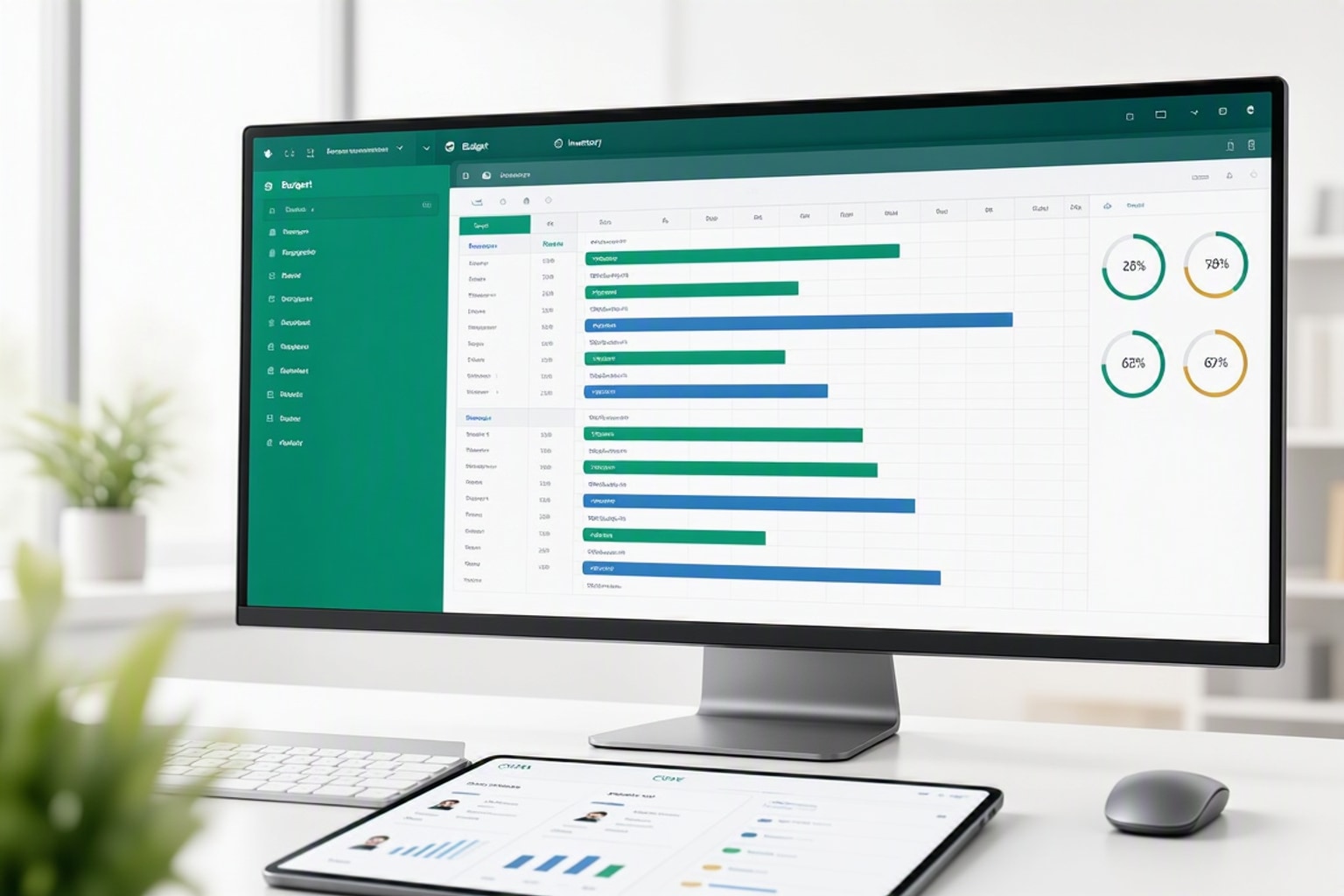
Small businesses run on spreadsheets. Roughly 66% of office workers use Excel at least once an hour, accounting for 38% of their overall work time. In 2026, despite the flood of specialized SaaS tools, Excel and Google Sheets remain the backbone of daily operations for startups, freelancers, and small teams who need flexible, cost-effective solutions without monthly subscription fees.
Templates turn blank spreadsheets into functional business tools in minutes. A well-designed template gives you the column structure, formulas, and formatting already built, so you spend time entering data instead of debugging VLOOKUP errors. Many businesses and individuals are willing to pay for specialized spreadsheet templates because the time saved on setup pays for itself in the first week.
This guide walks through the essential Excel templates every small business needs in 2026, organized by function: financial management, operations, sales and marketing, HR, and project tracking. Each section explains what the template does, how to set it up, and when to use it.
Why Small Businesses Still Rely on Excel Templates in 2026
Specialized software promises automation, but it comes with learning curves, data migration headaches, and recurring costs. Excel and Google Sheets offer nearly the same functionality as many dedicated apps, with the added advantage of cloud storage, real-time collaboration, and zero monthly fees after the initial template investment.
Templates bridge the gap between blank-sheet paralysis and expensive software. They give you a proven structure without forcing you into rigid workflows. You can customize column names, add tabs, link sheets together, and export data whenever you need it.
The shift to Google Sheets has accelerated in 2026. Cloud storage means your team accesses the same live document from any device. Version control happens automatically. Conditional formatting, pivot tables, and most Excel formulas work identically in Sheets, so switching platforms takes minutes instead of days.
Financial Management Templates: Budgeting, Cash Flow, and Invoicing
Cash flow kills more small businesses than bad products. Financial templates keep you solvent by tracking every dollar in and out, flagging shortfalls before they become emergencies, and giving you clean numbers for tax season.
Budget Planner Template Setup
A budget planner starts with two main sections: income and expenses. Income categories might include product sales, service revenue, consulting fees, and interest. Expense line items cover rent, payroll, marketing, software subscriptions, supplies, and professional services.
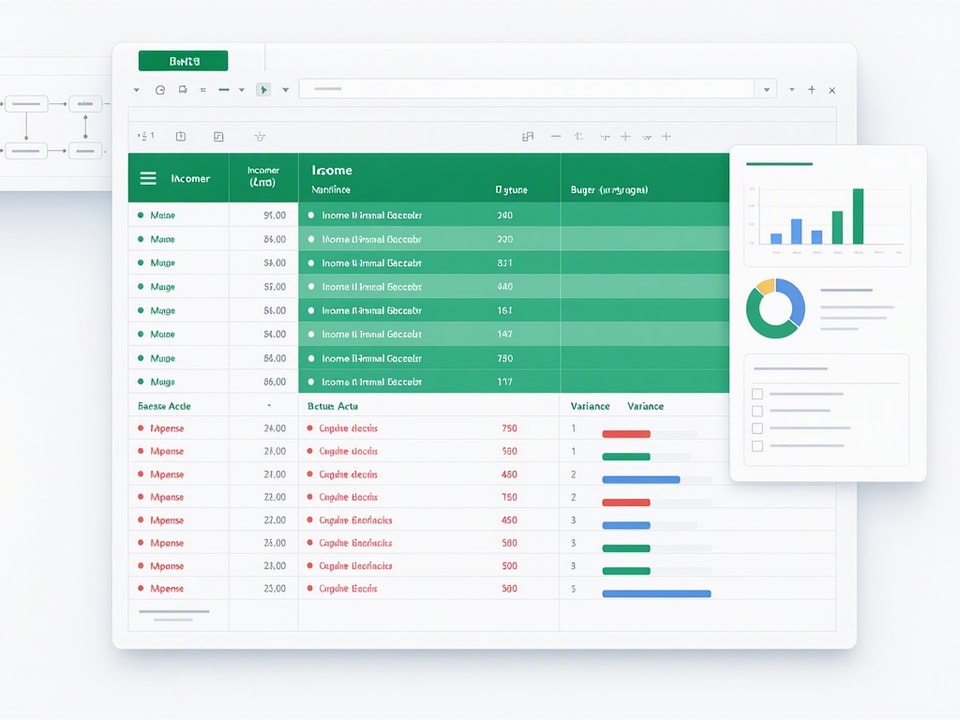
Set up monthly columns across the top, then add a variance column that subtracts actual spend from budgeted amounts. Use conditional formatting to highlight negative variances in red. Add an annual summary tab that pulls totals from each month using SUM formulas.
Track budget vs. actual every week. Small variances compound fast. A $200 monthly overage on software subscriptions costs $2,400 a year, enough to hire a part-time contractor.
Expense Tracker: Real-Time Spend Monitoring
An expense tracker logs every transaction as it happens. Create columns for date, vendor, category, amount, payment method, and notes. Use data validation on the category column to enforce consistent naming: travel, meals, office supplies, marketing, utilities.
SUMIF formulas calculate total spend by category. Set up a summary section at the top of the sheet that pulls category totals automatically. Add a pivot table on a separate tab to slice expenses by month, vendor, or payment method.
Log expenses daily, not weekly. Memory fades. Receipts disappear. Daily logging takes two minutes and prevents the end-of-month scramble to reconstruct spending from bank statements.
Cash Flow Tracker: Predicting Liquidity
A cash flow tracker forecasts when money comes in and goes out. Start with your current bank balance. Add expected income by week: client invoices due, product sales, loan disbursements. Subtract expected expenses: payroll, rent, supplier invoices, loan payments.
The running balance column shows whether you'll have enough cash to cover obligations. If the balance dips below your safety threshold, you know weeks in advance. You can delay non-urgent expenses, accelerate collections, or arrange a line of credit before you're in crisis.
Seasonal businesses need cash flow forecasting most. Retail peaks in Q4, then crashes in January. Service businesses see summer slowdowns. A cash flow tracker flags those dips in March so you can build reserves or adjust spending.
Invoice Tracker and Payment Follow-Up
An invoice tracker prevents revenue leakage. Create columns for invoice number, client name, issue date, due date, amount, payment status, and date paid. Use conditional formatting to highlight overdue invoices in red and invoices due within five days in yellow.
Add a follow-up column with checkboxes for sent reminder, second reminder, and final notice. Calculate days overdue with a simple formula: =TODAY()-DueDate. Sort by days overdue to prioritize collection calls.
Payment terms matter. Net 30 means you're financing your clients' operations for a month. Offer a 2% discount for payment within 10 days. Most clients will pay early to save money, improving your cash flow without losing significant revenue.
Operations & Inventory Templates: Stock, Shipping, and Purchase Orders
Inventory and fulfillment workflows don't require dedicated software until you're managing thousands of SKUs. Spreadsheet templates handle stock tracking, vendor management, and shipping logistics for small businesses selling physical products.
Inventory Tracker: SKU Management and Reorder Alerts
An inventory tracker starts with SKU, product name, quantity on hand, reorder level, supplier, and cost per unit. Add a reorder status column that uses conditional formatting to flag items below the reorder threshold in red.
Use this formula in the reorder status column: =IF(QuantityOnHand<=ReorderLevel,"ORDER NOW","OK"). Set up conditional formatting to color the entire row red when the status shows "ORDER NOW." Your inventory is cash sitting on a shelf. Managing it effectively is critical for healthy cash flow.
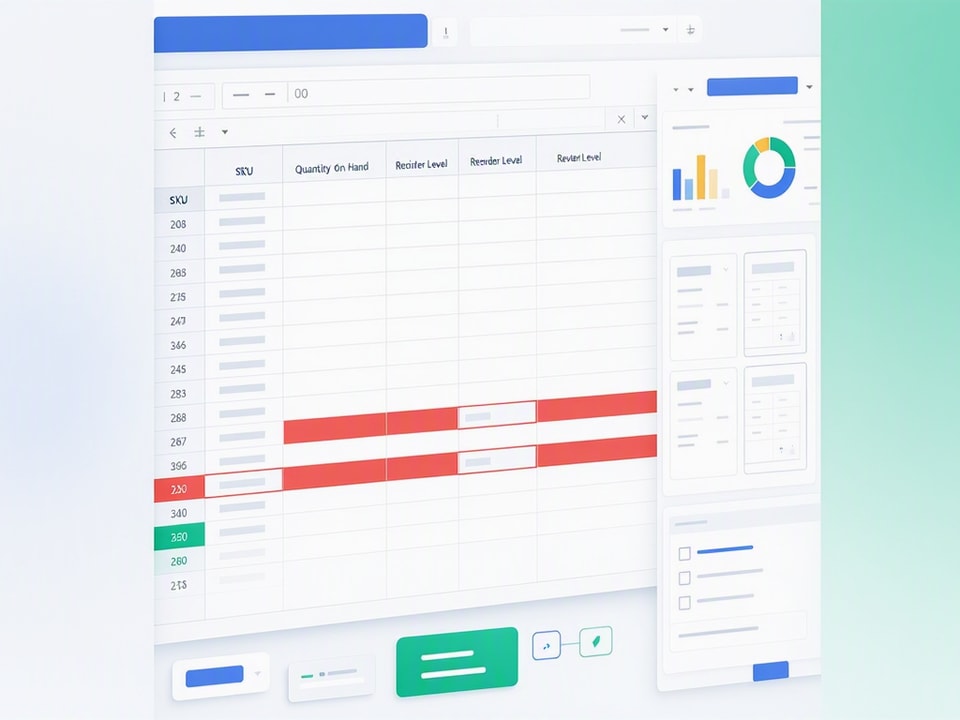
Link your inventory tracker to your sales tracker. Deduct sold quantities automatically using formulas that reference the sales sheet. Update inventory counts weekly with a physical count to catch theft, damage, or data entry errors.
Purchase Order Template: Vendor Management
A purchase order template formalizes vendor requests. Include PO number, vendor name, ship-to address, item descriptions, quantities, unit prices, and total cost. Add an approval column with checkboxes for manager sign-off.
Link your PO template to your inventory tracker. When a PO is marked received, update the inventory quantities automatically. Use VLOOKUP to pull item details from your inventory master list, reducing data entry errors.
Number POs sequentially with a prefix: PO-2026-001, PO-2026-002. Sequential numbering creates an audit trail and prevents duplicate orders. Store completed POs in a separate archive tab or folder.
Shipping and Fulfillment Log
A shipping log tracks order IDs, customer names, carrier, tracking numbers, ship date, and delivery status. Add a notes column for exceptions: damaged packages, delivery delays, address corrections.
Integrate your shipping log with your invoice tracker. Use the order ID as the common key. When an order ships, update the invoice status to "Fulfilled." When delivery confirms, update to "Complete."
Export tracking numbers to a CSV file and upload to your e-commerce platform if you sell online. Customers who can track packages contact support less often. Reduced support volume saves hours every week.
Sales & Marketing Templates: CRM, Pipeline Tracking, and Content Calendars
Spreadsheets can replace or complement lightweight CRM and marketing tools. A simple CRM template tracks leads, deals, and follow-ups without the complexity of Salesforce or HubSpot.
CRM Template: Contact and Deal Management
A CRM template needs lead source, contact name, company, email, phone, deal stage, deal value, next follow-up date, and notes. Use data validation on the deal stage column to enforce consistent stages: New Lead, Contacted, Qualified, Proposal Sent, Negotiating, Won, Lost.
Don't let valuable leads slip through the cracks. A simple CRM template tracks potential customers as they move through your sales process. Sort by next follow-up date every morning. Call or email the top five contacts before you open your inbox.
Add a won/lost analysis tab. Calculate conversion rates by lead source. If LinkedIn generates 40 leads but only two wins, while referrals generate 10 leads and five wins, shift your effort to referrals.
Sales Tracker: Revenue Forecasting and Performance
A sales tracker logs every closed deal. Create columns for date, customer, product or service, quantity, unit price, total revenue, and sales rep. Add monthly and quarterly summary sections using SUMIFS formulas to calculate revenue by product, rep, or time period.
Build a forecast tab that multiplies pipeline deals by their probability of closing. A $10,000 deal at 50% probability contributes $5,000 to your forecast. Sum the weighted values to estimate monthly revenue.
Compare forecast to actual every month. If your forecast consistently overshoots reality, you're overestimating close rates. If it undershoots, you're missing deals in your pipeline. Adjust your probability assumptions based on historical data.
Content Calendar: Planning Social and Blog Posts
A content calendar maps out publish dates, platforms, topics, status, and responsible team members. Create columns for content type (blog post, social media, email, video), publish date, platform, headline or topic, status (idea, draft, review, scheduled, published), and owner.
Use conditional formatting to color-code status: gray for ideas, yellow for drafts, green for scheduled. Filter by owner to see each team member's workload. Filter by platform to ensure you're not neglecting any channel.
Schedule content in batches. Write four blog posts in one session, then schedule them weekly. Batch work reduces context switching and improves quality. You're in writing mode, not scrambling to hit a deadline.
Recommended Resources
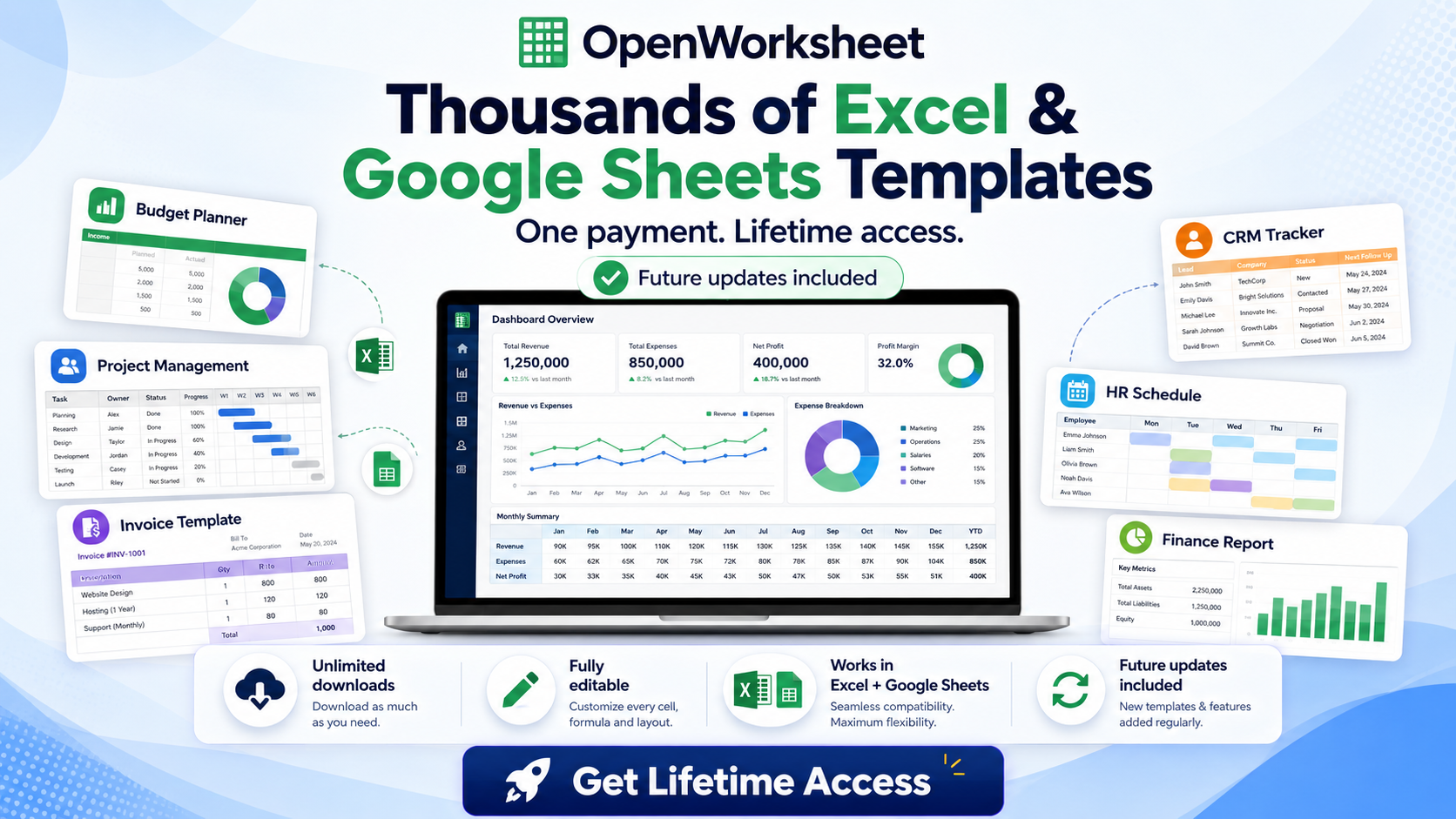
Skip the blank-sheet setup
Access 5500+ ready-to-use templates covering every workflow in this guide
HR & Project Management Templates: Scheduling, Tasks, and KPIs
People management and execution tracking don't require expensive project management software subscriptions. Spreadsheet templates handle shift scheduling, task lists, Gantt charts, and KPI dashboards for small teams.
Employee Schedule Template
An employee schedule template uses a grid layout: employees in rows, dates or shifts in columns. Fill cells with shift times, break periods, and color-coded roles. Add a summary row that calculates total hours per employee and total labor cost per day.
Track time-off requests in a separate tab. Use conditional formatting to highlight overlapping vacation days that leave you understaffed. Calculate remaining PTO balances with formulas that subtract used days from annual allotments.
Share the schedule via Google Sheets so employees can check it from their phones. Lock cells to prevent accidental edits. Use the comment feature for shift swap requests.
Project Management Sheet: Task Lists and Gantt Views
A project management sheet starts with task name, owner, start date, end date, duration, dependencies, and progress percentage. Add a status column with data validation: Not Started, In Progress, Blocked, Complete.
Create a Gantt chart using conditional formatting and bar charts. Set up a helper column that calculates the number of days from the project start date to each task's start date. Use another helper column for task duration. Apply a bar chart to visualize the timeline.
Update progress weekly in team meetings. If a task is blocked, identify the blocker and assign someone to resolve it. Blocked tasks cascade into delays. Fix them fast.
KPI Dashboard: Tracking Business Metrics
A KPI dashboard pulls data from other sheets into a single view. Use formulas like SUMIFS, AVERAGEIFS, and COUNTIFS to calculate metrics: monthly revenue, customer acquisition cost, average deal size, inventory turnover, cash runway.
Add charts and sparklines for visual trends. A sparkline shows revenue growth over the last six months in a single cell. Conditional formatting highlights metrics that miss targets in red.
Review your KPI dashboard weekly. Metrics that don't drive decisions waste time. If you track it, act on it. If you don't act on it, stop tracking it.
How to Choose the Right Template: Free, Paid Bundles, or DIY
You have three options: download free templates, invest in a comprehensive bundle, or build custom sheets from scratch. The right choice depends on your time, budget, and customization needs.
When Free Templates Work Best
Free templates work well for single-use cases or exploratory projects. Microsoft, Smartsheet, and Vertex42 offer high-quality free templates for budgets, invoices, project plans, and calendars. Download one, test it with real data, and see if it fits your workflow.
Free templates have limitations. They lack customization options, integration between sheets, and support when formulas break. You're on your own for troubleshooting. If the template doesn't match your process, you'll spend hours tweaking it or start over.
Use free templates to learn what you need. Try three budget templates. Notice which columns you use and which you ignore. That insight tells you what to prioritize when you upgrade to a paid bundle or build your own.
When to Invest in a Template Bundle
Template bundles save time when you need multiple interconnected templates. A comprehensive bundle includes financial trackers, inventory sheets, CRM templates, project plans, HR schedules, and dashboards, all designed to work together.
The 5500+ Ms Excel Templates Mega Bundle - Google Sheet Supported gives you instant access to every template type covered in this guide. You get budget planners, expense trackers, cash flow forecasts, inventory managers, CRM sheets, project Gantt charts, employee schedules, and KPI dashboards, all ready to use in Excel or Google Sheets. No setup. No formula debugging. Just enter your data and start tracking.
Before committing to any template bundle, test it with your real data. Enter one week's worth of actual numbers. If it handles that cleanly, it'll handle everything else. Look for bundles that support both Excel and Google Sheets, so you're not locked into one platform.
Building Your Own: Formulas and Automation Basics
Building custom templates makes sense when your workflow is unique or when you want to learn advanced Excel skills. Start with core formulas: VLOOKUP pulls data from other tables, SUMIFS calculates totals based on multiple criteria, and pivot tables summarize large datasets.
Use named ranges to make formulas readable. Instead of =SUM(B2:B50), use =SUM(TotalRevenue). Named ranges reduce errors and make sheets easier to maintain.
Automate repetitive tasks with macros in Excel or Google Apps Script in Sheets. A macro can format new rows, send email reminders, or copy data between sheets. Automation saves minutes per day, which compounds into hours per month.
Common Mistakes Small Businesses Make with Excel Templates
Templates only work if you use them correctly. These mistakes reduce effectiveness and create data chaos.
Overcomplicating Formulas and Layouts
Simple formulas break less often than complex ones. Avoid nested IF statements with five conditions. Break the logic into helper columns with intermediate calculations. Each column does one thing. The final column combines them.
Resist the urge to add every possible column. More columns mean more data entry and more chances for errors. Start with the minimum viable template. Add columns only when you repeatedly need information that's missing.
Test formulas with edge cases. What happens if a cell is blank? What if the number is negative? What if the date is in the past? Formulas that work with perfect data fail with real-world messiness.
Failing to Back Up and Version Control
Cloud storage is not enough. Export a copy of critical sheets weekly. Save it with a date stamp: Budget_2026-06-14.xlsx. If someone accidentally deletes a tab or overwrites formulas, you can restore the previous version.
Use naming conventions for file versions. Budget_v1, Budget_v2, Budget_FINAL, Budget_FINAL_revised creates confusion. Use dates or version numbers consistently: Budget_2026-06-14, Budget_2026-06-21.
Store backups in a separate location. If your Google Drive account gets compromised, you lose everything. Download critical sheets to an external drive monthly. Paranoid? Maybe. But data loss is worse.
Not Training the Team on Template Usage
Templates only work if everyone uses them consistently. One person logs expenses by vendor, another by category, a third by project. The data becomes unusable.
Create a quick reference guide. Take screenshots of the template with annotations. Explain what goes in each column, which formulas to avoid editing, and where to find summary reports. Share it as a PDF or Google Doc.
Schedule a 15-minute training session when you roll out a new template. Walk through a real example. Answer questions. Record the session so new hires can watch it later.
Getting Started: Your Small Business Template Toolkit for 2026
Start with the templates that solve your biggest pain point. If cash flow keeps you awake at night, build a cash flow tracker first. If you're losing leads, set up a CRM. If inventory is chaos, start there.
Set up cloud sharing immediately. Google Sheets makes this automatic. For Excel, save files to OneDrive or Dropbox. Real-time collaboration prevents version conflicts and ensures everyone sees the same data.
Schedule monthly template reviews. Check that formulas still work. Update categories as your business evolves. Archive old data to keep sheets fast. Templates need maintenance like any other tool.
Even in this era of personal finance apps, Excel budget templates remain the most popular tool for managing money. The same principle applies to business operations. Templates give you control, flexibility, and ownership of your data without recurring software costs.
The 5500+ Ms Excel Templates Mega Bundle provides instant access to every template type covered in this guide, all compatible with Excel and Google Sheets. Stop building from scratch. Start tracking, forecasting, and managing your business today.
Get the newsletter
One sharp idea every Sunday.
No fluff. No sales pitches. Just the best of what we publish, hand-picked.
Continue Reading
Related Articles
10+ Free Employee Attendance Tracker Excel Templates (2026)
Efficient attendance tracking saves businesses money and ensures compliance. Manual systems, prone to errors, cost companies thousands annually. A robust Excel tracker provides accurate data for payro...
10+ Free Sales Tracker Excel Templates for 2026 Growth
Every business, regardless of size, needs a clear view of its sales performance. A sales tracker provides that clarity. It moves you beyond guesswork, offering concrete data to understand what's worki...
Master Payroll: 2026 Excel Spreadsheet Templates & Calculators
Calculating payroll...