10+ Free Employee Attendance Tracker Excel Templates for 2026
Small businesses waste thousands of hours each year tracking attendance manually or patching together inconsistent spreadsheets. An employee attendance tracker Excel template gives you a structured, f...
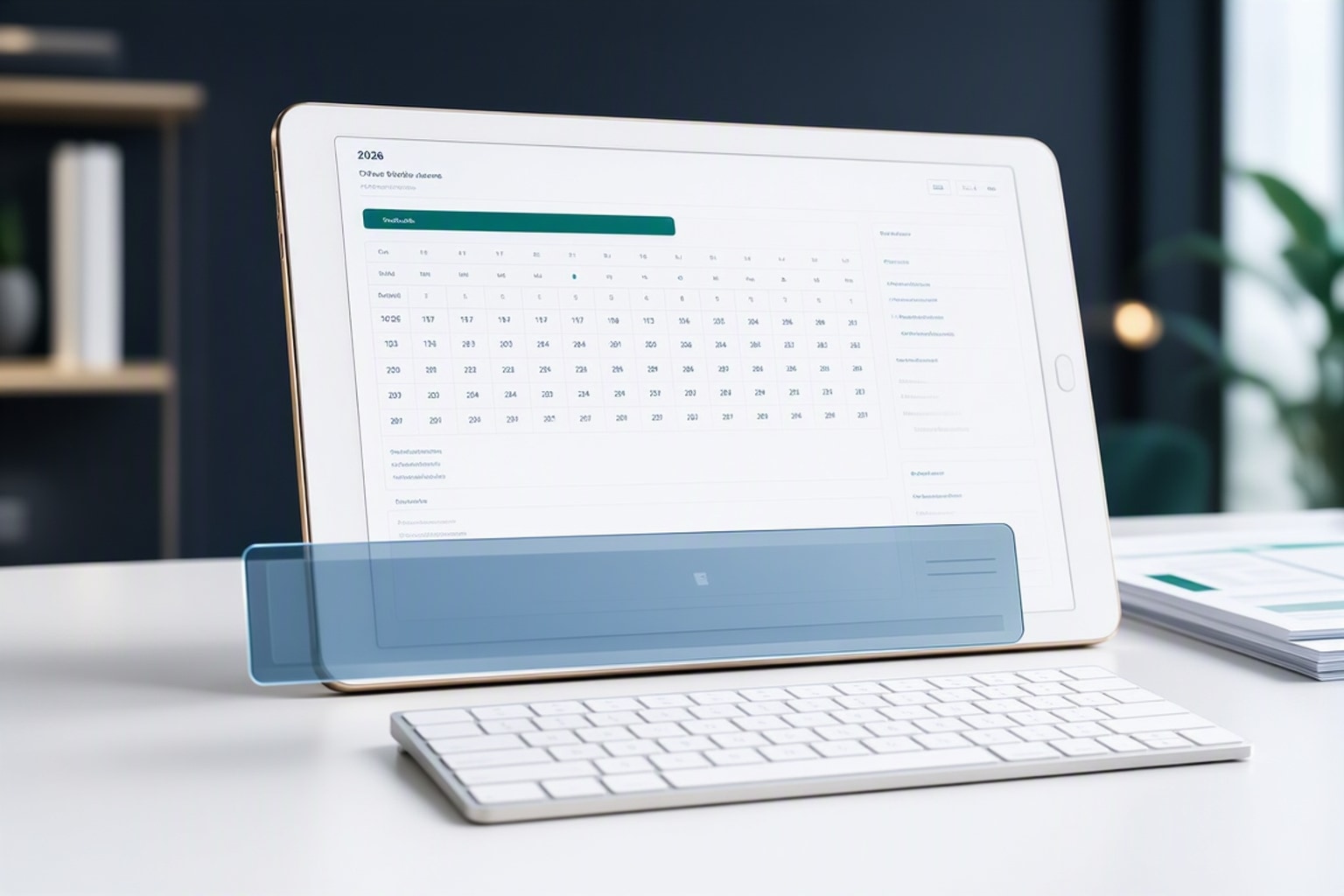
Small businesses waste thousands of hours each year tracking attendance manually or patching together inconsistent spreadsheets. An employee attendance tracker Excel template gives you a structured, formula-driven system to log daily presence, absences, overtime, and leave balances without starting from scratch. In 2026, these templates leverage dynamic arrays, XLOOKUP, and AI-powered suggestions to auto-generate summaries, flag patterns, and reduce data-entry errors that cost payroll teams time and money.
The Analytics Doctor reports that small businesses save up to $2,000 yearly by switching from manual attendance systems to Excel templates. The latest 2026 Excel versions introduce AI-powered suggestions, dynamic arrays, and improved collaboration tools that make attendance tracking faster and more accurate than legacy spreadsheet workflows. You get instant monthly breakdowns, absence totals per employee, and conditional formatting that highlights anomalies the moment they appear.
These templates work for shift-based retail teams, remote startups, schools, and HR departments managing PTO accruals. You can track check-in/check-out times, break durations, overtime hours, and unlimited absence types in a single workbook. Most free templates include 12 monthly sheets for year-round tracking, with formulas that roll up annual totals and support payroll export workflows.
What Is an Employee Attendance Tracker Excel Template and Why Use One in 2026?
An employee attendance tracker Excel template is a pre-built workbook with columns for employee names, dates, attendance status, leave types, hours worked, and overtime. It uses data validation dropdowns to standardize entries, conditional formatting to highlight absences or tardiness, and formulas to calculate totals automatically. The template eliminates blank-sheet setup and gives you a consistent structure that scales from five employees to fifty.
In 2026, Excel's dynamic array functions (UNIQUE, FILTER, SORT) and XLOOKUP replace older INDEX-MATCH patterns with cleaner, faster formulas. You can generate a live list of employees who were absent last week, calculate average hours worked per department, or flag anyone approaching overtime thresholds without writing complex nested functions. AI-powered suggestions detect formula errors, recommend chart types for absence trends, and auto-complete patterns when you start typing common attendance scenarios.
Cost savings drive adoption for small businesses. Manual timesheets require double-entry into payroll software, increasing the risk of typos and missing hours. Excel templates centralize data in one place, support CSV export for payroll platforms, and reduce administrative overhead by automating summaries. You avoid subscription fees for dedicated attendance software until your team outgrows Excel's capabilities.
How to Set Up an Employee Attendance Tracker in Excel from Scratch
Start with a blank Excel workbook and create these columns in row 1: Employee Name, Date, Status, Leave Type, Hours Worked, Overtime Hours, Notes. Freeze the top row so column headers stay visible when you scroll. Enter employee names in column A starting at row 2, then fill dates in column B using a series or formula like =TODAY()-30 to auto-generate the last 30 days.
Use data validation to standardize the Status column. Select the Status column, go to Data > Data Validation, choose List, and enter: Present, Absent, Late, Half Day, Remote. This dropdown prevents typos and makes filtering easier. Repeat for Leave Type with options like Sick, Vacation, Personal, Unpaid, Bereavement. Data validation locks in consistency across multiple users and months.
Add conditional formatting to highlight absences and late arrivals. Select the Status column, go to Home > Conditional Formatting > Highlight Cells Rules > Equal To, and set "Absent" to red fill. Set "Late" to yellow fill. This visual alert helps managers spot patterns at a glance. For Hours Worked, use a rule to highlight cells below 8 hours in orange and above 10 hours in blue to flag part-time shifts and overtime.
Insert summary formulas below your data table. Use =COUNTIF(C2:C100,"Absent") to count total absences, =SUMIF(C2:C100,"Present",E2:E100) to sum hours worked by present employees, and =AVERAGE(E2:E100) for average daily hours. Place these formulas in a summary section at the bottom or on a separate dashboard sheet. Update the range references as your data grows.

Using Dynamic Arrays and XLOOKUP for Automatic Attendance Summaries
Dynamic arrays let you write one formula that returns multiple results, spilling into adjacent cells automatically. Use =UNIQUE(A2:A100) on a summary sheet to generate a live list of all employees. Pair it with =COUNTIFS($A$2:$A$100,G2,$C$2:$C$100,"Absent") to count absences per employee, where G2 holds the employee name from your UNIQUE list. The formula updates instantly when you add new attendance rows.
XLOOKUP replaces VLOOKUP and INDEX-MATCH with cleaner syntax and better error handling. Use =XLOOKUP(G2,$A$2:$A$100,$E$2:$E$100,0) to pull total hours worked for a specific employee. Set the fourth argument to 0 to return zero if no match is found, avoiding #N/A errors. XLOOKUP searches any column, not just the first, so you can look up by employee name and return leave balances, overtime totals, or last absence date without rearranging columns.
Combine FILTER with SUM to calculate monthly totals. Use =SUM(FILTER(E2:E100,(A2:A100=G2)*(MONTH(B2:B100)=6))) to sum hours worked by a specific employee in June. The FILTER function returns only rows that match both conditions, then SUM adds them up. This replaces pivot tables for quick, formula-driven summaries that update in real time.
Adding AI-Powered Suggestions to Flag Attendance Patterns
Excel's 2026 AI tools analyze your data and suggest formulas when you start typing. Type "total absences by employee" in a cell, and Excel may propose a SUMIF or pivot table formula. Accept the suggestion, adjust the range, and the formula populates automatically. This feature shortens setup time for users unfamiliar with advanced functions.
AI-powered anomaly detection highlights unusual patterns. If an employee's absence rate spikes above the team average, Excel can flag the cell with a comment or conditional format rule. Use Analyze Data (formerly Ideas) by clicking the lightbulb icon in the toolbar. Excel scans your attendance table and surfaces insights like "Employee A has 30 percent more absences than the team median" or "Overtime hours increased 15 percent in Q2 compared to Q1."
Set up trend charts with AI-recommended visuals. Select your attendance data, click Insert > Recommended Charts, and Excel suggests line charts for absence trends over time or clustered columns for department comparisons. The AI ranks chart types by relevance, saving you trial-and-error formatting. Add a trendline to spot seasonal patterns or predict future absence rates based on historical data.
Comparing the Best Free Excel Attendance Templates for Different Business Needs
Free Excel attendance templates fall into three categories: daily trackers for shift-based teams, monthly and annual trackers for HR reporting, and leave-specific templates for PTO management. Daily templates include check-in/check-out times, break tracking, and real-time status updates. Monthly templates offer 12-sheet workbooks with per-employee absence breakdowns and year-over-year trend analysis. Leave templates track unlimited absence types, accrual balances, and approval workflows.
Clockify's templates focus on detailed time management, tracking check-in/check-out times and total break times for hourly teams. Hubstaff's templates include 12 sheets, one for each month of the year, supporting comprehensive annual tracking. Vacation Tracker's Excel leave planner template is designed for smaller teams and tracks absences and all kinds of leave with monthly and annual breakdowns per employee per absence type.
Choose a template based on your primary use case. Retail and hospitality teams need daily shift trackers with hour-by-hour granularity. Corporate HR departments need monthly summaries that roll up into annual reports for compliance audits. Startups managing remote teams need leave trackers that integrate with approval workflows and export to payroll software. Download two or three templates, test them with sample data, and pick the one that requires the least customization for your policies.
Daily Attendance Tracker Templates: Best for Shift-Based Teams
Daily templates record attendance at the shift level, not just the day level. Columns include Employee Name, Date, Shift Start, Shift End, Break Start, Break End, Total Hours, Overtime, and Status. Formulas calculate total hours worked as =Shift End - Shift Start - (Break End - Break Start), then flag overtime if total hours exceed 8. Conditional formatting highlights late clock-ins or missed breaks.
These templates work for restaurants, warehouses, call centers, and retail stores with rotating shifts. You can add a Shift Type column with data validation for Morning, Evening, Night, and Weekend, then use SUMIF to calculate shift differential pay. For example, =SUMIF(ShiftType,"Night",TotalHours)*1.15 applies a 15 percent premium to night shift hours.
Real-time status updates matter for managers overseeing multiple locations. Use a Status column with Present, On Break, Clocked Out, and No Show options. Pair it with conditional formatting rules that turn the row green when an employee clocks in and red if they miss their shift. Export the daily sheet to CSV at the end of each shift and upload it to your payroll system to avoid manual re-entry.

Monthly and Annual Attendance Templates: Best for HR Reporting
Monthly templates organize data by calendar month, with one sheet per month or a single sheet filtered by month. Each row represents an employee, and columns represent dates (1-31). Cell values use abbreviations: P for Present, A for Absent, V for Vacation, S for Sick, H for Holiday. Summary columns at the right edge count total days present, absent, and on leave using COUNTIF formulas.
Annual templates include 12 sheets, one for each month, with a 13th summary sheet that aggregates totals. Use formulas like =SUM(Jan!D2,Feb!D2,Mar!D2,Apr!D2,May!D2,Jun!D2,Jul!D2,Aug!D2,Sep!D2,Oct!D2,Nov!D2,Dec!D2) to roll up absences across all months. This structure supports year-over-year trend analysis and compliance reporting for labor audits.
HR teams use these templates to track FMLA leave, analyze absence patterns by department, and forecast staffing needs. Add a Department column and use pivot tables to compare absence rates across teams. Export the summary sheet to PDF for board meetings or regulatory filings. The multi-sheet layout keeps raw data organized while providing executive-level views without complex filters.
Leave and PTO Tracker Templates: Best for Managing Time-Off Requests
Leave templates track accrued PTO, used PTO, and remaining balances per employee. Columns include Employee Name, Accrual Rate, Total Accrued, Days Used, Days Remaining, and Absence Type. Formulas calculate accrual as =Accrual Rate * Months Employed, subtract days used, and flag employees approaching zero balance. Conditional formatting highlights negative balances in red.
These templates support unlimited absence types: Sick, Vacation, Personal, Bereavement, Jury Duty, Unpaid, Parental, and Sabbatical. Add a Leave Request section with columns for Request Date, Start Date, End Date, Absence Type, Status (Pending, Approved, Denied), and Approver Name. Use data validation to standardize Status entries and conditional formatting to highlight pending requests in yellow.
Approval workflows live in the same sheet. Managers filter by Status = Pending, review the request, update the Status cell to Approved, and the formula recalculates remaining PTO. Export approved leave to a calendar view or sync with Google Sheets for real-time updates across remote teams. This eliminates email chains and centralizes leave management in one auditable file.
How to Customize an Excel Attendance Template for Your Team
Start by adding custom leave types that match your company policy. If you offer Floating Holidays, Mental Health Days, or Volunteer Time Off, add those options to your Leave Type data validation list. Update any COUNTIF formulas that reference leave types to include the new categories. For example, change =COUNTIF(D2:D100,"Sick") to =COUNTIFS(D2:D100,"Sick")+COUNTIFS(D2:D100,"Mental Health Day") if both count toward sick leave limits.
Add department-specific columns if you track attendance across multiple teams. Insert a Department column with data validation for Sales, Operations, Finance, Marketing, and IT. Use SUMIFS to calculate total hours worked per department: =SUMIFS(E2:E100,F2:F100,"Sales"). This helps you analyze absence trends by team and allocate resources during peak periods.
Adjust formulas for unique policies like unlimited PTO or point-based attendance systems. If your company doesn't cap vacation days, remove the accrual balance formulas and track only days used. If you use a point system, add a Points Assigned column and formulas that calculate cumulative points per employee. Customize conditional formatting thresholds to match your policy, such as highlighting employees with 6 or more points in red.
Tracking Overtime and Shift Differentials in Your Attendance Sheet
Calculate overtime hours using an IF formula that checks whether total hours exceed your threshold. Use =IF(E2>8,E2-8,0) to calculate overtime as any hours worked beyond 8 per day. For weekly overtime, sum daily hours across seven rows and apply =IF(SUM(E2:E8)>40,SUM(E2:E8)-40,0). Place the overtime formula in a dedicated column so it updates automatically when you enter daily hours.
Shift differentials apply a pay multiplier to specific shifts. Add a Shift Type column with Morning, Evening, Night, and Weekend options. Create a Differential Rate column that uses VLOOKUP or IFS to assign rates: =IFS(ShiftType="Night",1.15,ShiftType="Weekend",1.25,TRUE,1). Multiply this rate by Hours Worked to calculate adjusted pay: =E2*G2. This formula structure supports multiple differential tiers without nested IF statements.
Track total pay adjustments in a summary column. Use =(E2*HourlyRate)+(F2*HourlyRate*1.5)+(G2*HourlyRate*ShiftRate) to calculate base pay plus overtime premium plus shift differential. Replace HourlyRate with a cell reference to your pay rate table. Export this column to CSV and import it into your payroll software to avoid manual calculations and reduce payroll errors.
Building a Point-Based Attendance System in Excel
Point-based systems assign numeric values to attendance infractions. Tardiness earns 0.5 points, unexcused absence earns 1 point, and no-call no-show earns 2 points. Add a Points Assigned column and use a lookup table or IFS formula: =IFS(Status="Late",0.5,Status="Absent",1,Status="No Show",2,TRUE,0). This formula auto-assigns points based on the Status cell.
Calculate cumulative points per employee using SUMIF. On a summary sheet, use =SUMIF($A$2:$A$100,G2,$H$2:$H$100) where column H holds Points Assigned and G2 is the employee name. Conditional formatting highlights employees who reach warning thresholds: yellow at 3 points, orange at 5 points, red at 6 points. Set up a rule that emails managers when an employee hits 6 points using Excel's built-in alert features or a Power Automate workflow.
Reset points annually or quarterly based on your policy. Add a Reset Date column and use =IF(TODAY()-ResetDate>365,0,CumulativePoints) to zero out points after one year. This formula keeps the system fair and gives employees a clean slate. Track point history on a separate sheet for audit purposes, logging each infraction with date, employee name, points assigned, and manager notes.
Integrating Excel Attendance Data with Payroll and HR Systems
Export your attendance data to CSV for seamless payroll import. Select your data range, go to File > Save As, choose CSV (Comma delimited), and save. Most payroll platforms (ADP, Paychex, Gusto, QuickBooks Payroll) accept CSV uploads with columns for Employee ID, Date, Hours Worked, Overtime Hours, and Leave Type. Map your Excel columns to the payroll system's required fields during the import wizard.
Format dates and numbers consistently before export. Use =TEXT(B2,"YYYY-MM-DD") to convert Excel date serial numbers to ISO format that payroll software recognizes. Round hours to two decimal places using =ROUND(E2,2) to avoid import errors caused by floating-point precision. Remove any blank rows or extra columns that aren't part of your payroll data set.
Link Excel to Google Sheets for real-time sync across remote teams. Save your Excel file to OneDrive or SharePoint, then use Power Automate to push updates to a Google Sheet whenever the Excel file changes. Alternatively, use Google Sheets' built-in IMPORTRANGE function to pull data from a published Excel Online link. This setup lets managers update attendance in Excel while remote employees view live data in Google Sheets without version conflicts.
Common Mistakes to Avoid When Using Excel Attendance Trackers
Inconsistent data entry breaks formulas and makes filtering impossible. One user types "Absent," another types "absent," and COUNTIF treats them as different values. Use data validation dropdowns for every column that feeds into formulas. Lock the dropdown cells using Protect Sheet so users can't bypass validation by typing directly.
Missing backups lead to catastrophic data loss. Save your attendance file to OneDrive, Google Drive, or Dropbox with automatic version history. Enable AutoSave in Excel so every edit syncs to the cloud immediately. Schedule weekly exports to CSV and store them in a separate backup folder. If your file corrupts or someone deletes critical data, you can restore from the previous version.
No version control creates confusion when multiple users edit the same file. Use Excel's co-authoring feature by saving the file to OneDrive and sharing it with your team. Each user's changes appear in real time, and Excel tracks who made which edits. Avoid emailing the file back and forth, which creates duplicate copies with conflicting data. If co-authoring isn't an option, assign one person as the file owner and require others to submit updates via a form or separate sheet.
Ignoring data validation invites typos, misspellings, and inconsistent abbreviations. Set up dropdowns for Status, Leave Type, Department, and Shift Type before you start entering data. Use named ranges for validation lists so you can update the master list in one place and all dropdowns refresh automatically. For example, create a range called LeaveTypes on a hidden sheet, then reference it in your validation rule.
Failing to secure sensitive employee information exposes your company to privacy risks. Password-protect your Excel file using File > Info > Protect Workbook > Encrypt with Password. Set read-only permissions for users who need to view attendance but shouldn't edit it. Remove Social Security numbers, home addresses, and salary details from your attendance tracker and store them in a separate HR database with stricter access controls.
Best Practices for Maintaining Accurate Attendance Records and Data Security
Use clear naming conventions for files and sheets. Name your file "Attendance_2026_CompanyName.xlsx" and individual sheets "Jan_2026," "Feb_2026," etc. Avoid generic names like "Book1.xlsx" or "Sheet1" that make it hard to identify the correct file months later. Add a version number or date stamp to the filename when you make major changes: "Attendance_2026_v2_Updated_June27.xlsx."
Conduct regular audits to catch errors before they reach payroll. At the end of each month, run a spot check on 10 percent of attendance records. Compare Excel entries to clock-in logs, manager notes, or time-tracking software. Look for missing dates, duplicate entries, or hours that don't match shift schedules. Fix discrepancies immediately and document the correction in a Notes column.
Set up password protection with tiered access levels. Use Excel's Protect Sheet feature to lock formula cells while leaving data-entry cells unlocked. Assign a password that only managers know, so employees can view their own attendance but can't alter formulas or other employees' data. For highly sensitive files, use Windows file permissions or SharePoint access controls to restrict who can open the file at all.
Implement cloud backup strategies to prevent data loss. Save your attendance file to OneDrive, Google Drive, or Dropbox with automatic version history enabled. Configure your cloud provider to retain at least 30 days of previous versions. Test your restore process quarterly by deliberately reverting to an older version and confirming that formulas and data integrity remain intact.
Comply with labor laws and record-retention requirements. The Fair Labor Standards Act requires employers to keep attendance records for at least three years. Store completed annual attendance files in a secure archive folder, separate from your active tracker. Export finalized data to PDF for long-term storage, as Excel file formats may become obsolete over decades. Consult your legal team or HR advisor to ensure your attendance tracking meets federal, state, and industry-specific regulations.
When to Upgrade from Excel to a Dedicated Attendance Tracking Tool
Excel becomes limiting when your team exceeds 50 employees or spans multiple locations. Formulas slow down with thousands of rows, and co-authoring breaks when too many users edit simultaneously. Manual data entry increases error rates, and managers spend hours reconciling discrepancies instead of focusing on operations. If you find yourself exporting Excel data to another tool for scheduling, reporting, or mobile access, you've outgrown the spreadsheet.
Complex scheduling needs require features Excel doesn't provide. Shift swaps, on-call rotations, and real-time availability tracking demand a database backend and user interface that Excel can't replicate with formulas alone. Dedicated tools like Deputy, When I Work, and Homebase offer drag-and-drop scheduling, mobile clock-in via GPS, and automatic overtime alerts that update instantly across all devices.
Mobile clock-in becomes essential for remote and field teams. Excel requires employees to open a file, find their row, and type their status, which doesn't work for delivery drivers, construction crews, or sales reps on the road. Attendance apps let employees clock in from their phones, capture GPS coordinates, and sync data to a central dashboard without touching a spreadsheet. Managers get real-time visibility into who's working, where, and for how long.
Real-time reporting and analytics exceed Excel's native capabilities. Pivot tables and charts provide basic insights, but they require manual refreshes and don't support drill-down dashboards or role-based access. Tools like Smartsheet, which over 85 percent of Fortune 500 companies trust, offer pre-built attendance dashboards, automated alerts, and integrations with payroll, HR, and project management platforms. You get live absence trends, department comparisons, and predictive analytics without writing a single formula.
Consider Smartsheet when you need project-level attendance tracking, automated approval workflows, and enterprise-grade security. Smartsheet combines the familiar grid interface of Excel with database power, mobile access, and collaboration features designed for large teams. It integrates with ADP, BambooHR, Slack, and Microsoft Teams, so attendance data flows automatically into your existing tech stack. Pricing starts at $7 per user per month as of June 2026, making it cost-effective for teams that have exhausted Excel's capabilities.
Get the newsletter
One sharp idea every Sunday.
No fluff. No sales pitches. Just the best of what we publish, hand-picked.
Continue Reading
Related Articles
10+ Free Employee Attendance Tracker Excel Templates (2026)
Efficient attendance tracking saves businesses money and ensures compliance. Manual systems, prone to errors, cost companies thousands annually. A robust Excel tracker provides accurate data for payro...
10+ Free Sales Tracker Excel Templates for 2026 Growth
Every business, regardless of size, needs a clear view of its sales performance. A sales tracker provides that clarity. It moves you beyond guesswork, offering concrete data to understand what's worki...
Master Payroll: 2026 Excel Spreadsheet Templates & Calculators
Calculating payroll...