10+ Free Monthly Budget Spreadsheet Templates for Excel (2026)
A monthly budget spreadsheet template for Excel is a pre-built file that organizes your income and expenses by category, showing exactly where your money goes each month without building formulas and...
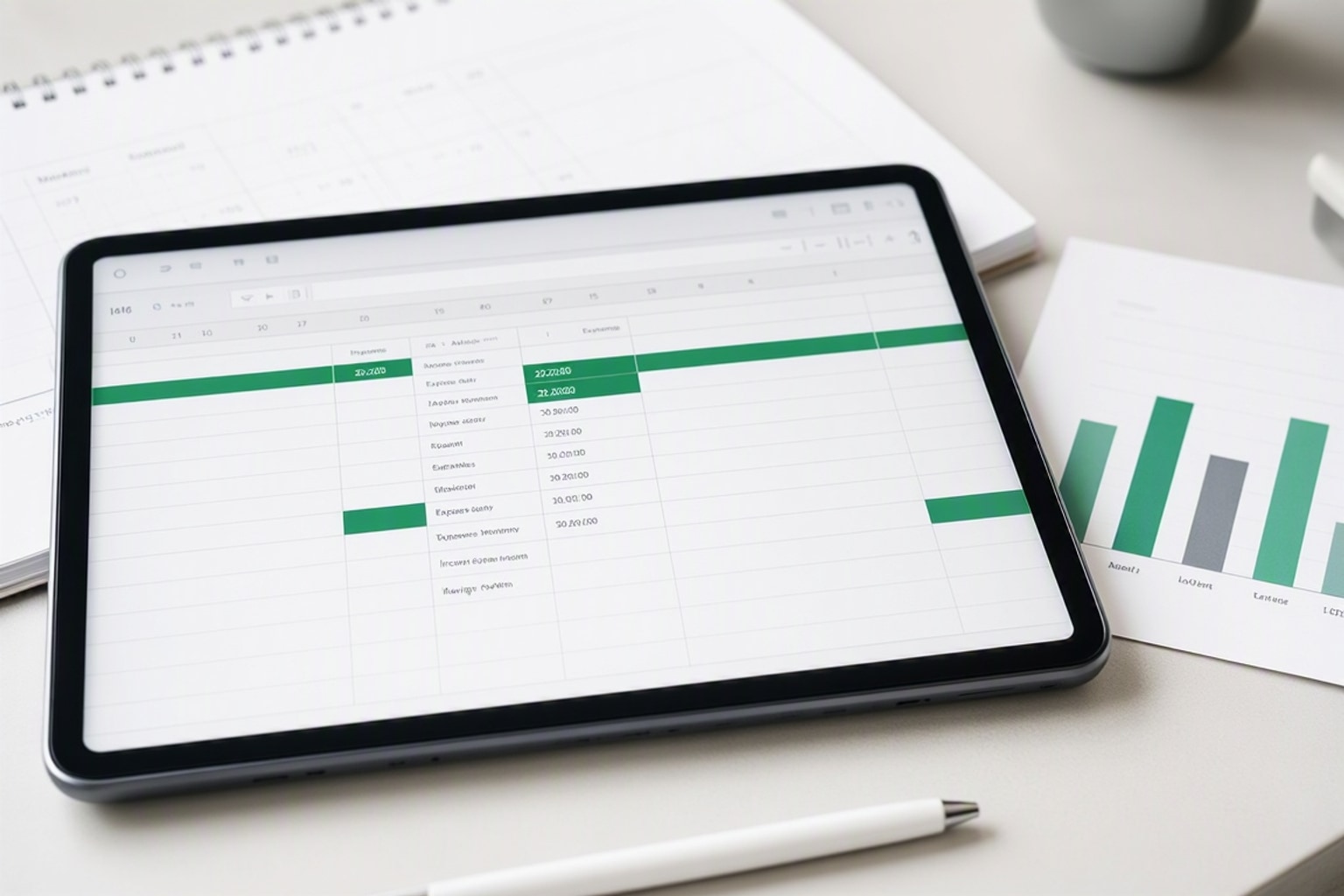
A monthly budget spreadsheet template for Excel is a pre-built file that organizes your income and expenses by category, showing exactly where your money goes each month without building formulas and layouts from scratch. These templates include working formulas, category structures, and visual charts already configured. You download the file, plug in your numbers, and start tracking immediately.
Excel remains the dominant choice for budget tracking in 2026 because it works offline, handles complex custom formulas, and integrates with existing financial workflows most professionals already use. Even with dozens of budgeting apps available, Excel budget templates remain the most popular tool for managing money according to Tiller's 2026 user research. The flexibility to customize every cell, formula, and chart gives spreadsheet users control that locked app interfaces can't match.
Why Use a Monthly Budget Template Instead of Building Your Own
Building a budget spreadsheet from a blank Excel file takes 2-4 hours to structure categories, write SUM and IF formulas, create running balance calculations, and design useful charts. A template cuts that setup time to under 10 minutes. You skip the formula debugging phase entirely.
Pre-built templates include tested formulas that won't break when you add rows or adjust categories. Manual builds often contain circular reference errors, incorrect cell ranges, or formulas that stop calculating after the first month. Templates handle these edge cases before you download them.
Visual design matters more than most people expect when tracking money weekly. Templates include conditional formatting that highlights overspending in red, charts that update automatically as you enter transactions, and color-coded categories that make monthly reviews faster. Building these design elements manually requires intermediate Excel skills most budget users don't have.
Best Free Monthly Budget Spreadsheet Templates for Excel in 2026
The best templates in 2026 balance automation, visual clarity, and flexibility for different budgeting methods. These four options cover automated tracking, variance analysis, visual summaries, and specialized approaches.
Tiller Foundation Template: Automated Daily Tracking

Tiller's Foundation Template is the only monthly budget for Excel that automatically tracks daily spending, income, and account balances by connecting directly to your bank accounts. The template updates every morning with new transactions, eliminating manual data entry. Real-time balance updates show your current financial position without logging into multiple bank websites.
The automated categorization engine learns your spending patterns and assigns transactions to the correct budget categories after the first few weeks. You review and approve suggested categories rather than typing each entry. The template includes 12 monthly sheets that roll forward automatically, maintaining year-over-year comparisons without rebuilding formulas.
Tiller's automation requires a paid subscription after the first 30 days, but the Foundation Template structure works as a standalone manual tracker if you prefer entering transactions yourself. The formula architecture and category system remain useful even without the automated feed.
Smartsheet Monthly Budget Template: Projected vs. Actual Analysis
Smartsheet's Monthly Budget Template allows users to compare projected versus actual spending in side-by-side columns with automatic variance calculations. You enter your planned spending for each category at the start of the month, then track actual expenses as they occur. The variance column shows exactly where you overspent or underspent.
The template highlights variance cells in red when actual spending exceeds projected amounts by more than 10%, making overspending patterns immediately visible during weekly reviews. This visual flagging helps spot problem categories before they derail your monthly budget. The projected vs. actual structure works especially well for variable expenses like groceries, dining, and entertainment where spending fluctuates.
Smartsheet includes dedicated sheets for each month of the year, providing a comprehensive overview of annual cash flow patterns. You can compare March spending to February or review Q1 totals without building custom reports. The multi-sheet structure maintains historical data while keeping the current month's view uncluttered.
Excelx.com Monthly Budget Planner: Visual Spending Breakdown
Excelx.com's monthly budget planner includes separate sections for income, expenses, and savings, along with graphical representations of spending categories that update automatically as you enter transactions. The pie chart shows percentage breakdowns by category, making it easy to see that dining represents 18% of monthly spending while utilities only take 7%.
The template uses conditional formatting to color-code expense categories, with essential expenses in blue, discretionary spending in orange, and savings contributions in green. This visual separation helps during monthly reviews when you need to identify where cuts would hurt least. The graphical summaries make budget presentations to partners or family members more effective than showing raw numbers.
Each spending category includes a notes column where you can track specific details: which restaurant, what subscription service, or why a category spiked that month. These notes become valuable when reviewing annual patterns or preparing tax documentation. The template maintains 12 months of data with notes intact, creating a searchable transaction history.
Vertex42 Budget Templates: Specialized Options for Different Methods
Vertex42 offers over 20 budget templates, including options for personal, household, and zero-based budgeting approaches. The library includes specialized templates for college students, families with children, retirees, and freelancers with irregular income. Each template adjusts category structures and formulas to match specific financial situations.
The zero-based budget template includes a reconciliation section that forces income minus expenses to equal exactly zero, ensuring every dollar has an assigned purpose. The 50/30/20 template automatically calculates target amounts for needs, wants, and savings based on your total income, then tracks actual spending against those targets. The household budget template adds shared expense tracking with individual contribution columns for partners managing money together.
Vertex42's templates include detailed setup instructions within the spreadsheet itself, with example entries showing proper formatting and formula usage. The instruction sheets explain which cells to modify and which contain formulas you shouldn't touch. This built-in documentation makes the templates accessible even for Excel beginners.
Key Features to Look for in a Monthly Budget Template
Automated sum formulas must calculate category totals, monthly totals, and running balances without manual updates. The best templates use structured references or named ranges so formulas don't break when you add transaction rows. Check that the template includes SUM formulas for income, expenses, and savings sections, plus a master formula showing net income after all expenses.
Category customization options let you add, remove, or rename spending categories to match your actual expenses. Templates with hard-coded categories force you into predefined structures that might not fit your situation. Look for templates that make adding new categories as simple as inserting a row and typing a name, with formulas that automatically expand to include the new category.
Monthly sheets for year-long tracking maintain historical data while keeping current month views clean. The best templates include 12 separate sheets with linking formulas that carry forward starting balances and calculate year-to-date totals. This structure lets you review spending trends across quarters without scrolling through hundreds of transaction rows.
Chart generation should happen automatically as you enter transactions, not require manual updates or refresh commands. Templates with dynamic charts linked to category totals show spending breakdowns, income vs. expense comparisons, and savings progress without extra steps. The charts should update immediately when you add a transaction, providing real-time visual feedback.
Savings goal trackers need progress bars or percentage calculations showing how close you are to specific targets. Look for templates that let you set multiple savings goals simultaneously: emergency fund, vacation, down payment, or debt payoff. The tracker should show both the target amount and current progress, calculating how many months remain at your current savings rate.
How to Set Up Your Monthly Budget Template in Excel: Step-by-Step
Download the template file to your computer and open it in Excel, not in a browser window. Browser-based Excel has limited functionality and may not display all formulas correctly. Save the file with a new name that includes the current month and year, like "Budget_June_2026.xlsx", before entering any data.
Enter starting balances for all accounts you plan to track: checking, savings, credit cards, and cash on hand. Most templates include an account summary sheet where you list each account name and current balance. These starting balances establish your baseline for tracking monthly changes. Verify the balances match your actual account statements as of the first day of the month.
List all income sources with their expected amounts and payment dates. Include salary, freelance payments, side hustle revenue, investment dividends, and any other money coming in. Enter the gross amount for salaried income, then add a deduction row for taxes if you want to track net take-home pay. For irregular income, use conservative estimates based on the lowest amount you typically receive.
Categorize expenses into fixed and variable groups before entering amounts. Fixed expenses include rent, mortgage, car payments, insurance premiums, and subscription services that charge the same amount monthly. Variable expenses cover groceries, gas, dining, entertainment, and shopping where amounts change each month. This categorization helps identify where you have flexibility to adjust spending.
Set savings targets as the final step, treating them like fixed expenses that must be paid each month. Enter target amounts for emergency fund contributions, retirement accounts, and specific savings goals. The template should calculate whether your income covers all expenses plus savings, flagging any shortfall that requires expense adjustments.
Column Structure and Formula Setup

Typical budget templates use six core columns: date, category, description, amount in, amount out, and running balance. The date column tracks when each transaction occurred, formatted as MM/DD/YYYY for sorting and filtering. The category column uses a dropdown list of predefined spending categories, preventing typos and ensuring consistent categorization.
The description column holds transaction details: store name, bill payee, or income source. Keep descriptions brief but specific enough to remember the transaction six months later. Amount in and amount out columns separate income from expenses, making it easier to sum each type independently. Never enter negative numbers; use the appropriate column instead.
Running balance formulas typically start with your beginning balance, then add amount in and subtract amount out for each row. The formula in cell F2 might read =F1+D2-E2, meaning the previous balance plus new income minus new expenses. This formula copies down the entire column, maintaining an accurate balance after every transaction.
SUM formulas at the bottom of amount columns calculate monthly totals. The income sum might use =SUM(D2:D500) to total all amount in entries, while the expense sum uses =SUM(E2:E500) for amount out entries. A net income formula subtracts total expenses from total income, showing whether you finished the month positive or negative.
IF formulas add conditional logic for warnings and alerts. A common formula checks if spending in a category exceeds its budget: =IF(ActualSpending>BudgetAmount,"Over Budget","On Track"). This formula displays text alerts in cells next to each category, providing instant feedback without manual calculations.
Entering Your Income and Fixed Expenses
Start with salary income by entering your gross pay amount and pay date. If you receive biweekly paychecks, enter both dates for the current month. Add separate rows for bonuses, commissions, or overtime pay when they occur. For freelance income, enter payments as they clear your account, not when you invoice clients.
Fixed expenses go in next because they represent non-negotiable monthly obligations. Enter your rent or mortgage payment with its due date first, as it's typically your largest expense. Add car payments, student loan payments, and personal loan payments with their exact amounts and due dates. Insurance premiums for health, auto, life, and renters policies get separate rows.
Utility bills count as fixed expenses even though amounts vary slightly month to month. Enter average amounts for electricity, gas, water, internet, and phone service based on the past three months. You'll adjust these to actual amounts when bills arrive, but estimates help with initial planning. Cell phone plans with fixed monthly costs are truly fixed expenses.
Subscription services deserve their own category because they add up quickly and are easy to forget. List streaming services, software subscriptions, gym memberships, magazine subscriptions, and any recurring online services. Include the exact monthly cost and renewal date for each. Many people discover they're paying for subscriptions they no longer use during this exercise.
Minimum debt payments must appear as fixed expenses even if you plan to pay more. Enter the minimum required payment for each credit card, then add extra payments in a separate row if your budget allows. This separation shows your baseline obligations versus discretionary debt reduction efforts.
Adding Variable Expenses and Discretionary Spending
Groceries typically represent the largest variable expense category for most households. Budget $400-600 per person monthly for groceries depending on your location and eating habits. Track actual spending weekly by entering grocery store receipts as individual transactions or as weekly totals. This category shows the most variation and offers the most flexibility for cuts when needed.
Dining and entertainment expenses include restaurants, takeout, bars, movies, concerts, and events. Budget these based on your actual habits, not aspirational goals. If you currently spend $400 monthly eating out, budget $400 even if you wish it were less. Unrealistic budgets fail within weeks. Track each dining expense separately to see patterns in frequency and average cost per meal.
Transportation costs beyond car payments include gas, parking, tolls, public transit, and ride-sharing services. Budget $150-250 monthly for gas if you commute daily, less if you work from home. Add $50-100 for parking if you pay for workplace or residential parking. Urban dwellers might replace gas costs with $100-150 for monthly transit passes or ride-sharing.
Shopping and personal care cover clothing, household items, toiletries, haircuts, and personal services. Budget $100-200 monthly for these combined categories, adjusting based on your actual needs. Some months require more spending when you need new work clothes or replace worn household items. Track these expenses to identify whether you're spending on needs or impulse purchases.
Healthcare expenses beyond insurance premiums include copays, prescriptions, dental visits, and vision care. Budget $50-100 monthly even if you're healthy, as unexpected medical needs arise. If you have ongoing prescriptions or regular therapy appointments, calculate exact monthly costs and budget accordingly. HSA or FSA contributions should appear as separate line items.
Setting Up Savings Goals and Debt Repayment Tracking
Emergency fund contributions should equal 10-20% of your monthly income until you reach 3-6 months of expenses saved. Calculate your target emergency fund by multiplying monthly expenses by 6, then divide by 12 to get a monthly savings target. Enter this amount as a fixed expense in your budget, treating it as non-negotiable as rent. Track progress with a running total showing how close you are to your target.
Retirement account contributions get entered as percentages of gross income if you're contributing to a 401k or as fixed dollar amounts for IRA contributions. The current 401k contribution limit is $23,500 annually or $1,958 monthly for 2026. If your employer matches contributions, include that amount separately to track total retirement savings. Calculate whether you're on track for retirement by comparing current savings to recommended benchmarks for your age.
Specific savings goals need individual tracking sections with target amounts and deadlines. Create rows for vacation funds, down payment savings, car replacement funds, or education savings. Enter the total target amount, target date, and calculate monthly savings needed by dividing the target by months remaining. The template should show a progress bar or percentage complete for each goal.
Debt repayment beyond minimum payments accelerates your path to being debt-free. List each debt with its current balance, interest rate, and minimum payment. Add extra payment amounts in a separate row, focusing extra money on the highest-interest debt first (avalanche method) or smallest balance first (snowball method). Track the payoff date for each debt based on current payment amounts.
The template should calculate total monthly savings and debt repayment as a combined number, showing what percentage of income you're directing toward future financial security. Financial advisors recommend 20% minimum, with 30-40% being excellent. If your percentage falls below 15%, look for expense categories to reduce or income sources to increase.
Popular Budgeting Methods to Apply in Your Template
The 50/30/20 rule allocates 50% of after-tax income to needs, 30% to wants, and 20% to savings and debt repayment. This method works well for people who want simple guidelines without tracking every dollar. Calculate your after-tax monthly income, then multiply by 0.50, 0.30, and 0.20 to get target amounts for each category. Your template should show whether actual spending in each bucket matches the targets.
Zero-based budgeting assigns every dollar of income to a specific category, making income minus all expenses and savings equal exactly zero. This method forces intentional decisions about every dollar and prevents money from disappearing into untracked spending. The template needs a reconciliation formula at the bottom showing the difference between income and all allocated amounts. You adjust category allocations until the difference reaches zero.
The envelope method divides cash into physical or virtual envelopes for each spending category, stopping when an envelope empties. Excel templates simulate this by showing remaining budget for each category after each transaction. A remaining budget column uses the formula =BudgetAmount-ActualSpending, turning red when it hits zero. This visual cue prevents overspending by showing exactly how much remains in each category.
Pay-yourself-first budgeting moves savings to the top of the budget, treating it as the first expense paid each month. This method ensures savings happen before discretionary spending depletes available funds. Structure your template with savings categories at the top, immediately after income. Enter savings amounts first when setting up each month, then allocate remaining income to expenses.
50/30/20 Budget Method in Excel
Calculate your after-tax monthly income by subtracting federal, state, and payroll taxes from gross income. If you receive $5,000 gross monthly and pay $1,200 in taxes, your after-tax income is $3,800. This becomes your base number for all percentage calculations. Enter this amount in a dedicated cell at the top of your budget template.
Multiply after-tax income by 0.50 to get your needs budget. For $3,800 after-tax income, needs should total $1,900 monthly. This category includes housing, utilities, groceries, transportation, insurance, minimum debt payments, and healthcare. Sum your actual needs expenses and compare to the $1,900 target. If needs exceed 50%, you must reduce housing costs, find cheaper insurance, or cut essential expenses.
Calculate wants budget by multiplying after-tax income by 0.30. The $3,800 example gives you $1,140 for wants, covering dining out, entertainment, hobbies, subscriptions, shopping, and non-essential purchases. Track actual wants spending throughout the month, stopping when you hit $1,140. This category offers the most flexibility for cuts when needs exceed their target percentage.
Savings and debt repayment get the remaining 20%, or $760 in this example. This amount covers retirement contributions, emergency fund deposits, extra debt payments beyond minimums, and specific savings goals. If you're only saving $300 monthly, you need to cut wants spending by $460 or increase income to meet the 20% target.
Create a summary section at the top of your template showing target percentages versus actual percentages for each category. Use formulas like =ActualNeeds/AfterTaxIncome to calculate actual percentages. Conditional formatting can highlight percentages in red when they exceed targets, providing instant visual feedback about whether you're following the 50/30/20 structure.
Zero-Based Budgeting: Assigning Every Dollar
Start with total monthly income from all sources and enter it at the top of your template. This number represents every dollar you have available to assign. Include salary, side income, investment returns, and any other money coming in during the month. For irregular income, use the lowest amount you typically receive to ensure you don't overallocate.
List every expense category with a planned spending amount, starting with fixed expenses that don't change. Assign exact amounts to rent, loan payments, insurance, and subscriptions. Move to variable expenses and assign realistic amounts based on past spending patterns. Include categories for groceries, gas, dining, entertainment, and personal care with specific dollar amounts.
Add savings and giving categories with assigned amounts just like expense categories. Treat your emergency fund contribution, retirement savings, and specific goal savings as line items that must be funded. If you donate to charity or support family members, include those amounts as assigned dollars. Every dollar must have a job, including dollars assigned to savings.
Calculate the difference between total income and all assigned amounts using the formula =TotalIncome-SUM(AllAssignedAmounts). This reconciliation number must equal zero for a true zero-based budget. If the result is positive, you have unassigned dollars that need jobs. If negative, you've assigned more money than you have and must reduce some category allocations.
Adjust category allocations until the reconciliation formula shows exactly zero. Move money between categories, reduce discretionary spending, or increase savings until income and assignments balance perfectly. As the month progresses and actual spending differs from planned amounts, you'll need to adjust other categories to maintain the zero balance. This constant reallocation keeps you intentional about every dollar.
How to Customize a Free Template to Fit Your Financial Situation
Add custom categories by inserting new rows within the expense section and typing category names. Most templates use dropdown lists for categories, which you'll need to update by editing the data validation source. Find the data validation settings by selecting a category cell, clicking Data > Data Validation, and editing the source range to include your new category name.
Adjust formulas for irregular income by creating separate income categories for variable sources. Add a "minimum expected" column alongside the actual income column, using conservative estimates for freelance work or commission-based pay. Build your budget based on minimum expected income, treating anything above that as extra money for savings or debt reduction. This approach prevents overspending in high-income months.
Create new sheets for specific goals like vacation planning, home renovation budgets, or debt payoff tracking. Right-click any sheet tab and select "Insert Sheet" to add a new tab. Build goal-specific trackers that pull data from your main budget sheet using formulas like ='Monthly Budget'!B15 to reference cells from other sheets. This separation keeps your main budget clean while providing detailed tracking for major goals.
Modify chart data ranges to include only the categories you want visualized. Right-click any chart, select "Select Data," and adjust the range to exclude categories that clutter the visual. If you want a chart showing only discretionary spending categories, exclude needs like rent and utilities from the data range. Custom charts help you focus on the spending areas you're actively trying to control.
Link multiple months into an annual summary sheet that calculates year-to-date totals and averages. Create a new sheet named "Annual Summary" and use formulas like =SUM(Jan!D2:D500,Feb!D2:D500,Mar!D2:D500) to total income across months. This summary reveals annual spending patterns and helps with tax preparation by showing total spending in deductible categories.
Common Mistakes When Using Monthly Budget Templates
Not updating regularly turns your budget into a stale document that doesn't reflect reality. Budget templates only work when you enter transactions at least weekly, preferably every few days. Set a recurring calendar reminder for budget updates every Wednesday and Sunday. Weekly updates take 10-15 minutes and keep you aware of spending patterns before problems develop.
Ignoring small expenses creates a gap between budgeted and actual spending that grows throughout the month. Coffee purchases, parking fees, vending machine snacks, and app purchases add up to $100-200 monthly for most people. Track every expense over $5 and batch small expenses into a "miscellaneous" category weekly. These small amounts explain why you're always short at month-end.
Failing to adjust categories after the first month means you're working with unrealistic targets. Your initial budget is a guess based on past patterns and aspirations. After tracking actual spending for 30 days, adjust category amounts to match reality. If you budgeted $300 for groceries but consistently spend $450, increase the grocery budget and reduce another category to compensate.
Forgetting to track cash transactions creates a black hole in your budget where money disappears. Withdraw a fixed amount of cash at the start of each week and enter it as a single transaction in your budget. When the cash runs out, you're done spending in cash categories until next week. Alternatively, enter each cash purchase into your phone immediately and batch-enter them into your budget weekly.
Treating your budget as restrictive punishment rather than a spending plan guarantees you'll abandon it within months. Budget templates show you what you can afford, not what you can't have. Frame budget reviews as checking whether your money went toward things you value, not as judgment for overspending. Adjust the budget to match your priorities rather than fighting against your actual habits.
Tips for Staying Consistent with Your Excel Budget
Weekly check-ins on the same day and time build the habit through consistency. Choose a low-stress day like Sunday evening or Wednesday lunch when you have 15 uninterrupted minutes. Open your budget template, enter all transactions from the past week, and review category spending. Check whether you're on track for monthly targets or need to adjust spending for the remaining weeks.
Set calendar reminders with specific tasks, not just "update budget." Create reminders that say "Enter this week's grocery receipts," "Review dining spending and adjust," or "Check savings progress toward emergency fund goal." Specific prompts reduce the mental load of figuring out what to do when the reminder fires. Schedule reminders to repeat weekly without requiring you to reset them.
Link bank statements to your budget review process by downloading transaction CSVs weekly. Most banks let you export transactions as Excel or CSV files. Copy relevant transactions from the download into your budget template rather than typing each one manually. This method reduces data entry time and ensures you don't miss transactions.
Review spending trends monthly by comparing the current month to previous months in your template. Look for categories that consistently exceed budget, seasonal patterns like higher utility bills in summer, or one-time expenses that won't recur. Use these insights to adjust future budgets and identify opportunities to reduce spending in problem categories.
Share your budget with a partner or accountability friend who reviews it monthly. Schedule a 30-minute monthly money meeting where you both review spending, discuss upcoming large expenses, and adjust goals together.
Get the newsletter
One sharp idea every Sunday.
No fluff. No sales pitches. Just the best of what we publish, hand-picked.
Continue Reading
Related Articles
10+ Free Excel Budget Templates for Small Business in 2026
Your small business needs a budget. It's more than a financial report; it's a strategic roadmap, especially in 2026's dynamic market. A clear budget helps you allocate resources, anticipate challenges...

10 Best Expense Tracker Spreadsheet Templates for 2026
An effective expense tracker spreadsheet is more than just a budgeting tool; it's a financial compass. In 2026, navigating personal finances or running a small business without clear visibility into y...
10 Best Free Expense Tracker Spreadsheet Templates for 2026
Tracking every dollar you spend sounds simple until you open a blank spreadsheet and stare at empty cells. An expense tracker spreadsheet template gives you the structure, formulas, and categories alr...