2026 Excel Payroll Templates: Ultimate Guide & Free Downloads
Running payroll in Excel still works in 2026. Small business owners with 2-10 employees, HR teams managing seasonal workers, and freelancers paying contractors rely on payroll spreadsheet templates to...
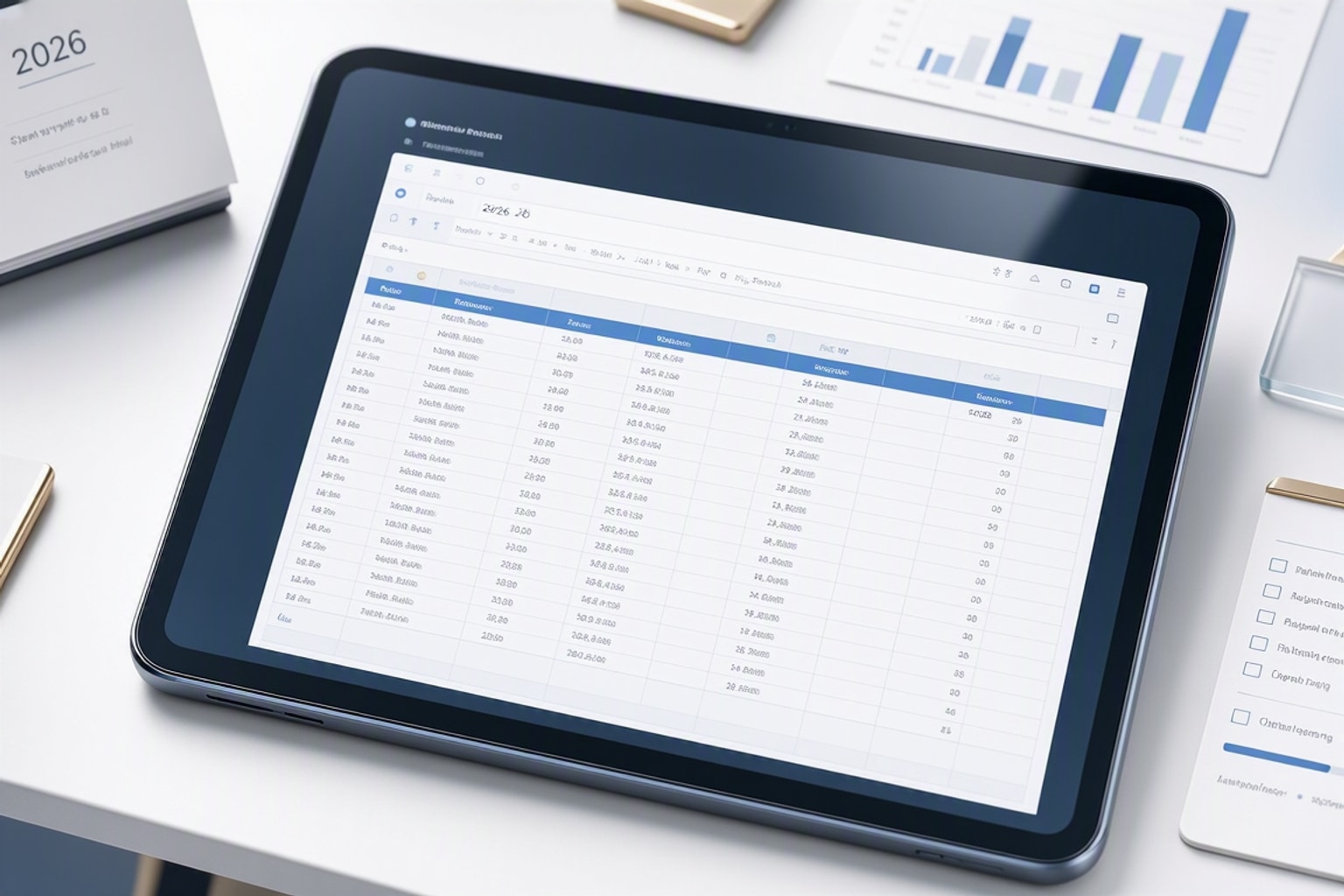
Running payroll in Excel still works in 2026. Small business owners with 2-10 employees, HR teams managing seasonal workers, and freelancers paying contractors rely on payroll spreadsheet templates to calculate wages, withhold taxes, and generate pay stubs without monthly software fees. Excel templates give you full control over formulas, let you customize columns for bonuses or commissions, and keep sensitive employee data on your own drive instead of a third-party server.
The catch is that tax rules change every year. A template built for 2024 will underreport Social Security withholding, miss updated federal brackets, and expose you to compliance penalties. The 2026 Social Security wage base cap is $184,500, and the corresponding tax cap is $11,439. If your template still references the old $168,600 cap, you are overpaying or underpaying every high earner on your roster. This guide walks you through choosing, setting up, and maintaining an Excel payroll template that reflects current tax law, automates YTD tracking, and scales with your team.
What Is a Payroll Spreadsheet Template for Excel and Who Needs One in 2026?
A payroll spreadsheet template is a pre-built Excel workbook that calculates gross pay, applies federal and state tax withholding, deducts benefits, and produces net pay figures for each employee. Templates include separate tabs for employee rosters, pay period entries, tax tables, and year-to-date summaries. Most use formulas to pull current tax brackets and Social Security caps so you enter hours and rates once, then let the sheet compute withholding automatically.
Small business owners with fewer than 10 employees use these templates to avoid $40-$150 monthly payroll software subscriptions. HR teams at nonprofits and seasonal businesses use them to manage part-time or contract workers who do not justify full software seats. Freelancers who hire subcontractors or assistants use simplified versions to track 1099 payments and issue pay summaries at year-end.
Excel remains relevant because it is flexible, offline, and already installed on most business computers. You can add custom columns for shift differentials, tips, or per-diem allowances without waiting for a software vendor to build the feature. You own the file, so switching accountants or bookkeepers is as simple as sharing a workbook. The trade-off is manual updates. You must refresh tax tables each January, back up your data weekly, and double-check formulas before every pay run.
Key Features to Look for in a 2026 Excel Payroll Template
A current payroll template must include 2026 federal and state tax tables, a Social Security cap of $184,500, and formulas that automatically apply the $11,439 tax limit. Look for templates that provide separate columns for regular hours, overtime, holiday pay, vacation, and sick leave so you can track paid time off and comply with state leave mandates. The best templates generate printable pay stubs with YTD earnings, deductions, and net pay, then export them as PDFs for email or printing.

YTD calculation tabs are non-negotiable. They aggregate gross wages, federal withholding, state withholding, Social Security, Medicare, and net pay across all pay periods so you can file quarterly 941 forms and issue W-2s in January. Templates with automated YTD archiving copy each pay period's totals to a summary sheet, reducing manual reconciliation at quarter-end. Some advanced templates include macros that generate individual pay stub PDFs for each employee with one button click, saving 15-20 minutes per payroll cycle.
Templates that support up to 10 earning types let you classify wages as salary, hourly, commission, bonus, reimbursement, or other categories. This granularity matters for workers' compensation audits, union reporting, and grant-funded payroll where you must separate direct labor from overhead. Free templates typically cap you at 5 employees and 3 earning types. Paid or premium templates handle 50+ employees, multiple pay schedules, and state-specific rules for California, New York, and other high-compliance jurisdictions.
Tax Table Updates and Compliance for 2026
Federal tax withholding tables changed for 2026, and state brackets shift almost every year. A compliant template embeds the current IRS percentage method tables for single, married filing jointly, and head of household statuses. It applies the standard deduction and adjusts withholding based on the W-4 form each employee submitted. If your template still references 2026 brackets, you will under-withhold and leave employees with surprise tax bills in April.
The 2026 Social Security wage base is $184,500. Once an employee earns that amount in gross wages, you stop withholding the 6.2% Social Security tax. The maximum annual Social Security tax per employee is $11,439. Medicare has no wage cap, so you continue withholding 1.45% on all earnings. Templates should include a formula that checks cumulative wages and stops Social Security withholding once the cap is reached. Verify this logic by running a test payroll for a high earner who crosses the threshold mid-year.
State compliance is trickier. California, New York, and Massachusetts update their withholding tables annually and impose local taxes in some cities. A good template includes a state dropdown menu and separate columns for state income tax, state disability insurance, and local taxes. If you operate in multiple states, look for templates with a state-by-state configuration sheet where you input rates once and the main payroll tab pulls them automatically. Always cross-check your template's state rates against your state's department of revenue website before the first payroll run.
Time Tracking and Earnings Categories
Most payroll templates include columns for regular hours, overtime hours, holiday hours, vacation hours, and sick hours. You enter the hours worked in each category, and the template multiplies by the appropriate rate. Overtime is typically 1.5 times the regular rate, and holiday pay may be 2 times the rate depending on your company policy. Vacation and sick hours draw from accrued balances, so the template should also track PTO accrual and remaining balances.
Templates that support multiple earning types let you add commission, bonus, per-diem, or reimbursement columns. Commission and bonuses are taxed as supplemental wages, which means a flat 22% federal withholding rate unless the employee's YTD supplemental wages exceed $1 million. The template should flag supplemental wages and apply the correct withholding formula. Reimbursements are not taxable if they are accountable plan expenses, so the template should separate reimbursements from gross wages in the YTD totals.
Some templates include a dropdown menu for each employee's earning type, letting you select from up to 10 pre-configured categories. This feature is useful for construction companies that pay per-diem to field workers, restaurants that track tips separately, or agencies that pay freelancers a mix of hourly and project-based fees. The template aggregates each category in the YTD summary so you can report total wages by type on your 941 and state quarterly filings.
Pay Stub Generation and PDF Export
Automated pay stub generation saves time and reduces printing costs. Advanced templates include a pay stub tab that pulls data from the main payroll sheet and formats it as a printable document with your company logo, employee name, pay period dates, earnings breakdown, deductions, and net pay. You click a button or run a macro, and the template generates individual pay stubs for each employee, then exports them as PDFs named by employee and date.
The pay stub should show gross wages, federal withholding, state withholding, Social Security, Medicare, health insurance, 401(k) contributions, and any other deductions. It must also display YTD totals for each category so employees can verify their annual earnings and withholding. If you email pay stubs, name the PDF files consistently (e.g., "2026-06-15_JohnDoe_Paystub.pdf") and password-protect them with the last four digits of the employee's SSN or a unique code.
Some templates integrate with Outlook or Gmail to email pay stubs directly from Excel. You configure SMTP settings once, then the macro loops through your employee list, attaches the correct PDF, and sends personalized emails. This feature is worth paying for if you have more than 5 employees and run payroll biweekly. It eliminates manual attachment and reduces the risk of sending the wrong pay stub to the wrong person.
How to Choose the Right Excel Payroll Template for Your Business Size
Free payroll templates work well for teams of up to 5 employees with straightforward pay structures. They include basic tax tables, simple YTD tracking, and manual pay stub generation. You enter hours, rates, and deductions each pay period, then copy the results to a summary sheet. Free templates are ideal for startups, solo founders hiring their first assistant, or side businesses that pay one or two contractors. They lack automation, so expect to spend 30-45 minutes per payroll cycle.

Paid templates or premium versions handle 10-50 employees, multiple pay schedules, and advanced features like automated YTD archiving, PDF pay stub generation, and state-specific tax rules. They cost $25-$75 as a one-time purchase or $10-$20 per month for templates with annual tax table updates. These templates save 20-30 minutes per payroll cycle and reduce formula errors. They are worth the cost if you run payroll biweekly and manage more than 5 employees.
If you have more than 50 employees, multiple locations, or complex benefits like health insurance, HSA contributions, and 401(k) matching, consider integrated payroll software instead of Excel. Software like Gusto, ADP, or Paychex automates tax filings, direct deposit, and year-end W-2 generation. The break-even point is around 20 employees or when you spend more than 2 hours per payroll cycle on manual data entry and reconciliation. Excel templates remain useful for backup calculations and custom reporting even after you adopt software.
Step-by-Step Guide: Setting Up Your Excel Payroll Spreadsheet
Download or purchase a 2026 payroll template that includes current tax tables and the $184,500 Social Security cap. Open the file and save a copy with your company name and the year (e.g., "ABC_Company_Payroll_2026.xlsx"). Review the instruction tab or README sheet to understand the template's structure, required inputs, and formula logic. Most templates include an employee roster tab, a pay period entry tab, a tax configuration tab, and a YTD summary tab.
Start with the employee roster tab. This sheet holds each employee's name, Social Security number, pay rate, filing status, exemptions, state, and any fixed deductions like health insurance or 401(k) contributions. The pay period entry tab pulls data from this roster, so accurate setup here prevents errors downstream. Do not skip this step or enter data directly into the pay period tab. The formulas depend on the roster structure.
Next, configure the tax withholding tab. Input your state's income tax rate, state disability insurance rate, and any local taxes. Verify that the federal tax tables match the 2026 IRS percentage method tables. Check that the Social Security cap is set to $184,500 and the corresponding tax cap is $11,439. If your template includes a macro or automation, enable macros and test the pay stub generation on a dummy employee before running live payroll.
Entering Employee Information and Pay Rates
Open the employee roster tab and enter each employee's full legal name, Social Security number, hire date, and job title. Add their pay rate (hourly or salary), filing status (single, married filing jointly, or head of household), and the number of allowances from their W-4. Include their state of residence and any fixed deductions like health insurance premiums, 401(k) contributions, or garnishments.
If you pay hourly employees, enter their regular hourly rate and overtime rate (typically 1.5 times regular). If you pay salaried employees, enter their annual salary and let the template calculate the per-period amount based on your pay frequency (biweekly, semi-monthly, or monthly). Some templates include a pay frequency dropdown so you can mix hourly and salaried employees in the same roster. Verify that each employee's row is complete before moving to the next step.
Assign each employee a unique ID number in the first column. This ID links the roster to the pay period entry tab and simplifies lookups if you have multiple employees with similar names. Use sequential numbers (001, 002, 003) or employee numbers from your HR system. Do not use Social Security numbers as IDs in formulas because it exposes sensitive data in cell references.
Configuring Federal and State Tax Withholding
Navigate to the tax configuration tab and verify that the federal tax brackets match the 2026 IRS percentage method tables. The template should include separate tables for single, married filing jointly, and head of household statuses. Each table lists income ranges and corresponding withholding rates. If your template uses a lookup formula (VLOOKUP or XLOOKUP), confirm that the table range includes all brackets and that the formula references the correct filing status from the employee roster.
Enter your state's income tax rate in the designated cell. If your state uses a flat rate (e.g., 5%), enter that percentage. If your state uses graduated brackets, input the full bracket table in the state tax section. Some templates include a dropdown menu of all 50 states and automatically apply the correct rates when you select a state. If your template does not include your state, contact the vendor or manually add the rates from your state's department of revenue website.
Set the Social Security wage base cap to $184,500 and the tax cap to $11,439. The template should include a formula that checks each employee's YTD gross wages and stops withholding Social Security tax once they reach the cap. Test this logic by entering a dummy employee with $200,000 in YTD wages and verifying that the Social Security withholding is exactly $11,439. If the formula is wrong, you will overpay or underpay every high earner.
Setting Up Pay Period and Hours Tracking
Open the pay period entry tab and enter the current pay period start date and end date. The template should automatically calculate the pay date based on your pay frequency (e.g., biweekly pay periods end on Friday and pay on the following Wednesday). If the template does not auto-fill the pay date, enter it manually and verify that it matches your payroll calendar.
Enter each employee's hours worked in the regular, overtime, holiday, vacation, and sick columns. If you use a separate timesheet or time tracking system, export the hours to a CSV file and paste them into the pay period entry tab. Some templates include a data import button that pulls hours from a linked timesheet workbook. This feature reduces manual entry and improves accuracy, especially if you have more than 10 employees.
Calculate gross pay by multiplying hours by rates. The template should do this automatically, but verify the formulas by spot-checking a few employees. Regular pay is hours times regular rate. Overtime pay is overtime hours times 1.5 times regular rate. Holiday pay is holiday hours times 2 times regular rate (or your company's policy). Vacation and sick pay draw from accrued balances, so the template should subtract used hours from the remaining balance.
Testing Formulas and Running a Test Payroll
Before you run live payroll, create a test pay period with dummy data for 2-3 employees. Enter a mix of regular, overtime, and vacation hours. Include one hourly employee, one salaried employee, and one employee with a bonus or commission. Verify that gross pay, federal withholding, state withholding, Social Security, Medicare, and net pay all calculate correctly.
Check the YTD summary tab to confirm that the test payroll totals appear in the correct columns. Verify that Social Security withholding stops at $11,439 for high earners. Confirm that supplemental wages (bonuses and commissions) use the 22% flat withholding rate. If any formula returns an error or an unexpected result, review the cell references and fix the issue before running live payroll.
Run a second test payroll for a full pay period with all employees. Compare the results to your previous payroll system or a payroll calculator to ensure accuracy. If the numbers match within a few cents, your template is ready. If they differ by more than $5 per employee, review the tax tables, Social Security cap, and state withholding rates. Do not skip this step. A small formula error compounds over 26 pay periods and creates a reconciliation nightmare at year-end.
Recommended Resources
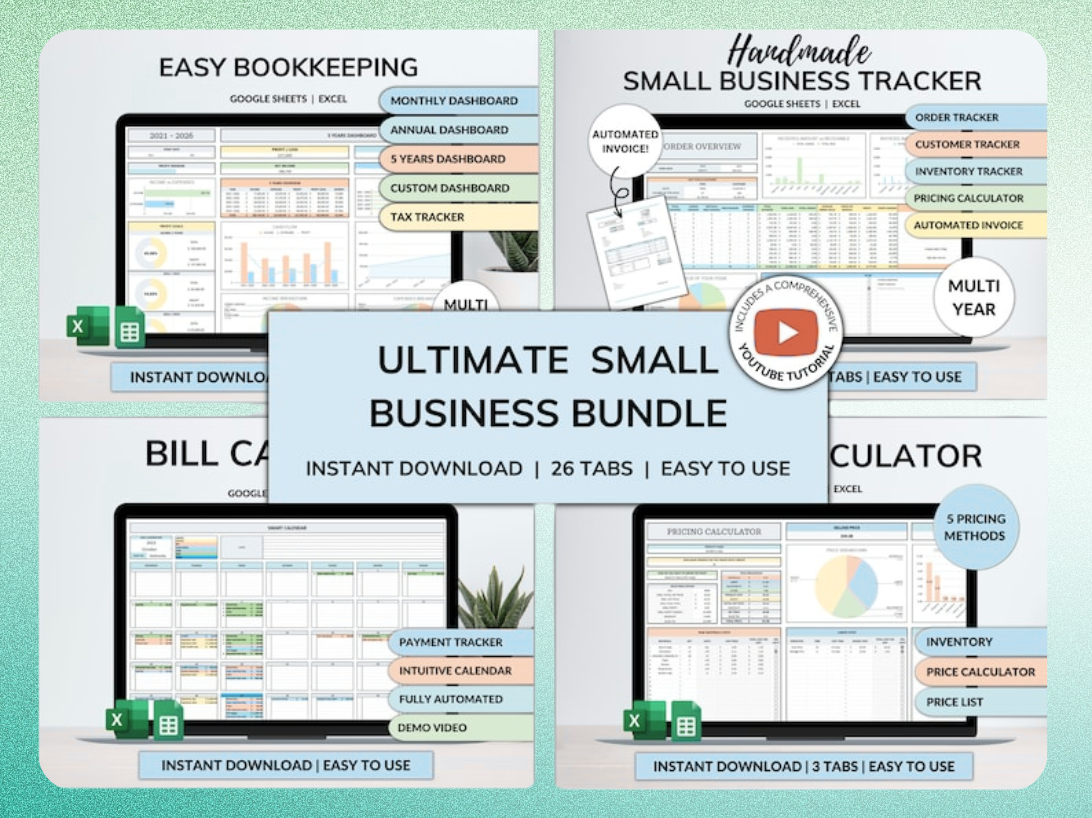
Skip the blank-sheet setup
Start with the dashboard structure already built and automate data entry across payroll, bookkeeping, and billing
Common Mistakes When Using Excel Payroll Templates and How to Avoid Them
Outdated tax rates are the most common error. Business owners download a free template from 2024, forget to update the federal brackets and Social Security cap, and under-withhold taxes for the entire year. Employees receive surprise tax bills in April, and the business owes penalties for under-remitting payroll taxes. Fix this by downloading a 2026-specific template or manually updating the tax tables every January. Verify the Social Security cap matches the current $184,500 wage base and the $11,439 tax limit.
Manual entry mistakes happen when you type hours or rates directly into the pay period tab without double-checking. A transposed digit turns 40 hours into 400 hours and overpays an employee by 10x. Use data validation to restrict input cells to reasonable ranges (e.g., hours between 0 and 80, rates between $10 and $200). Lock formula cells so you cannot accidentally overwrite them. Copy and paste hours from your timesheet system instead of retyping them.
Missing YTD totals break quarterly tax filings and year-end W-2 preparation. Some templates require you to manually copy each pay period's totals to the YTD summary tab. If you forget even one pay period, your 941 form will be wrong and you will spend hours reconciling. Choose a template with automated YTD archiving that copies totals to the summary sheet when you save or close the file. Back up your payroll file weekly to a cloud drive or external hard drive so you can recover missing data if the file corrupts.
Failure to back up data is the most expensive mistake. Hard drives fail, laptops get stolen, and ransomware encrypts files. If you lose your payroll file mid-year, you cannot reconstruct YTD totals, issue pay stubs, or file quarterly taxes. Save a backup copy to Google Drive, Dropbox, or OneDrive after every payroll run. Keep a printed copy of the YTD summary in a locked file cabinet. If you use macros or VBA code, save a copy of the workbook as .xlsm so the macros are preserved.
Integrating Timesheet, Leave Tracking, and Payroll Calendar Templates
Link your timesheet template to your payroll template to eliminate manual data entry. Create a separate workbook for timesheets with tabs for each week or pay period. Employees enter their daily hours, and you total them at the end of the period. In your payroll template, use an external reference formula (e.g., ='[Timesheet.xlsx]Week1'!B2) to pull the total hours into the pay period entry tab. This approach reduces typing errors and gives you an audit trail of hours worked.
Leave tracking templates help you manage PTO accrual, vacation balances, and sick leave. Create a separate tab or workbook that lists each employee's accrual rate (e.g., 1.25 days per month), used hours, and remaining balance. Link this data to your payroll template so vacation and sick hours automatically deduct from the balance when you enter them in the pay period tab. Some templates include conditional formatting that highlights negative balances or employees approaching their accrual cap.
Payroll calendar templates plan pay dates, tax deposit deadlines, and quarterly filing dates for the entire year. A biweekly payroll calendar lists 26 pay periods with start dates, end dates, pay dates, and the corresponding tax deposit due dates. This calendar keeps payroll, HR, and finance teams aligned and prevents missed deadlines. Print the calendar and post it in your office, or share it as a Google Sheet so everyone sees updates in real time.
Using a 2026 Payroll Calendar Template for Biweekly and Monthly Schedules
A 2026 payroll calendar template lists every pay period start date, end date, and pay date for the year. Biweekly calendars include 26 pay periods, and monthly calendars include 12. The calendar also shows federal tax deposit due dates (typically 3 business days after the pay date for semi-weekly depositors) and quarterly 941 filing deadlines (April 30, July 31, October 31, and January 31).
Download a calendar template that matches your pay frequency. Customize it with your company's pay dates and any holidays or office closures that shift the pay schedule. Share the calendar with your payroll processor, bookkeeper, and finance team so everyone knows when to submit hours, approve payroll, and remit taxes. If you use direct deposit, note the ACH processing cutoff (usually 2 business days before the pay date) so you submit the payroll file on time.
Some calendar templates include a notes column where you can flag year-end tasks like W-2 preparation, 1099 filing, and annual reconciliation. Use this column to set reminders for updating tax tables in January, verifying employee W-4 forms, and ordering W-2 forms from the IRS or a payroll supply vendor. A well-maintained payroll calendar reduces last-minute scrambles and keeps you compliant with federal and state deadlines.
Linking Timesheet Data to Your Payroll Spreadsheet
Link your timesheet workbook to your payroll workbook using external cell references. Open your payroll template and navigate to the pay period entry tab. In the hours worked column, enter a formula like ='[Timesheet_2026.xlsx]PayPeriod12'!B5 to pull the total hours for employee 001 from the timesheet file. Copy this formula down for all employees. When you update the timesheet file and save it, the payroll file automatically refreshes with the new hours.
If you prefer a simpler approach, export timesheet hours to a CSV file and paste them into the payroll template each pay period. This method works if you use a time tracking app or punch clock system that generates CSV exports. Open the CSV in Excel, copy the hours column, and paste values into the payroll template. Do not paste formulas or formatting, only values. Verify the row order matches your employee roster so you do not paste the wrong hours to the wrong employee.
Some payroll templates include a timesheet import button that opens a file dialog, lets you select the timesheet workbook, and automatically copies hours to the pay period entry tab. This feature requires VBA macros, so you must enable macros when you open the file. Test the import on a dummy timesheet file before using it for live payroll. If the macro fails or maps hours to the wrong employees, manually paste the data instead of relying on automation.
Leveraging Automation and Advanced Excel Features for Payroll Efficiency
Macros automate repetitive tasks like copying YTD totals, generating pay stubs, and exporting PDFs. Record a macro that selects the pay period data, copies it to the YTD summary tab, and saves the file. Assign the macro to a button on the pay period tab so you can run it with one click. Macros save 10-15 minutes per payroll cycle and eliminate copy-paste errors. If you are not comfortable writing VBA code, hire a freelance Excel developer on Upwork or Fiverr to build custom macros for your template.
Data validation restricts input cells to valid values and prevents entry errors. Apply data validation to the hours worked column and set a rule that allows only numbers between 0 and 80. Apply validation to the pay rate column and set a minimum of $10 and a maximum of $200. If an employee's hours or rate falls outside the range, Excel displays an error message and blocks the entry. Data validation is built into Excel and requires no coding.
Conditional formatting highlights errors, missing data, or unusual values. Format cells that contain negative net pay in red so you catch calculation errors before you issue pay stubs. Highlight employees who exceed 80 hours in a pay period so you can verify overtime approval. Format YTD Social Security withholding cells that exceed $11,439 in orange to flag employees who have reached the cap. Conditional formatting makes your payroll sheet easier to scan and reduces the risk of missing critical issues.
Automated YTD archiving copies each pay period's totals to a summary sheet when you close the file. Use a Workbook_BeforeClose event macro that runs automatically when you save and close the payroll file. The macro copies gross wages, federal withholding, state withholding, Social Security, Medicare, and net pay to the next empty row in the YTD summary tab. This approach ensures you never forget to update the YTD totals and eliminates manual reconciliation at quarter-end.
When to Upgrade from a Spreadsheet to Payroll Software
Move to payroll software when you have more than 20 employees, operate in multiple states, or spend more than 2 hours per payroll cycle on data entry and reconciliation. Software like Gusto, ADP, or Paychex automates tax filings, direct deposit, and W-2 generation. It integrates with your accounting system, time tracking app, and benefits providers so data flows automatically. The monthly cost ranges from $40 to $150 plus $5-$10 per employee, but the time savings and reduced compliance risk justify the expense.
Compliance complexity is
Get the newsletter
One sharp idea every Sunday.
No fluff. No sales pitches. Just the best of what we publish, hand-picked.
Continue Reading
Related Articles
10+ Free Employee Attendance Tracker Excel Templates (2026)
Efficient attendance tracking saves businesses money and ensures compliance. Manual systems, prone to errors, cost companies thousands annually. A robust Excel tracker provides accurate data for payro...

10+ Free Sales Tracker Excel Templates for 2026 Growth
Every business, regardless of size, needs a clear view of its sales performance. A sales tracker provides that clarity. It moves you beyond guesswork, offering concrete data to understand what's worki...
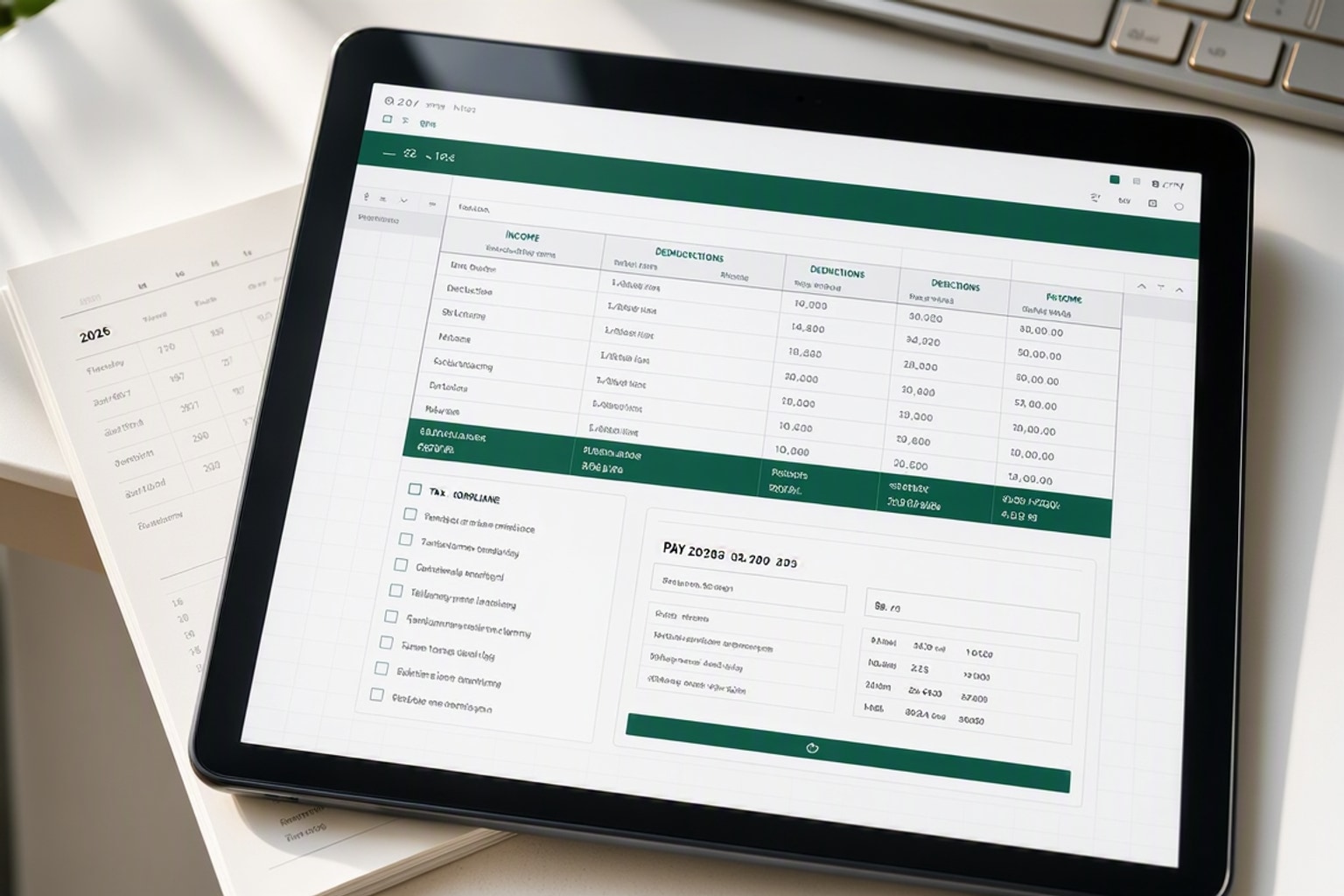
Master Payroll: 2026 Excel Spreadsheet Templates & Calculators
Calculating payroll...