5 essential Excel project timeline template columns
Learn the 5 essential columns for your project timeline template in Excel to effectively map out your project's journey from start to finish.
The Start Date column is often the most critical. Without accurate start dates, your entire project timeline unravels. Many project timeline template Excel free documents overlook the ripple effect of a single date error, but in practice, it's the linchpin.
When you're searching for a project timeline template Excel free, you're likely trying to visualize your project's path from inception to completion. This involves mapping out key phases, individual tasks, their durations, and crucially, their dependencies. A well-structured template saves you from manually calculating every single date, freeing you to focus on the project itself. These templates act as a roadmap, helping you communicate progress to stakeholders and identify potential bottlenecks before they become major issues.
Building Your Project Timeline from Scratch
While free templates are available, understanding how they're built helps you customize or troubleshoot. At its core, a project timeline relies on a series of interconnected data points. You’ll typically need columns for:
- Task Name: A clear, concise description of the work to be done.
- Phase/Category: Grouping tasks into broader project stages (e.g., Planning, Development, Testing, Launch).
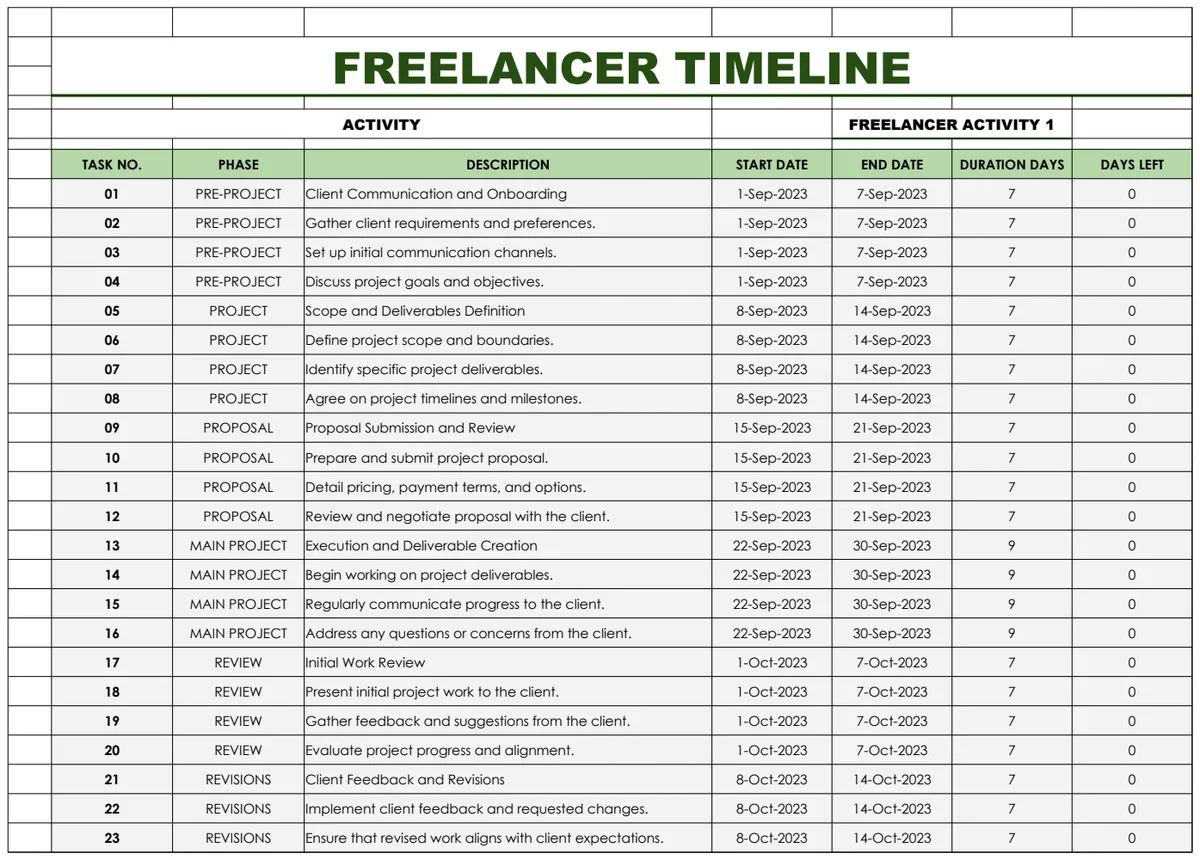
- Start Date: The planned commencement date for the task.
- Duration (Days): The estimated number of working days required to complete the task.
- End Date: This is usually a calculated field, derived from the Start Date and Duration.
- Predecessor Task(s): The task(s) that must be completed before this one can begin. This is vital for understanding dependencies.
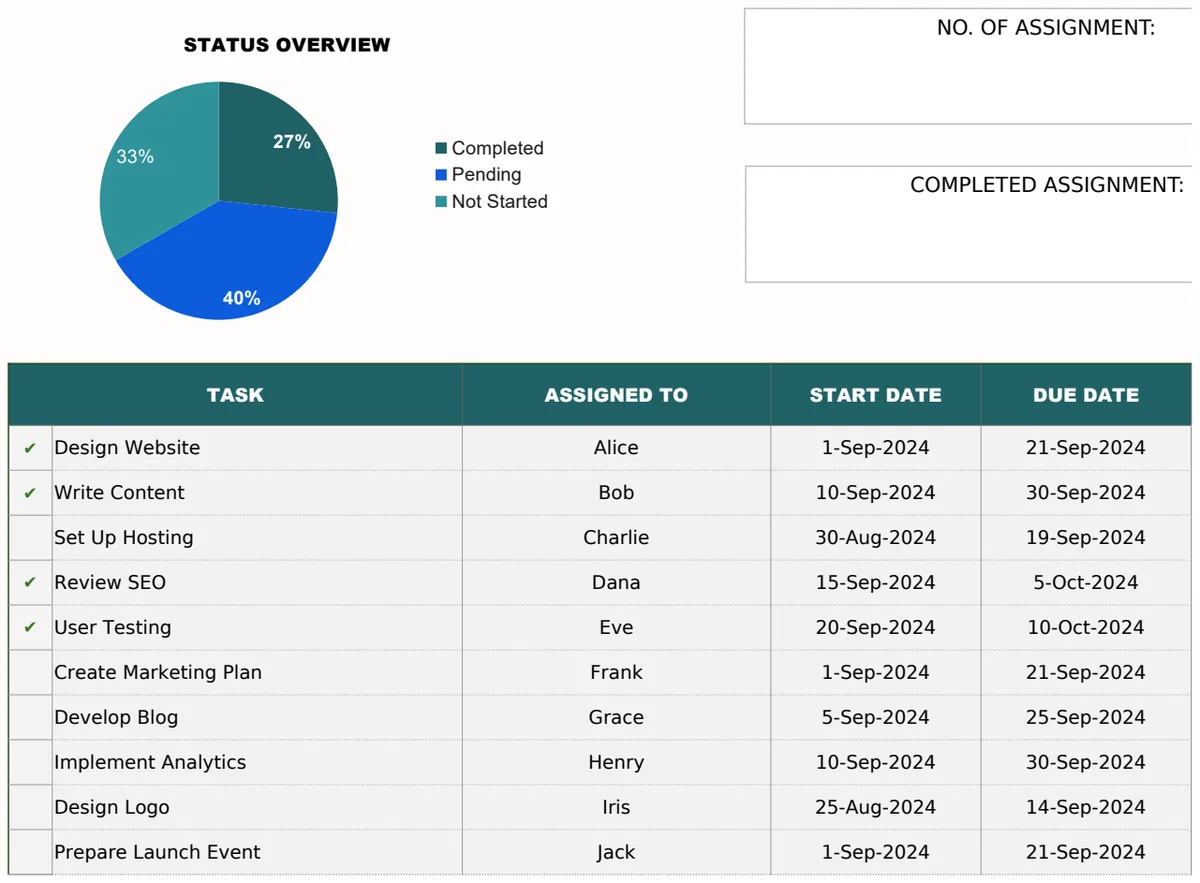
- Status: Tracking progress (e.g., Not Started, In Progress, Completed, On Hold).
- Assigned To: Who is responsible for the task.
Calculating End Dates and Dependencies
The End Date is a fundamental calculation. In Excel or Google Sheets, you can use a simple formula. If your Start Date is in column C and Duration is in column D, for a task on row 2, the End Date formula in E2 would be:
=C2+D2-1
We subtract 1 because if a task starts on Monday and lasts 1 day, it finishes on Monday. If you just added C2+D2, a 1-day task would show as finishing Tuesday.
Dependencies are where things get more complex, especially in advanced templates. If Task B cannot start until Task A is finished, and Task A's End Date is in E2, then Task B's Start Date should be E2 + 1. This manual dependency management can become tedious. For more robust dependency tracking, a Gantt chart style template is invaluable.
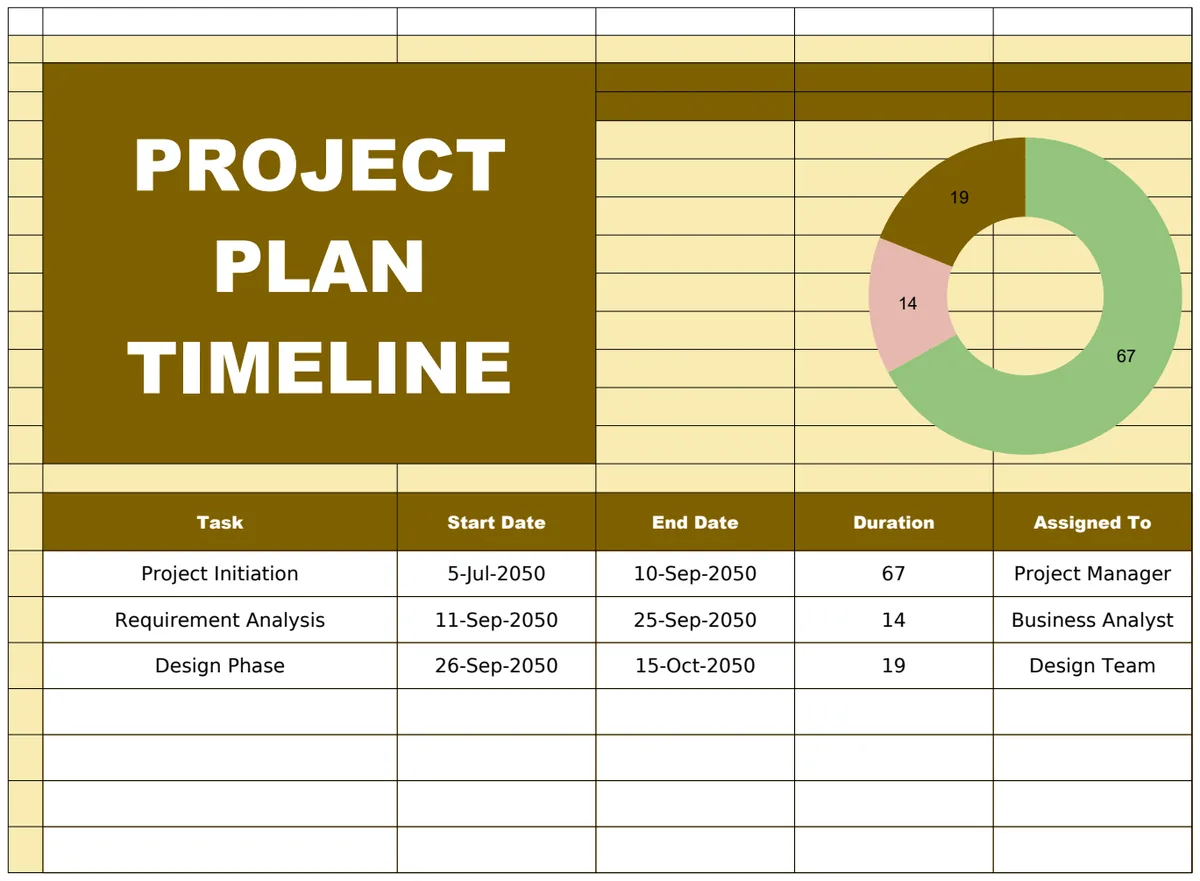
Leveraging a Project Plan Timeline Template
For many projects, a visual representation is far more effective than a simple list. This is where a Project Plan Timeline Template shines. These templates often incorporate a Gantt chart, which uses horizontal bars to represent tasks against a calendar.
The benefit of a Gantt chart approach is immediate clarity. You can see at a glance:
- The overall project duration.
- When key milestones are scheduled.
- Which tasks overlap.
- Potential scheduling conflicts or critical path items.
When you download a project timeline template Excel free, look for one that includes a visual component if your project demands it. It significantly aids in communication with team members and stakeholders who may not be immersed in the day-to-day details.
Key Features of a Good Timeline Template
Beyond the basic columns, a good template might include:
- Conditional Formatting: Automatically highlight tasks based on their status (e.g., red for overdue, green for complete). This makes it easy to spot issues.
- Milestone Markers: Special formatting for significant project achievements.
- Progress Tracking: A way to visually represent how much of a task is complete, often by shading a portion of the task bar.
- Dependencies Visualized: Lines or arrows connecting dependent tasks in a Gantt chart.
Understanding Project Timeline Template Options
If your primary goal is a clear, structured overview of tasks and their timings, a Project Timeline Template might be sufficient. This type of template focuses on the sequential nature of tasks and their start/end points. It's excellent for planning and tracking individual task progress without necessarily requiring the complex visual elements of a full Gantt chart.
On the other hand, if your project involves intricate interdependencies and you need to manage resources across multiple parallel workstreams, a Gantt Chart Timeline Template is likely the better choice. These templates are specifically designed to manage complexity, allowing you to define relationships between tasks (e.g., Finish-to-Start, Start-to-Start) and visualize the critical path. This helps in understanding which tasks, if delayed, will directly impact the project's final completion date.
Common Mistakes to Avoid
When setting up or using a project timeline, several pitfalls can derail your efforts:
- Unrealistic Durations: Overly optimistic estimates for task completion are a surefire way to fall behind. Always add a buffer or consult with the people doing the work.
- Ignoring Dependencies: Failing to map out task relationships means you won't see how a delay in one area impacts others. This is a frequent oversight when using a basic project timeline template.
- Not Updating Regularly: A static timeline is useless. You must update task statuses and actual completion dates frequently, ideally daily or weekly.
- Over-Complicating: Trying to track every minute detail can be overwhelming. Focus on the critical tasks and milestones that define project progress.
- Lack of Communication: The timeline is a tool for communication. If your team and stakeholders aren't aware of it or don't understand it, its value diminishes significantly.
Setting Up Your First Timeline
Let's walk through setting up a simple timeline. Assume your data starts on row 2, with headers in row 1.
- 01Enter Headers: In row 1, type:
Task Name,Phase,Start Date,Duration (Days),End Date,Status. - 02Populate Tasks: In column A (Task Name), list your tasks. In column B (Phase), assign them to a project phase.
- 03Enter Start Dates and Durations: In column C (Start Date), enter the planned start date for each task. In column D (Duration), enter the estimated days to complete. For example, for a task starting July 15th with a duration of 5 days, you'd enter
2024-07-15in C2 and5in D2. - 04Calculate End Dates: In cell E2, enter the formula:
=C2+D2-1. Drag the fill handle (the small square at the bottom right of cell E2) down to apply this formula to all your tasks. - 05Set Initial Status: In column F (Status), you can initially type "Not Started" for all tasks.
This basic setup provides a functional timeline. As you gain experience, you can incorporate more advanced features.
Enhancing Your Timeline with Visuals and Formulas
Once you have the core data, you can make your timeline more dynamic. Conditional formatting is a prime example.
To highlight overdue tasks:
- 01Select the
End Datecolumn (column E in our example). - 02Go to Conditional Formatting (in Excel: Home tab > Conditional Formatting; in Google Sheets: Format > Conditional formatting).
- 03Choose New Rule or Add another rule.
- 04Select "Formula is" or "Custom formula is".
- 05Enter the formula:
=AND(E2<TODAY(), F2<>"Completed"). (This assumes your Status column is F, and "Completed" is entered exactly as shown). - 06Set the format to a red fill or bold red text.
This rule will automatically turn the end date red for any task that is not yet completed and whose end date has already passed.
For a more visual approach, consider a Project Timeline that uses bar charts or other graphical elements to represent task duration against a calendar. These can often be built using Excel's built-in charting tools or found in pre-built template formats. The key is to find a balance between the detail you need and the clarity of presentation.
When to Consider a Paid Template
While many excellent project timeline template Excel free options exist, sometimes a project's complexity warrants a more specialized tool. If you find yourself spending excessive time customizing free templates or struggling with advanced features like resource leveling or critical path analysis, it might be time to look at more comprehensive solutions. The library at OpenWorksheet offers templates starting at $9 for unlimited downloads, providing access to professionally designed tools that can save significant setup time and offer advanced functionality.
Frequently Asked Questions
What's the difference between a project timeline and a project schedule?
A project timeline generally focuses on the major phases, milestones, and overall duration of a project, providing a high-level view. A project schedule is more detailed, listing all individual tasks, their durations, dependencies, and assigned resources, offering a granular look at how the project will be executed. Many templates blur these lines, offering both high-level and detailed views.
How do I handle tasks that have multiple dependencies?
In templates that support dependency tracking (especially Gantt chart types), you can usually list multiple predecessor tasks. The start date of a dependent task will then be dictated by the latest end date of all its predecessors, ensuring that all preceding work is completed first. This is often managed by entering predecessor task IDs or names into a dedicated column.
Can I use a project timeline template for personal projects?
Absolutely. While often associated with professional project management, these templates are incredibly useful for organizing personal goals, home renovations, event planning, or even complex personal learning journeys. The principles of breaking down a goal into tasks, estimating time, and setting deadlines apply universally.
What if my project has flexible start dates?
For tasks with flexible start dates, you might use a placeholder start date and then adjust it once the preceding tasks are completed or actual work begins. Alternatively, you could use a column to indicate "flexible" or "ASAP" and manage these tasks as priorities are clarified, rather than strictly adhering to an initial calculated start date.