How to make a free meal planner in Google Sheets?
Discover how to build a free meal planner in Google Sheets to organize your week and save money on groceries.
The moment you realize you’ve bought ingredients for a meal you’ve already planned, or worse, for one you can't even remember, is when the search for a meal planner template Google Sheets free likely begins. This usually happens when your grocery bill creeps up unexpectedly, or when "what's for dinner?" becomes a daily, stressful negotiation. Without a clear plan, it's easy to default to expensive takeout or repeat the same few meals, leading to both budget strain and culinary boredom.
A well-structured template can transform this chaos into calm. It offers a visual roadmap for your week, aligning your shopping with your actual cooking intentions. This not only saves money by preventing impulse buys and food waste but also reduces mental load. When your meals are mapped out, the daily question is answered before it’s even asked, freeing up mental energy for more important things.
Structuring Your Google Sheet Meal Planner
When building your own meal planner in Google Sheets, or adapting a pre-made one, consider the core components that make it functional. You need space to list meals, the days they'll be prepared, and ideally, a way to link these to your grocery list.
Start with a simple layout. A tab for the "Weekly Plan" is essential. Here, you can set up columns for each day of the week (Monday through Sunday) and rows for different meal times (Breakfast, Lunch, Dinner, Snacks). This provides a clear, chronological overview.
Column Essentials for Your Weekly Plan
For your primary "Weekly Plan" tab, aim for these columns:
- Day: Monday, Tuesday, etc.
- Meal Time: Breakfast, Lunch, Dinner, Snack 1, Snack 2.
- Dish/Recipe Name: The specific meal you intend to make.
- Key Ingredients: A brief list of the main ingredients needed. This is crucial for populating your grocery list later.
- Notes/Source: Any specific instructions, recipe links, or variations.
This basic structure ensures you know what you're eating and when.
Integrating with Your Grocery List
The real power of a digital meal planner comes from its connection to your shopping. You don't want to manually re-type ingredients from your meal plan into a separate grocery list.
Create a second tab, labeled "Grocery List." This list can be dynamic, pulling information from your "Weekly Plan." A common approach is to have a column for "Item," "Quantity," and "Category" (e.g., Produce, Dairy, Meat, Pantry).
Automating Your Grocery List with Formulas
You can automate the population of your "Grocery List" tab. For instance, if you list "Chicken Breast" under "Key Ingredients" for Monday's dinner, you want that to appear on your grocery list.
One effective method uses the FILTER function. If your "Weekly Plan" tab has your meals and ingredients in columns C and D respectively, and you want to pull all listed ingredients into your "Grocery List" tab (let's say column A), you could use a formula like this in cell A2 of your "Grocery List" tab:
=FILTER('Weekly Plan'!D2:D, 'Weekly Plan'!D2:D <> "")
This formula pulls all non-empty entries from the "Key Ingredients" column (D) on the "Weekly Plan" tab into column A of the "Grocery List" tab. You'll then want to pair this with a unique function or manual sorting to avoid duplicate entries, or use a more advanced formula that aggregates quantities.
Recipe Management and Ingredient Linking
Beyond just listing meals, a truly useful meal planner helps manage the recipes themselves. Consider adding a third tab for "Recipes."
On this tab, you can list:
- Recipe Name: The full name of the dish.
- Full Ingredient List: All ingredients required.
- Instructions: Step-by-step cooking directions.
- Prep Time: Estimated preparation time.
- Cook Time: Estimated cooking time.
- Servings: How many people the recipe serves.
From your "Weekly Plan," you can then link the "Dish/Recipe Name" to this "Recipes" tab using a function like VLOOKUP or XLOOKUP. This means when you click on a meal name in your weekly plan, you could potentially see its full recipe details, or at least its main ingredients.
Using Pre-built Templates
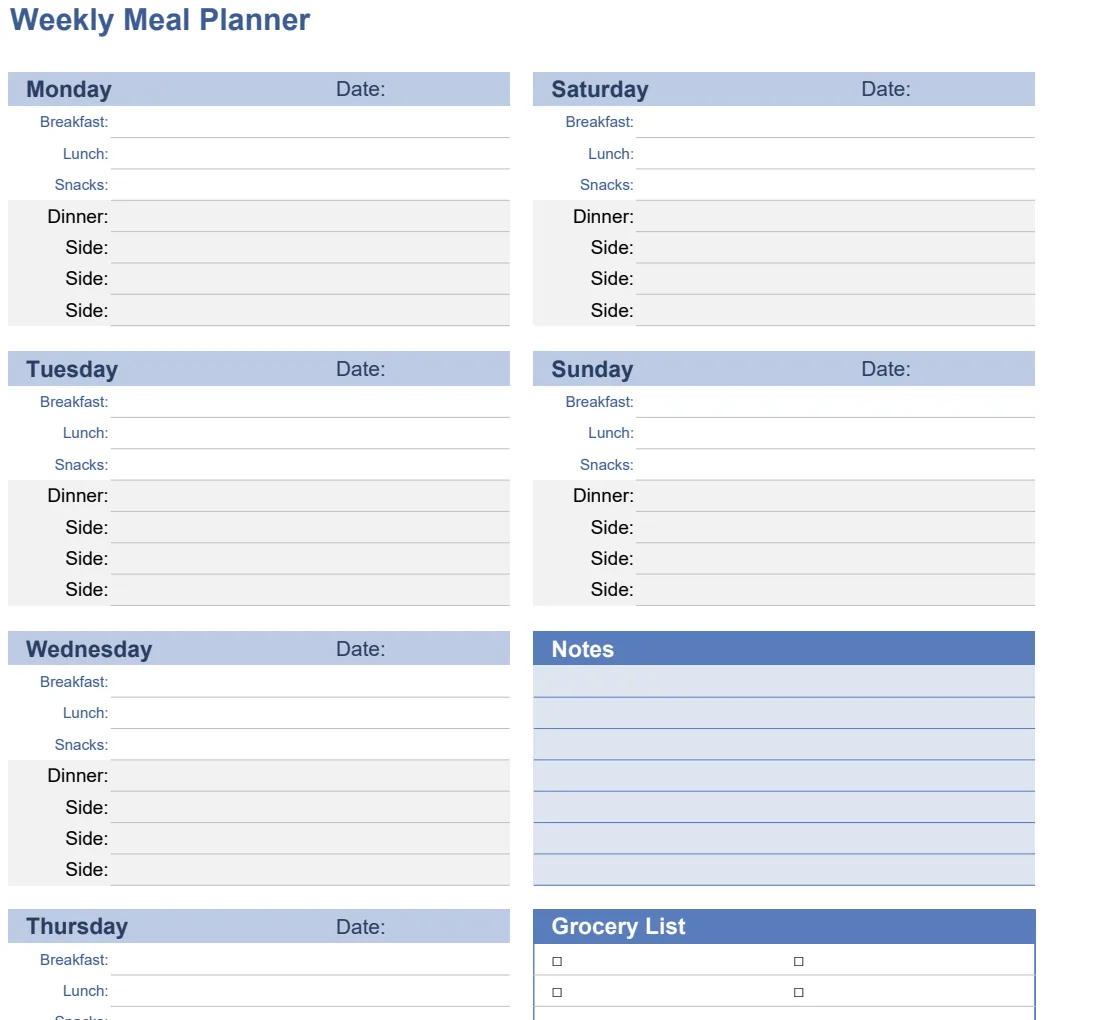
While building a custom template is rewarding, sometimes you just need to get started quickly. For those seeking a meal planner template Google Sheets free, there are excellent options available. These templates often come with pre-defined structures, like the Weekly Meal Planner Template, which offers sections for breakfast, lunch, and dinner, along with customizable ingredient lists.
Another strong contender is the Simple Weekly Meal Planner. This template is designed for ease of use, allowing you to quickly fill in your week's meals and then generate a corresponding grocery list. If you're planning for a family, a template like the Family Planner Weekly can be invaluable, integrating meal organization with other family scheduling needs. These templates save you the initial setup time, letting you focus immediately on planning your meals.
Avoiding Common Pitfalls
Even with a great template, people often fall into a few traps that undermine their meal planning efforts.
- Overly Ambitious Planning: Trying to plan gourmet meals every night when you know you'll be tired after work. Be realistic about your time and energy.
- Forgetting Pantry Staples: Planning meals without checking if you have common ingredients like oil, salt, pepper, or basic spices. These often need replenishing too.
- Not Adjusting for Sales: Failing to check grocery store flyers or your pantry before finalizing your plan. Flexibility to swap meals based on what’s on sale can lead to significant savings.
- Ignoring Leftovers: Not planning to use leftovers for lunches or subsequent dinners. This is a missed opportunity for efficiency and cost savings.
- Manual Grocery List Entry: If your template doesn't help generate the grocery list, or if you don't use that feature, you're losing a major benefit. The point is to minimize manual data entry.
Tips for Success
To make your meal planning stick, consider these additional tips.
- Start Small: If a full seven-day plan feels overwhelming, start by planning just dinners for three days. Build from there.
- Theme Nights: Assigning themes to days (e.g., "Meatless Monday," "Taco Tuesday," "Pasta Thursday") can simplify decision-making.
- Involve the Family: Ask for input on meal choices to increase buy-in and reduce complaints.
- Batch Cooking: Plan for meals that can be made in larger quantities and used across multiple days or frozen for later.
- Regular Review: Set aside 15-30 minutes each week, perhaps on a Saturday or Sunday, to plan the upcoming week. Consistency is key.
What if I don't have time to build my own?
If you're looking for a meal planner template Google Sheets free and don't want to build one from scratch, you're in luck. Many excellent, pre-built templates are available. The Weekly Meal Planner offers a solid foundation with customizable lists for breakfast, dinner, and sides, making it easy to adapt to your preferences. You can often find these templates with a quick search, or by exploring resources that offer free spreadsheet solutions.
How can I ensure my grocery list is accurate?
To ensure accuracy, your meal planner and grocery list should be tightly integrated. Use formulas like FILTER or QUERY to pull ingredients directly from your planned meals. For instance, if your recipe lists "2 cups flour," the formula should ideally capture "flour" and its quantity. You might then need a manual step to consolidate duplicate items (e.g., "flour" appearing for two different recipes) and sum their quantities, or use more advanced array formulas for full automation.
Can I use this for more than just food?
Absolutely. The principles of a structured template can be applied to many areas. For example, a similar setup can be used for tracking household chores, managing project tasks, or even planning events. The core idea is to break down a larger goal into manageable, scheduled components. The Family Planner Weekly template itself is an example of this, combining meal planning with other family logistics.
What if I want more advanced features?
If you find yourself outgrowing a basic template, Google Sheets is incredibly flexible. You can add features like: conditional formatting to highlight meals needing specific ingredients, dropdown menus for consistent recipe selection, checkboxes to mark ingredients as "purchased," or even simple scripts for more complex automation. The library of templates available, like the Weekly Meal Planner Template, often provides a strong starting point that you can then customize and expand upon as your needs evolve.