Google Sheets vs. Excel: Your free macro tracker choice
Find a free macro tracker spreadsheet template to log meals and monitor your daily protein, carbohydrate, and fat intake.
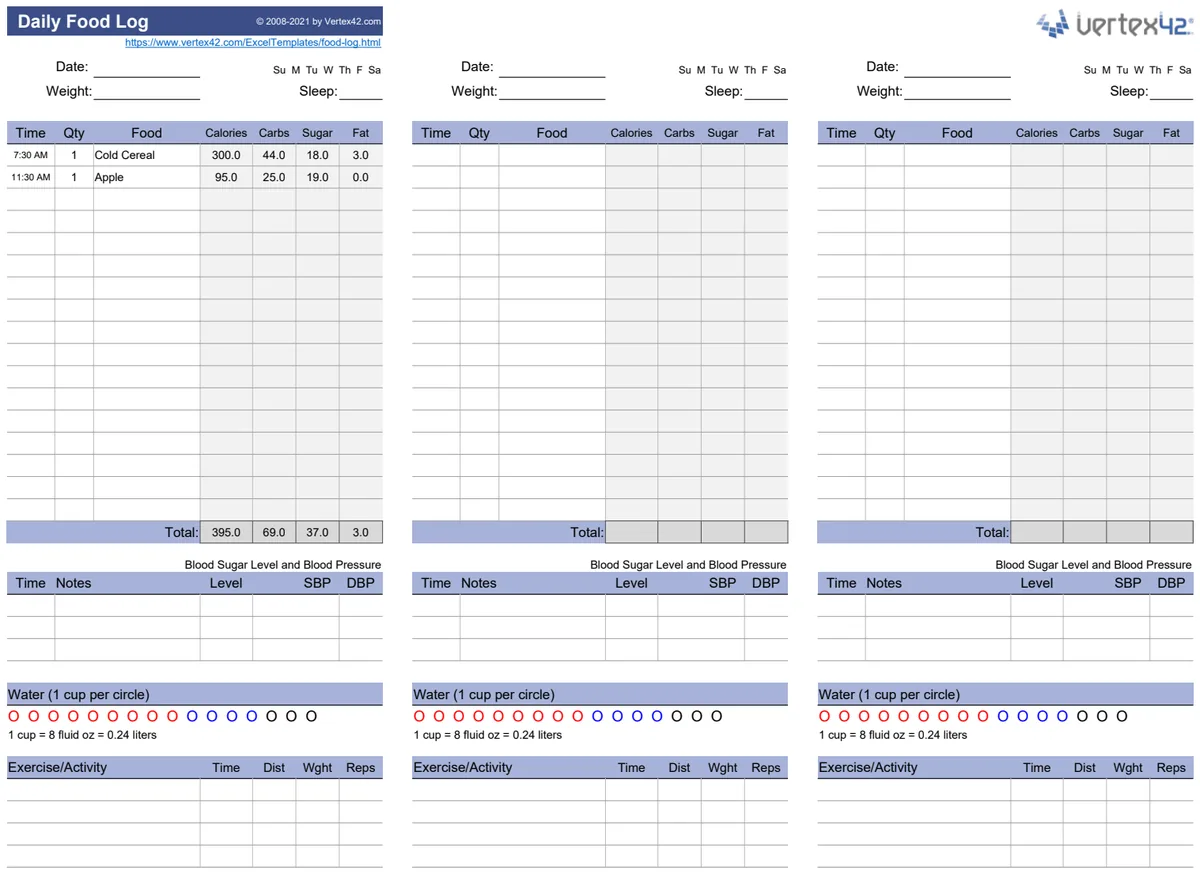
By the end of this, you'll have a functional macro tracker spreadsheet, ready for you to log your meals and see your daily protein, carbohydrate, and fat intake calculated automatically. You can easily input your food items, their serving sizes, and the associated grams of macronutrients, and the sheet will sum them up for you, comparing them against your daily targets.
Finding a truly useful macro tracker spreadsheet template free can feel like searching for a needle in a haystack. Many free options are either too basic, lacking crucial features, or require complex setup. This guide will walk you through building or adapting a spreadsheet to accurately log your food intake and monitor your macronutrient goals, providing a solid foundation for your fitness journey.
Setting Up Your Macro Tracker
The core of any good macro tracker is a clear and organized layout. You'll want distinct areas for inputting your food, viewing your daily totals, and seeing your targets. For a typical macro tracker spreadsheet template free that you can build yourself, start with these essential columns in a sheet, let's call it "Daily Log":
- Meal: (e.g., Breakfast, Lunch, Dinner, Snack)
- Food Item: The name of the food you consumed.
- Serving Size: How much you ate (e.g., 1 cup, 100g, 1 scoop).
- Protein (g): Grams of protein in that serving.
- Carbohydrates (g): Grams of carbohydrates in that serving.
- Fat (g): Grams of fat in that serving.
- Calories (kcal): Total calories from that serving.
Creating a Food Database
Manually entering the macronutrient data for every single food item can be incredibly time-consuming. A more efficient approach is to create a separate sheet, perhaps named "Food Database," where you can pre-populate common foods and their macro breakdowns. This database will serve as your lookup table.
Your "Food Database" sheet might look something like this:
- Food Item: (e.g., Chicken Breast, Broccoli, Brown Rice, Whey Protein)
- Serving Size (Default): A standard serving for reference (e.g., 100g, 1 cup).
- Protein (g) per Default Serving:
- Carbohydrates (g) per Default Serving:
- Fat (g) per Default Serving:
- Calories (kcal) per Default Serving:
Linking Your Daily Log to the Database
Now, the magic happens. You can use formulas to pull data from your "Food Database" into your "Daily Log" based on the "Food Item" you select. This is where the power of spreadsheets truly shines, turning a simple list into a dynamic tracker.
In your "Daily Log" sheet, for the "Protein (g)" column, you can use a formula like this, assuming your "Food Database" is on a sheet named "FoodDB" and the protein column there is column B, starting from row 2:
=IFERROR(VLOOKUP(B2, FoodDB!$A$2:$E$1000, 2, FALSE) * (ServingSizeGrams / FoodDB!$C$2), "")
- B2: This is the cell containing the "Food Item" name in your "Daily Log."
- FoodDB!$A$2:$E$1000: This is the range of your "Food Database" table. Adjust
$E$1000to cover all your food entries. - 2: This indicates you want to retrieve the value from the second column of your lookup range (which is Protein in this example).
- FALSE: Ensures an exact match for the food item.
- *` (ServingSizeGrams / FoodDB!$C$2)
:** This is a crucial part for flexibility. If your "Food Database" lists protein per 100g (column C in this example), and your "Daily Log" has a column for "Serving Size (g)" (let's say column E), this part scales the protein amount based on the actual amount you ate. You'll need to adaptFoodDB!$C$2` to the correct column in your database that represents the default serving size for that food item.
You'll need to repeat this pattern for Carbohydrates and Fat, adjusting the column index number in the VLOOKUP function accordingly (e.g., 3 for carbs, 4 for fat). For calories, you'd use the 5th column.
Calculating Daily Totals and Targets
Once your individual food entries are logged and their macros are pulled in, you need to see your daily totals. This is usually done at the bottom of your "Daily Log" section or in a separate summary area.
You can use the SUM function for this. For instance, if your Protein entries are in column D, your formula for total daily protein would be:
=SUM(D2:D50)
Adjust D2:D50 to cover all the rows where you'll be logging food for a single day. You'll do this for Protein, Carbohydrates, Fat, and Calories.
Setting Up Your Macro Targets
On the same summary section or a dedicated "Targets" sheet, you'll define your daily goals for each macronutrient. You can simply enter these as static numbers. For example:
- Target Protein (g): 150
- Target Carbohydrates (g): 200
- Target Fat (g): 60
- Target Calories (kcal): 2000
Visualizing Progress Against Targets
To make your macro tracker even more effective, you can compare your daily totals against your targets. You can add cells that show the difference:
- Protein Remaining (g):
=TargetProteinCell - TotalProteinCell - Carbs Remaining (g):
=TargetCarbsCell - TotalCarbsCell - Fat Remaining (g):
=TargetFatCell - TotalFatCell - Calories Remaining (kcal):
=TargetCaloriesCell - TotalCaloriesCell
You can also use Conditional Formatting to quickly see if you're over or under your targets. For example, select your "Protein Remaining" cell and set a rule: if the value is less than 0 (meaning you've exceeded your target), make the cell red. If it's between 0 and 10, make it yellow. If it's greater than 10, make it green.
This visual feedback is incredibly helpful for making quick dietary adjustments throughout the day.
Advanced Features and Customization
While the basic setup covers the essentials of a macro tracker spreadsheet template free, you can enhance it with more advanced features.
Tracking Multiple Days
To track macros over an extended period, you can duplicate your "Daily Log" sheet for each day. A more sophisticated approach involves using a single sheet but adding a "Date" column. Then, you can use formulas like SUMIFS to aggregate totals for specific dates.
For example, to get the total protein for a specific date (assuming your dates are in column A and protein in column D):
=SUMIFS(D2:D1000, A2:A1000, "1/15/2026")
You would replace "1/15/2026" with a cell reference containing the date you want to summarize.
Calculating Macros from Common Foods
Many people consume the same staple foods regularly. Instead of looking up exact grams for each, you can create a section in your "Food Database" that lists common foods with standard serving sizes (e.g., "1 cup of cooked rice," "1 medium apple," "1 scoop of whey"). Then, your "Daily Log" can simply select "Rice" and the serving size "1 cup," and the macros are automatically populated.
Linking to Nutrition Information
If you're feeling ambitious, you could potentially link your spreadsheet to external nutrition databases, though this often requires more complex scripting or API integrations and moves beyond the scope of a simple free template. For most users, manually populating or using a pre-built database is sufficient.
Mistakes to Avoid
When building or using a macro tracker, a few common pitfalls can derail your efforts.
- Inconsistent Serving Sizes: Not specifying serving sizes clearly or using inconsistent units (grams vs. cups vs. pieces) will lead to inaccurate tracking. Always define what a "serving" means.
- Forgetting Ingredients: When cooking meals, it's easy to forget to log smaller ingredients like oils, sauces, or spices, which can add up in calories and fat.
- Over-reliance on Estimates: While some estimation is necessary, try to be as precise as possible. Using a food scale for at least a portion of your logging can significantly improve accuracy.
- Not Updating Your Database: As you discover new foods or find more accurate nutrition information, make sure to update your "Food Database" to keep your tracker reliable.
Frequently Asked Questions
Can I use this macro tracker for weight loss or muscle gain?
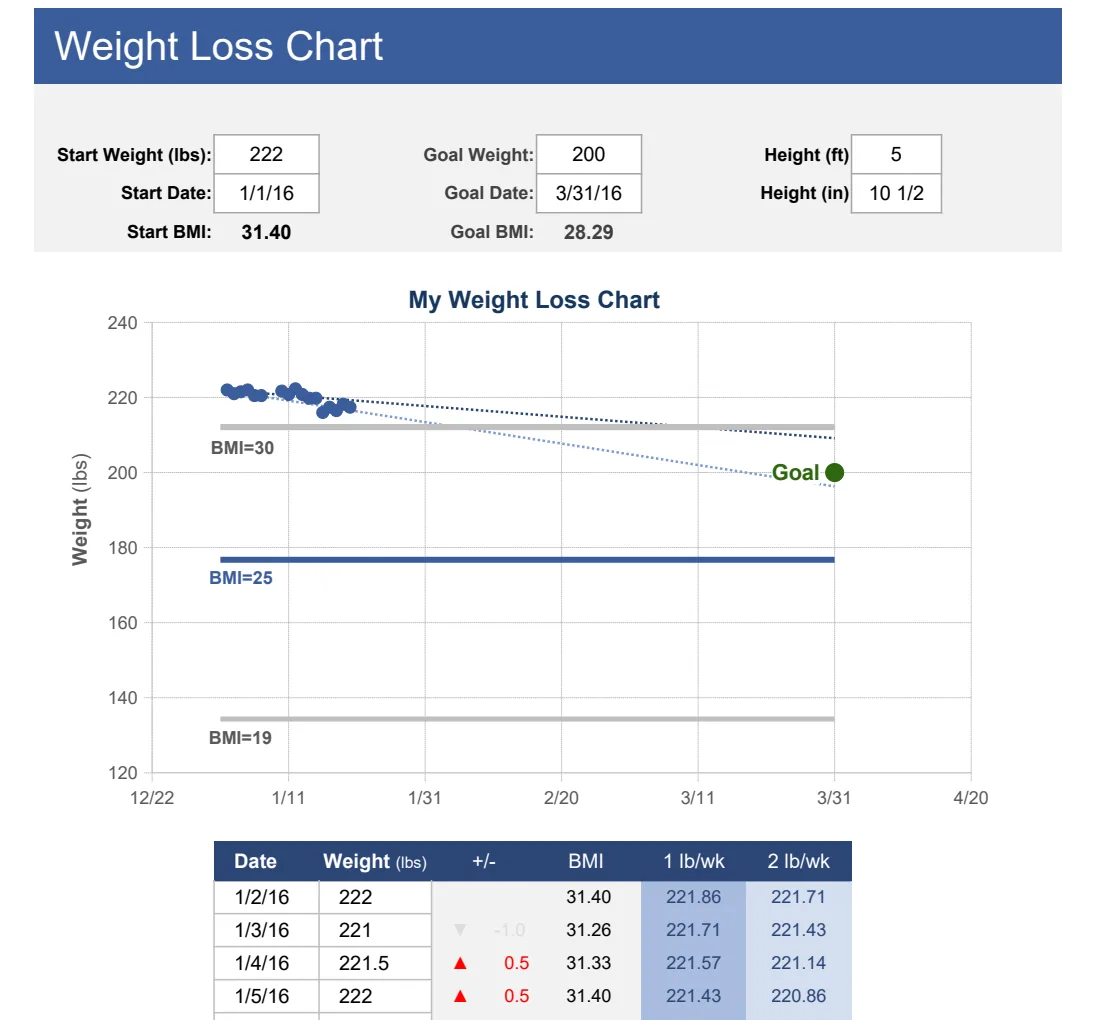
Absolutely. The primary purpose of tracking macros is to manage your overall calorie and nutrient intake, which is fundamental to both weight loss and muscle gain. By adjusting your target macros and total calories, you can tailor the tracker to your specific fitness goals. For example, a weight loss goal might require a calorie deficit, while a muscle gain goal might prioritize higher protein intake. The Weight Loss Chart Tracker can be a great companion for visualizing overall progress.
How do I find the macro information for specific foods?
Many packaged foods list their macronutrient information directly on the nutrition label. For fresh foods or restaurant meals, you can often find reliable data on websites like the USDA FoodData Central, or through various reputable nutrition tracking apps and websites. When creating your "Food Database," aim for consistency and accuracy from a few trusted sources.
What if I eat a meal not listed in my database?
This is where the flexibility of a custom spreadsheet shines. You can add new food items to your "Food Database" sheet on the fly. Simply input the food name, its serving size, and the corresponding grams of protein, carbs, and fat, and then use the formulas you've already set up in your "Daily Log" to pull that new data in. This ensures your tracker remains comprehensive as your diet evolves.
Is there a mobile-friendly version?
While this guide focuses on desktop spreadsheet applications like Excel or Google Sheets, you can often access and edit Google Sheets from your mobile device using the Google Sheets app. This allows for on-the-go logging. For a more dedicated mobile experience, you might consider specialized nutrition tracking apps, but a well-configured Google Sheet can serve as a robust macro tracker spreadsheet template free that you can access anywhere.