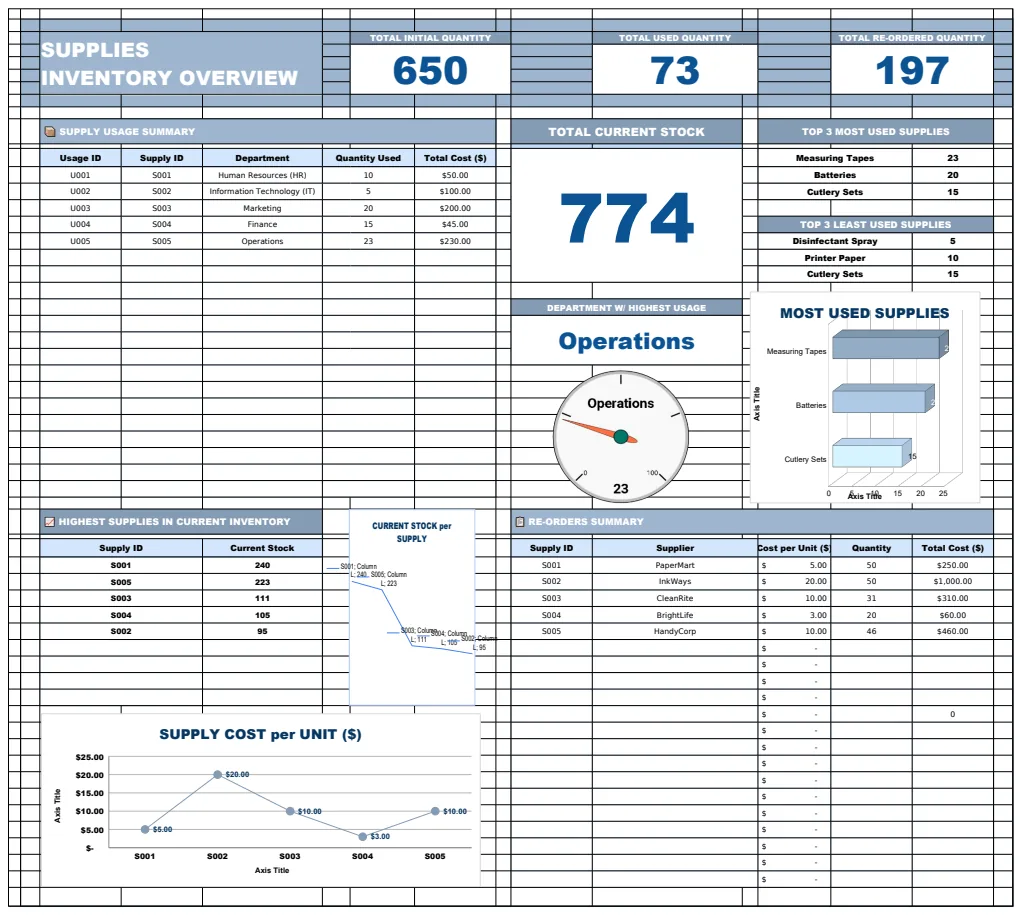
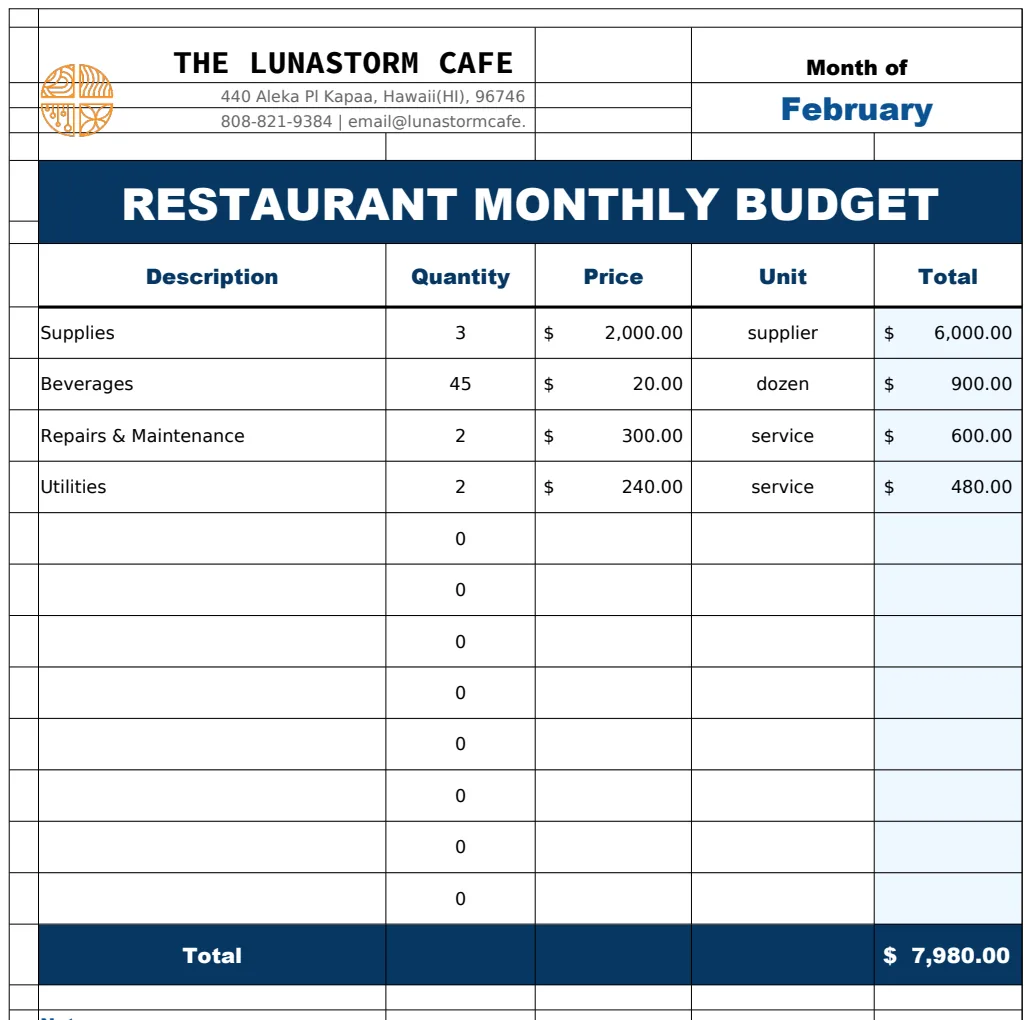
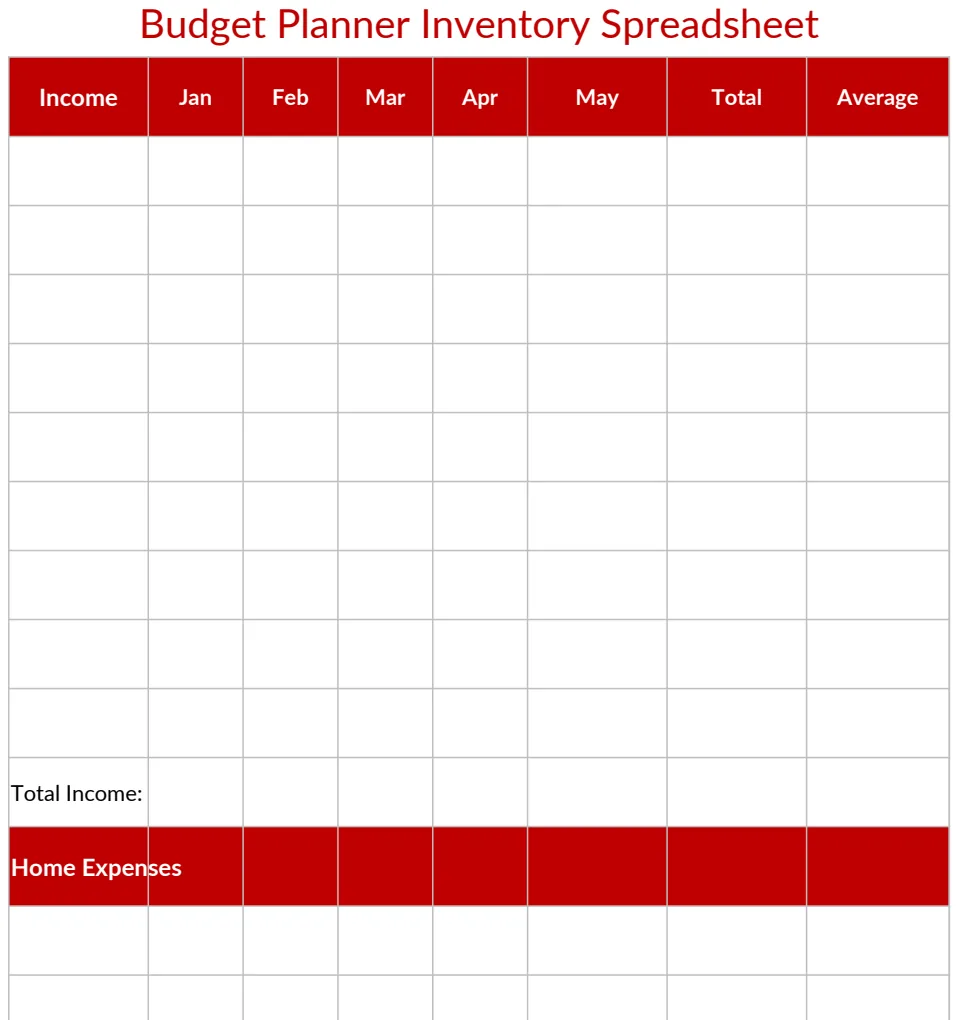
Excel inventory tracker that counts what you have
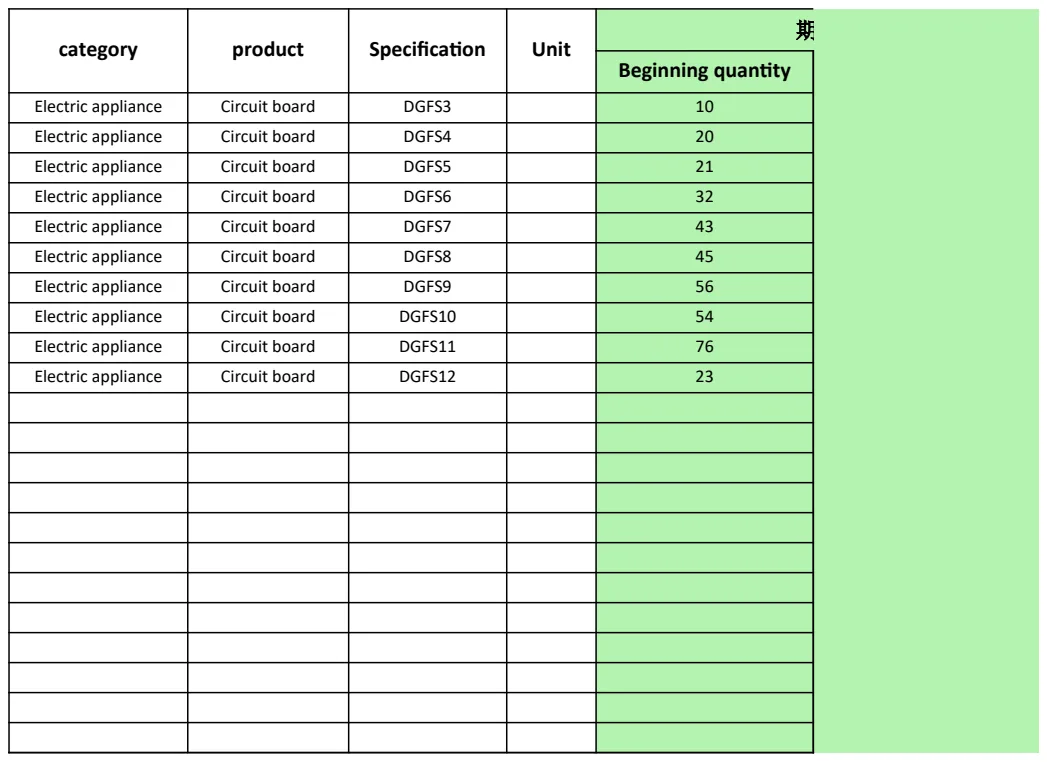
Avoid common failures with your warehouse inventory template Excel by setting up a robust system for accurate stock counts.
The most common failure of a warehouse inventory template Excel is inaccurate stock counts due to a lack of clear responsibility for data entry and a failure to reconcile physical stock with digital records. This often happens when multiple people can access and edit the sheet without a defined process for who records what, or when regular physical counts aren't performed to catch discrepancies.
Setting up a robust system from the start prevents these issues. You need more than just a list of items; you need a structured approach to track movement, identify stock levels, and maintain accuracy. A well-designed spreadsheet can handle this, but it requires discipline. Consider using a template that separates incoming and outgoing inventory to provide a clearer audit trail, which is crucial for any busy warehouse operation.
Defining Your Inventory Tracking Needs
Before you even look for a warehouse inventory template Excel, consider what you absolutely must track. Are you primarily concerned with stock levels and reorder points? Do you need to track batch numbers or expiration dates for perishable goods? Perhaps you need to monitor the cost of goods sold (COGS) or manage inventory across multiple storage locations.
Your specific needs will dictate the columns and features your template should have. For instance, if you're managing high-value or regulated items, columns for serial numbers, lot numbers, and expiry dates are non-negotiable. If you’re focused on sales velocity, you might prioritize columns for units sold per period and current stock value.
Essential Columns for a Warehouse Inventory Template
A foundational warehouse inventory template Excel should include several key columns to provide a clear picture of your stock. Think of these as the bedrock of your inventory management system.
- Product ID/SKU: A unique identifier for each distinct item. This is critical for avoiding confusion and ensuring you're always referencing the correct product.
- Product Name/Description: A clear, concise name or description of the item.
- Category/Type: Useful for grouping similar items, making analysis and reporting easier.
- Unit of Measure (UOM): How is the item sold or stored? (e.g., Each, Box, Kilogram, Liter).
- Beginning Inventory: The stock on hand at the start of a reporting period.
- Quantity Received: The total number of units added to inventory during the period.
- Quantity Shipped/Sold: The total number of units removed from inventory during the period.
- Ending Inventory: The calculated stock on hand at the end of the period. This is typically calculated as
Beginning Inventory + Quantity Received - Quantity Shipped/Sold. - Reorder Point: The minimum stock level that triggers a need to reorder.
- Location: Where is the item stored within the warehouse? (e.g., Aisle 3, Shelf B, Bin 12).
- Unit Cost: The cost of one unit of the item.
- Total Value: Calculated as
Ending Inventory * Unit Cost.
Setting Up Your First Warehouse Inventory Template
Let's walk through setting up a basic, yet effective, warehouse inventory template. We'll use a hypothetical scenario for a small e-commerce business selling artisanal candles.
- 01Create a New Spreadsheet: Open Excel or Google Sheets and start with a blank workbook.
- 02Name Your Sheet: Rename the first sheet to "Inventory Master".
- 03Add Column Headers: In the first row (Row 1), enter your column headers. Using our essential list:
- A1:
SKU - B1:
Product Name - C1:
Category - D1:
UOM - E1:
Beginning Inventory - F1:
Quantity Received - G1:
Quantity Shipped - H1:
Ending Inventory - I1:
Reorder Point - J1:
Location - K1:
Unit Cost - L1:
Total Value
- 04Format Headers: Make Row 1 bold and consider adding a background fill color for better visibility. You might also want to freeze this row so it's always visible as you scroll down. In Excel, go to
View > Freeze Panes > Freeze Top Row. In Google Sheets, it'sView > Freeze > 1 row. - 05Enter Sample Data: Populate a few rows with sample data for your candles. For example:
- Row 2:
CANDLE-001,Lavender Calm Candle,Scented,Each,50,25,15,60,30,Aisle 1, Shelf C,8.50,=H2*K2 - Row 3:
CANDLE-002,Citrus Burst Candle,Scented,Each,30,10,20,20,25,Aisle 1, Shelf C,8.50,=H3*K3 - Row 4:
CANDLE-003,Unscented Pillar,Unscented,Each,20,5,10,15,15,Aisle 2, Shelf A,7.00,=H4*K4
- 06Add Formulas:
- In cell H2, enter the formula
=E2+F2-G2. This calculates the ending inventory based on the other entries. Drag this formula down to apply it to all rows where you have inventory items. - In cell L2, enter the formula
=H2*K2. This calculates the total value of the inventory for that item. Drag this down as well.
- 07Conditional Formatting: This is where your template becomes truly dynamic.
- Low Stock Alert: Select cells H2:H100 (or however many rows you expect). Go to
Conditional Formatting > New Rule. ChooseUse a formula to determine which cells to format. Enter the formula:=H2<I2. Set the format to a light red fill or bold red text. This will highlight any item where the ending inventory is below its reorder point. - Out of Stock Alert: You might also add a rule to highlight items that are at 0 or less. Use the formula
=H2<=0with a darker red fill.
This basic setup provides immediate value, but you can expand on it. For example, you could add columns for Date Last Received or Date Last Shipped to track recent activity.
Tracking Inventory Movement: Receipts and Shipments
Simply having a list of current stock isn't enough. You need to track when items come in and when they go out. This is where a more transactional approach, perhaps using a separate sheet or a specialized template, becomes vital.
For receiving, you'll want to record the date, supplier (if applicable), a reference number (like a PO or invoice number), and the specific items and quantities received. Similarly, for shipments, you'll record the date, order number, customer, and the items/quantities shipped.
A powerful way to manage this within a single workbook is to have your "Inventory Master" sheet and then separate sheets for "Receiving Log" and "Shipping Log." Your "Inventory Master" sheet can then use formulas like SUMIFS to pull the total received and shipped quantities for each SKU from these log sheets.
For example, if your "Receiving Log" has SKU in column A and Quantity in column B, and your "Shipping Log" has SKU in column A and Quantity in column B, your "Inventory Master" sheet formulas for Quantity Received (F2) and Quantity Shipped (G2) might look like this:
F2(Quantity Received):=SUMIFS('Receiving Log'!$B$2:$B$100, 'Receiving Log'!$A$2:$A$100, A2)G2(Quantity Shipped):=SUMIFS('Shipping Log'!$B$2:$B$100, 'Shipping Log'!$A$2:$A$100, A2)
This setup automates the updates to your "Ending Inventory" based on detailed transactional logs. This approach is far more reliable than manually updating quantities. If you need a dedicated tool for this, a template like the Warehouse Receipt & Outbound Order can be invaluable for structuring these logs.
Enhancing Your Template with Advanced Features
Once you're comfortable with the basics, you can add more sophisticated features to your warehouse inventory template Excel.
- Inventory Valuation Methods: While we used
Unit Costfor simplicity, you might need to implement methods like FIFO (First-In, First-Out) or LIFO (Last-In, First-Out) for more accurate financial reporting, especially if your unit costs fluctuate. This typically requires more complex formula structures or even VBA scripting. - Safety Stock Calculation: Beyond a simple reorder point, you can calculate safety stock based on lead times and demand variability. This helps prevent stockouts during unexpected surges in demand or delays in replenishment.
- ABC Analysis: Categorize your inventory items based on their value or sales volume. 'A' items are high-value/high-volume, 'B' are moderate, and 'C' are low. This helps you focus your management efforts on the most critical items. You can implement this with simple
IFstatements orIFSfunctions based on yourTotal Valuecolumn. - Expiration Date Tracking: For perishable goods, adding columns for
Manufacture DateandExpiration Dateis crucial. You can use conditional formatting to flag items nearing expiration. - Multiple Locations: If you store items in different zones, shelves, or even separate warehouses, you'll need columns to specify these. A template like the Company Warehouse Inventory can help manage stock across multiple sites.
Common Mistakes to Avoid
Even with a great warehouse inventory template Excel, errors can creep in. Be mindful of these common pitfalls:
- Inconsistent Data Entry: Using different names or SKUs for the same product across your logs. This breaks your
SUMIFSformulas and creates phantom inventory. - Ignoring "Shrinkage": Not accounting for theft, damage, or errors that lead to missing inventory. You need a process for periodic cycle counts and adjustments.
- Over-reliance on Formulas Without Reconciliation: Trusting your calculated "Ending Inventory" without ever physically counting what's on the shelves. Discrepancies will inevitably occur.
- Lack of Version Control: Multiple people editing the same file without clear indication of who made changes or when. This can lead to overwritten data and confusion. Consider using shared sheets with audit trails or more robust inventory management software.
- Not Updating Unit Costs: If your supplier prices change, failing to update the
Unit Costin your template will lead to inaccurateTotal Valuecalculations and misleading COGS data.
Frequently Asked Questions
How often should I update my warehouse inventory template?
Ideally, you should update your template daily or as transactions occur. For critical items, real-time updates are best. However, even a weekly review and update can be sufficient for less volatile inventory, provided you reconcile it with a physical count at least monthly.
Can I track inventory for multiple warehouses in one Excel file?
Yes, you can. One common method is to have a separate sheet for each warehouse, or to add a "Warehouse" column to your main inventory log and use filters or SUMIFS with an additional criteria to segment data by warehouse. Templates like Company Warehouse Inventory are designed with multi-location tracking in mind.
What if my inventory is complex, with variations like color or size?
For items with variations, you typically create a unique SKU for each variation (e.g., TSHIRT-RED-S, TSHIRT-BLUE-M). Your template then lists each of these as a separate line item, allowing you to track quantities and values for each specific combination precisely.
Is an Excel template sufficient for a large or growing business?
For very large operations or businesses with extremely high transaction volumes, a dedicated inventory management system (IMS) or Enterprise Resource Planning (ERP) software will offer more advanced features like automated reordering, barcode scanning integration, and robust reporting. However, for small to medium-sized businesses, a well-maintained warehouse inventory template Excel can be a highly effective and cost-efficient solution, especially if you can download a specialized template from a library like ours for just $9 once.