Excel vs Google Sheets 2026: 7 Key Differences & AI Features
Choosing between Excel and Google Sheets in 2026 isn't about picking the "better" tool. It's about matching the platform to your workflow, team size, and technical requirements. The gap between these...
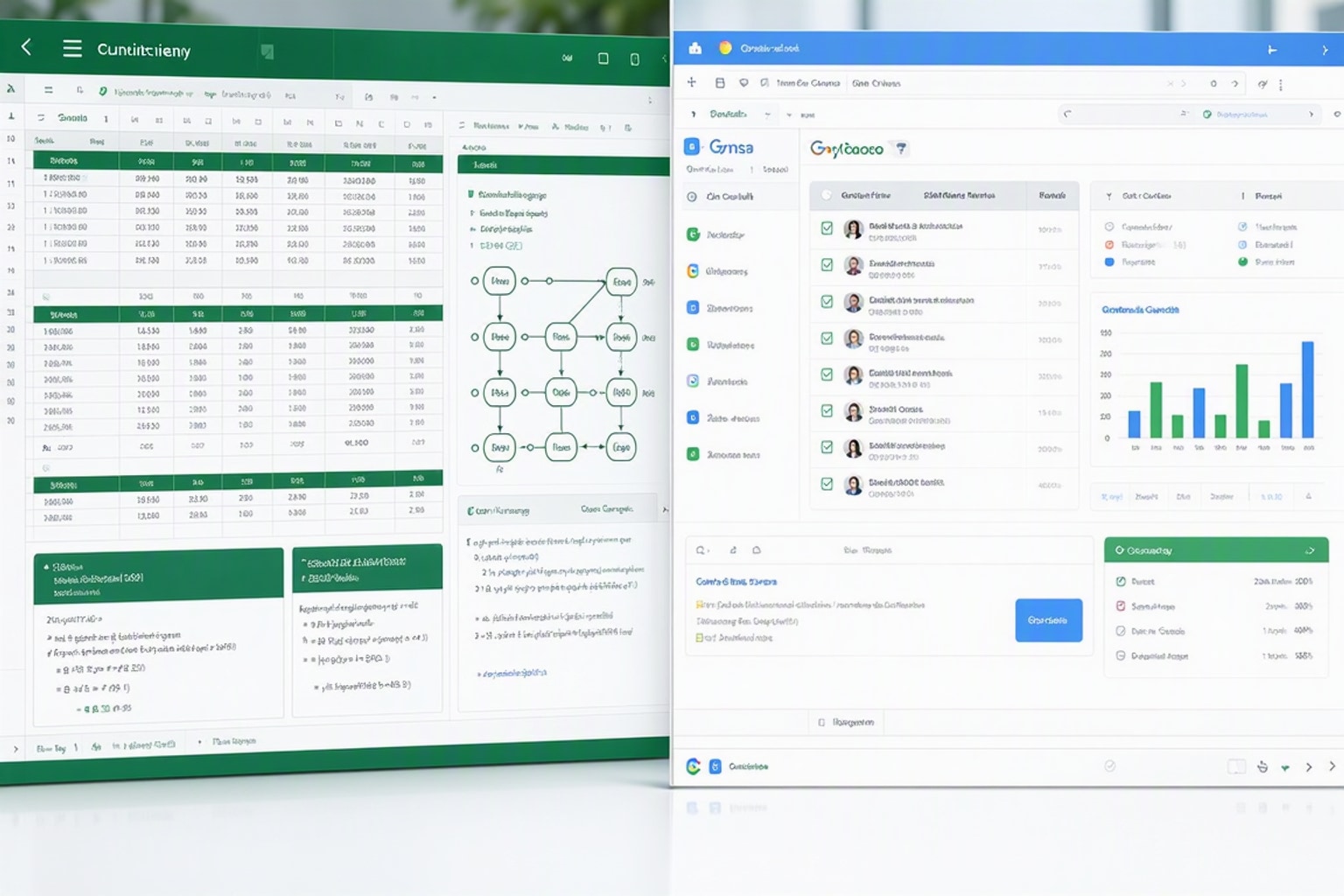
Choosing between Excel and Google Sheets in 2026 isn't about picking the "better" tool. It's about matching the platform to your workflow, team size, and technical requirements. The gap between these two spreadsheet giants has narrowed in some areas and widened in others, thanks to major AI upgrades, performance improvements, and ecosystem integrations that launched over the past year.
Excel now ships with Python integration and Copilot Agent Mode that can run multi-step analyses without manual prompts. Google Sheets added two new functions in February 2026 and continues to dominate real-time collaboration with three permission levels versus Excel's two. Both platforms serve over 1.5 billion users worldwide, but they solve different problems. Finance teams building complex models still default to Excel for its raw computational power, while distributed teams choose Sheets for instant sharing and zero setup friction.
This guide breaks down the seven key differences that matter in 2026: dataset capacity, collaboration features, AI automation, ecosystem integration, performance benchmarks, security controls, and cost structures. You'll see exactly when each platform saves time, where they fall short, and how to avoid the common decision traps that waste hours in migration headaches.
Excel vs Google Sheets in 2026: Which Spreadsheet Tool Fits Your Workflow?
The decision between Excel and Google Sheets comes down to three questions: How large are your datasets? How many people need simultaneous access? What other tools does your team already use daily?
Excel wins when you're processing millions of rows, building financial models with scenario analysis, or running Python scripts inside your grid. Google Sheets wins when you need real-time collaboration, fast onboarding for non-technical users, or tight integration with Gmail, Docs, and Calendar. Neither platform is objectively better. They're optimized for different workflows.
The stakes changed in 2026 because both platforms added AI features that can automate tasks you used to do manually. Excel's Copilot Agent Mode can now build pivot tables, clean datasets, and generate formulas across multiple steps without you writing a single prompt. Gemini in Google Sheets offers smart suggestions, formula help, and data cleanup, though it's less autonomous than Copilot. These AI upgrades mean your platform choice now affects how much manual work you do every week, not just where you store your files.
When to Choose Excel: Advanced Analysis, Large Datasets, and Power Users
Excel handles complexity better than any other spreadsheet tool. If you're working with datasets over 100,000 rows, building financial models with multiple scenarios, or running custom Python scripts, Excel gives you the computational power and desktop performance that cloud-based tools can't match.
Finance teams, data analysts, and enterprise users choose Excel because it doesn't slow down when you add 50 pivot tables to a workbook or chain together 20 Power Query transformations. The desktop version runs locally, so you're not waiting for server responses every time you recalculate a formula. That speed advantage matters when you're iterating on models under deadline pressure.
Excel also offers features that Google Sheets doesn't: Power Query for complex data transformations, Power Pivot for relational data modeling, and native Python integration for custom analysis. These aren't nice-to-have extras. They're workflow accelerators that cut hours off tasks like cleaning messy CSV imports or building multi-table dashboards.
Handling Millions of Rows Without Performance Lag
Excel's desktop version handles over one million rows per worksheet without breaking a sweat. Google Sheets caps at approximately 10 million cells per file, and performance starts degrading noticeably beyond a few thousand rows with complex formulas. That cell limit sounds generous until you realize a 10-column dataset hits the cap at one million rows.
The difference shows up in real workflows. If you're importing sales data from a CRM, running year-over-year comparisons across multiple regions, or building dashboards that pull from several large tables, Excel processes those calculations faster. Google Sheets will eventually complete the task, but you'll spend more time watching loading spinners.
Size becomes the deciding factor when your source data exceeds 50,000 rows and you need to refresh calculations frequently. Excel's local processing power means you can add new columns, apply filters, and recalculate formulas without waiting for cloud servers. Google Sheets works fine for smaller datasets, but once you cross into six-figure row counts, the performance gap becomes frustrating.
Advanced Financial Modeling and Complex Calculations
Finance teams default to Excel for scenario analysis, sensitivity tables, and multi-sheet models that reference dozens of named ranges. Excel's pivot table engine handles nested groupings and calculated fields more reliably than Google Sheets, and Power Query lets you automate data transformations that would require manual cleanup in other tools.
Power Query alone justifies Excel for anyone who regularly imports data from multiple sources. You can connect to databases, APIs, and file folders, then build transformation steps that clean, merge, and reshape data automatically. Google Sheets requires third-party add-ons or Apps Script to accomplish similar workflows, and the setup takes longer.
Scenario analysis in Excel uses built-in tools like Data Tables and Scenario Manager to model multiple outcomes without duplicating worksheets. You can change five input variables and instantly see how they affect your bottom line across 20 different scenarios. Google Sheets can do this with formulas, but Excel's native tools make it faster and less error-prone.
Python Integration and In-Grid Scripting
Python in Excel launched in 2023 and matured significantly by 2026. You can now write Python code directly in cells, use libraries like pandas and matplotlib for data analysis and visualization, and run scripts that would normally require a separate development environment. The code executes in Microsoft's cloud, so you don't need Python installed locally.
Practical use cases include cleaning messy datasets with pandas, building custom statistical models, generating charts that Excel's native tools can't create, and automating repetitive transformations. If you're already comfortable with Python, this feature eliminates the export-analyze-reimport workflow that wastes time in other spreadsheet tools.
This benefits data analysts, finance professionals who need custom calculations, and anyone who hits the limits of Excel's formula language. Google Sheets has Apps Script for automation, but it uses JavaScript syntax and doesn't offer the same data science libraries. Python in Excel brings professional-grade analysis tools into the grid where your data already lives.
When to Choose Google Sheets: Real-Time Collaboration and Everyday Productivity
Google Sheets wins when multiple people need to edit the same file simultaneously, when you're working across devices without syncing headaches, or when you need a spreadsheet up and running in 30 seconds. The platform prioritizes ease of use and instant collaboration over raw computational power.
G2's Spring 2026 data shows Google Workspace (including Sheets) with a 94% ease of use score, compared to Microsoft Excel's 88%. That six-point gap reflects Google Sheets' simpler interface, faster onboarding, and fewer features to learn before you're productive. New users can build a functional tracker or dashboard in Google Sheets without reading documentation. Excel requires more upfront learning.
Google Sheets also eliminates version control problems. Everyone works on the same live file, changes save automatically, and you can see who edited what in the version history. Excel's cloud version offers similar features, but the desktop version still creates conflicting copies when multiple people edit offline, then sync later.
Real-Time Collaboration and Permission Controls
Google Sheets offers three permission levels: Viewer, Commenter, and Editor. Excel provides two: View Only and Edit. That extra permission tier in Google Sheets matters when you want team members to suggest changes without directly editing cells. Commenters can leave notes and tag collaborators, but they can't alter formulas or data.

Simultaneous editing in Google Sheets shows each user's cursor in real time with color-coded indicators. You can watch someone build a formula in cell D12 while you're updating the chart in column F. Excel's web version added similar features, but reviewers consistently note that "editing and collaborating on Sheets is way smoother than Excel. It's real-time, and the mobile app is highly responsive to perform actions on the go."
Team workflow examples where Google Sheets excels: distributed teams building shared dashboards, teachers collecting student submissions in a single file, event planners coordinating schedules across time zones, and sales teams updating lead trackers throughout the day. The collaboration features aren't just convenient. They eliminate the email-attachment workflow that creates version chaos.
Ease of Use and Learning Curve for New Users
Google Sheets' 94% ease of use score reflects its simpler menu structure, more forgiving formula syntax, and better error messages. New users can find the functions they need without searching through nested ribbons. The interface prioritizes common tasks and hides advanced features until you need them.
Excel's 88% score isn't bad, but it reflects the platform's complexity. Power users love the depth, but beginners face a steeper learning curve. Excel's ribbon interface packs hundreds of options into categorized tabs, which creates decision paralysis for casual users. Google Sheets presents fewer choices upfront, so you spend less time hunting for the right button.
This difference matters for teams with mixed skill levels. If you're managing a team where some people build complex models and others just need to update a few cells, Google Sheets onboards the casual users faster. They can start contributing without formal training. Excel rewards investment in learning, but that investment takes time most teams don't have.
Seamless Google Workspace Integration
Google Sheets connects natively to Docs, Slides, Forms, Gmail, and Calendar, creating end-to-end workflows that don't require switching platforms. You can embed a live chart from Sheets into a Doc, collect form responses directly into a spreadsheet, or trigger email notifications based on cell values using Apps Script.
Practical integration examples: A teacher creates a Google Form quiz, responses populate a Sheet automatically, and a script calculates grades and emails results to students. A project manager embeds a Sheets timeline into a Slides presentation, and updates to the Sheet refresh the deck in real time. A sales team uses Gmail filters to log emails into a Sheet, then builds a dashboard that tracks response rates.
These integrations work without third-party tools or complex setup. If your team already uses Gmail and Google Drive, adding Sheets to your workflow requires zero additional accounts or authentication steps. Excel integrates with Microsoft 365 tools, but Google's ecosystem feels more unified for teams that live in browser-based apps.
Recommended Resources
Skip the blank-sheet setup with ready-made templates
Start with pre-built structures for budgets, trackers, dashboards, and calculators that work in both Excel and Google Sheets
AI and Automation Showdown: Copilot Agent Mode vs Gemini in Sheets
Both platforms added AI features in 2025 and 2026 that can automate formula writing, data cleanup, and analysis tasks. The difference lies in autonomy: Excel's Copilot Agent Mode can run multi-step workflows without manual prompts, while Gemini in Google Sheets offers smart suggestions and formula help that still require your direction.
"Excel's AI feels more powerful for professionals, while Sheets' is accessible and often free," according to reviewers comparing the platforms in early 2026. That assessment captures the trade-off. Copilot delivers more sophisticated automation but requires a paid Microsoft 365 subscription. Gemini offers useful AI features in Google Workspace's free tier, though the advanced capabilities require a paid plan.
The practical impact: If you're building complex reports or running repetitive analysis tasks weekly, Copilot's autonomous workflows save more time. If you're a casual user who occasionally needs formula help or data cleanup suggestions, Gemini provides enough AI assistance without the learning curve.
Excel Copilot's Agent Mode and Autonomous Workflows
Agent Mode in Excel Copilot can analyze your dataset, identify patterns, build pivot tables, create charts, and generate formulas across multiple steps without you writing detailed prompts. You describe the outcome you want in plain language, and Copilot executes the workflow autonomously.
Practical use cases: You upload a sales CSV and ask Copilot to "show me top-performing products by region with year-over-year growth." It cleans the data, creates calculated columns, builds a pivot table, generates a chart, and formats everything for presentation. You can ask follow-up questions like "now show me underperforming regions" and Copilot adjusts the analysis without starting over.
This benefits analysts who run similar reports regularly, finance teams building monthly dashboards, and anyone who spends hours on repetitive data tasks. Copilot doesn't eliminate the need to understand your data, but it handles the mechanical steps faster than manual work. The autonomous execution means you can focus on interpreting results instead of building formulas.
Gemini's Role in Google Sheets: Smart Suggestions and Formula Help
Gemini in Google Sheets assists with writing formulas, cleaning data, and generating content, but it requires more explicit direction than Copilot's Agent Mode. You ask Gemini to "write a VLOOKUP formula to match employee names with department codes," and it generates the formula with explanations. You ask it to "remove duplicate rows," and it suggests the steps.
Current features include formula generation with natural language prompts, data cleanup suggestions, smart fill that predicts patterns in your data, and help text that explains complex functions. Gemini doesn't autonomously build multi-step analyses, but it speeds up common tasks for users who aren't formula experts.
"Google Sheets takes the lead with its intuitive and integrated AI capabilities, promising a more streamlined and intelligent spreadsheet experience," according to one 2026 analysis. That assessment reflects Gemini's accessibility. You don't need advanced prompting skills to get useful results, and the AI features work within Google Sheets' existing interface without requiring a separate chat panel.
When AI Features Justify the Platform Choice
AI capabilities tip the platform decision when you're choosing between two otherwise comparable options. If you're already comfortable with Excel and your team needs autonomous report generation, Copilot Agent Mode justifies staying in the Microsoft ecosystem. If you're already using Google Workspace and need occasional formula help, Gemini provides enough AI assistance to avoid switching platforms.
Scenarios where Copilot wins: Building weekly executive dashboards from raw data exports, automating financial close processes, running complex what-if analyses across multiple scenarios. Scenarios where Gemini wins: Helping non-technical team members build functional trackers, cleaning messy datasets with guided suggestions, generating formulas for common lookup and calculation tasks.
Don't choose a platform solely for AI features if the underlying tool doesn't fit your workflow. Copilot's autonomous capabilities won't help if your datasets exceed Excel's practical limits for cloud processing. Gemini's formula help won't matter if you need Power Query transformations that Google Sheets can't replicate.
Integrations and Ecosystem: Microsoft 365 vs Google Workspace in 2026
Your existing software stack should influence your spreadsheet choice more than feature checklists. If your company runs on Microsoft 365, Excel integrates with every tool you already use daily. If you're in Google Workspace, Sheets connects to your email, calendar, and storage without extra setup.
The ecosystem advantage isn't just about convenience. It's about reducing friction in your actual workflows. When your spreadsheet tool connects natively to your email, document editor, presentation software, and cloud storage, you spend less time exporting files, managing permissions, and troubleshooting compatibility issues.
Third-party integrations have also matured significantly by 2026. Both platforms connect to thousands of external tools through APIs, add-ons, and automation platforms. The question isn't whether you can integrate, it's how much manual setup you'll need to make those connections work reliably.
Microsoft 365 Integrations: Power BI, Teams, OneDrive, and Enterprise Tools
Excel connects to Power BI for enterprise reporting, Teams for collaboration, OneDrive for storage, and Outlook for email-triggered workflows. These integrations work without third-party middleware. You can build an Excel dashboard, publish it to Power BI, share it in a Teams channel, and schedule automated refreshes, all within Microsoft's ecosystem.
Power BI integration matters for teams that need interactive dashboards with drill-down capabilities. You build the data model in Excel, then publish to Power BI for web-based visualizations that non-technical stakeholders can explore. Google Sheets requires third-party tools like Looker Studio (formerly Data Studio) for similar functionality.
OneDrive storage means your Excel files sync across devices automatically, and you can work offline without losing changes. When you reconnect, OneDrive merges your edits with any changes other team members made. Google Drive offers similar features, but Microsoft's ecosystem feels more cohesive if you're already using Outlook and Teams for daily communication.
Google Workspace Integrations: Apps Script, BigQuery, and Third-Party Add-Ons
Google Sheets connects to BigQuery for querying large datasets, Apps Script for custom automation, and thousands of third-party add-ons for specialized tasks. These integrations prioritize browser-based workflows and API connections over desktop software.
Apps Script uses JavaScript to automate tasks that would require VBA in Excel. You can build custom functions, create menu items, trigger actions based on cell changes, and connect to external APIs. The learning curve is gentler than VBA, and the scripts run in Google's cloud, so you don't need local software installed.
BigQuery integration lets you query massive datasets (billions of rows) directly from Google Sheets using SQL syntax. This matters for data analysts who need to explore large tables without importing everything into a spreadsheet. Excel can connect to SQL databases, but BigQuery's integration with Google Sheets feels more native and requires less setup.
Third-Party Data Connections and Workflow Automation
Both platforms connect to automation tools like Zapier, Make (formerly Integromat), and specialized data platforms. Rows, for example, integrates with over 50 data sources including finance, marketing, and CRM tools, and works with both Excel and Google Sheets. These third-party tools close the feature gaps between platforms.
Practical examples: You can use Zapier to automatically log new Stripe payments into a Google Sheet, or trigger Slack notifications when an Excel cell value changes. You can use Make to pull data from multiple APIs, transform it, and populate an Excel dashboard. You can use Rows to connect live data from Facebook Ads, Salesforce, or QuickBooks directly into your spreadsheet.
The ecosystem decision comes down to where you already spend most of your time. If you're managing projects in Microsoft Teams and storing files in OneDrive, Excel fits your workflow better. If you're collaborating in Google Docs and scheduling meetings in Google Calendar, Sheets reduces friction. Third-party tools can bridge the gaps, but native integrations always work more reliably.
Performance, Security, and Reliability: What Changed in 2026
Performance benchmarks, security controls, and uptime guarantees matter more for business users than casual spreadsheet builders. If you're running mission-critical financial models or storing sensitive customer data, you need to know how each platform handles speed, data protection, and system reliability.
Both platforms improved significantly in 2026. Excel's desktop version remains faster for complex calculations, but Excel for the web closed the performance gap for smaller workbooks. Google Sheets added calculation optimizations that reduced lag for files with thousands of formula cells. Security features matured on both platforms, with better audit logs, encryption controls, and compliance certifications.
The practical differences show up in edge cases: very large files, very complex formulas, very strict compliance requirements, or very high user concurrency. For most users, both platforms perform well enough that speed isn't the deciding factor. But if you're in one of those edge cases, the performance and security differences matter.
Performance Benchmarks: Speed, Calculation Time, and Responsiveness
Excel's desktop version calculates complex formulas faster than any cloud-based tool because it runs locally on your machine. Google Sheets processes calculations on Google's servers, which adds network latency but allows multiple users to see updates in real time. The trade-off: Excel is faster for single-user analysis, Sheets is more responsive for collaborative editing.
Calculation time differences become noticeable when you're working with 10,000+ formula cells, array formulas that reference large ranges, or volatile functions like INDIRECT and OFFSET that recalculate frequently. Excel handles these scenarios with less lag. Google Sheets will complete the calculations, but you'll wait longer for results.
Responsiveness for simultaneous users favors Google Sheets. When five people edit a Google Sheet at the same time, each person sees the others' changes within seconds. Excel's web version offers similar features, but reviewers consistently note that Google Sheets feels snappier for real-time collaboration. If your workflow prioritizes team editing over calculation speed, that responsiveness advantage matters.
Security and Compliance Features for Business Users
Both platforms offer encryption at rest and in transit, admin controls for user permissions, audit logs for tracking changes, and compliance certifications for regulated industries. The differences lie in granularity and enterprise features.
Google Workspace provides detailed audit logs that show who accessed which files, when they made changes, and what data they viewed. You can set expiration dates for shared links, require two-factor authentication for file access, and integrate with identity management systems like Okta. These features come standard in Google Workspace Enterprise plans.
Microsoft 365 offers similar security controls plus features like Information Rights Management (IRM) that prevent copying, printing, or forwarding sensitive files. You can classify documents by sensitivity level, apply encryption policies automatically, and integrate with Microsoft's enterprise security tools. Excel also supports more granular password protection for individual worksheets and workbook structures.
Compliance certifications matter for healthcare, finance, and government users. Both platforms meet major standards like HIPAA, SOC 2, and GDPR, but Microsoft 365 offers more industry-specific certifications. If your organization requires FedRAMP authorization or specific financial services compliance, Excel's enterprise plans provide more options.
Cost and Accessibility: Free Tiers, Paid Plans, and Cross-Platform Availability
Pricing models changed in 2026 as both platforms adjusted subscription tiers and added AI features to paid plans. Google Sheets remains free for personal use with generous storage limits. Excel offers a limited web version for free, but the full desktop application requires a Microsoft 365 subscription.
The cost difference matters most for small teams and individual users. If you're a freelancer or small business owner, Google Sheets provides professional-grade features without monthly fees. If you're part of an enterprise with existing Microsoft 365 licenses, Excel's cost is already covered in your company's subscription.
Cross-platform availability has also improved. Both tools now work reliably on Windows, Mac, iOS, Android, and web browsers. The question isn't whether you can access your files on any device, it's whether the mobile and web versions offer enough features for your workflow.
Free Versions: What You Get Without Paying
Google Sheets' free tier includes all core spreadsheet features, 15 GB of storage shared across Google Drive, Gmail, and Photos, and collaboration tools for up to 100 simultaneous editors. You can build complex formulas, create charts, use pivot tables, and access most add-ons without paying. The free tier excludes advanced admin controls and some AI features, but it's fully functional for personal and small team use.
Excel's free web version offers basic spreadsheet features, limited formula support, and requires a Microsoft account. You can view and edit files stored in OneDrive, but you can't access Power Query, Power Pivot, or advanced charting options. The free tier works for simple tasks, but most power users hit feature limitations quickly.
Feature gaps in free versions: Excel's web version doesn't support macros, VBA, or Python integration. Google Sheets' free tier limits file size and calculation complexity more aggressively than paid plans. If you're building simple trackers or budgets, both free versions work fine. If you need advanced features, you'll need to pay.
Paid Plans: Microsoft 365 vs Google Workspace Pricing
Microsoft 365 Personal costs $6.99 per month or $69.99 per year as of June 2026, including Excel desktop and web versions, 1 TB OneDrive storage, and access to Word, PowerPoint, and Outlook. Microsoft 365 Family costs $9.99 per month or $99.99 per year for up to six users. Business plans start at $6 per user per month for web and mobile apps only, or $12.50 per user per month for desktop applications.
Google Workspace Business Starter costs $6 per user per month, including Google Sheets, 30 GB storage per user, and basic admin controls. Business Standard costs $12 per user per month with 2 TB storage per user and advanced features. Business Plus costs $18 per user per month with 5 TB storage and enhanced security controls.
Cost-per-user for teams: If you need desktop applications, Microsoft 365 costs $12.50 per user per month. If you only need web-based tools, Google Workspace starts at $6 per user per month. The break-even point depends on whether your team requires Excel's desktop features or can work entirely in the browser.
Cross-Platform Availability: Desktop, Web, and Mobile Access
Excel works best on Windows desktop, with slightly reduced performance on Mac. The web version runs in any browser but lacks advanced features. Mobile apps for iOS and Android offer viewing and basic editing, but complex formulas and large files perform poorly on small screens.
Google Sheets works identically across all platforms because it's browser-based. The mobile apps offer the same features as the desktop version, though small screens make complex editing harder. You can start a file on your phone, continue on your laptop, and finish on a tablet without compatibility issues.
Platform preferences matter for your workflow. If you're primarily working on a Windows desktop and need maximum performance, Excel's native application wins. If you're switching between devices throughout the day or working with a distributed team on different operating systems, Google Sheets' browser-based consistency eliminates compatibility headaches.
Common Mistakes When Choosing Between Excel and Google Sheets
The biggest decision trap is choosing based on features you won't actually use. Teams often pick Excel because it "does more," then realize they only use 10% of those features and
Get the newsletter
One sharp idea every Sunday.
No fluff. No sales pitches. Just the best of what we publish, hand-picked.
Continue Reading
Related Articles

Google Sheets AI: 7 Powerful Tools & the New =AI() Function (2026)
Google Sheets stopped being just a place to store numbers the moment AI moved in. As of June 2026, you can ask a spreadsheet to score leads, categorize customer feedback, write formulas in plain Engli...
10+ Free Excel Budget Templates for Small Business in 2026
Your small business needs a budget. It's more than a financial report; it's a strategic roadmap, especially in 2026's dynamic market. A clear budget helps you allocate resources, anticipate challenges...

20+ Free Excel Project Management Templates (2026)
Project management in 2026 demands efficiency and clear oversight. Free Excel templates offer a powerful, cost-effective solution for tracking tasks, managing budgets, and hitting deadlines. You can a...