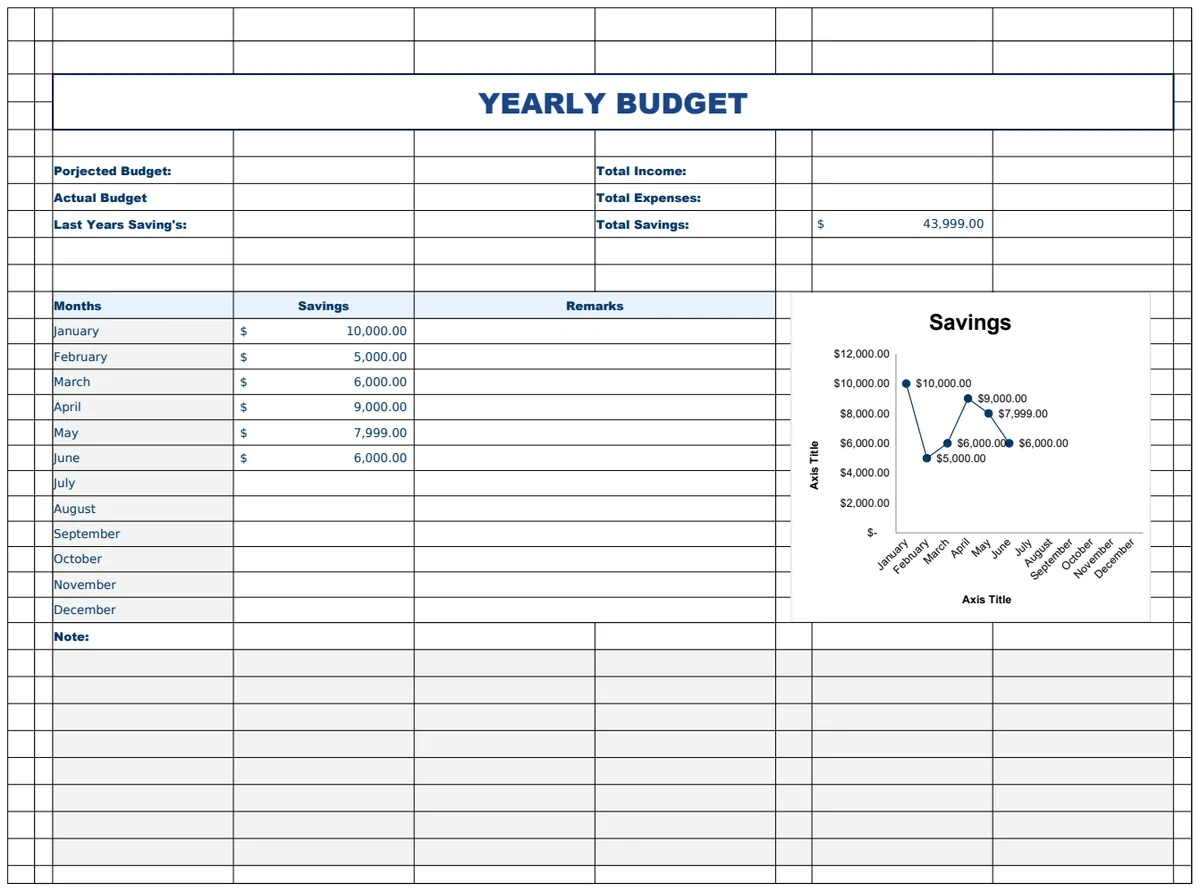
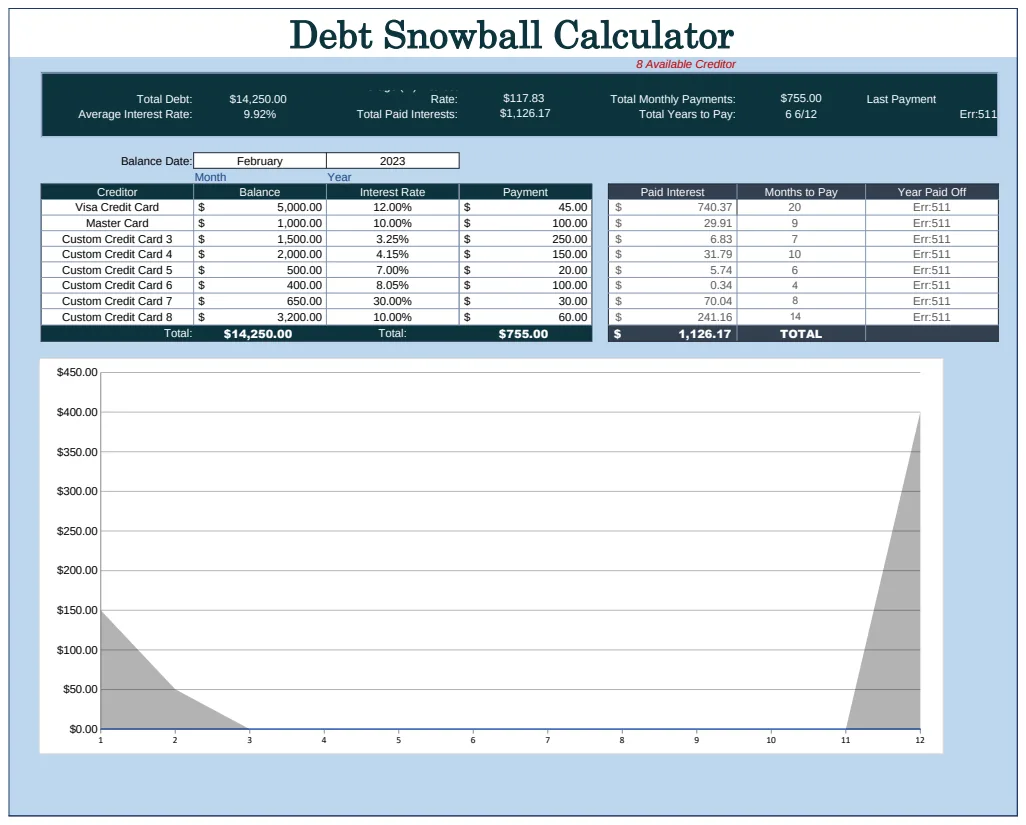
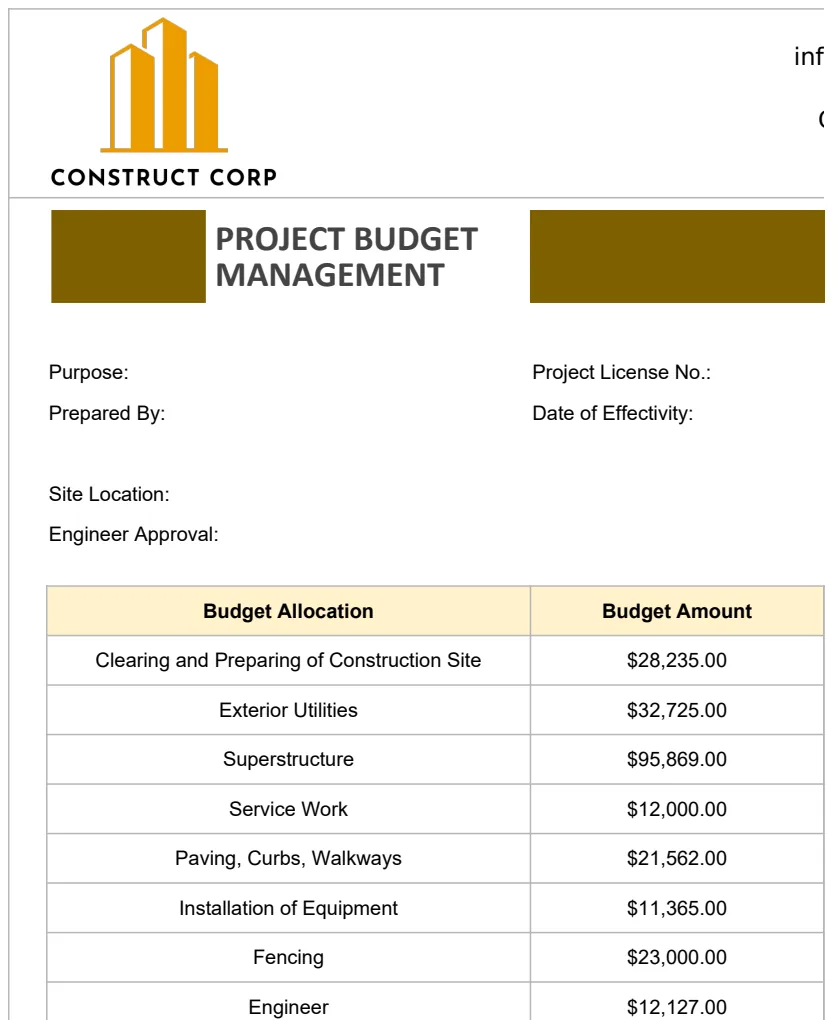
Google Sheets budget template for simple expense tracking
Find a Google Sheets budget template free download that simplifies tracking your income and expenses with ease.
Many people assume a "Google Sheets budget template free download" means they'll get a bare-bones spreadsheet with little guidance. In reality, a well-designed template can offer sophisticated features like automatic calculations, spending category breakdowns, and year-over-year comparisons, all within a familiar Google Sheets interface. Finding a truly useful free download often requires looking beyond the simplest options to those built with practical budgeting in mind.
You're likely looking for a tool that simplifies tracking your money, not complicates it. The ideal template should allow you to input your income and expenses, categorize them, and then instantly see where your money is going. This clarity is the first step towards gaining control over your personal finances.
Why a Google Sheets Budget Template is Your Best Bet
Google Sheets offers a fantastic platform for personal budgeting. It's accessible from any device, allows for easy collaboration if you share finances, and has powerful built-in functions that can automate many tedious calculations. Unlike static PDF templates or complex accounting software, Sheets provides flexibility. You can easily customize columns, add new categories, or even build in more advanced features like debt payoff calculators if you're feeling ambitious. For many, a robust Google Sheets budget template free download is the perfect starting point.
Essential Components of a Useful Budget Template
A truly effective budget template goes beyond just listing income and expenses. It should have distinct sections for:
- Income Tracking: Clearly list all sources of income, including salary, freelance work, or any other regular or irregular cash inflows.
- Fixed Expenses: A dedicated area for recurring bills like rent/mortgage, loan payments, insurance premiums, and subscriptions.
- Variable Expenses: This is crucial. It's where you track spending that fluctuates month-to-month, such as groceries, dining out, entertainment, and utilities.
- Savings & Investments: A section to allocate funds towards savings goals, retirement accounts, or other investment vehicles.
- Budget vs. Actual Analysis: This is the core of effective budgeting. The template should compare your planned spending (budget) against your actual spending for each category. This comparison highlights where you're overspending or underspending.
- Summary/Dashboard: A visual overview, often at the top or on a separate tab, showing your overall financial health for the period, net income, total expenses, and savings rate.
Building Your Own or Finding a Pre-Made Template
You have two main paths: build your own from scratch or adapt a pre-made Google Sheets budget template free download. Building your own gives you complete control, but it can be time-consuming. For most people, starting with a well-structured template and customizing it is more efficient. Look for templates that already have formulas set up for calculating totals, differences, and percentages.
If you're managing household finances, a template like the Home Budget Planner Template can provide a solid foundation. It's designed with common personal budgeting needs in mind and includes features for monthly analysis.
Key Formulas to Look For (or Implement)
A good template will have formulas that do the heavy lifting. Here are a few you'll want to see or can add:
- SUM: Used to total up income, expenses, and savings for each category. For example, in a row for "Groceries," you might have
=SUM(C2:C30)if your daily grocery expenses are in cells C2 through C30. - SUMIFS: Essential for comparing budget to actual. If your budget is in column B and actual spending is in column C, and your expense categories are in column A, you might use
=SUMIFS(C:C, A:A, "Groceries")to sum all actual spending for "Groceries." - Simple Subtraction: To find the difference between budget and actual. If your budget for "Dining Out" is in B5 and your actual spending is in C5, the difference would be
=C5-B5. A negative number here means you spent less than budgeted. - Conditional Formatting: This is a visual aid. You can set rules to automatically color-code cells. For instance, if the "Difference" cell (actual minus budget) is negative, make it green (under budget). If it's positive, make it red (over budget).
A Walkthrough: Setting Up Your Monthly Budget
Let's walk through setting up a basic monthly budget in Google Sheets. You can adapt this structure to any template you download.
- 01Create New Sheet: Open a new Google Sheet and rename the tab "Monthly Budget."
- 02Set Up Headers: In row 1, create headers like: "Category," "Budgeted," "Actual," "Difference," and "% of Income."
- 03List Income: In the "Category" column (A), starting in row 3, list your income sources. In the "Budgeted" column (B), enter the expected amount for each. If you have irregular income, you might use an average or a conservative estimate.
- 04Calculate Total Income: In row below your income list, say row 5, in column B, enter a formula like
=SUM(B3:B4)(assuming your income sources are in B3 and B4). Label this cell "Total Income." - 05List Expenses: Starting in row 7, list your expense categories (e.g., Rent/Mortgage, Utilities, Groceries, Transportation, Entertainment, Debt Payments, Savings).
- 06Enter Budgeted Expenses: In column B, next to each expense category, enter the amount you plan to spend.
- 07Enter Actual Expenses: In column C, as you spend money throughout the month, enter the actual amounts spent for each category. You might do this daily or weekly.
- 08Calculate Differences: In column D, for each expense row, enter a formula to find the difference:
=B8-C8(assuming budget is in B8 and actual in C8). This shows how much you are under or over budget. - 09Calculate % of Income: In column E, for each expense row, enter a formula to see what percentage of your total income this expense represents:
=C8/$B$5(assuming actual spending is in C8 and total income is in B5). Important: The dollar signs$lock the reference to cell B5 so it doesn't change as you drag the formula down. Format this column as a percentage. - 10Calculate Total Expenses: Below your expense list, in column B, use
=SUM(B8:B20)(adjusting the range for your expense rows) to get your total budgeted expenses. Do the same in column C for total actual expenses. - 11Calculate Net Income/Savings: In a row below total expenses, calculate your net:
=TotalIncome_Cell - TotalExpenses_Cell. For example, if Total Income is in B5 and Total Budgeted Expenses are in B21, the net budgeted would be=B5-B21. Do the same for actuals.
This process gives you a clear picture of your financial plan and reality.
Common Mistakes to Avoid
- Not Tracking Every Expense: Even small, seemingly insignificant purchases add up. If you don't track them, your "Actual" column will be inaccurate.
- Unrealistic Budgeting: Setting a budget that's too restrictive is a recipe for failure. Be honest about your spending habits and build a budget you can realistically stick to. It's okay to adjust.
- Forgetting Irregular Expenses: Things like annual insurance premiums, holiday gifts, or car maintenance don't happen every month. You need to either save for them monthly or account for them in your budget. A sinking fund approach works well here.
- Not Reviewing and Adjusting: A budget isn't a set-it-and-forget-it tool. Life changes, and your budget should too. Review it monthly, or even weekly, to ensure it still aligns with your goals and circumstances.
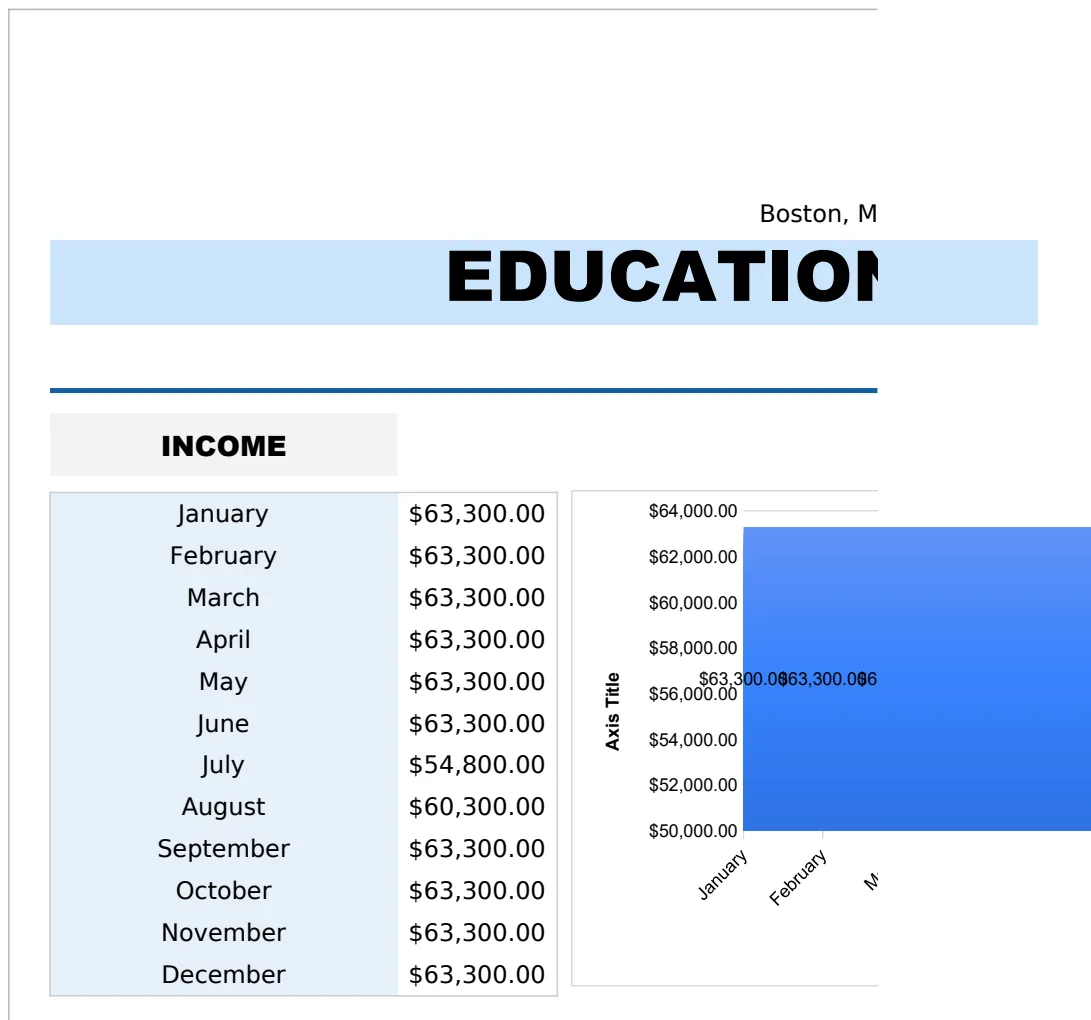
- Using Overly Complex Templates: While advanced features are great, if you're just starting out, a simple, clear template is much more effective than one with dozens of tabs and confusing formulas. For educational institutions needing to manage funds, templates like the School Budget Template or the more detailed Education Annual School Budget Template are designed for that specific purpose.
What if my income varies significantly each month?
If your income fluctuates, it's best to budget based on your lowest anticipated income. Any extra income received can then be allocated directly to savings, debt repayment, or fun money, rather than being relied upon for essential expenses. Alternatively, you can average your income over a few months, but be cautious with this approach to avoid overspending.
How often should I update my budget?
For most people, updating their budget weekly is ideal for tracking variable expenses like groceries and entertainment. This frequency helps you catch overspending early in the month. However, you should at least review your entire budget at the end of each month to see how you did and prepare for the next month.
Can I use a template for more than just personal finances?
Absolutely. The principles of budgeting apply to many areas. For instance, a Education Budget Proposal Sheet Template is designed for managing funding requests and program budgets within educational settings, demonstrating the versatility of spreadsheet-based financial planning. The core concepts of tracking income, expenses, and comparing plans to reality remain the same.
What if I want to track my budget on my phone?
Google Sheets has excellent mobile apps for both Android and iOS. You can log expenses on the go directly from your phone. Simply download the Google Sheets app, open your budget file, and make your entries. This makes it easy to keep your tracking up-to-date no matter where you are.