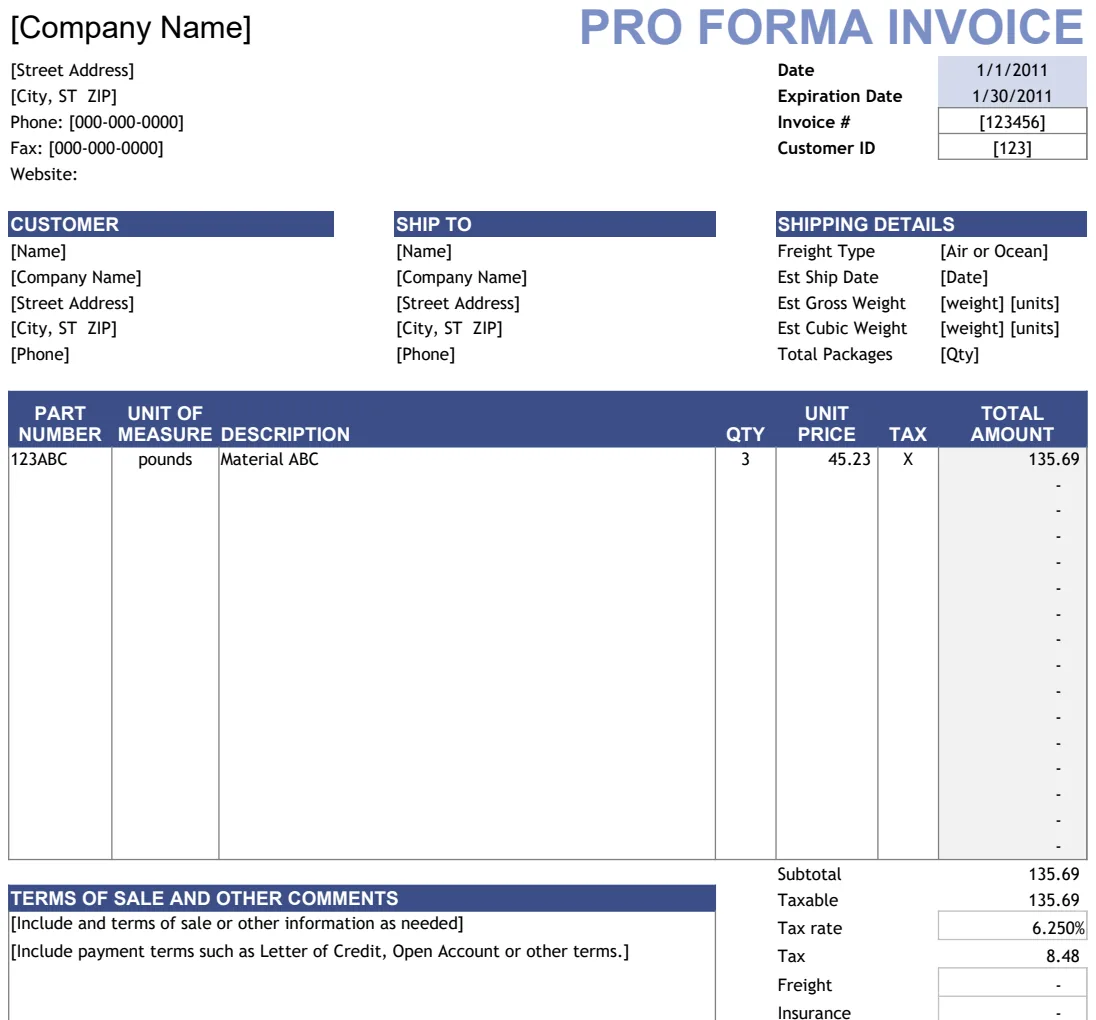
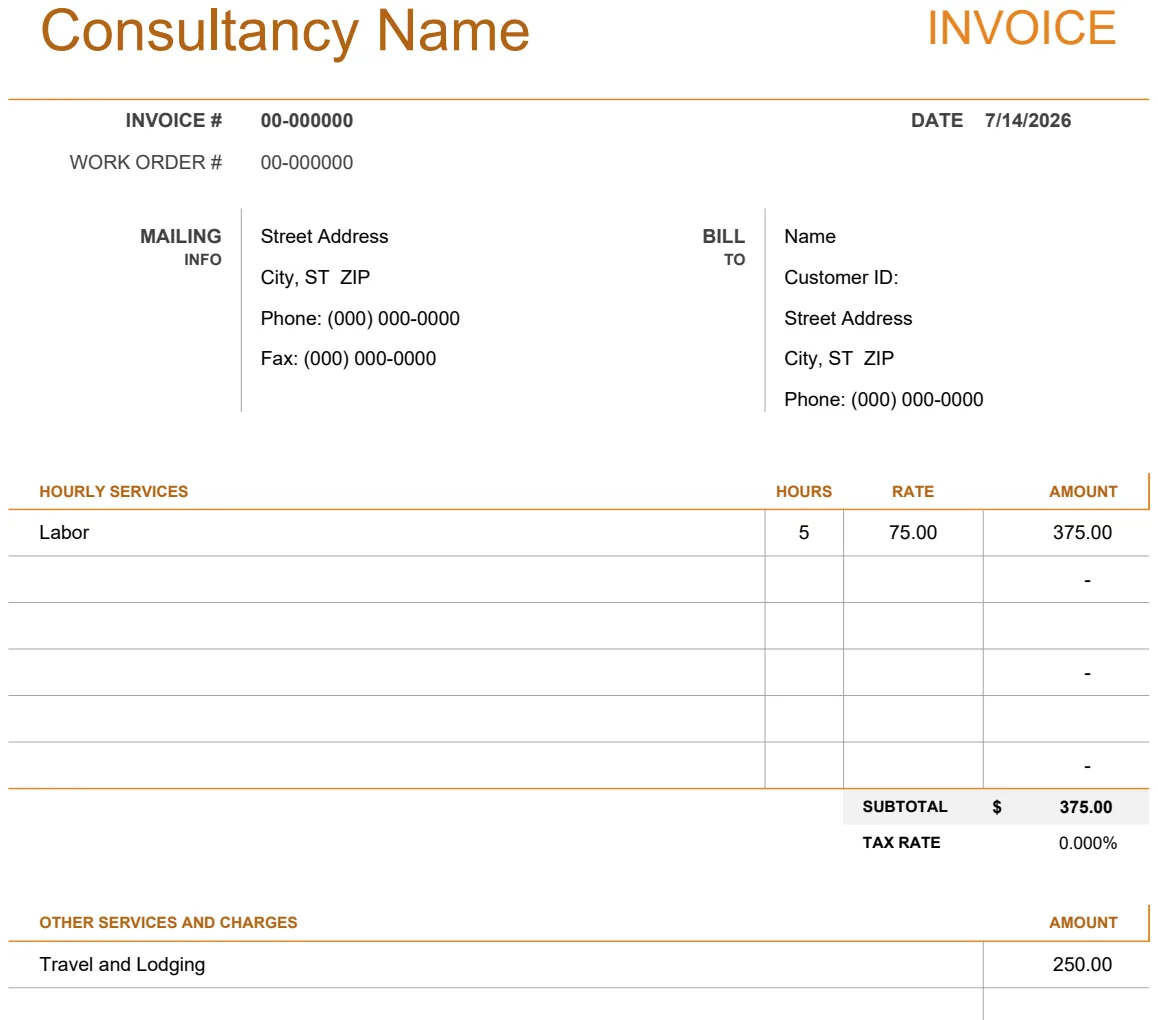
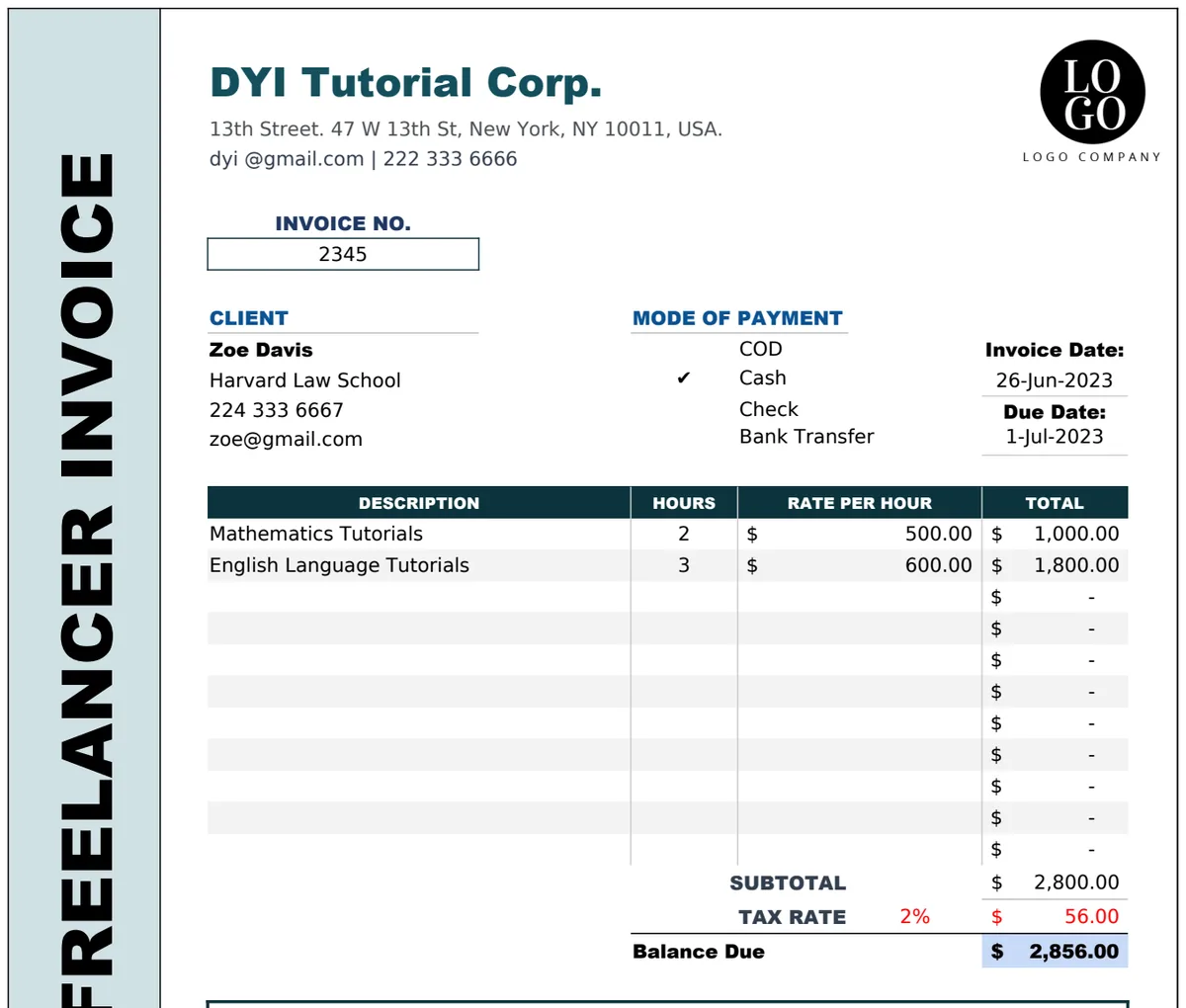
Google Sheets invoice template for easy small business billing
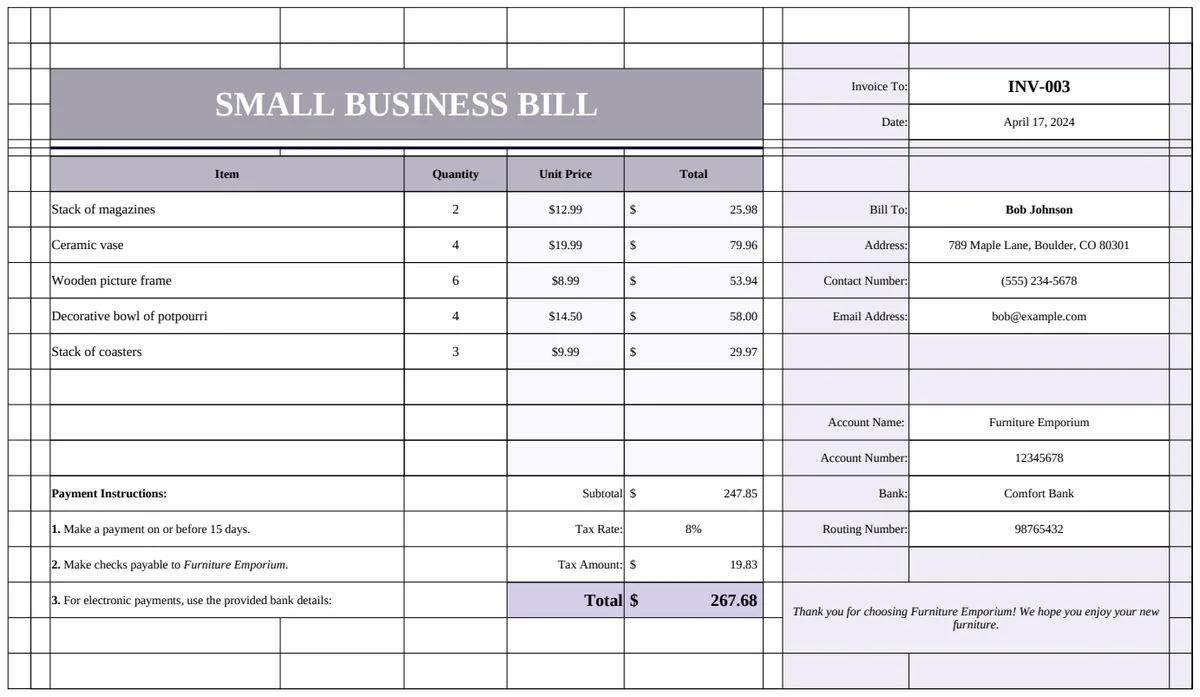
This small business invoice template for Google Sheets simplifies billing, automates calculations, and presents a professional image to clients.
The Subtotal column often trips up new invoice creators. It’s not just Quantity * Unit Price; you’ll need to account for discounts and taxes applied at the line-item level if your small business invoice template Google Sheets setup requires it. Getting this calculation right from the start prevents confusing discrepancies later.
Many small business owners cobble together invoices using word processors or basic spreadsheets, which quickly becomes unmanageable. A dedicated small business invoice template Google Sheets offers structure, automates tedious calculations, and presents a polished, professional image to your clients. This saves you time and reduces errors, freeing you to focus on growing your business.
Essential Columns for Your Invoice
A well-structured invoice needs specific data points. Beyond the obvious client and company details, consider these columns:
- Invoice Number: A unique identifier for each invoice. This is critical for tracking and reference.
- Invoice Date: The date the invoice is issued.
- Due Date: Clearly state when payment is expected.
- Item/Service Description: Be precise about what you provided.
- Quantity: How many units of a product or hours of service.
- Unit Price: The cost per item or hour.
- Line Item Discount (%): If applicable, a percentage discount for that specific item.
- Line Item Tax (%): If tax is applied per item.
- Line Item Subtotal: The calculated total for that line item (
Quantity * Unit Priceminus discount, then potentially with tax). - Tax Rate (Overall): A general tax rate for the entire invoice, if not handled per item.
- Subtotal (Before Tax): The sum of all Line Item Subtotals.
- Total Tax Amount: The total tax to be added to the invoice.
- Total Amount Due: The final figure the client needs to pay.
- Payment Status: (e.g., "Unpaid," "Paid," "Partially Paid").
Setting Up Your Google Sheet Invoice
Let’s walk through building a basic structure. Open a new Google Sheet.
- 01Column Headers: In the first row (Row 1), enter your column headers. For example: A1:
Invoice #, B1:Invoice Date, C1:Client Name, D1:Item/Service, E1:Quantity, F1:Unit Price, G1:Line Total. - 02Data Formatting:
- Select columns B (
Invoice Date) and format them as Dates (Format > Number > Date). - Select columns E (
Quantity) and format as Numbers (Format > Number > Number). You might want to set decimal places to 0 or 2 depending on your business. - Select columns F (
Unit Price) and G (Line Total) and format as Currency (Format > Number > Currency).
- 03Formula for Line Total: In cell G2 (assuming your data starts on Row 2), enter the formula:
=E2*F2. This multiplies quantity by unit price. Drag the fill handle (the small square at the bottom right of cell G2) down to apply this formula to all rows where you’ll list items. - 04Adding a Grand Total: Below your item list, dedicate a row for the grand total. Let’s say your items go down to Row 10. In A12, you might type
Subtotal:. In B12, use the formula=SUM(G2:G10)to sum all your line totals. This gives you the subtotal before tax. - 05Adding Tax and Final Total: If you need to add a fixed tax percentage, say 5%, you could add another row. In A13, type
Tax (5%):. In B13, enter=B12*0.05. Then, for your finalTotal Due(A14), typeTotal Due:and in B14, enter=B12+B13.
This basic setup provides a functional invoice. For more advanced features like client lookup or automatic invoice numbering, a pre-built template is invaluable.
Automating Calculations and Data Entry
Manually calculating subtotals, taxes, and totals is prone to error. Google Sheets formulas can handle this automatically.
- Line Item Subtotals: As shown above,
=Quantity * Unit Priceis the basic. If you have line-item discounts, it becomes more complex. For a discount percentage in column H, the formula in G2 would be=(E2*F2)*(1-H2). - Summing Totals: The
SUM()function is your friend for adding up line items before tax. - Calculating Tax: If you have a single tax rate for the entire invoice, apply it to the pre-tax subtotal. If you have different tax rates for different items, you'll need a more sophisticated setup, perhaps using helper columns or even Apps Script.
- Invoice Numbering: For automatic invoice numbering, you’ll typically need a separate sheet to track the last used number and increment it with each new invoice. This is a common feature in more advanced templates.
Professional Design and Branding
While functionality is key, the appearance of your invoice matters. A professional invoice builds trust.
- Company Logo: Add your company logo at the top.
- Branding Colors: Use your brand colors sparingly in headings or borders.
- Clear Formatting: Ensure fonts are readable and spacing is consistent. Avoid clutter.
- Payment Terms: Clearly state your payment terms (e.g., "Net 30," "Due upon receipt") and accepted payment methods.
A well-designed small business invoice template Google Sheets can elevate your brand perception instantly.
Common Mistakes to Avoid
Many businesses make avoidable errors on their invoices.
- Missing Information: Forgetting your company’s contact details, or the client’s full name and address.
- Incorrect Calculations: Typos in formulas or manual math errors are common. This is where automation saves the day.
- Ambiguous Descriptions: Vague descriptions for services or products lead to client confusion and payment delays.
- No Clear Due Date: Failing to state when payment is expected can lead to informal payment schedules.
- Inconsistent Invoice Numbers: Skipping numbers or reusing them makes tracking a nightmare.
- Forgetting Sales Tax: This can lead to penalties if you're not remitting the correct amount.
When to Use a Template
While building your own invoice tracker in Google Sheets is educational, it’s often more efficient to use a pre-built solution, especially when starting out or scaling. Templates provide tested formulas and a structured layout, saving you hours of setup and debugging.
For a ready-to-use solution that handles item lookup and invoice number generation, consider the Small Business Bill Template. If you need a more comprehensive system with a customer database and product catalog integrated into your invoicing, the Business Invoice Template is an excellent choice. For businesses focused on tracking payments and customer details alongside invoicing, the Small Business Payment Template offers a robust solution. Service-based businesses can benefit from the automatic calculations in the Sellers Invoice template.
What if my business has variable tax rates?
If your business sells items that fall under different tax jurisdictions or tax rates, a simple single-tax formula won't suffice. You'll need to add a column for "Tax Rate (%)" specific to each line item. Then, your line item subtotal formula would need to incorporate this dynamic rate. For example, if your Line Item Subtotal is in G2 and the Tax Rate % is in I2, the formula for the actual tax on that line might be =G2*I2. You would then sum these individual tax amounts for the invoice's total tax. This complexity is a prime reason many opt for advanced templates or dedicated invoicing software.
How can I ensure my invoice numbers are always unique?
The most reliable way to ensure unique invoice numbers is to use a separate sheet in your Google Sheet to track the last used number. You can have a single cell on this "Settings" or "Tracker" sheet that holds the highest invoice number issued so far. When you create a new invoice, your template can reference this number, increment it by one, and then update the "last used" number on the tracker sheet. Some templates also incorporate a timestamp or client ID into the invoice number for added uniqueness, though this can sometimes make them harder to read.
Can Google Sheets automatically send invoices?
Google Sheets itself cannot directly send emails with attached invoices without some customization. However, you can use Google Apps Script to automate this. A script can be written to generate a PDF of your invoice from the sheet and then send it as an email attachment to a specified client email address. This requires scripting knowledge. Alternatively, many dedicated invoicing platforms integrate with Google Sheets or offer similar automation features as part of their service.
What's the benefit of using a template versus building from scratch?
Building an invoice template from scratch allows for complete customization, but it's time-consuming and error-prone. You have to design the layout, write every formula, and test for accuracy. A template, on the other hand, provides a pre-built, tested structure. This means you get a functional invoice system much faster. Templates often include features like automatic calculations, data validation, and professional design elements that you might not think to include or know how to implement yourself. For a one-time fee of $9, our library offers unlimited downloads of various templates, saving significant time and effort.