Google Sheets vs. Excel: Which lead tracker wins?
Discover how to build an effective lead tracking system in Excel or Google Sheets, moving beyond free templates to close more deals.
A common misconception is that a lead tracking spreadsheet template free of charge will automatically organize your sales pipeline. In reality, the template is just a starting point; its effectiveness hinges entirely on how you structure your data and the formulas you employ to analyze it. Getting this right means you can shift from reactive follow-ups to proactive sales strategies.
This guide will walk you through building a functional lead tracking system in Excel or Google Sheets, covering essential columns, formula examples, and common pitfalls to avoid. We'll focus on creating a system that actually helps you close more deals.
Essential Columns for Your Lead Tracker
To effectively track leads, you need a consistent set of data points. Think about the journey of a lead from initial contact to a closed deal. Each step requires specific information.
Here are the core columns you should include:
- Lead Source: Where did this lead come from? (e.g., Website, Referral, Cold Call, Event, Social Media). This helps you understand which channels are most effective.
- Company Name: The name of the business you're engaging with.
- Contact Person: The primary individual you're speaking with at the company.
- Contact Title: Their job title. This can help you tailor your approach.
- Email Address: Direct contact information.
- Phone Number: Another vital contact point.
- Lead Status: Where is this lead in your sales process? (e.g., New, Contacted, Qualified, Proposal Sent, Negotiation, Closed Won, Closed Lost).
- Last Contact Date: When was the last time you interacted with this lead? Crucial for follow-up cadences.
- Next Follow-up Date: When is your next planned interaction? This keeps you proactive.
- Notes/Activity Log: A brief summary of recent conversations, key discussion points, or next steps.
- Deal Value (Estimated): An approximate monetary value of the potential deal.
- Close Date (Estimated): Your best guess for when the deal might close.
- Assigned To: If you work in a team, who is responsible for this lead?
Setting Up Your Spreadsheet
Let's get practical. Open a new spreadsheet in Excel or Google Sheets. Name your first sheet something clear, like "Lead Tracker."
Enter your chosen column headers in the first row. For example, in cell A1, type "Lead Source"; in B1, "Company Name"; and so on, following the list above.
Formatting for Clarity and Functionality
Once your headers are in place, apply some basic formatting to make the sheet easier to read and use.
- 01Bold Headers: Select the first row and make the text bold.
- 02Freeze Panes: To keep your headers visible as you scroll down, go to the "View" tab (in Excel) or "View" menu (in Google Sheets) and select "Freeze" > "Freeze Top Row." This is a small step that significantly improves usability.
- 03Data Validation for Status: For the "Lead Status" column, using data validation is a smart move. This creates a dropdown list of your defined statuses, preventing typos and ensuring consistency.
- In Excel: Select the cells in the "Lead Status" column (e.g., C2 down to C1000). Go to "Data" > "Data Validation." Under "Allow," choose "List." In the "Source" box, type your statuses separated by commas (e.g.,
New,Contacted,Qualified,Proposal Sent,Negotiation,Closed Won,Closed Lost). - In Google Sheets: Select the cells in the "Lead Status" column. Go to "Data" > "Data validation." Under "Criteria," choose "List of items." Enter your statuses separated by commas in the box provided.
- 04Date Formatting: Format the "Last Contact Date" and "Next Follow-up Date" columns as dates. Select the columns, then go to "Format" > "Number" > "Date."
Formulas to Enhance Your Tracker
A simple list is a start, but formulas bring intelligence to your data. Here are a few essential ones.
Tracking Overdue Follow-ups
You need to know which leads require immediate attention. This formula highlights leads where the "Next Follow-up Date" has passed and the lead is not yet closed.
Assume your columns are:
- "Next Follow-up Date" is in column J.
- "Lead Status" is in column C.
You can use conditional formatting for this. Select the entire range of your data (e.g., A2:M1000). Go to "Conditional Formatting."
Create a new rule:
- In Excel: Choose "Use a formula to determine which cells to format." Enter the formula:
=AND(J2<TODAY(), C2<>"Closed Won", C2<>"Closed Lost") Then, choose a formatting style, like a light red fill, to make overdue tasks stand out.
- In Google Sheets: Under "Format rules," choose "Custom formula is." Enter the formula:
=AND(J2<TODAY(), C2<>"Closed Won", C2<>"Closed Lost") Select your desired formatting style.
This formula checks if the "Next Follow-up Date" is before today's date AND the "Lead Status" is neither "Closed Won" nor "Closed Lost."
Counting Leads by Status
Understanding your pipeline's health means knowing how many leads are in each stage. Use the COUNTIFS function.
Let's say you want to count how many leads are "Qualified." In an empty cell, perhaps on a separate "Dashboard" sheet, you could write:
=COUNTIFS('Lead Tracker'!C:C, "Qualified")
(Replace 'Lead Tracker' with your sheet name if it's different, and adjust column C if your "Lead Status" is elsewhere.)
You can repeat this for each status to get a quick overview. For a more sophisticated overview, consider a template like the Lead Tracking Dashboard, which automates these counts and visualizations.
Calculating Total Estimated Deal Value
To project potential revenue, sum the "Deal Value" for all leads that are not yet "Closed Lost."
If "Deal Value" is in column K and "Lead Status" is in column C:
=SUMIFS('Lead Tracker'!K:K, 'Lead Tracker'!C:C, "<>Closed Lost")
This formula sums the values in column K only for rows where the "Lead Status" in column C is anything other than "Closed Lost."
Tracking Lead Sources Effectively
Knowing where your leads come from is critical for optimizing marketing spend and sales efforts. Beyond just listing the source, you can use formulas to analyze performance.
For instance, you might want to see the total estimated deal value broken down by lead source. On your "Dashboard" sheet, you could use:
=SUMIFS('Lead Tracker'!K:K, 'Lead Tracker'!A:A, "Website")
(Assuming "Deal Value" is column K, "Lead Source" is column A, and you're looking for "Website" leads.)
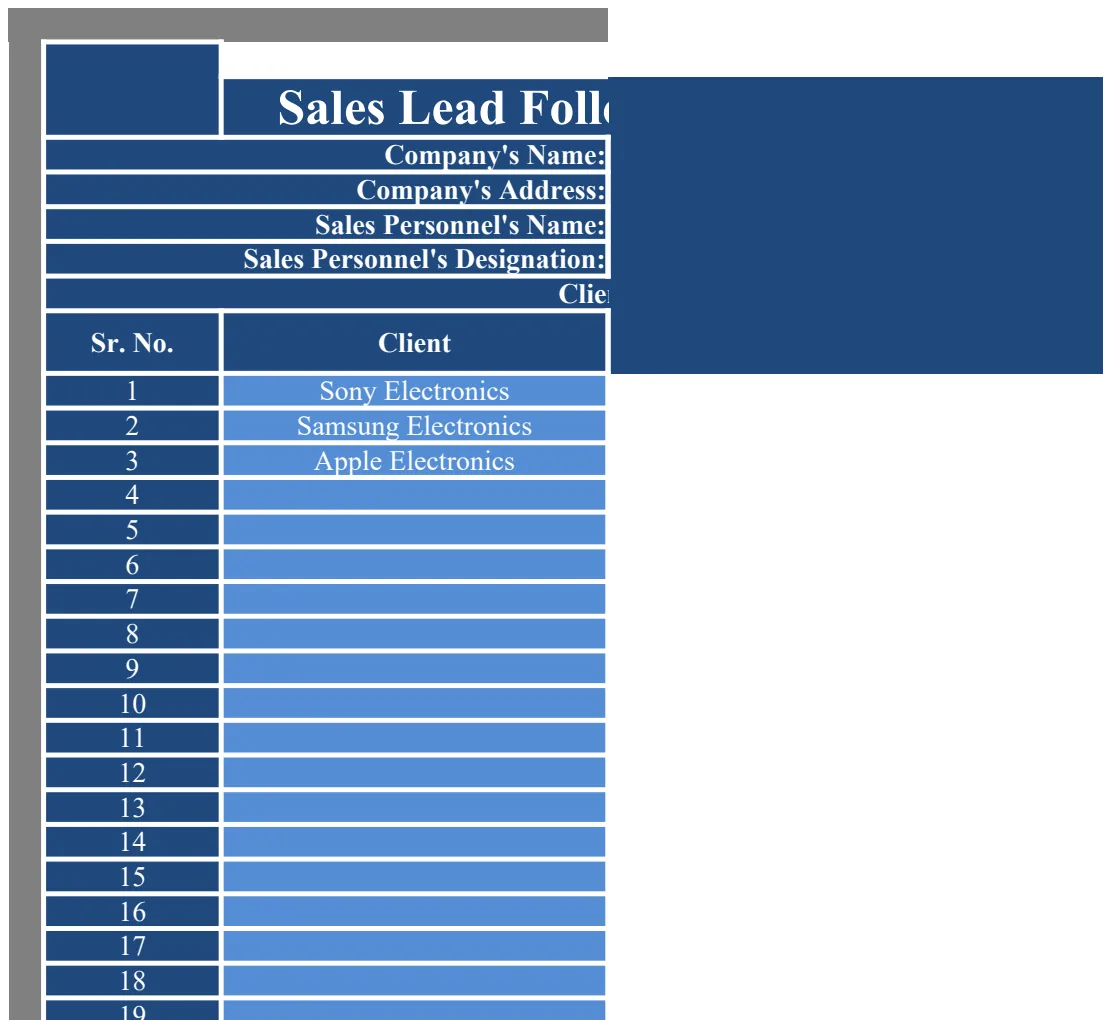
Repeat this for each lead source. A template like the Sales Lead Follow Up Planner can help manage the follow-up process for leads from various sources more systematically.
Avoiding Common Spreadsheet Mistakes
Even with a great template, errors can derail your tracking.
- Inconsistent Data Entry: This is the most frequent culprit. If one person enters "Website" and another "Web," your counts and analyses will be broken. Data validation, as mentioned earlier, is your best defense here.
- Ignoring the "Closed Lost" Status: Too many people let lost leads linger in their active pipeline. Regularly review and move these to a "Closed Lost" status. This keeps your active pipeline clean and your projections accurate.
- Not Updating Regularly: A lead tracker is only useful if it's current. Schedule dedicated time each day or week to update statuses, add notes, and set follow-up dates.
- Overly Complex Formulas: While advanced formulas are powerful, start with the basics. Master
COUNTIFSandSUMIFSbefore diving into array formulas orXLOOKUPunless absolutely necessary. - Poorly Defined Lead Statuses: If your statuses are vague (e.g., "Contacted," "Followed Up"), it’s hard to know what they truly mean. Be specific: "Initial Contact Made," "Information Provided," "Needs Follow-up."
Common Questions About Lead Tracking Spreadsheets
How do I track my sales activities for each lead?
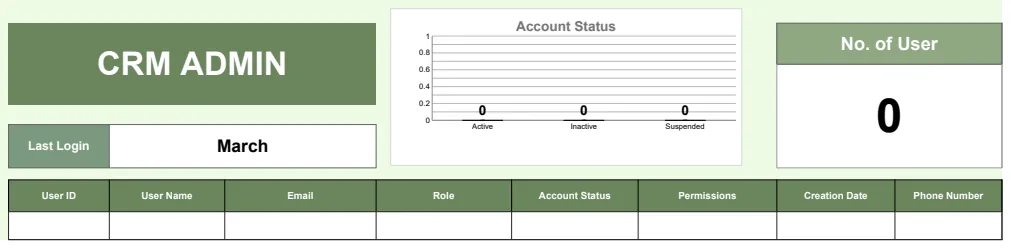
You can dedicate a "Notes/Activity Log" column for brief summaries. For more detailed tracking, consider creating a separate sheet linked to your main tracker by a unique lead ID. This secondary sheet could log dates, activity types (call, email, meeting), and notes for each interaction. Alternatively, a robust CRM or a specialized template like the IC CRM Template offers dedicated fields for activity logging.
Can I use this to predict future sales?
Yes, to some extent. By analyzing the "Estimated Deal Value" and "Estimated Close Date" for leads in later stages (e.g., "Proposal Sent," "Negotiation"), you can build a sales forecast. Tools like the Weekly KPI Template can help you track these forecasting metrics over time, allowing you to refine your predictions based on historical conversion rates.
What if I have too many leads for one sheet?
If your lead volume becomes unmanageable in a single sheet, you might need to split your data. Common approaches include:
- 01By Time Period: Have separate sheets for "Leads 2026 Q1," "Leads 2026 Q2," etc.
- 02By Lead Source: If certain sources generate significantly more volume, they might warrant their own tracking sheet.
- 03By Sales Rep: If you have a team, each rep could manage their own section or sheet, with a master sheet for oversight.
Regardless of the method, ensure you can still aggregate data across sheets for overall analysis. This might involve using formulas like SUM(Sheet1!A1:A100, Sheet2!A1:A100) or more advanced techniques depending on your spreadsheet software.
Ultimately, a well-structured lead tracking spreadsheet, whether you start with a free template or build your own, is a dynamic tool. It requires consistent input and thoughtful analysis to truly drive your sales forward.