Google Sheets CRM vs. manual tracking: which saves you time?
Explore the effectiveness of a simple CRM template in Google Sheets versus manual tracking for saving valuable time and improving data management.
The most common reason a simple CRM template in Google Sheets fails isn't a lack of features, but a lack of consistent data entry. People start strong, but as contacts pile up and deals progress, the sheets become a jumbled mess of inconsistent notes, duplicate entries, and half-filled fields. This is why you're searching for a simple CRM template Google Sheets free solution that encourages good habits.
A well-structured template can guide your data entry, but ultimately, it’s your commitment to accuracy that makes it work. Without a clear process for logging every interaction, tracking progress, or updating deal stages, even the most elegant spreadsheet will quickly become unusable. Let's look at how to set up and use a Google Sheet as a functional CRM that actually helps you manage your leads and customers.
Why a Simple CRM Matters
You don't need a complex, multi-thousand-dollar software suite to manage your sales pipeline, especially when you're starting out or have a smaller client base. A well-organized Google Sheet can be surprisingly powerful. It provides a central place to store contact information, track interactions, monitor deal progress, and identify opportunities. The key is "well-organized." Without that, it's just a list.
When your contacts and deal information are scattered across emails, sticky notes, and random documents, you lose valuable time searching for details. You might miss follow-up opportunities, forget crucial client preferences, or struggle to forecast your sales accurately. A simple CRM addresses these pain points directly by consolidating everything you need into one accessible, searchable location.
Core Components of Your Google Sheets CRM
To build an effective CRM in Google Sheets, you need to define the essential data points you'll track. Think about what information is critical for you to move a lead from initial contact to a closed deal. For most users, this includes:
- Company Name: The name of the organization you're engaging with.
- Contact Person: The primary individual you're communicating with.
- Contact Email: Their email address for communication.
- Contact Phone: Their phone number.
- Lead Source: Where did this lead come from (e.g., Website, Referral, Event, Cold Outreach)?
- Status: What is the current stage of this lead or deal (e.g., New, Contacted, Qualified, Proposal Sent, Negotiation, Closed Won, Closed Lost)?
- Last Contact Date: The date of your most recent interaction.
- Next Follow-Up Date: When you plan to reach out again.
- Deal Value (Optional): The estimated monetary value of the potential deal.
- Notes/Key Information: A space for any relevant details about the contact, their needs, or your conversation.
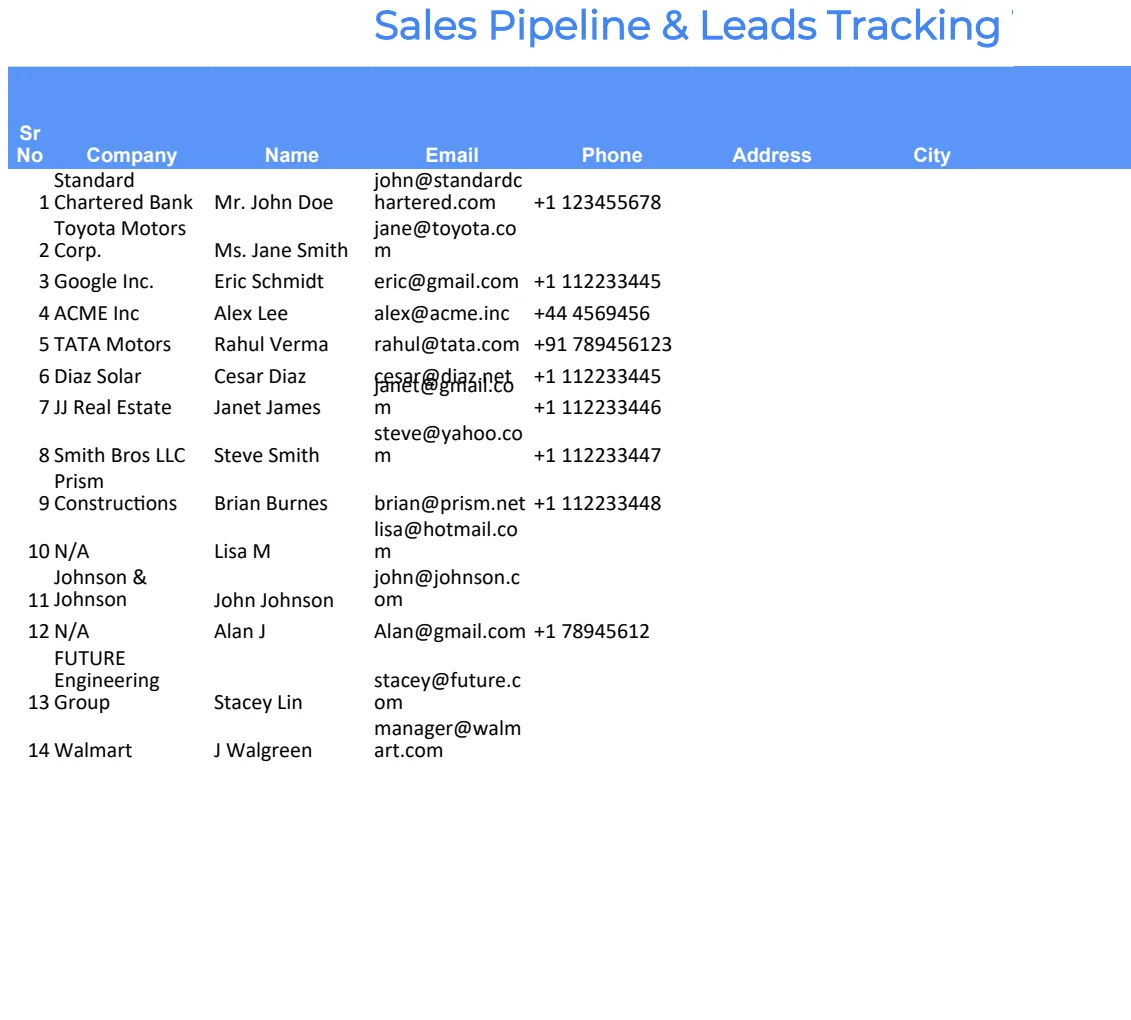
These columns form the backbone of your CRM. You can add more as needed, but start with these to keep it manageable. For a more robust data management solution, consider a template designed for larger datasets, like the CRM Datasheet Excel Template, which offers advanced features for tracking and reporting.
Setting Up Your Google Sheet
Let’s walk through creating a basic CRM sheet. You can start with a blank Google Sheet and set up the columns described above.
- 01Create a New Sheet: Open Google Sheets and start a new blank spreadsheet.
- 02Add Column Headers: In the first row (Row 1), enter your chosen column headers. For example, in cell A1, type "Company Name"; in B1, type "Contact Person"; and so on.
- 03Format Headers: Make your headers stand out. Select Row 1, then use the formatting tools to make the text Bold and perhaps add a background color. This helps visually separate your data from your headers.
- 04Freeze Header Row: To ensure your headers are always visible as you scroll down, click on cell A2, then go to
View > Freeze > 1 row. - 05Data Validation for Status: This is crucial for consistency.
- Select the entire "Status" column (e.g., Column F, starting from F2 downwards).
- Go to
Data > Data validation. - Under "Criteria," choose "List from a range" or "List of items."
- If using "List of items," type your status options separated by commas (e.g.,
New, Contacted, Qualified, Proposal Sent, Negotiation, Closed Won, Closed Lost). If you have many statuses, it might be easier to list them in a separate small range on another sheet (e.g., cells Z1:Z7) and then select that range for your data validation. - Ensure "Show dropdown list in cell" is checked.
- Click "Save."
Now, each cell in the Status column will have a dropdown, forcing users to select from your predefined options.
- 06Formatting Dates: For your "Last Contact Date" and "Next Follow-Up Date" columns, select the columns, then go to
Format > Number > Date. This ensures dates are entered and displayed correctly. - 07Conditional Formatting for Follow-Ups: To highlight upcoming tasks, use conditional formatting.
- Select your "Next Follow-Up Date" column (e.g., Column H, from H2 downwards).
- Go to
Format > Conditional formatting. - Under "Format rules," select "Date is before" and choose "today." Set a background color (e.g., light red) to highlight overdue follow-ups.
- Add another rule: select "Date is on or after" and choose "tomorrow." Set a different background color (e.g., light yellow) to highlight upcoming follow-ups.
- Click "Done."
Making Your CRM Template Free and Usable
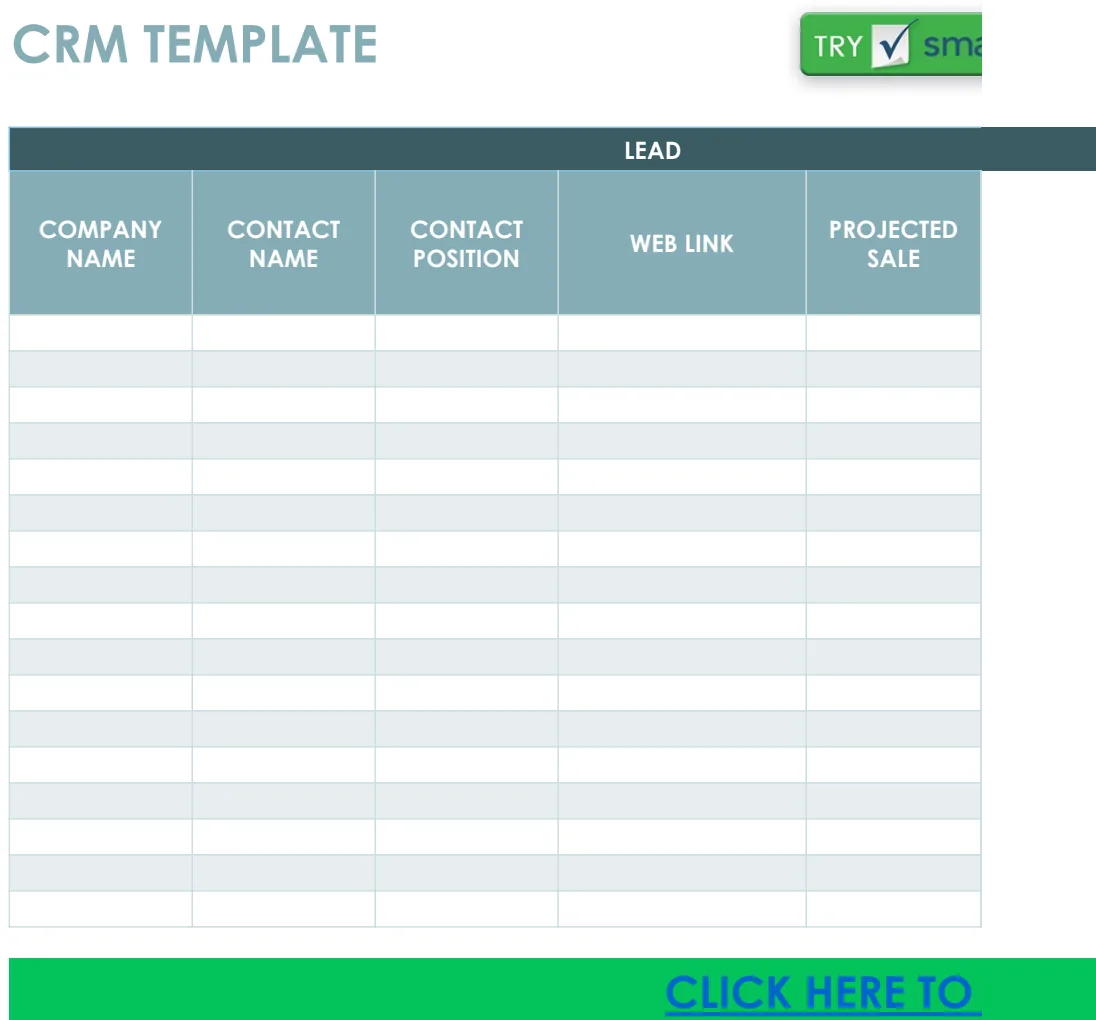
The beauty of Google Sheets is its accessibility. You can create this template yourself for free, or you can find many examples online. When looking for a simple CRM template Google Sheets free, prioritize templates that offer clear layouts and functional data validation, like the ones you can find in our library. For instance, a template like the IC CRM Template might provide a solid starting point with pre-defined columns for managing your sales pipeline effectively.
Remember, a "free" template is only as good as its structure and how well it fits your workflow. Don't be afraid to customize it. Add columns for specific industry needs, remove ones you don't require, or adjust the status options to match your sales process precisely.
Tips for Consistent Data Entry
The most sophisticated CRM system will fail without diligent data entry. Here are some habits to cultivate:
- Log interactions immediately: After a call, email, or meeting, update your CRM while the details are fresh in your mind.
- Use the "Notes" section wisely: Instead of full sentences, use bullet points for key takeaways, action items, or client preferences. This makes them easier to scan later.
- Update "Status" promptly: As a deal progresses, change its status. This keeps your pipeline accurate.
- Schedule follow-ups immediately: When you promise to follow up, enter that date into the "Next Follow-Up Date" column right away.
- Regularly review your sheet: Set aside 10-15 minutes each week to scan your CRM. Look for leads that haven't been touched in a while, check your upcoming follow-ups, and ensure everything is up-to-date.
Common Mistakes to Avoid
- Over-complication: Trying to track too much information at once leads to abandonment. Stick to the essentials.
- Inconsistent Statuses: If you have 20 variations of "contacted" (e.g., "called," "emailed," "left voicemail," "voicemail returned"), your "Status" column becomes meaningless. Standardize your terms.
- Ignoring the "Next Follow-Up Date": This is the engine of your sales activity. If it's not filled in, opportunities will fall through the cracks.
- Not Using Data Validation: Allowing free text in critical fields like "Status" or "Lead Source" invites typos and variations, making filtering and reporting impossible.
- Duplicate Entries: Failing to search if a contact already exists before adding them can clutter your database.
Advanced Tips and Next Steps
Once your basic Google Sheets CRM is running smoothly, you might consider adding more advanced functionalities.
Tracking Multiple Contacts per Company
If you deal with companies that have multiple contacts, you can handle this in a few ways. One approach is to create a new row for each contact but repeat the Company Name and Link them to a primary contact row. Another method is to add a "Contact Title" column and list multiple contacts within a single row, separated by semicolons, though this makes individual contact follow-up harder. For complex contact management within organizations, you might find dedicated CRM tools more suitable.
Calculating Conversion Rates
You can add a simple formula to calculate conversion rates. Assuming your "Status" column (F) has "Closed Won" and "Closed Lost" as options, and your total leads are in rows 2 through, say, 101:
In a separate cell, you could calculate the win rate: =COUNTIF(F2:F101, "Closed Won") / COUNTIF(F2:F101, "Closed Lost") To display this as a percentage, format the cell as a percentage. You can adapt this to count total leads or specific stages.
When to Consider a Dedicated CRM
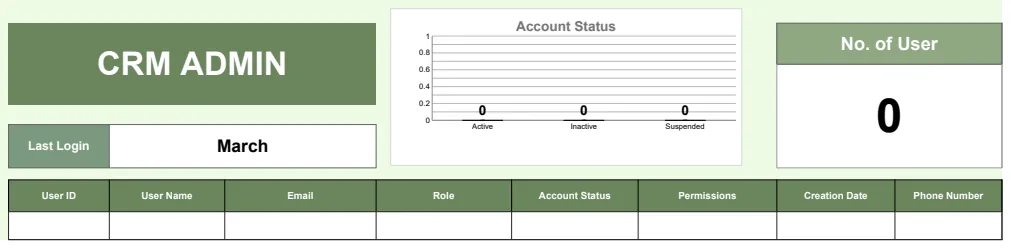
While a simple CRM template Google Sheets free can be highly effective, there comes a point when a dedicated CRM software might be necessary. If you're managing hundreds or thousands of leads, have a sales team of multiple people, need advanced automation, or require integrations with other business tools, a dedicated platform offers greater scalability and features. For managing user access and administrative logs related to a CRM, a template like the CRM Admin Template could be useful. The OpenWorksheet library offers a variety of templates that can serve as stepping stones or supplementary tools for sales and CRM management. Our entire library is available for a one-time purchase of $9, granting unlimited downloads.