How to make a bell curve in Excel (and use it for performance ratings)

Review season ends, the ratings land in HR, and one department has rated almost everyone "exceeds expectations" while another barely gave out a single top score. Same company, same scale, very different standards.
Review season ends, the ratings land in HR, and one department has rated almost everyone "exceeds expectations" while another barely gave out a single top score. Same company, same scale, very different standards. Somebody now has to decide whose rating is fair before pay decisions go out, and a table of numbers does not show the problem clearly.
A bell curve does. It plots how a set of scores is spread around the average, so you can see at once whether ratings are bunched at the top, centred or scattered. To make a bell curve in Excel, you calculate the mean and standard deviation, build a column of x values, use NORM.DIST to get the height of the curve at each point and chart the result as a smooth line. The steps below work for performance scores, exam marks or any other list of numbers. After that, we cover how HR teams use the curve for ratings, and where it goes wrong.
What a bell curve shows
A bell curve is the shape of a normal distribution: most values sit near the average and fewer sit at the extremes. Two numbers define it:
- Mean: the average, which sets the centre of the curve.
- Standard deviation: how spread out the values are. A small value gives a tall, narrow curve. A large value gives a low, wide one.
In a true normal distribution, roughly 68 percent of values fall within one standard deviation of the mean, about 95 percent within two and about 99.7 percent within three. Real data rarely fits perfectly, which is exactly why drawing the curve is useful: the gap between your data and the curve tells you something.
How to make a bell curve in Excel: step by step
Suppose your scores are in cells A2:A101.
Step 1: calculate the mean.
=AVERAGE(A2:A101)
Step 2: calculate the standard deviation.
=STDEV.S(A2:A101)
Use STDEV.P instead if the list is the whole population rather than a sample. For an entire company's review scores, either is defensible, and the difference is small on large lists.
Step 3: build the x axis. The curve should run from three standard deviations below the mean to three above. With a mean of 70 and a standard deviation of 10, that is 40 to 100. In column C, enter values in small steps: 40, 41, 42 and so on up to 100.
Step 4: calculate the curve height. In column D, next to each x value:
=NORM.DIST(C2, 70, 10, FALSE)
Replace 70 and 10 with cell references to your mean and standard deviation. FALSE asks for the height of the curve at that point. TRUE would give the cumulative area instead. At x = 70 the result is about 0.0399, which is the peak.
Step 5: chart it. Select columns C and D, go to Insert, choose Scatter and pick Scatter with Smooth Lines. Remove the gridlines and legend if you like, and you have a bell curve graph in Excel.
Compare your real data with the curve
A clean curve on its own says little about your data. The useful version overlays a histogram of real scores:
- 01Create score bins, such as 40 to 49, 50 to 59 and so on.
- 02Count the scores in each bin with
COUNTIFS. - 03Work out the expected count for each bin:
=(NORM.DIST(upper,mean,sd,TRUE)-NORM.DIST(lower,mean,sd,TRUE))*COUNT(A2:A101) - 04Plot actual counts as columns and expected counts as a line.
If the columns tower to the right of the line, scores are skewed high. Two humps usually mean two groups being scored differently.
Z-scores and percentiles
A z-score says how many standard deviations a value sits from the mean:
=(Score - Mean) / SD
With a mean of 70 and a standard deviation of 10, a score of 85 has a z-score of 1.5. To turn that into a percentile:
=NORM.S.DIST(1.5, TRUE)
The result is about 0.933, so this score sits around the 93rd percentile, assuming the scores are roughly normal.
Using a bell curve in performance appraisal
HR teams use the same maths for ratings, in three linked stages.
Weighted scores
Each employee is rated on several competencies, with weights that reflect the role. Suppose an employee scores:
- Job knowledge: rating 4, weight 30%
- Quality of work: rating 3, weight 30%
- Teamwork: rating 5, weight 20%
- Delivery: rating 4, weight 20%
Weighted score: (4 × 0.3) + (3 × 0.3) + (5 × 0.2) + (4 × 0.2) = 3.9
In Excel, with weights in B2:B5 and ratings in C2:C5:
=SUMPRODUCT(B2:B5, C2:C5) / SUM(B2:B5)
Forced distribution vs actual ratings
Forced distribution sets a target share of people at each rating. A common example is 10%, 20%, 40%, 20% and 10%. For 50 employees, compare the targets with what actually happened:
- Rating 5: target 5, actual 9
- Rating 4: target 10, actual 17
- Rating 3: target 20, actual 18
- Rating 2: target 10, actual 5
- Rating 1: target 5, actual 1
The top two ratings hold 26 people against a target of 15, so 11 more people sit at the top than planned. That does not prove anyone is over-rated. A strong team may deserve it. It does start the right conversation.
Calibration across departments
Rating style varies by manager. Calibration compares each department's mean and spread with the company's, then adjusts for the difference:
=CompanyMean + (Score - DeptMean) / DeptSD * CompanySD
Example: the company mean is 3.5 with a standard deviation of 0.5. A lenient department has a mean of 4.0 and a standard deviation of 0.4. An employee there scores 4.2. Their adjusted score is 3.5 + (0.2 / 0.4 × 0.5) = 3.75.
That adjusted score is a talking point for the calibration meeting, not an automatic verdict. Managers should see the raw score, adjusted score and rank side by side, choose the final rating and record why.
From final rating to increment and bonus
Final ratings usually feed pay decisions. Two common tools:
- Merit matrix: the raise depends on the rating and the employee's position in the salary range, so someone low in the range and rated highly gets a bigger increase.
- Bonus formula: salary × target bonus × rating multiplier × part-year factor.
Example with made-up rates: a salary of $50,000 with a 10% target, a 1.2 multiplier and 9 months of service gives $50,000 × 0.10 × 1.2 × 0.75 = $4,500.
Add up every award and compare it with your merit budget and bonus pool before anything is promised.
When a bell curve is the wrong tool
Forced ranking has real critics, and they have a point. Keep these limits in mind:
- Small teams rarely fit a curve. A team of six cannot be split into five rating levels in a meaningful way.
- Strong teams get punished. Forcing a quota of low ratings on a team of high performers damages trust.
- It can encourage competition over cooperation. If colleagues compete for a fixed number of top ratings, sharing knowledge can suffer.
- A curve is not a justification. Every rating still needs evidence. Check your employment rules and pay policy, and watch for patterns that treat any group unfairly.
Many companies now use the curve as a check rather than a rule: a way to spot lenient or harsh raters, not a quota to fill.
Evaluation sheet: what to include
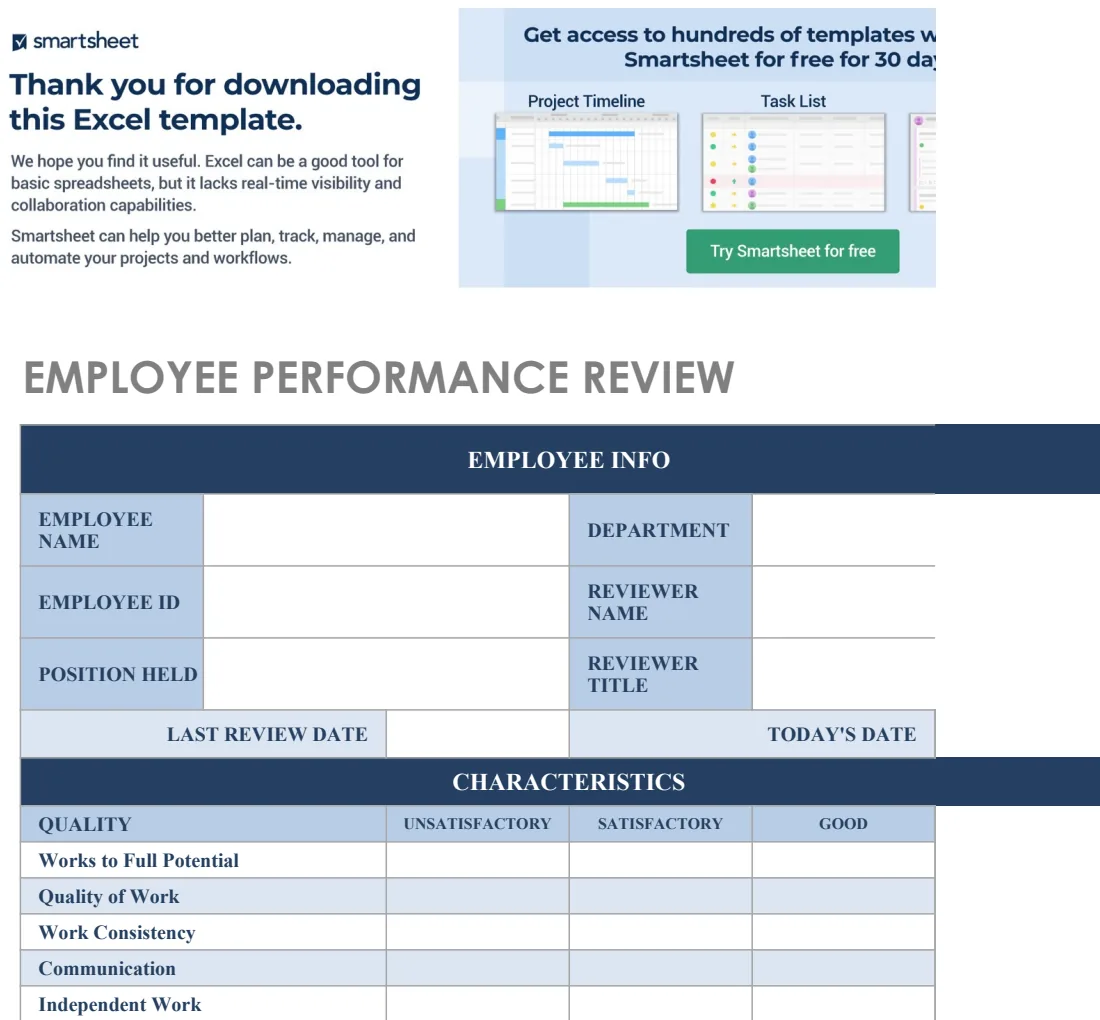
The numbers end in a conversation, so give each employee a clear one-page evaluation sheet. A practical example includes:
- Employee name, role, manager and review period
- Competency ratings and weights
- Weighted score and final rating
- Goals achieved and goals for next period
- Pay outcome, if shared at this stage
- Comments from manager and employee
- Signatures and date
Common mistakes in bell curve spreadsheets
- Using too few data points. A curve from a dozen values says little.
- Plotting a line chart instead of a scatter chart. A line chart treats x values as labels, which distorts uneven steps.
- Counting blanks as zero. An unrated competency should be left out of a weighted score until it has a rating.
- Sorting the x values wrongly. The curve folds on itself if the column is out of order.
- Mixing rating scales. Convert everything to one scale before comparing departments.
- Treating the adjusted score as final. It is an input to judgement.
A ready-made bell curve and appraisal workbook
The steps above will give you a curve in minutes. A full review cycle takes far longer, because ratings, calibration and pay have to stay linked. The Bell Curve Performance Appraisal Tool takes a cycle from first rating to final pay decision in one Excel workbook.
Managers rate each employee from 1 to 5 on up to 10 weighted competencies, with separate weight sets by grade, and a blank item is left out until it is rated. The Bell Curve tab compares your target distribution with actual ratings and shows how many people to move at each level. Calibration flags lenient and harsh raters by department and manager, and shows raw score, adjusted score, rank and curve rating side by side, with a place to record the reason for each final rating.
Final ratings flow into a merit matrix and bonus calculation, checked against your budget. The Evaluation Sheet prints a one-page review for each employee. The Bell Curve Maker is a separate tool for any data: paste up to 2,000 numbers, such as exam marks, and get the mean, standard deviation, a histogram against the normal curve, and a z-score and percentile lookup. It covers 300 employees, contains no macros and uses example merit rates and budgets that you replace with your own.
For a simpler review form without the curve, these may be enough:
Common questions
How do I make a bell curve in Excel?
Calculate the mean with AVERAGE and the standard deviation with STDEV.S, list x values from three standard deviations below the mean to three above, use NORM.DIST(x, mean, sd, FALSE) for the height at each point and chart the two columns as a scatter with smooth lines.
What is the formula for a bell curve in Excel?
=NORM.DIST(x, mean, standard_dev, FALSE) returns the height of the normal curve at x. Set the last argument to TRUE for the cumulative probability, which is useful for percentiles.
What is forced distribution in performance appraisal?
Forced distribution sets a target share of employees at each rating, such as 10%, 20%, 40%, 20% and 10%. You can change these targets, and use them to fill ratings or only to compare results against the plan.
Should every team be forced onto a bell curve?
Not necessarily. Small teams rarely fit a curve, and a forced distribution works better as a judgement aid than as a rule. Score bands are a good alternative, and you should check your employment rules and pay policy.
Can I use a bell curve for exam marks?
Yes. The method is the same for any list of numbers. Teachers often use it to see how marks are spread, and z-scores show where a student sits against the class.
Does it work in Google Sheets?
The workbook is built for Microsoft Excel 2016 or later (desktop or Excel for the web). You can import it into Google Sheets, but sheet protection does not carry over, so locked formulas are easier to overwrite there by accident.
A bell curve will not make a rating decision for you, but it shows quickly where standards differ and which conversations need to happen. You can preview the Bell Curve Performance Appraisal Tool free; downloading it is included in the OpenWorksheet monthly plan, along with the rest of the library. All rates and distributions in this guide are examples, and pay decisions should follow your own policy and local employment rules.