How to make a water intake tracker in Excel?
Create a personalized water intake tracker spreadsheet template in Excel to move beyond generic advice and monitor your actual consumption.
Generic advice on hydration often fails because it ignores the practical realities of daily life. A simple "drink eight glasses a day" doesn't account for your activity level, the weather, or even the size of your glasses. This is where a good water intake tracker spreadsheet template becomes essential. It allows you to personalize your goals and monitor your actual consumption, moving beyond guesswork to actionable data.
Setting up a custom water intake tracker spreadsheet template in Google Sheets or Excel can feel daunting, but it’s more straightforward than you might think. The real value lies in creating a system that fits your habits, not forcing your habits to fit a rigid, predefined structure.
Why Track Your Water Intake?
Beyond the common advice, understanding your hydration patterns can reveal a lot. Are you consistently falling short on busy workdays? Do you drink more on weekends? Tracking answers these questions with data, not assumptions. This can help you identify subtle dehydration symptoms like fatigue, headaches, or poor concentration, which are often dismissed as unrelated issues. Consistent hydration is foundational for energy levels, cognitive function, and overall physical well-being.
Essential Columns for Your Tracker
When building your own water intake tracker spreadsheet template, consider these columns for maximum utility:
- Date: This is your primary reference point.
- Target Goal (oz/ml): Your personalized daily hydration target. This can be a fixed number or calculated based on body weight.
- Actual Intake (oz/ml): The total amount of water you consumed that day.
- Intake Source: A way to log when you drank. This could be a simple timestamp, or categories like "Morning," "Lunch," "Afternoon," "Evening."
- Type of Beverage: While the focus is water, you might want to log other hydrating fluids like herbal tea, noting their contribution (or potential diuretic effect for things like caffeinated drinks, though most trackers focus solely on plain water).
- Notes/Feelings: A small space to jot down how you felt, activity levels, or any specific reasons for deviations from your goal.
Setting Up Your Daily Goal
Your target goal isn't a one-size-fits-all number. A common starting point is half your body weight in ounces (e.g., a 150 lb person aims for 75 oz). However, this needs adjustment.
- Activity Level: If you exercise intensely or work a physically demanding job, you'll need more. Add 12-16 oz for every 30-60 minutes of moderate to intense exercise.
- Climate: Hot and humid weather increases fluid loss. You’ll likely need to increase your intake significantly in these conditions.
- Health Conditions: Certain medical conditions or medications can affect hydration needs. Consult a healthcare professional if you have specific concerns.
You can set this target in a dedicated cell on your sheet, perhaps labeled "Daily Goal," and then reference it in your formulas.
Logging Your Intake Effectively
The key to accurate tracking is making it easy to log your drinks throughout the day. Don't wait until the end of the day; you'll forget or guess.
- 01Establish a Routine: Keep your spreadsheet open on your computer or phone, or use a dedicated app that syncs with your spreadsheet.
- 02Use Pre-Set Amounts: If you consistently use a 20 oz water bottle, you can create a quick entry for that amount.
- 03Categorize by Time: Logging "Morning," "Afternoon," and "Evening" can help you see patterns in when you're most or least hydrated.
- 04Consider a "Quick Add" Column: You could have columns for "+8 oz," "+16 oz," "+24 oz" that you simply click or tap to add to your daily total.
Calculating Progress with Formulas
Once you have your data entered, formulas bring your water intake tracker spreadsheet template to life.
- Total Daily Intake: In your "Actual Intake" column, use a simple
SUM()formula if you log each drink individually, or a running total if you update it periodically. For example, if your individual logs are in column D, you might have a cell=SUM(D2:D30)for the week, or a running total in the "Actual Intake" column itself like=C2+D2(where C2 is yesterday's total and D2 is today's new intake). - Percentage of Goal Achieved: This is a crucial metric. If your "Actual Intake" is in column C and your "Target Goal" is in column B (and applied to every row or referenced from a single cell), the formula would be:
=C2/B2 Format this cell as a percentage. This tells you at a glance how close you are to your goal.
- Conditional Formatting for Visual Cues: This is where spreadsheets shine. You can set up rules to automatically highlight cells.
- If "Percentage of Goal Achieved" is less than 100%, make the cell red.
- If it's between 100% and 110%, make it green.
- If it's over 110%, perhaps a darker green or blue.
This provides immediate visual feedback on your hydration status.
Common Mistakes to Avoid
Many people start strong with a tracker but fall off. Here are common pitfalls:
- Too Complicated: If logging takes more than 30 seconds per entry, you won't do it consistently. Simplify your columns and formulas.
- Unrealistic Goals: Setting a target that's impossible to hit due to your lifestyle will lead to frustration and abandonment. Start closer to your current intake and gradually increase.
- Forgetting to Log: This is the most common failure. Integrate logging into existing habits. Drink water? Log it immediately.
- Not Reviewing Data: The tracker is only useful if you look at the results. Schedule a weekly review to see trends and adjust your targets or habits.
- Focusing Only on Water: While water is primary, remember that other fluids contribute. If you're drinking a lot of herbal tea, acknowledge it. However, for simplicity, many prefer to track only plain water.
Advanced Tracking Features
Once you're comfortable with the basics, you can add more sophisticated features to your water intake tracker spreadsheet template.
Tracking Over Time and Averages
To see trends, add columns for weekly or monthly totals. You can use SUMIFS to aggregate data based on date ranges. For instance, to sum intake for a specific week, you might use:
=SUMIFS(C2:C100, A2:A100, ">="&StartDate, A2:A100, "<="&EndDate)
Where C2:C100 is your intake column, A2:A100 is your date column, and StartDate and EndDate are cells containing the beginning and end dates of your desired week.
You can also calculate average daily intake for a week or month using the AVERAGE() or AVERAGEIFS() functions.
Visualizing Your Progress with Charts
Charts transform raw numbers into easily digestible insights.
- Column Chart: Show daily intake against your target goal for the past week or month.
- Line Chart: Track your average daily intake over a longer period, showing improvement or decline.
- Pie Chart: If you track different beverage types, a pie chart can show their proportion of your total fluid intake.
To create a chart, select the data range you want to visualize (e.g., Date and Actual Intake columns), then go to "Insert" > "Chart" in Excel or Google Sheets. Choose the chart type that best represents your data.
Integrating with Other Health Trackers
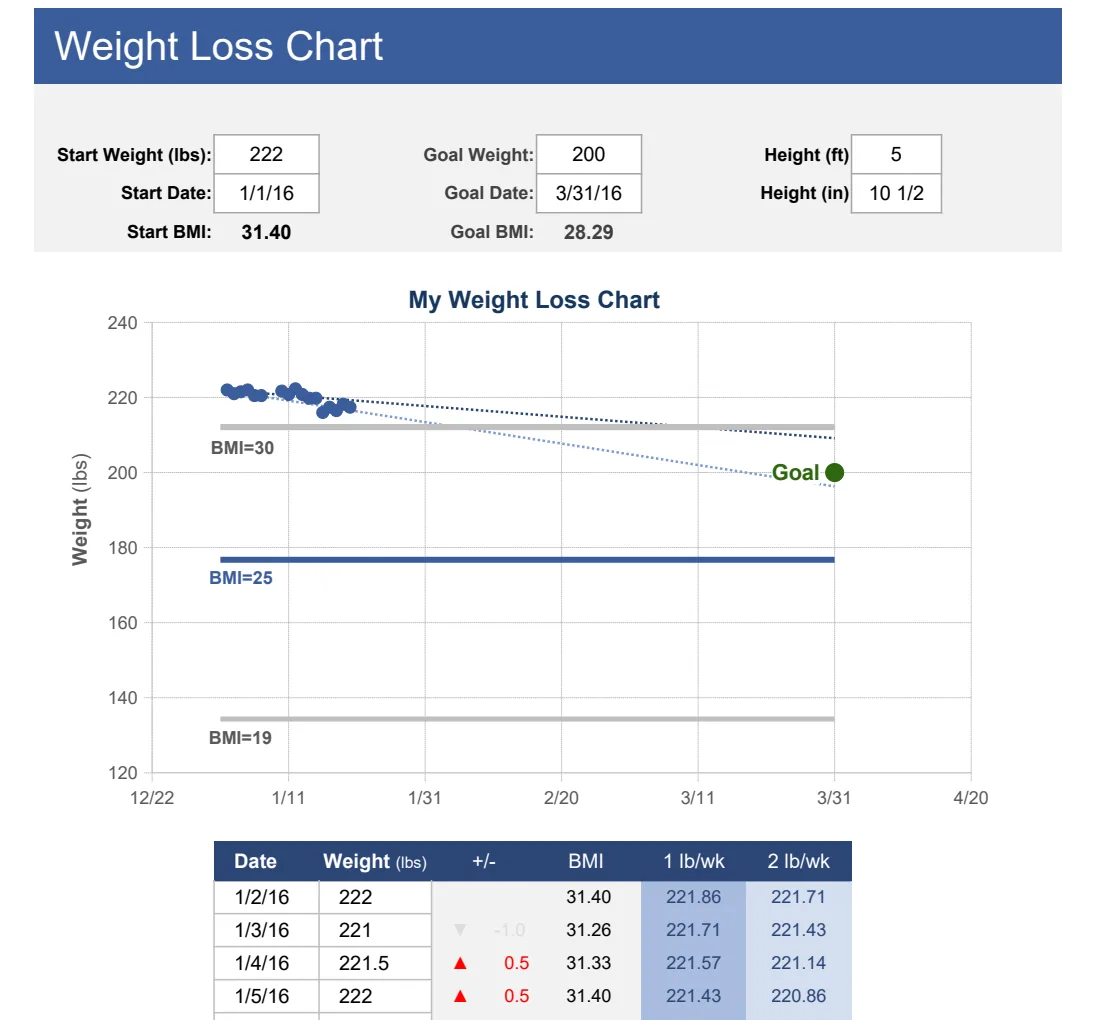
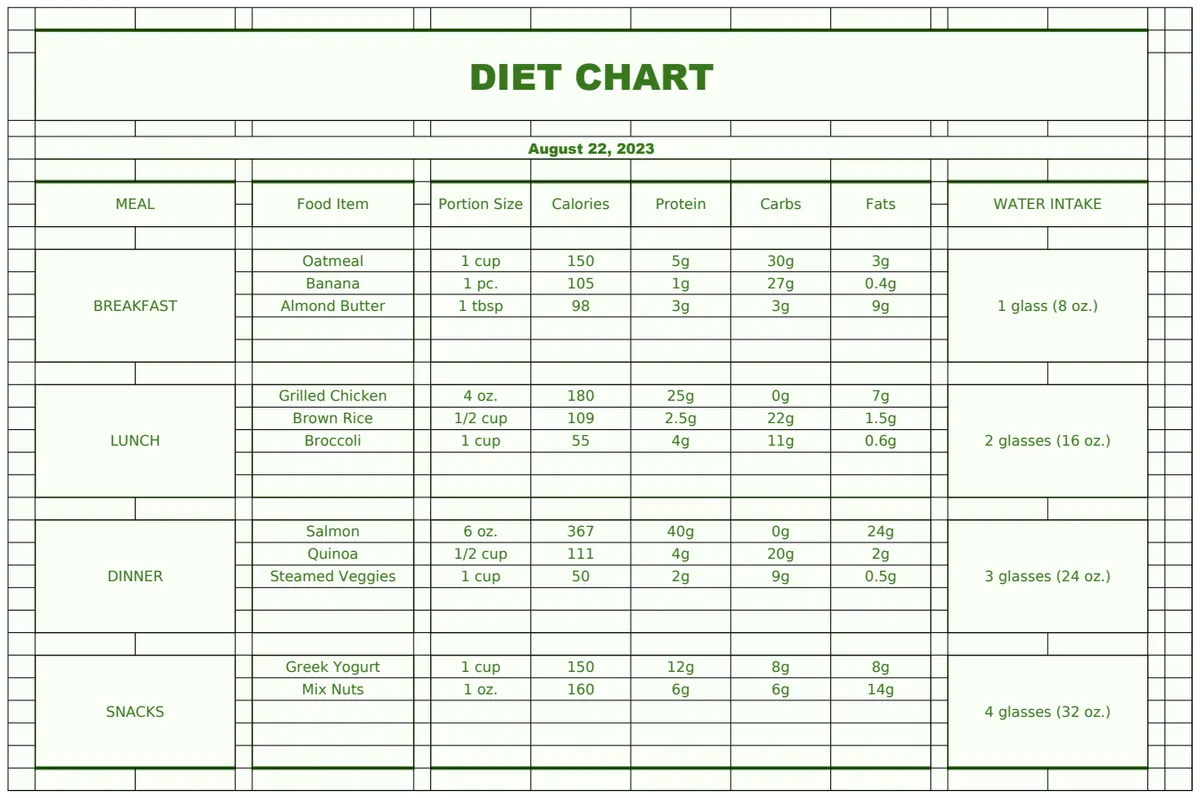
If you're tracking other health metrics, consider how hydration plays a role. For instance, if you're using a Weight Loss Chart Tracker, you might notice that days you hit your water goal correlate with better weight management or feeling less hungry. Similarly, a Diet Chart can be enhanced by ensuring adequate water intake alongside food logging. You might even use a Daily Diary & Personal Tracker to note energy levels and see if they improve with consistent hydration.
Frequently Asked Questions
Can I use a simple note-taking app instead of a spreadsheet?
While a note-taking app can work for very basic tracking, it lacks the analytical power of a spreadsheet. You won't be able to easily calculate totals, averages, or use conditional formatting to visualize progress. Spreadsheets are superior for turning raw data into actionable insights about your hydration habits.
How often should I update my water intake tracker?
Ideally, you should log your water intake immediately after you drink. This ensures accuracy. If that's not possible, aim to update it at least twice a day, once around midday and again in the evening. Waiting until the end of the day often leads to forgotten entries and inaccurate totals.
Is it okay to track other liquids besides water?
It depends on your goals. If your sole focus is plain water intake, then yes, stick to that. However, if you want a holistic view of your fluid intake, you can include other hydrating beverages like herbal teas or even dilutable juices. You might want to assign them a "hydration value" (e.g., plain water is 100%, herbal tea is 95%, juice is 80%) if you want to get very precise. For most users, focusing on plain water is simpler and highly effective.