Master Shopify stock with a simple spreadsheet
Stop manual Shopify inventory tracking. A dynamic spreadsheet template prevents overselling, stockouts, and reconciliation headaches.
Manually tracking Shopify inventory with spreadsheets is a recipe for disaster; it’s far more reliable to use a system designed for the task. This means moving beyond basic lists of SKUs and quantities to a dynamic system that updates with every sale. A well-structured shopify inventory tracker spreadsheet, or more likely, a dedicated template, can save you from overselling, stockouts, and the endless frustration of reconciliation.
You might be tempted to cobble together a solution with basic formulas in Excel or Google Sheets, but the reality of e-commerce is that sales happen fast and often simultaneously across multiple channels. Relying on manual entry or simple downloads from Shopify can lead to delays, errors, and a disconnect between what your online store thinks it has and what's actually on your shelves.
The Core Problem: Disconnected Data
Shopify provides a great platform for selling, but its built-in inventory reporting, while useful, isn't a real-time, automated system for managing stock levels across all your operations. When you make a sale on Shopify, the inventory count updates within Shopify. But if you also sell on other platforms, or manage inventory in a physical location, that update doesn't automatically flow to your other tracking methods. This is where the need for a robust shopify inventory tracker spreadsheet or a more integrated solution becomes critical. You might have 10 units of a product listed on Shopify, but if 3 were sold at a craft fair yesterday and you haven't updated your spreadsheet, you're now at risk of selling 3 units you don't have online.
Building Your Shopify Inventory Tracker Spreadsheet
Even if you opt for a more advanced system later, understanding the components of a good inventory tracker is key. You'll want to track the following essential data points:
- SKU (Stock Keeping Unit): This is your unique identifier for each product variant. It’s crucial for accurate tracking.
- Product Name: A clear, descriptive name for the item.
- Variant Name/Options: For products with variations (e.g., size, color), detail these here.
- Quantity on Hand: The absolute number of units you currently possess.
- Quantity Committed: The number of units allocated to pending orders but not yet shipped.
- Quantity Available: This is your "Quantity on Hand" minus "Quantity Committed." This is the number you should really be watching for sales channels.
- Cost Per Unit: Your cost to acquire or produce one unit.
- Total Cost: "Quantity on Hand" multiplied by "Cost Per Unit."
- Reorder Point: The minimum quantity you want to have before you need to reorder.
- Last Count Date: When this item was last physically verified.
- Supplier: Who you buy this item from.
Automating Updates with Shopify Data
The biggest challenge with a manual shopify inventory tracker spreadsheet is keeping it updated. Shopify allows you to export your inventory data. You can do this manually by going to your Shopify admin, navigating to Products > Inventory, and clicking the "Export" button. This will give you a CSV file that includes most of the fields mentioned above.
Once you have this CSV, you can import it into your spreadsheet. However, this is a point-in-time snapshot. To keep it current, you'd need to:
- 01Export from Shopify regularly (daily, or even hourly if you have high volume).
- 02Import this new data into your master spreadsheet.
- 03Use formulas to compare the new data with your existing stock levels and identify discrepancies or update quantities.
This manual process is prone to errors. What if you forget to export? What if the import fails? What if you accidentally overwrite a crucial column?
Formulas to Make Your Spreadsheet Smarter
If you're building your own, even a basic shopify inventory tracker spreadsheet can benefit from some smart formulas.
- Calculating Quantity Available: In a column named "Quantity Available," you could use a formula like
=IF([@[Quantity on Hand]]-[@Quantity Committed]<=0, 0, [@[Quantity on Hand]]-[@Quantity Committed]). This ensures your available stock never shows as negative. - Tracking Low Stock: To highlight items that need reordering, you can use conditional formatting. Select your "Quantity Available" column, go to Conditional Formatting, and set a rule. For example, "Format cells if Cell Value is less than or equal to" a specific number (your reorder point) and choose a fill color like light red.
- Calculating Total Cost: In a "Total Cost" column, a simple formula like
=[@[Quantity on Hand]]*[@[Cost Per Unit]]will give you the total value of that specific inventory item.
Advanced Tracking with Templates
The reality is that for a growing e-commerce business, a dedicated template or software is usually the better path. A template can provide pre-built structures and formulas that are far more sophisticated than what you can easily create yourself.
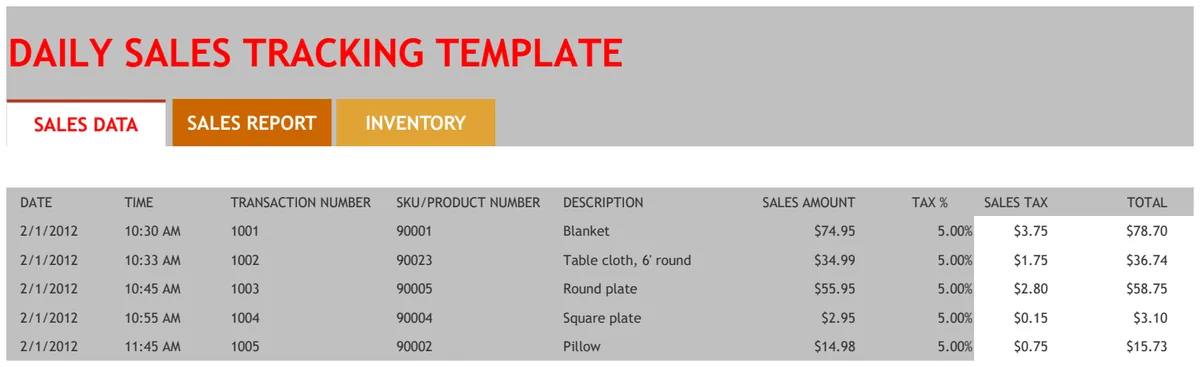
For instance, a template like the Daily Sales Tracker can be configured to pull sales data and automatically adjust inventory levels. This moves you away from the manual export/import cycle and towards a more automated workflow. Such a template can track transactions by time, SKU, and amount, and crucially, can be set up to look up and decrement inventory counts as sales occur.
If your business involves more than just Shopify, perhaps you also sell on other marketplaces or have a physical storefront, you’ll need a system that can consolidate that. A more general inventory management template, like the Software & Hardware Inventory Tracker or even a Beverage Stocktake Weekly Tracker (if applicable to your products), can offer more robust features for managing stock across different locations and sales channels. These templates are often designed with integrations or export/import capabilities that make syncing with Shopify much smoother than a DIY spreadsheet.
Common Mistakes to Avoid
Many businesses stumble when trying to manage their inventory. Here are a few pitfalls to watch out for:
- Not Tracking Variants: Failing to track inventory at the variant level (e.g., different sizes and colors of a t-shirt) is a common and costly mistake. You might show you have 10 shirts in stock, but if they're all blue and large, and customers are ordering red and small, you're still facing stockouts.
- Ignoring Committed Stock: Only looking at "Quantity on Hand" is dangerous. If you have 10 units and 5 are already sold and awaiting shipment, you only have 5 truly available for new orders.
- Infrequent Updates: Relying on weekly or monthly inventory checks for a busy online store is a recipe for overselling. Real-time or near real-time updates are essential.
- Confusing Cost vs. Price: Ensure you are accurately tracking the cost to acquire each item, not its selling price, for accurate profit margin calculations.
- Lack of Physical Counts: Even with automated systems, periodic physical counts are vital to catch errors, theft, or damage that your digital records might miss.
When to Upgrade Beyond a Spreadsheet
A simple shopify inventory tracker spreadsheet is a good starting point for very small businesses with low sales volume. However, as your business scales, you'll likely hit its limits. Signs that you've outgrown your spreadsheet include:
- Frequent Overselling: You're regularly selling items you don't have in stock, leading to canceled orders and unhappy customers.
- Time Sink: You're spending hours each week manually updating spreadsheets, exporting/importing data, and reconciling discrepancies.
- Lack of Visibility: You don't have a clear, immediate picture of your stock levels across all sales channels or locations.
- Inaccurate Reporting: Your financial reports or sales analyses are unreliable because the underlying inventory data is flawed.
- Need for Integrations: You want your inventory system to talk to other tools, like accounting software or shipping platforms, which spreadsheets can't do easily.
If any of these resonate, it's time to consider a dedicated inventory management system or a more advanced template that can handle the complexity. For many, the library of templates available offers a cost-effective way to get sophisticated tools without the high price tag of enterprise software. For a one-time fee of $9, you can access a wide range of solutions.
What if I sell on multiple platforms besides Shopify?
If you sell on channels beyond Shopify, like Etsy, Amazon, or even a brick-and-mortar store, a simple Shopify-focused spreadsheet won't cut it. You need a system that can consolidate inventory across all these points of sale. Look for inventory management templates that explicitly mention multi-channel support or allow for manual aggregation of data from different sources. The goal is a single source of truth for your total stock.
How do I handle returns in my spreadsheet?
Returns complicate inventory tracking. When an item is returned, you need to decide if it's sellable again. If it is, you'll manually add it back to your "Quantity on Hand." If it's damaged or unsellable, you should move it to a separate "Damaged/Unsellable" column or reduce your on-hand count by that amount and record it as a loss. This process is much smoother in dedicated inventory software.
Can I use a spreadsheet for product bundles?
Tracking product bundles (e.g., a gift set made of three individual items) in a basic spreadsheet requires careful setup. You’ll need to track the inventory of each individual component item. Then, when a bundle is sold, you must deduct the correct number of each component from your inventory. This often involves more complex formulas or separate tracking sheets for bundle components.