Stop guessing: a simple Excel bookkeeping template that works
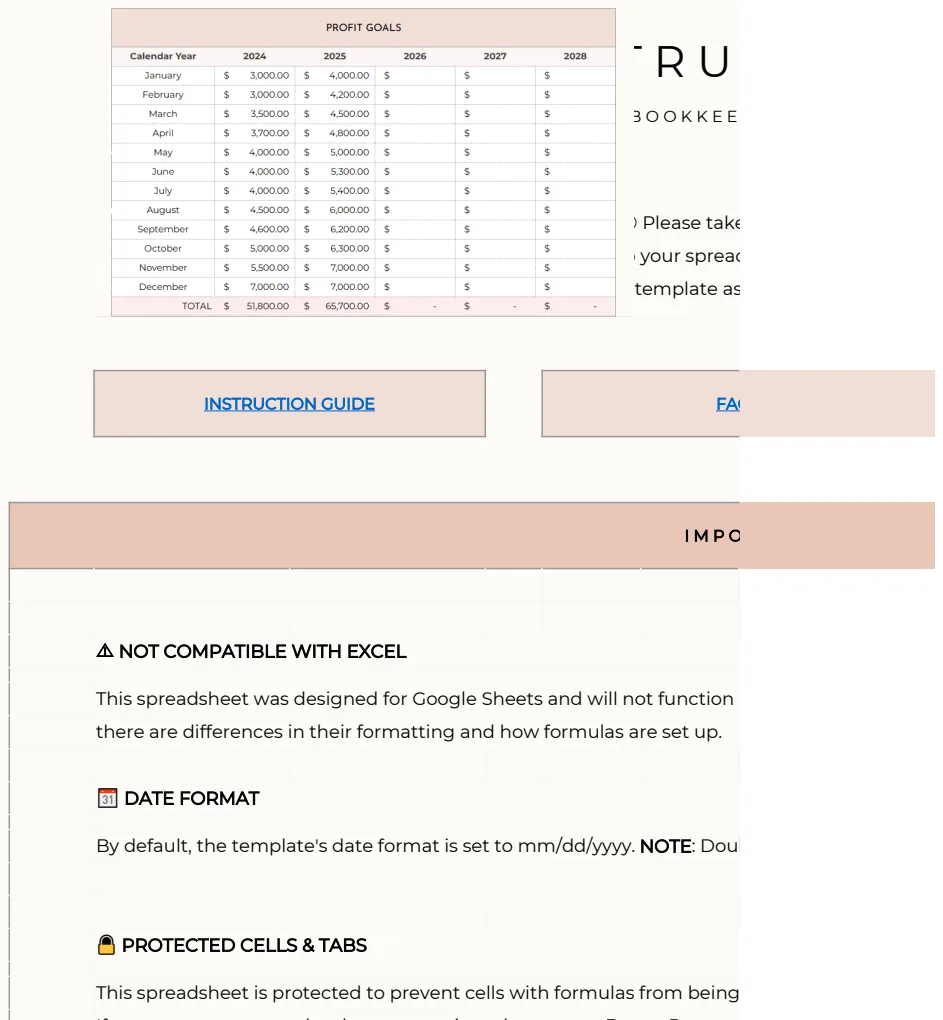
Discover a simple bookkeeping Excel template free that automates your finances, moving beyond cumbersome manual entry.
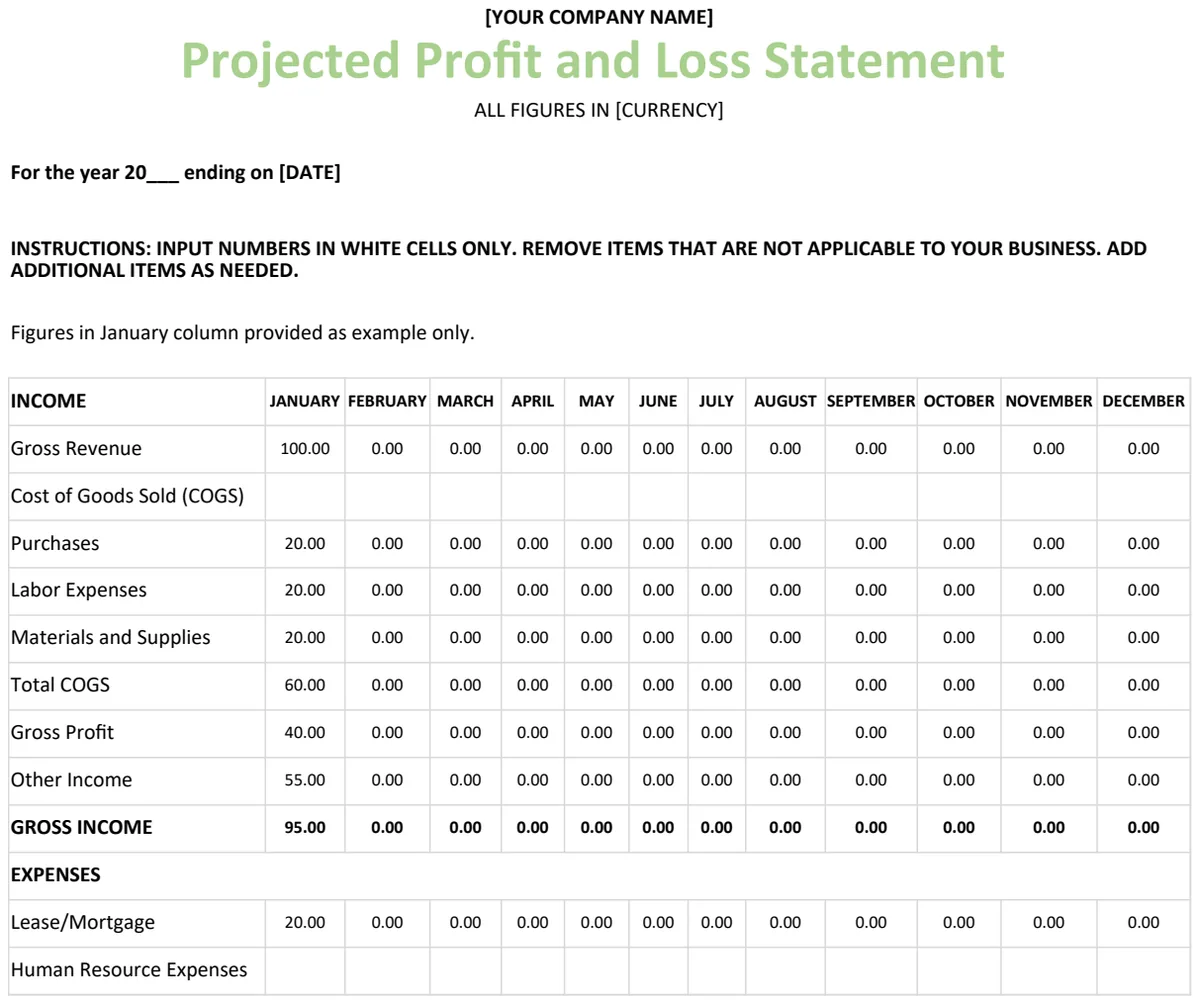
Manual transaction entry in a simple bookkeeping Excel template free is often a starting point, but it quickly becomes cumbersome. A better approach involves setting up your spreadsheet to automate as much as possible, so you’re not just re-typing receipts. This means using formulas and structured data entry to your advantage from day one.
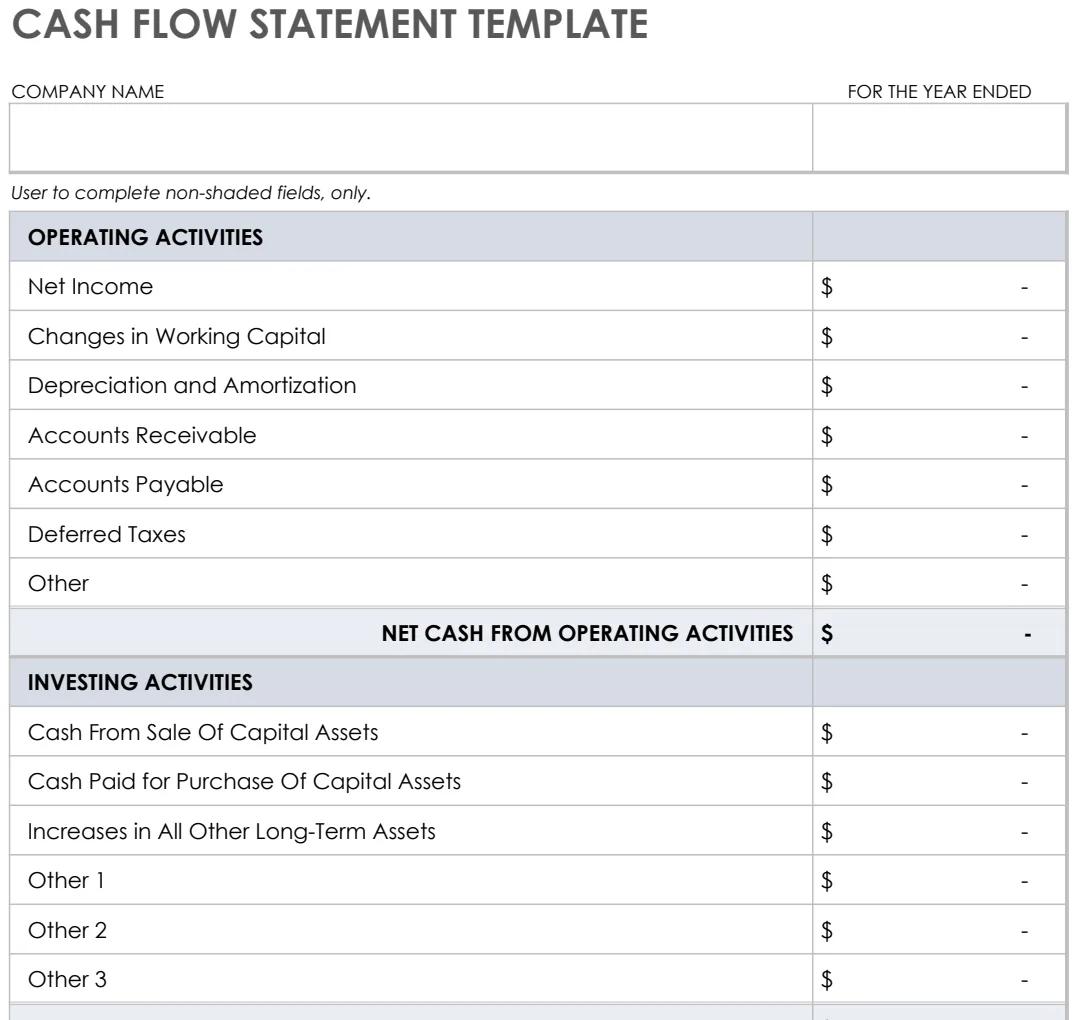
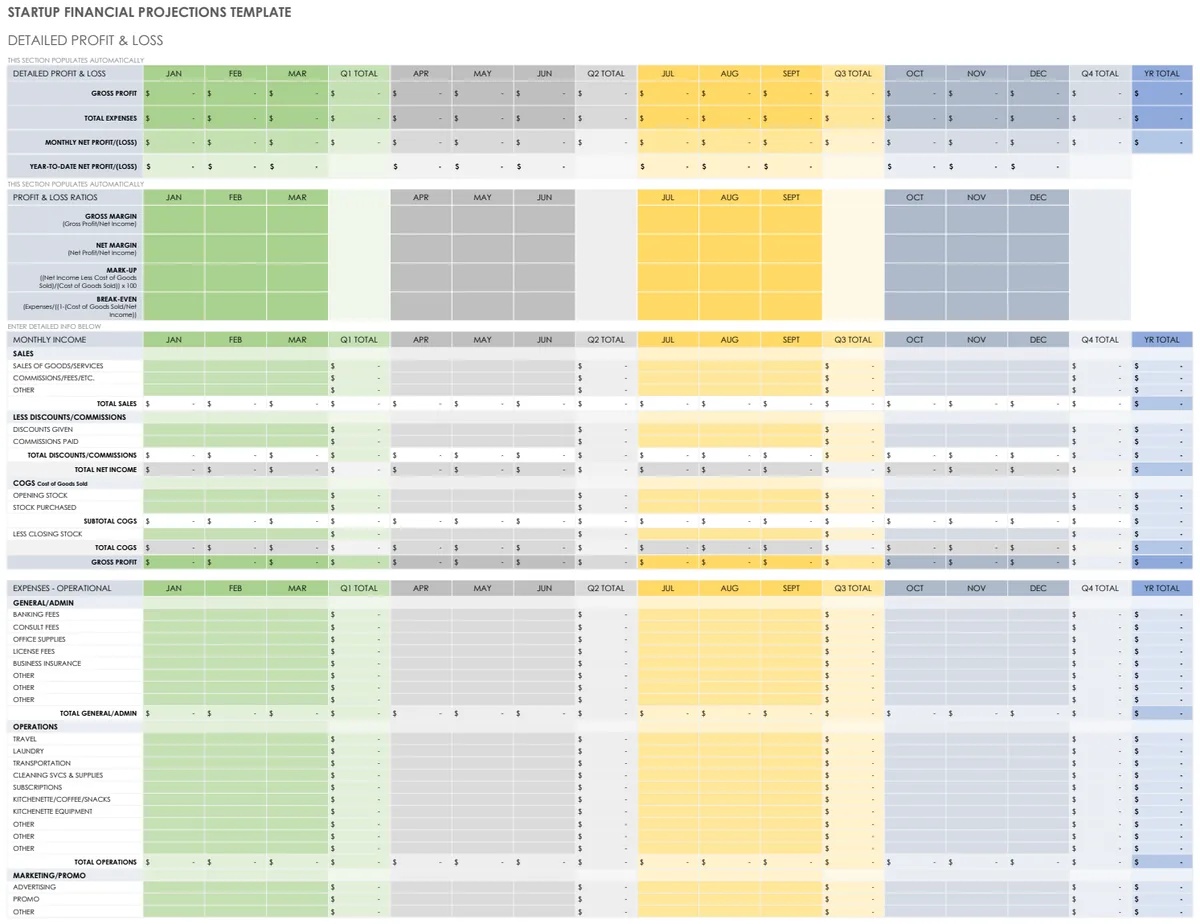
When searching for a "simple bookkeeping Excel template free," you're likely looking for a way to track income and expenses without the complexity of dedicated accounting software. While many free templates exist, they often lack the features or structure to scale with your business. A well-designed template, however, can provide the clarity and organization you need, often at no cost.
Why a Structured Template Beats a Blank Sheet
Starting with a blank Excel sheet and trying to build a bookkeeping system from scratch is a common pitfall. You might create columns for date, description, and amount, but without pre-defined categories, running totals, or reconciliation features, it's easy to make errors or miss important details. This is where a dedicated template shines. It provides the foundational structure, ensuring consistency and making data analysis far more straightforward. Think of it as having a blueprint versus just a pile of bricks.
Essential Components of a Bookkeeping Template
Regardless of whether you're using a free template or a more advanced solution, certain components are non-negotiable for effective bookkeeping. You need clear columns for:
- Date: When the transaction occurred.
- Description: A brief, clear note about the transaction.
- Category: Crucial for analysis. This could be "Office Supplies," "Rent," "Sales Revenue," "Consulting Fees," etc.
- Sub-Category (Optional but Recommended): For finer detail, like "Software" within "Office Supplies."
- Amount (Income): Positive values for money coming in.
- Amount (Expense): Positive values for money going out.
- Payment Method: "Credit Card," "Bank Transfer," "Cash," etc.
- Vendor/Client: Who you paid or who paid you.
- Account: Which bank account or credit card was affected.
- Running Balance: A formula that updates the balance with each new transaction.
A template like the Business Bookkeeping Excel Spreadsheet often includes these, plus more, right out of the box.
Setting Up Your Income and Expense Tracking
Let's walk through a practical setup for tracking income and expenses. Imagine you have a sheet named "Transactions."
- 01Column Headers: In row 1, enter your column headers: "Date," "Description," "Category," "Income," "Expense," "Running Balance."
- 02Data Validation for Categories: To ensure consistency, use data validation for your "Category" column.
- Create a separate sheet (e.g., "Lists") and list all your income and expense categories in a column (e.g., Column A).
- Go back to your "Transactions" sheet. Select the entire "Category" column (starting from row 2).
- Go to the "Data" tab, then "Data Validation."
- Under "Allow," select "List."
- In the "Source" box, click the arrow and select the range of your categories on the "Lists" sheet. Click OK.
- Now, each cell in the "Category" column will have a dropdown menu, forcing you to choose from your predefined list.
- 03Formulas for Income and Expense:
- In the "Income" column (let's say Column D), you'll want to enter a formula that captures income. If you have a single "Amount" column and a "Type" column (e.g., "Income" or "Expense"), the formula would be something like
=IF(E2="Income",F2,0). However, it's often cleaner to have separate columns for Income and Expense. In this case, you'd simply enter the amount directly into the "Income" or "Expense" column. - In the "Expense" column (let's say Column E), enter the amount spent.
- 04Running Balance Formula: This is where a simple template can get complicated if not pre-built. Assuming your "Date" is in Column A, "Income" in Column D, and "Expense" in Column E, and your first transaction is on row 2:
- In cell F2 (for the running balance), enter
=D2-E2. This is your starting balance for the first transaction. - In cell F3, enter the formula:
=F2+D3-E3. This takes the previous balance (F2), adds the new income (D3), and subtracts the new expense (E3). - Drag this formula down to apply it to all subsequent rows.
This setup ensures that as you input transactions, your running balance is always up-to-date.
Leveraging Formulas for Efficiency
Beyond the running balance, Excel's formulas can automate much of your bookkeeping.
- SUMIFS for Category Totals: To see how much you've spent on "Office Supplies" this month, you can use
=SUMIFS(Transactions!E:E, Transactions!C:C, "Office Supplies"). This sums the "Expense" column (E:E) where the "Category" column (C:C) matches "Office Supplies." You can adapt this for income as well. - XLOOKUP for Vendor Information: If you have a separate list of vendors with their contact details, you can use
=XLOOKUP(Transactions!G2, Vendors!A:A, Vendors!B:B, "Not Found")to pull the vendor's name or email based on an entry in your "Transactions" sheet. - Conditional Formatting: Highlight overdue invoices or expenses exceeding a certain budget. Select your "Amount" column, go to "Conditional Formatting," "New Rule," and choose "Format only cells that contain." You can set rules like "Cell Value Less Than 0" (for negative balances if you structure it that way) or "Cell Value Greater Than $500" to visually flag significant transactions.
Common Mistakes to Avoid
Even with a "simple bookkeeping Excel template free," people often stumble. Here are a few common errors:
- Inconsistent Category Naming: Typing "Supplies" one time and "Office Supplies" another. Data validation, as described above, prevents this.
- Not Reconciling: Failing to compare your spreadsheet's running balance to your actual bank or credit card statements. This is critical for catching errors or fraudulent activity.
- Ignoring Small Expenses: Thinking that small amounts don't add up. They do, and they need to be categorized and tracked for accurate profit and loss.
- Over-Complicating the Template: Adding too many columns or complex formulas that make data entry a chore. Stick to what you need to track.
When a Free Template Isn't Enough
While a simple bookkeeping Excel template free is a great starting point, your needs might evolve. If you find yourself spending too much time on manual data entry, struggling with complex formulas, or needing features like invoicing or payroll integration, it might be time to consider a more robust solution. Tools like the Ultimate Bookkeeping Spreadsheet offer advanced dashboards, multi-year tracking, and more sophisticated expense categorization, all within Excel. For businesses solely focused on managing a high volume of expenses, the Expense Bookkeeping Template provides specialized tools for vendor management and payment tracking.
Can I use this for multiple businesses?
Yes, you can. If you have multiple businesses, it's best practice to create separate copies of your template for each one. This keeps the finances distinct and avoids commingling data, which is essential for accurate reporting and tax purposes. You can simply duplicate your main template file for each new business.
How do I track inventory with a simple template?
Most simple bookkeeping templates focus on income and expenses. Tracking inventory typically requires more specialized fields, such as "Quantity on Hand," "Cost of Goods Sold," and "Inventory Value." While you could theoretically add these columns to a basic template, it quickly becomes complex. Dedicated inventory management systems or more advanced bookkeeping spreadsheets are usually better suited for this.
What if I need to track sales tax?
Tracking sales tax often involves separate columns for "Sales Tax Collected" and "Sales Tax Paid." You'll need to ensure your template has fields to record these amounts accurately for each relevant transaction. The Business Bookkeeping Excel Spreadsheet specifically includes guidance and fields for sales tax, making it a good option if this is a primary concern.
Is it possible to automate bank feeds?
Directly automating bank feeds into a standard Excel template isn't possible without third-party tools or significant VBA programming. Most free templates rely on manual data entry. However, some accounting software can import bank transaction data via CSV files, which you could then export from your bank and import into your Excel template, reducing manual typing.