Stop wasting time with bad editable Google Sheets templates
Find excellent editable Google Sheets templates free that are designed for practical, everyday use, saving you hours of setup time.
Many people assume that finding truly useful, editable Google Sheets templates for free means settling for something basic or difficult to customize. The reality is, with the right approach, you can access powerful tools that significantly simplify tasks like project management, budgeting, and tracking. You can find excellent editable Google Sheets templates free that are designed for practical, everyday use, saving you hours of setup time.
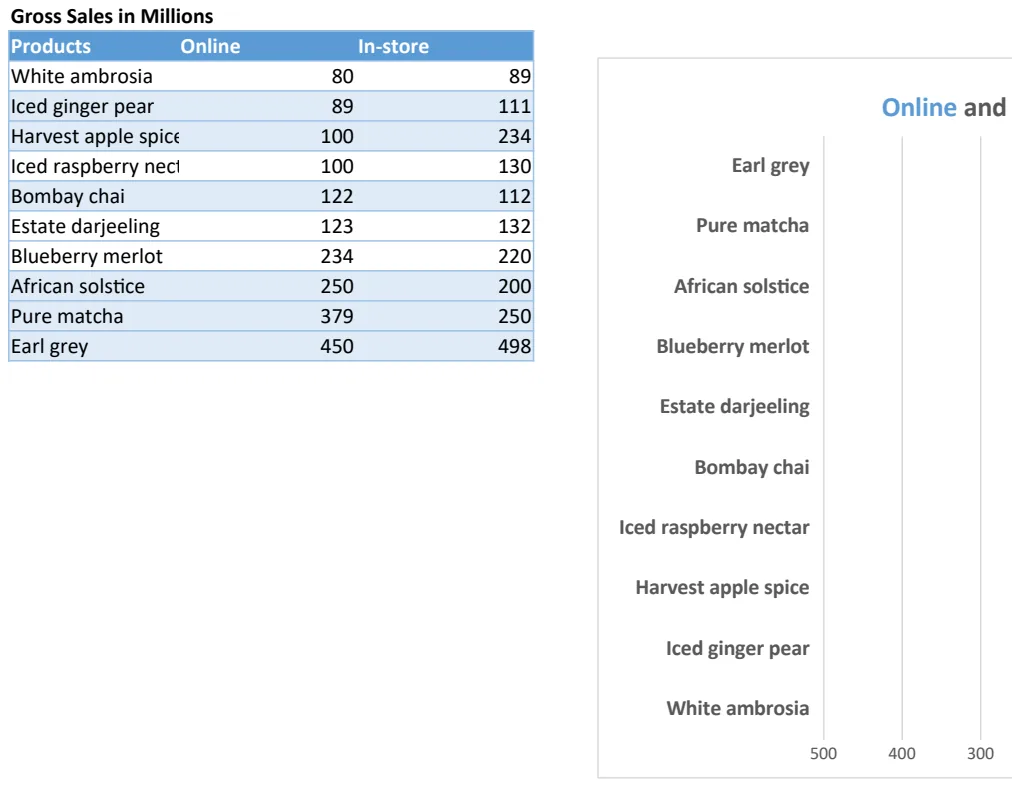
When you search for "editable Google Sheets templates free," you're looking for solutions that integrate smoothly into your workflow without requiring advanced spreadsheet skills. The key is to look beyond simple lists and find templates that offer pre-built formulas, conditional formatting, and clear instructions. These templates act as a solid foundation, allowing you to input your data and get meaningful insights immediately.
Why Built-in Templates Aren't Always Enough
Google Sheets itself offers a number of templates, accessible by going to File > New > From template gallery. These can be a starting point for simple tasks, like a basic monthly budget or a project timeline. However, they often lack the depth and specificity needed for more complex requirements. For instance, while you might find a general invoice template, it likely won't include the fields for tracking specific vendor details, item SKUs, or tax calculations that a dedicated solution provides. This is where specialized, editable Google Sheets templates free become invaluable. They are built with particular use cases in mind, offering a level of detail and functionality that generic templates can't match.
Evaluating Free Templates: What to Look For
Not all free templates are created equal. When you're evaluating options, keep an eye out for a few key characteristics that indicate a template will be genuinely useful and easy to adapt.
First, check the structure. Are the columns clearly labeled? Is there a logical flow to the data entry? A well-organized template makes it easy to understand where to put your information. Second, examine the formulas. If you're looking at a financial template, for example, check if it includes pre-built sums, averages, or conditional formatting to highlight low stock or overdue payments. A good template will have these already set up, saving you a lot of work.
Third, consider the customization options. Can you easily add or remove columns? Are the color schemes and fonts adjustable? While many free templates offer basic editing, some are designed to be more flexible, allowing you to tailor them precisely to your needs. Finally, look for templates that come with brief instructions or notes. These can be incredibly helpful in understanding how the template works and how to best utilize its features.
Mastering Your Finances with Editable Templates
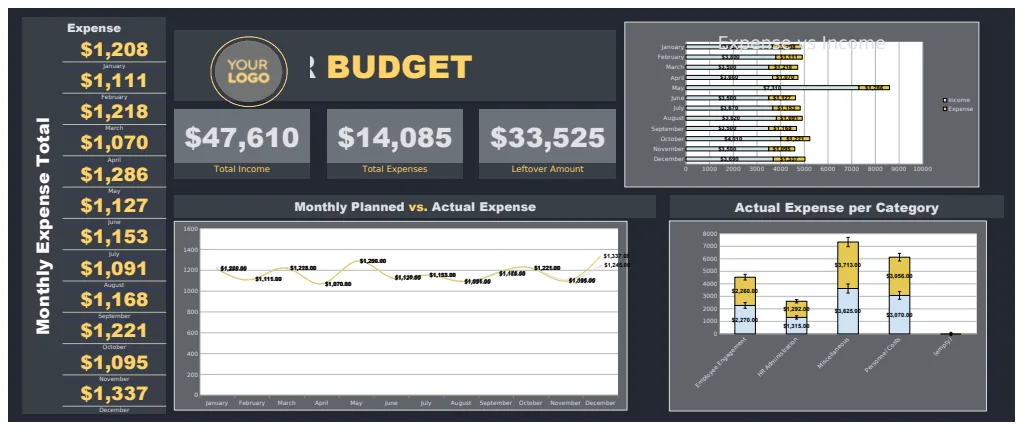
Managing personal or business finances is a common need, and thankfully, there are many editable Google Sheets templates free designed for this exact purpose. These can range from simple income and expense trackers to more complex investment portfolios or loan amortization schedules.
For instance, a robust budget template might include separate tabs for monthly spending, annual summaries, and goal setting. You could find one that automatically calculates your savings rate or flags categories where you're consistently overspending. These templates often use formulas like =SUMIFS to aggregate data across different periods or categories, providing a dynamic overview of your financial health.
Streamlining Business Operations
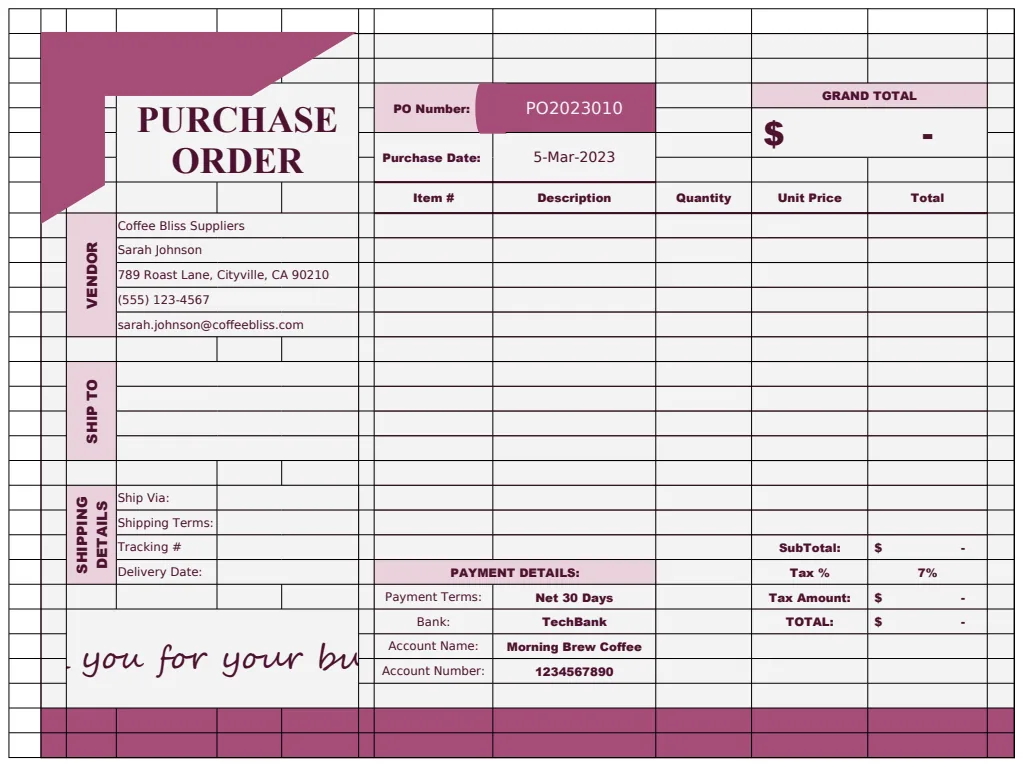
Businesses, whether small startups or established enterprises, can greatly benefit from specialized templates. Procurement is a prime example. If you're managing inventory or ordering supplies, a dedicated purchase order system can save immense time and reduce errors.
An Editable Purchase Order Template can be a lifesaver, allowing you to quickly generate professional-looking purchase orders. These templates often include fields for vendor information, item descriptions, quantities, prices, and shipping details. For specific industries, like construction, an Editable Construction Purchase Order Template might include fields for project codes, material types, and subcontractor details, further tailoring the process. These are far more effective than trying to cobble together a system from scratch.
Planning and Scheduling Made Simple
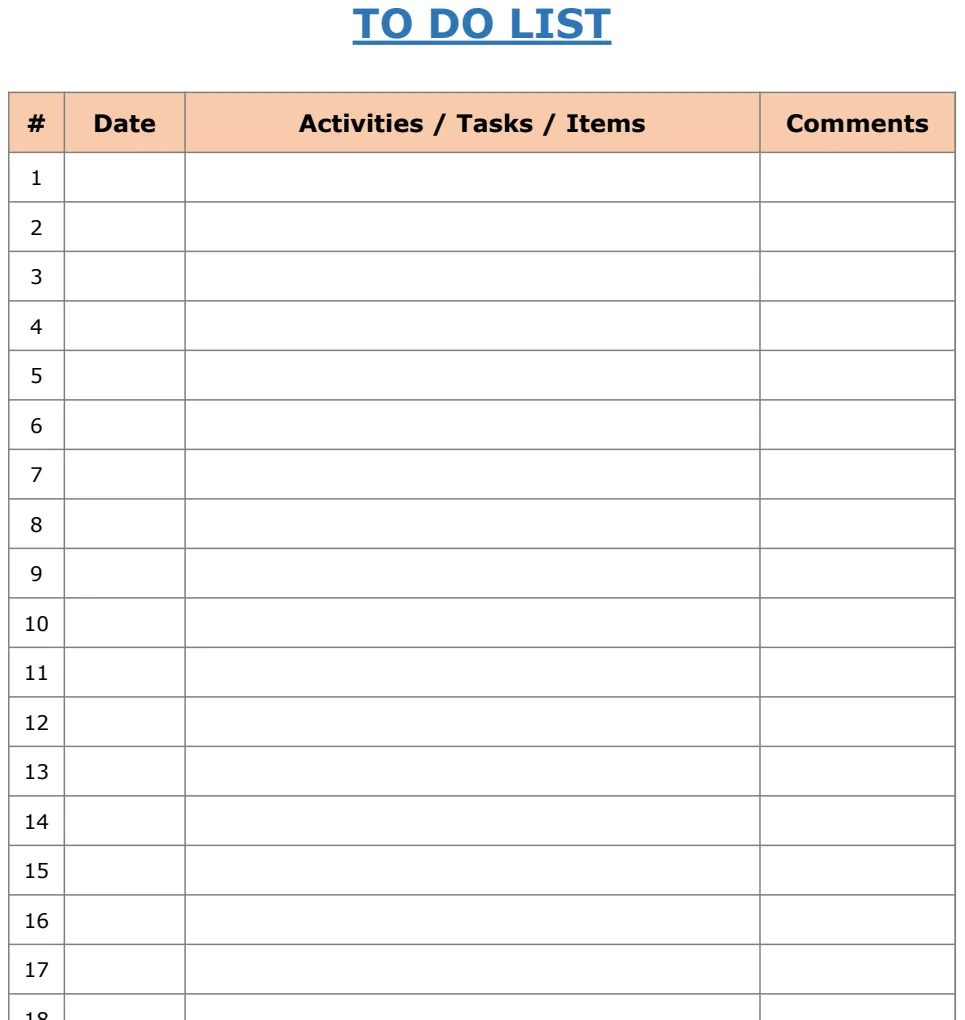
Organization is key, and templates can transform how you manage your time and events. Beyond simple to-do lists, you can find sophisticated scheduling tools.
For instance, if you need to track a period of isolation or a specific project duration, a template like the Quarantine Countdown Calendar offers an automated solution. You input a start date, and it automatically calculates the remaining days. Similarly, for yearly planning, an organized calendar like the 2022 Calendar with Year can be adapted with editable stickers or notes to mark important dates, deadlines, or appointments. These tools move beyond static views, offering dynamic ways to visualize and manage time-sensitive information.
Tips for Effective Customization
Once you've found a great editable Google Sheets template free, the next step is making it truly your own. Here are some practical tips:
- Understand the Core Formulas: Before making significant changes, take a moment to understand the existing formulas. If you delete a cell that a formula relies on, you'll break the template. Hover over cells with formulas to see them in the formula bar.
- Add Your Own Data Fields: Most templates are designed to be extended. If you need an extra column for "Notes" or "Internal ID," simply right-click on a column header and select "Insert 1 column left" or "Insert 1 column right." You may need to adjust adjacent formulas to include your new column.
- Adjust Conditional Formatting: Conditional formatting is what makes many templates visually dynamic. To change rules (e.g., highlight cells in red if they are over a certain value), select the cells, go to Format > Conditional formatting, and edit or add new rules.
- Color-Code Strategically: Use colors to highlight important information, differentiate between categories, or simply make the sheet more visually appealing. Be consistent with your color choices.
- Protect Important Cells/Sheets: To prevent accidental changes to formulas or critical data, you can protect specific cells or entire sheets. Go to Data > Protected sheets and ranges. This is especially useful if multiple people will be using the template.
Common Mistakes to Avoid
Even with excellent editable Google Sheets templates free, users can fall into common pitfalls that diminish their effectiveness.
- Over-Complicating the Design: While customization is good, adding too many unnecessary features or complex formulas can make the template slow and difficult to manage. Stick to what you actually need.
- Ignoring Data Validation: Google Sheets offers data validation rules (Data > Data validation) to restrict what can be entered into a cell (e.g., only allowing dates, numbers within a range, or selecting from a dropdown list). Not using this can lead to inconsistent or incorrect data entry.
- Forgetting to Back Up: Before making major changes to a template, it's always wise to make a copy (File > Make a copy). This ensures you have a fallback if something goes wrong.
- Not Naming Sheets Appropriately: When you have multiple tabs, clear and descriptive names are crucial. Rename sheets from the default "Sheet1," "Sheet2," etc., to something meaningful like "Monthly Expenses," "Yearly Summary," or "Vendor List."
What if I need a template for a very niche task?
If you can't find a pre-built template that perfectly matches a highly specific need, consider using a more general-purpose template as a starting point. For example, if you need a specialized inventory tracker for a unique type of item, you might start with a good project tracker or a simple database template and adapt its columns and formulas to fit your requirements. Often, a few hours of customization on a well-structured general template can yield better results than trying to force-fit a poorly designed niche template.
How do I ensure the formulas in a downloaded template are correct?
The best way to ensure formulas are correct is to spot-check them. Pick a few key calculations, enter sample data manually, and then compare the template's result to your manual calculation. For complex formulas, Google Sheets' formula auditing tools (under the Formulas menu) can help you trace precedents and dependents to understand how the calculation works. If a formula seems incorrect or leads to unexpected results, don't hesitate to correct it or seek advice.
Can I share these editable Google Sheets templates free with my team?
Yes, Google Sheets is inherently collaborative. Once you have a template set up and populated with some data, you can share it with your team using the "Share" button in the top right corner. You can set different permission levels for collaborators, such as "Viewer," "Commenter," or "Editor," depending on how much access you want them to have. This makes them excellent for team projects and shared workflows.