Track movies with this simple spreadsheet template
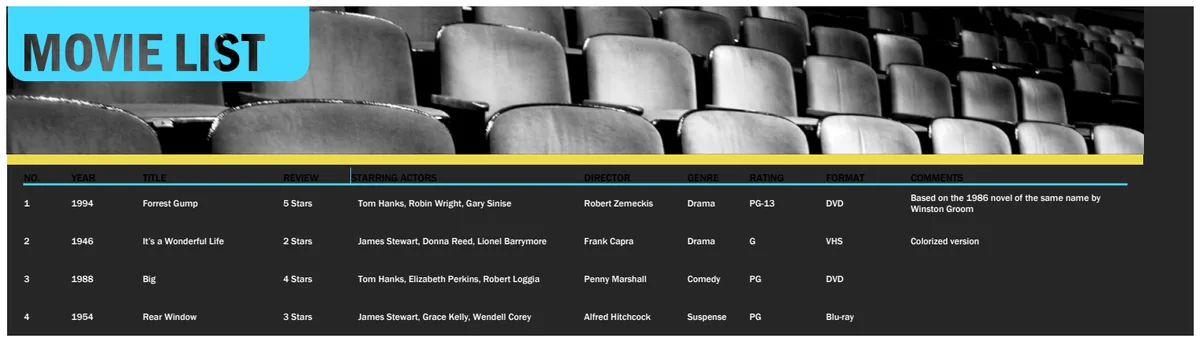
Use this simple movie watchlist spreadsheet template to easily track films you want to watch and those you've already seen.
Keeping a movie watchlist on a sticky note or in a scattered collection of digital notes works for a while, but it quickly becomes unmanageable. A dedicated movie watchlist spreadsheet template, however, offers a structured, searchable, and sortable system that actually helps you keep track of what you want to watch and what you've already seen.
You could try to build one from scratch, but frankly, it’s usually faster and more effective to start with a pre-built solution. The core need is simple: a place to record titles and know their status. Beyond that, though, you gain significant power by adding columns for genre, director, release year, and even a personal rating.
Why a Spreadsheet Works Better Than Random Notes
The fundamental advantage of a spreadsheet is its inherent structure. Unlike a freeform note-taking app, a spreadsheet forces you to categorize information consistently. For a movie watchlist, this means every entry has a title, a "watched" status, and maybe a genre. This consistency is what allows for powerful sorting and filtering. Imagine wanting to find all the sci-fi movies you haven't seen yet, a spreadsheet makes this a few clicks, whereas random notes would require a tedious manual scan.
Think about it: you can sort your watchlist by release year to find older classics you might have missed, or by director to catch up on an entire filmography. You can filter by genre to pick a specific mood, or by personal rating to rewatch your favorites. This level of dynamic organization is simply impossible with a simple list or scattered notes. The efficiency gained here is significant for anyone who enjoys movies.
Essential Columns for Your Movie Watchlist
When setting up your movie watchlist spreadsheet template, start with the basics and add complexity as needed. Here are the columns that form a solid foundation:
- Title: The name of the movie. This is non-negotiable.
- Watched (Yes/No): A simple way to toggle whether you've seen it. This is crucial for filtering.
- Date Watched: If you want to track when you saw it, this is useful. You can leave it blank for unwatched films.
- Genre: Categorizing movies by genre (e.g., Action, Comedy, Drama, Sci-Fi, Horror, Documentary) is incredibly helpful for selection.
- Director: Knowing who directed the film can help you discover other movies by the same filmmaker.
- Release Year: Useful for historical context or finding films from a specific era.
- Rating (1-5 stars, or 1-10): A personal rating system lets you quickly see which movies you enjoyed most.
- Notes/Personal Review: A small space to jot down a quick thought or a brief personal review after watching.
- Where to Watch (Optional): If you want to track if it's on a specific streaming service or if you own it, this can be a valuable addition.
Building Your Spreadsheet: A Step-by-Step Walkthrough
Let's assume you're starting with a blank sheet in Excel or Google Sheets.
- 01Set up the header row: In the first row (Row 1), type the column names we discussed: "Title", "Watched", "Date Watched", "Genre", "Director", "Release Year", "Rating", "Notes".
- 02Format the "Watched" column: Select the entire "Watched" column (Column B). Go to Data Validation. Choose "List" from the dropdown. For the criteria, enter "Yes,No" (or "Watched,Unwatched"). This will create a dropdown in each cell, ensuring consistency.
- 03Format the "Rating" column: Select the "Rating" column (Column G). You can format this as a number. If you want a star rating, you might need to use custom number formatting or insert symbols. For a simple numerical rating, just ensure it's set to accept numbers.
- 04Enter your first movie: In Row 2, start entering data. For example, in Cell A2, type "Inception". In B2, select "No" from the dropdown. In D2, type "Sci-Fi". In E2, type "Christopher Nolan". In F2, type "2010".
- 05Add conditional formatting for "Watched": To make it easy to see what you still need to watch, let's highlight the unwatched movies.
- Select all the cells in your data range (e.g., A2:H100, or however many rows you anticipate).
- Go to Conditional Formatting.
- Choose "Format cells if..."
- Select "Custom formula is".
- Enter the formula:
= $B2="No"(assuming B is your "Watched" column). - Choose a formatting style, like a light grey fill or a strikethrough font. This will automatically format any row where "Watched" is "No".
- 06Repeat for other movies: Continue adding your movie titles and details.
This structured approach ensures that your data is clean and ready for sorting and filtering.
Leveraging Your Watchlist with Sorting and Filtering
Once you have a decent number of movies entered, the real power of a spreadsheet comes into play through sorting and filtering.
- Filtering: Click on the "Data" tab and select "Filter" (or look for the funnel icon). This adds dropdown arrows to your header row. Click the arrow next to "Genre" and select "Sci-Fi" to see only your science fiction movies. Click the arrow next to "Watched" and select "No" to see only movies you haven't seen. You can combine filters, for instance, "Sci-Fi" AND "Unwatched".
- Sorting: You can sort your entire list alphabetically by title, by release year to see chronological order, or even by your personal rating to quickly find your most-loved films. Use the "Sort" function in the Data menu.
These functions transform your list from a static record into a dynamic tool for movie discovery and management.
Mistakes to Avoid When Building Your Watchlist
People often make a few common errors that diminish the usefulness of their movie watchlist spreadsheet.
- Inconsistent Data Entry: Not using dropdowns for "Watched" status, misspelling genres, or using different formats for release years (e.g., "2010" vs. " '10") will break your sorting and filtering.
- Too Many or Too Few Columns: Starting with only "Title" makes it too basic. Adding dozens of columns for every conceivable piece of trivia makes it overwhelming. Find a balance that serves your needs without becoming tedious to maintain.
- Not Updating It: A watchlist is only useful if it's current. Make it a habit to add movies as you hear about them and mark them as watched (and add your rating/notes) shortly after viewing.
- Ignoring Formatting: Using conditional formatting to visually distinguish watched vs. unwatched items, or using data validation for consistent inputs, makes the spreadsheet much easier to use at a glance.
When to Consider a Dedicated Template
While building your own movie watchlist spreadsheet template is feasible, sometimes starting with a pre-designed solution saves significant time and effort. If you want a robust system that’s ready to go, with thoughtful column layouts and even pre-built formatting, exploring a template can be a great shortcut. For example, a template like the Movie List Tracker is designed to handle all these aspects, letting you focus on recording your movies rather than setting up the structure. This is particularly useful if you don't have much experience with spreadsheet formulas or formatting.
What if I want to track movies I own, not just ones I want to watch?
If your primary goal is to inventory movies you own, perhaps for a physical collection or digital library, you’ll want a template focused on inventory. The Movie World Inventory Worksheet is built for tracking stock levels, purchase dates, and other operational details that go beyond a simple watchlist. You could adapt a watchlist template, but an inventory-specific one will likely have more appropriate fields built-in.
Can I use this for TV shows too?
Absolutely. The principles are identical. You’d adjust the column names slightly, perhaps changing "Release Year" to "First Aired Year" and adding a "Season" and "Episode" column. You might also add a column for "Status" with options like "Watching", "Completed", "On Hiatus", and "Not Started". The core spreadsheet logic of sorting, filtering, and data validation remains the same.
How much does a good template cost?
Many excellent spreadsheet templates are available. At OpenWorksheet, our library of templates, including those for movie tracking, costs $9 once for unlimited downloads. This one-time fee gives you access to all our templates, so you can try out different systems or use them for various tracking needs without recurring charges.
Is there a limit to how many movies I can add?
Spreadsheet software like Excel and Google Sheets can handle a vast number of rows, easily tens of thousands, if not hundreds of thousands, depending on your specific software version and computer resources. For personal use, you are unlikely to hit any practical limits with a movie watchlist. The primary constraint will be how quickly you can add and manage the data, not the software's capacity.