Track projects in Google Sheets in under 15 minutes
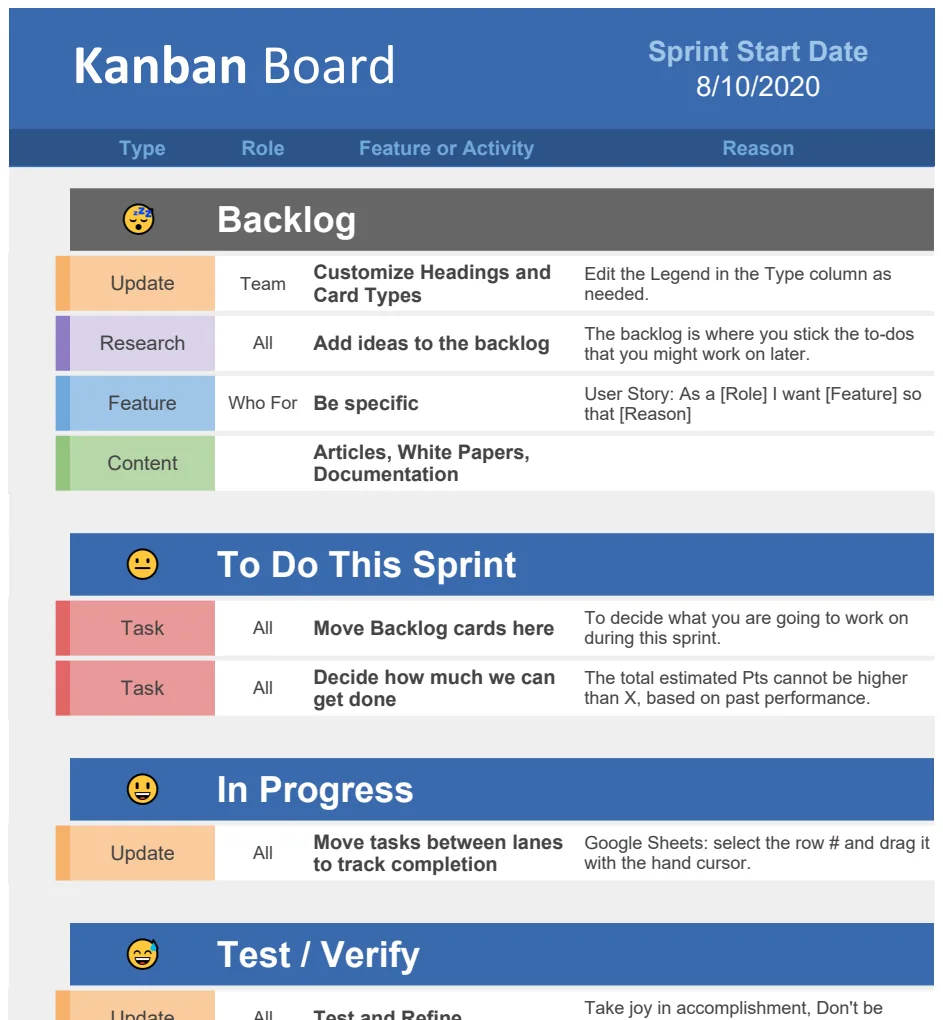
Learn how to set up and use a kanban board template in Google Sheets to manage projects effectively and visually.
Manually creating a Kanban board in Google Sheets can be tedious and error-prone, but using a pre-built kanban board template Google Sheets offers a much more efficient and visually intuitive way to manage your projects. While you could set up columns for "To Do," "In Progress," and "Done" and manually drag task cards, it quickly becomes unwieldy. The real power comes from a template that automates status changes and provides a clear overview.
This guide will walk you through setting up and using a Kanban board in Google Sheets, covering the essential components, how to customize it, and common pitfalls to avoid. We’ll focus on practical application so you can get your tasks organized immediately.
The Core Components of a Kanban Board
At its heart, a Kanban board visualizes workflow. It breaks down a project into individual tasks, each represented by a card, and moves these cards through distinct stages or columns. The typical columns you’ll find on a Kanban board are:
- To Do/Backlog: This column holds all tasks that are planned but haven't been started yet. It’s the reservoir of future work.
- In Progress: Tasks that are actively being worked on reside here. This column shows what’s currently consuming resources.
- Blocked/On Hold: If a task encounters an obstacle or needs to pause for external reasons, it moves here. This highlights impediments.
- In Review/Testing: For tasks that have been completed by the doer but require verification or quality assurance.
- Done/Completed: Tasks that have passed all stages and are finished.
Each "card" on the board typically contains key information like the task name, a brief description, assignee, due date, and its current status.
Setting Up Your Google Sheets Kanban Board
When you start with a dedicated kanban board template Google Sheets, you’re often given a structure that’s ready to go. However, understanding how it’s built is crucial for customization.
Most templates use a combination of a data sheet and a visual board sheet.
- 01The Data Sheet: This is where all your raw task information lives. Think of it as the backend. It will have columns like:
Task ID: A unique identifier for each task.Task Name: A concise title for the task.Description: More detail about what needs to be done.Assignee: Who is responsible for the task.Due Date: When the task should be completed.Status: This is the critical field, usually a dropdown linking to your board columns (e.g., "To Do," "In Progress," "Done").Priority: (Optional) High, Medium, Low.Date Created: When the task was added.
- 02The Board Sheet: This sheet uses formulas and often conditional formatting or data validation to display the tasks visually, mimicking the columns of a physical Kanban board. Tasks from the data sheet are pulled into the appropriate column based on their
Statusvalue.
Example Formula for Pulling Tasks
Imagine your data is on a sheet named TasksData and your board is on a sheet named KanbanBoard. In a cell under your "In Progress" column on KanbanBoard, you might have a formula like this to list tasks that are in that status:
=FILTER(TasksData!B:B, TasksData!F:F = "In Progress")
This formula looks at column B (Task Names) on TasksData and returns only those where column F (Status) on TasksData is exactly "In Progress." You would adapt this formula for each column, changing the status criteria.
Customizing Your Kanban Board
A good template is a starting point. You’ll likely want to tailor it to your specific workflow.
Adjusting Columns
Your project might have unique stages. For example, a software development team might add "Development," "Testing," and "Deployment" columns. You’ll need to:
- 01Update the Data Sheet: Add a new option to the
Statusdropdown list on yourTasksDatasheet. - 02Update the Board Sheet: Add a new column on your
KanbanBoardsheet and adjust theFILTERformulas (or equivalent) to pull tasks for the new status.
Adding Custom Fields
You might need to track additional information, such as client name, project phase, or estimated hours.
- 01Add Columns to `TasksData`: Simply insert new columns into your data sheet for these fields.
- 02Update Board Visuals: If you want these fields to appear on the "cards" displayed on your board, you’ll need to modify how the board sheet displays task information. This might involve using array formulas or helper columns to concatenate data.
Visual Enhancements
Color-coding can significantly improve readability.
- Conditional Formatting: You can set up rules on the
KanbanBoardsheet to change the background color of a task card (or its text) based on its status, assignee, or due date. For instance, tasks due today could turn yellow, and overdue tasks red. - Data Validation Dropdowns: Ensure consistency by using data validation for fields like
AssigneeorStatuson yourTasksDatasheet, pulling options from a separate list.
For teams needing robust visual tracking, a template like the Agile Kanban Board offers pre-built visualizations and metrics that go beyond simple column tracking.
Common Mistakes to Avoid
Even with a template, users often stumble. Be aware of these common issues:
- Inconsistent Status Updates: The board is only as good as the data. If team members don't update the task status regularly, the visual representation becomes inaccurate.
- Overcrowding Columns: If your "In Progress" column has 20 tasks, it defeats the purpose of visualizing bottlenecks. Kanban emphasizes limiting work in progress (WIP).
- Ignoring Blocked Tasks: Tasks stuck in "Blocked" need attention. If they linger, the workflow grinds to a halt. Regularly review this column.
- Not Defining "Done": Ensure everyone agrees on what "Done" means for each task. This prevents ambiguity and reduces back-and-forth.
- Over-complicating the Board: Start with the essential columns and fields. You can always add more complexity later if it’s truly needed. A template like the Ultimate Project Tracker can help manage this complexity with multiple views.
Tips for Effective Kanban Usage
To get the most out of your Google Sheets Kanban board, consider these practices:
- Limit Work in Progress (WIP): Set explicit limits on how many tasks can be in the "In Progress" column at any one time. This forces focus and helps identify bottlenecks. You can implement this using conditional formatting that flags columns exceeding a certain number of tasks.
- Regular Stand-ups: Hold brief daily meetings where each team member discusses what they worked on yesterday, what they’ll work on today, and any impediments. This keeps everyone aligned and ensures tasks are moved promptly.
- Visualize Metrics: Track metrics like cycle time (how long a task takes from "In Progress" to "Done") and throughput (how many tasks are completed per period). While Google Sheets can be extended for this, dedicated tools often do it out-of-the-box. However, you can build basic tracking by adding columns for "Start Date" and "Completion Date" to your data sheet and calculating the difference.
- Review and Adapt: Periodically review your Kanban board process. Are the columns still relevant? Are there new bottlenecks emerging? Adapt your board and workflow as your projects evolve. A template like the Agile Kanban Board can provide a solid foundation for iterative improvement.
How to Handle a Large Number of Tasks
If you have hundreds of tasks, simply listing them all on the board can be overwhelming. A common strategy is to filter the view. You can add filter controls to your KanbanBoard sheet to allow users to see tasks assigned to them, tasks due this week, or tasks of a specific priority. This keeps the immediate view manageable while still having access to the full dataset.
Can I Use This for Personal Task Management?
Absolutely. A Kanban board is excellent for personal productivity. You can track personal projects, chores, learning goals, or even shopping lists. The visual flow helps you see what needs attention and what’s been accomplished, providing a satisfying sense of progress.
What if I Need More Advanced Features?
While Google Sheets is versatile, for very complex projects requiring advanced reporting, resource management, or integrations, you might eventually outgrow a spreadsheet solution. Many specialized project management tools offer Kanban views, but for many users, a well-configured kanban board template Google Sheets is more than sufficient. You can also explore our collection of templates at OpenWorksheet for more options.
How do I Ensure Data Integrity?
The key is consistent use of data validation. For the Status column, use a dropdown list populated from a separate list of your defined statuses. This prevents typos like "In Progess" instead of "In Progress." Similarly, for Assignee, use a dropdown populated with team member names. This ensures all data entered is clean and can be accurately filtered and reported on.