Track your sales commissions accurately with this spreadsheet.
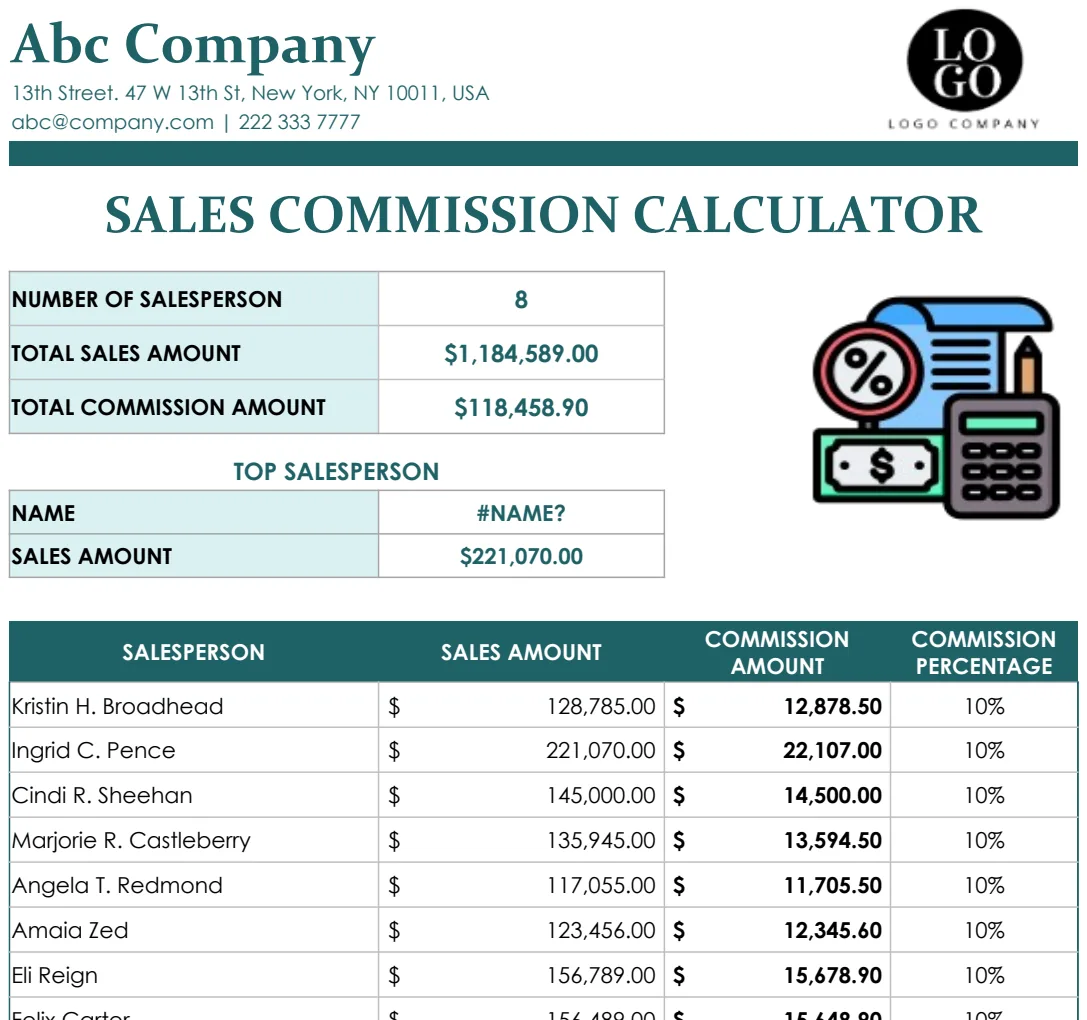
A commission calculator spreadsheet template is essential for accurately tracking sales commissions and avoiding costly payout mistakes.
Manually calculating sales commissions is a recipe for errors. A well-built commission calculator spreadsheet template can save you hours each month and drastically reduce payout mistakes.
The difference between a template that just crunches numbers and one that actively manages your commission process is significant. The latter provides clarity, automates tedious tasks, and integrates with your sales data.
Why a Spreadsheet is Still Your Best Bet
Even with advanced CRM systems, a dedicated spreadsheet offers unparalleled flexibility for commission calculations. You can customize tiers, bonuses, and clawbacks precisely to your company's unique sales structure. While CRMs might offer basic commission tracking, they often lack the granular control needed for complex plans. A powerful commission calculator spreadsheet template allows you to model different scenarios, track performance against targets, and generate detailed reports without being constrained by predefined CRM modules. This adaptability is crucial for sales teams with evolving compensation strategies.
Essential Components of a Commission Calculator
At its core, a commission calculator needs several key data points to function accurately. You'll want columns for:
- Employee Name/ID: To identify who earned the commission.
- Sale Date: For tracking performance within specific periods (e.g., monthly, quarterly).
- Customer Name/ID: Useful for identifying repeat business or specific client types.
- Product/Service Sold: If commissions vary by offering.
- Sale Amount: The gross revenue from the deal.
- Commission Rate: The percentage or fixed amount paid per sale.
- Commission Earned: The calculated amount for that specific sale.
- Quota/Target: If your plan includes performance bonuses or accelerators.
- Bonus Earned: For any additional incentives.
- Total Commission Paid: The sum of earned commission and bonuses for a given period.
- Status (e.g., Paid, Pending): To track payout cycles.
Beyond these, consider adding columns for region, sales manager, or any other factor that influences commission eligibility or payout.
Building Your Commission Calculator: A Step-by-Step Example
Let's walk through building a simple, yet effective, commission calculator spreadsheet template. We'll assume a basic plan where salespeople earn a flat percentage of their sales, with an accelerator for exceeding quota.
Scenario:
- Base Commission Rate: 5%
- Quota: $50,000 per month
- Accelerator Rate (for sales above quota): 7.5%
Setup:
- 01Sheet 1: "Sales Data"
- Column A: Employee Name
- Column B: Sale Date
- Column C: Sale Amount
- 02Sheet 2: "Commissions"
- Column A: Employee Name
- Column B: Month (e.g., "January 2024") - You can use a formula like
=TEXT(B2,"MMMM YYYY")if your Sale Date is in Column B. - Column C: Total Sales for Month (This will be a SUMIFS formula).
- Column D: Quota (You can hardcode this or link to a separate "Rates" sheet).
- Column E: Commission Earned (Base).
- Column F: Sales Above Quota.
- Column G: Commission Earned (Accelerator).
- Column H: Total Commission.
Formulas:
- On "Commissions" Sheet:
- Column C (Total Sales for Month):
=SUMIFS('Sales Data'!$C:$C, 'Sales Data'!$A:$A, A2, 'Sales Data'!$B:$B, ">="&DATE(YEAR(DATEVALUE("1-"&B2)),MONTH(DATEVALUE("1-"&B2)),1), 'Sales Data'!$B:$B, "<="&EOMONTH(DATEVALUE("1-"&B2),0)) - Explanation: This formula sums sales amounts from the "Sales Data" sheet. It looks for sales made by the employee in Column A (A2) and within the specific month specified in Column B.
- Column D (Quota): If you have a single quota, you can just type $50,000. If it varies by employee, you'd need another lookup or a dedicated column. For simplicity, let's assume a fixed quota for all.
- Column E (Commission Earned - Base):
=MIN(C2, D2) * 0.05 - Explanation: This calculates 5% commission on sales up to the quota amount.
MIN(C2, D2)ensures you don't calculate base commission on amounts exceeding the quota. - Column F (Sales Above Quota):
=MAX(0, C2 - D2) - Explanation: This calculates how much of the sales amount exceeded the quota.
MAX(0, ...)ensures this value isn't negative if sales are below quota. - Column G (Commission Earned - Accelerator):
=F2 * 0.075 - Explanation: This calculates 7.5% commission on the sales amount that surpassed the quota.
- Column H (Total Commission):
=E2 + G2 - Explanation: This sums the base commission and the accelerator commission for the total payout.
This structure provides a clear overview of how commissions are calculated. For more complex needs, consider using a template like the Sales Commission Calculator Template which can handle multiple rates, tiers, and employee-specific plans automatically.
Automating with VLOOKUP or XLOOKUP
If your commission rates or quotas vary based on employee, product, or region, using lookup functions is essential.
- VLOOKUP: This classic function searches for a value in the first column of a table and returns a value in the same row from a specified column. For example, if you have a table of employees and their base commission rates on a separate sheet named "Rates," you could find an employee's rate with:
=VLOOKUP(A2, Rates!$A$2:$B$100, 2, FALSE). - XLOOKUP: A more modern and flexible function. It searches for a value in one range and returns a corresponding value from another range. Its syntax is simpler:
=XLOOKUP(A2, Rates!$A$2:$A$100, Rates!$B$2:$B$100, "Not Found").
These functions allow you to maintain your rates and employee data separately, making updates much easier and reducing the chance of formula errors. A robust commission calculator spreadsheet template will often incorporate these functions for dynamic rate application.
Handling Edge Cases and Complex Scenarios
Sales compensation plans are rarely simple. You'll encounter situations that require special handling:
- Returns and Refunds: How do these affect earned commissions? You might need to implement a clawback mechanism, deducting the commission from a future payout if a sale is returned within a certain period. This often involves tracking sales by invoice number and linking it to commission payouts.
- Team-Based Commissions: If commissions are pooled or distributed across a team, you'll need to sum individual sales and then apply a team-level calculation.
- Bonuses and SPIFFs: Special incentives often have their own rules. You might have a separate section on your sheet or a linked sheet to track these.
- Different Commission Structures: Some plans might have fixed dollar amounts for certain sales, while others use percentages. You'll need conditional logic (IF statements) to handle these variations. For instance,
=IF(Sales_Type="Fixed", Fixed_Amount, Sale_Amount * Rate). - Multi-Level Marketing (MLM) or Downline Commissions: These require tracking organizational hierarchies and calculating commissions based on multiple levels of sales. This is where specialized templates like Sales Commission Calculation can be invaluable, offering pre-built structures for complex downline payouts.
Mistakes to Avoid
- Overly Complex Formulas: While flexibility is good, formulas that are too long or nested too deeply become impossible to debug. Break down complex calculations into intermediate columns.
- Not Accounting for Taxes or Deductions: Your calculator might show gross commission, but remember that net pay will be lower. Ensure your process accounts for this.
- Hardcoding Values: Avoid typing rates, quotas, or employee names directly into formulas. Use cell references or lookup tables so you can update these values in one place.
- Ignoring Data Integrity: Ensure your raw sales data is clean. Inconsistent employee names, incorrect sale amounts, or duplicate entries will lead to inaccurate commission calculations.
Frequently Asked Questions
How do I handle commission payouts for sales that span across months?
You'll typically attribute sales to the month they were closed or invoiced. If a deal spans multiple months, you might prorate the commission or pay it out entirely in the month it was finalized, depending on your company policy. Ensure your date-based formulas in your commission calculator spreadsheet template correctly capture the sale within the relevant period.
Can I track commission against sales targets in a spreadsheet?
Absolutely. Add columns for "Quota" and "Sales This Period" (using SUMIFS to aggregate sales for the employee within the period). Then, calculate attainment percentage (=Sales_This_Period / Quota) and use IF statements to determine if bonuses or accelerators are earned. Templates like the Sales Commission Calculator are built with this in mind.
What if I have different commission rates for different products?
You'll need to include "Product" as a criterion in your SUMIFS formulas and potentially use a lookup function (like XLOOKUP) to pull the correct commission rate based on both the employee and the product sold. This requires a more detailed rate table.
How often should I update my commission spreadsheet?
Ideally, you should update your raw sales data daily or weekly to ensure it's as current as possible. The commission calculation itself can be run monthly or quarterly, coinciding with your payout schedule. Regular audits are crucial to catch any discrepancies.