A spreadsheet for tracking your cold call outreach

Discover how to build a powerful cold call tracker spreadsheet template that goes beyond simple status updates to drive sales.
The Status column in your cold call tracker is more critical than you might think. It's not just about marking a call as "Done"; it's about defining the next action, the probability of a sale, and where a prospect sits in your funnel. Without clear, consistently applied statuses, your spreadsheet devolves into a data graveyard, offering little insight. Getting this right from the start makes the difference between a useful cold call tracker spreadsheet template and a forgotten file.
Let's build a system that actually helps you close more deals. Whether you're a solo salesperson or part of a growing team, a well-structured spreadsheet can be your best friend. It keeps you organized, tracks your progress, and most importantly, tells you what to do next. We'll cover the essential columns, smart formulas, and common pitfalls to avoid, ensuring your tracking efforts pay off.
Essential Columns for Your Tracker
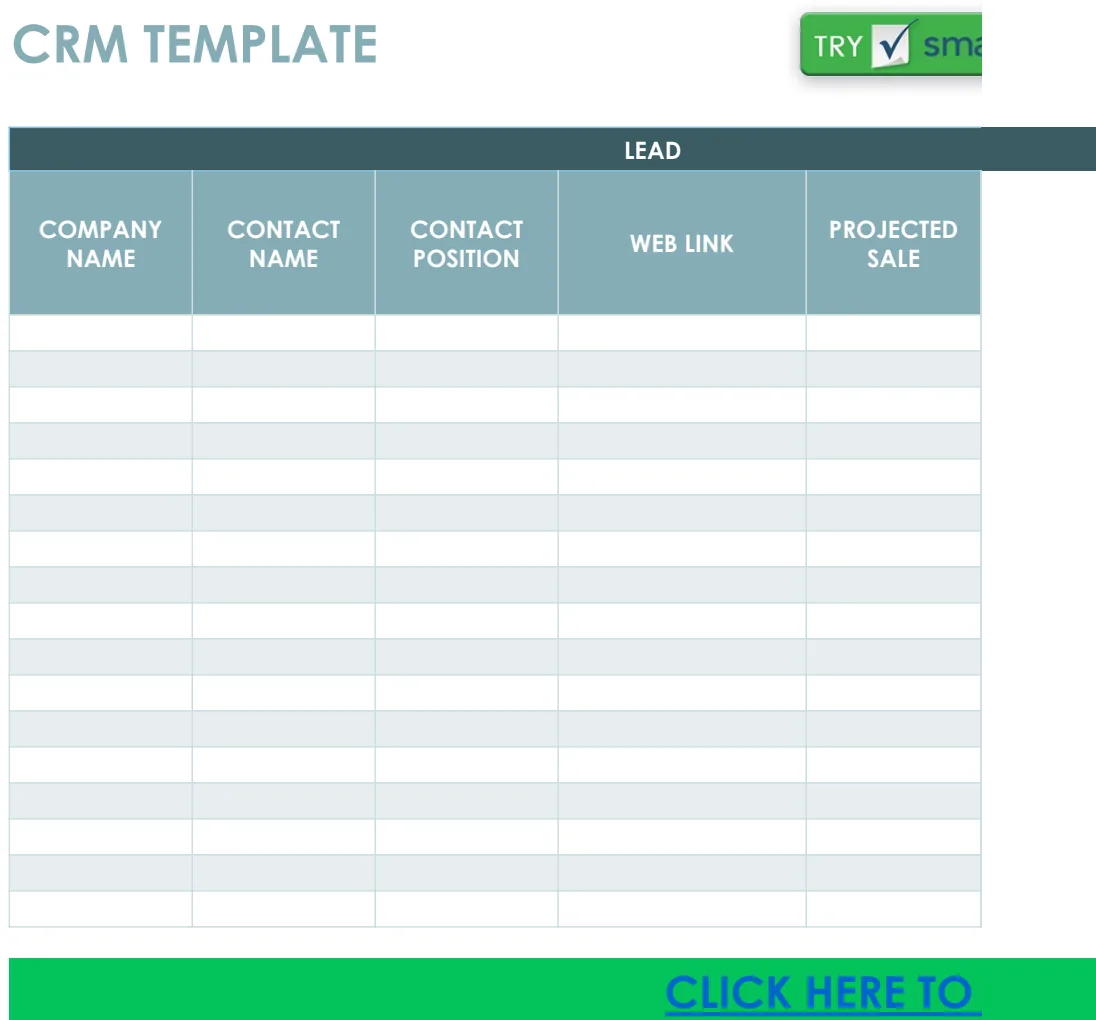
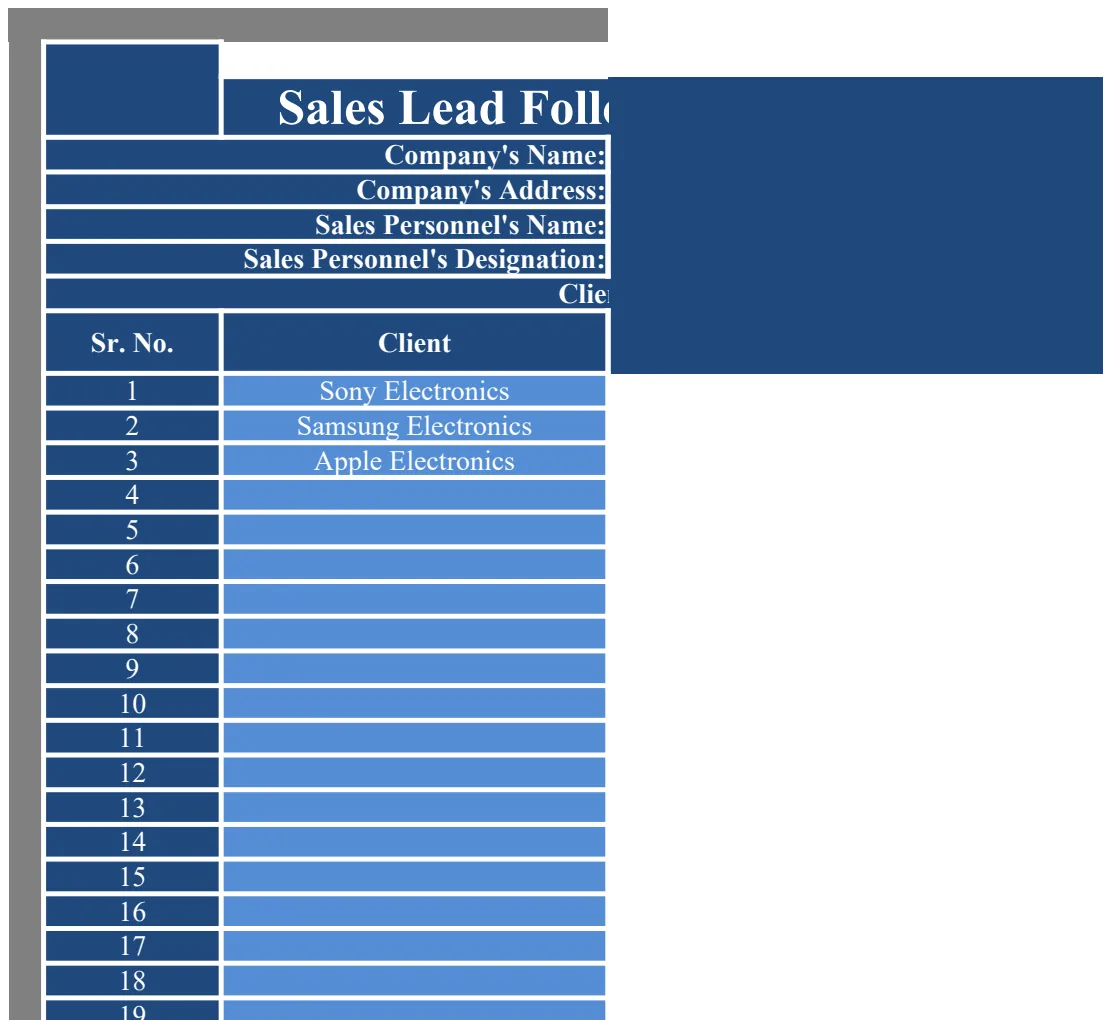
Beyond just the prospect's name and number, several columns are non-negotiable for an effective cold call tracker spreadsheet template. Think about what information you truly need to make informed decisions and follow up effectively.
- Prospect Name: Full name of the person you're calling.
- Company Name: The organization they represent.
- Phone Number: The direct number you dialed.
- Email Address: For follow-up communication.
- Date of Call: When the call was made.
- Time of Call: Useful for identifying peak contact times or understanding your schedule.
- Call Outcome/Status: This is where you define what happened. Think "No Answer," "Voicemail Left," "Spoke to Gatekeeper," "Spoke to Prospect - Interested," "Spoke to Prospect - Not Interested," "Meeting Scheduled," "Follow-up Needed," "Bad Number."
- Key Talking Points: A brief note on what was discussed or what you need to remember about this prospect's needs.
- Next Action: What's the very next step? "Call Back in 2 Days," "Send Email," "Schedule Demo," "Add to Nurture Campaign."
- Date of Next Action: When that next step should occur.
- Contacted Via: How you reached them (e.g., Cold Call, LinkedIn, Referral).
- Lead Source: Where did this prospect come from initially (e.g., Website Inquiry, Trade Show, Purchased List)?
- Notes: Any miscellaneous but important details about the call or prospect.
Setting Up Your "Status" Column Effectively
The Status column is your primary driver for sales activity. A common mistake is using vague terms. Instead, aim for actionable statuses.
- Initial Contact:
No Answer: They didn't pick up.Voicemail Left: You left a message.Gatekeeper: You spoke to an assistant, not the decision-maker.Bad Number: The number was incorrect.- Engagement:
Spoke - Not Interested: They explicitly said no.Spoke - Interested: They showed some level of interest.Spoke - Requires Follow-up: You had a good conversation but need to send more info or schedule a call.- Progression:
Meeting Scheduled: A concrete next meeting is booked.Demo Scheduled: A product demonstration is set.Proposal Sent: You've submitted a formal offer.Qualified Lead: They meet your criteria and are worth significant pursuit.Unqualified Lead: They don't fit your ideal customer profile.- Closing/Lost:
Closed - Won: They became a customer.Closed - Lost: They chose a competitor or decided not to proceed.
Using these specific statuses allows you to filter your list easily. For example, you can quickly see all prospects who are "Spoke - Interested" and need a follow-up, or all "Meeting Scheduled" for the upcoming week.
Automating Follow-Ups with Dates
A dedicated Date of Next Action column paired with a Next Action column is crucial. This transforms your tracker from a static log into a dynamic to-do list.
Here’s a simple way to use this:
- 01Populate `Next Action` and `Date of Next Action`: After each call where a follow-up is needed, fill these in. For example, if you left a voicemail, your
Next Actionmight be "Call Back" andDate of Next Actioncould be two days from today's date. If you promised to send an email, theNext Actionis "Send Email" and theDate of Next Actionis today. - 02Use Conditional Formatting: Apply conditional formatting to the entire row based on the
Date of Next Action.
- If
Date of Next Actionis today's date, highlight the row in yellow. - If
Date of Next Actionis in the past (meaning you missed a deadline), highlight the row in red. - If
Date of Next Actionis in the future, leave it unformatted or use a light grey.
This visual cue immediately draws your attention to what needs your attention now. You can then sort your sheet by this column to tackle your most urgent tasks first.
Leveraging Formulas for Insight
Beyond basic data entry, formulas can turn your tracker into a powerful analytical tool.
- Counting Calls Made: A simple
=COUNT(A:A)in a separate summary area can give you a total number of entries, assuming yourProspect Namecolumn (Column A) is always filled. - Calls This Week/Month: To count calls made within a specific date range, you can use
=COUNTIFS(D:D, ">="&TODAY()-7, D:D, "<="&TODAY())where Column D is yourDate of Call. Adjust the-7for a monthly count or other periods. - Tracking Conversion Rates: If you have a
Statuscolumn that clearly defines "Qualified" and "Meeting Scheduled," you can calculate conversion. Let's say "Qualified" is in cellG2and "Meeting Scheduled" is in cellG3. - Number Qualified:
=COUNTIF(G:G, "Qualified") - Number Meeting Scheduled:
=COUNTIF(G:G, "Meeting Scheduled") - Conversion Rate (Qualified to Meeting):
=COUNTIF(G:G, "Meeting Scheduled") / COUNTIF(G:G, "Qualified"). Format this cell as a percentage.
These simple formulas provide quick snapshots of your activity and success rates. For more complex needs, like tracking multiple stages of a pipeline, you might explore =SUMIFS or even =XLOOKUP to pull data from other sheets if your prospecting efforts are spread out.
Avoiding Common Cold Call Tracking Mistakes
Even with a great template, errors in usage can undermine its effectiveness.
- Inconsistent Status Updates: Not updating the
Statuscolumn after every call is the most common error. This makes your data unreliable. - Vague Notes: "Follow up" or "Good chat" isn't actionable. Be specific about what the follow-up entails or what was good about the chat.
- Ignoring "Next Action": Simply logging a call without defining the next step is a missed opportunity. Every call should have a purpose and a next step.
- Not Scheduling Follow-Up Dates: If you don't put a date in
Date of Next Action, it's easy for promising leads to go cold. - Over-complicating the Template: Start simple. Add columns only when you identify a genuine need for that data. Too many columns can make data entry tedious.
- Not Cleaning Up Old Data: Periodically review your tracker. Mark deals as "Closed - Won" or "Closed - Lost" to keep your active pipeline clean. Remove irrelevant entries.
When to Consider a Dedicated CRM
While a spreadsheet is fantastic for getting started or for individual use, there comes a point where it might not be enough. If you're part of a larger sales team, need to track deal values, manage complex sales cycles with multiple touchpoints, or require detailed reporting and automation, a dedicated Customer Relationship Management (CRM) system becomes essential. A tool like the Client Tracker with Dashboard can bridge the gap, offering more sophisticated tracking and reporting for a growing business. For simpler logging of all communications, including calls, the Telephone Conversation Tracker or the Anrufliste (Call Log) are excellent for focused call record-keeping.
What if I have a lot of prospects?
If your prospect list is extensive, focus on the Status and Next Action columns. Use filtering to narrow down your view to only those prospects who are "Spoke - Interested" or "Follow-up Needed." Prioritize based on your Date of Next Action and any notes indicating urgency or high potential.
How often should I update my tracker?
Ideally, you should update your tracker immediately after each call or at least once a day. Consistency is key. If you wait too long, you'll forget crucial details, and the data's accuracy will suffer.
Can I track multiple people at the same company?
Yes. You can either add multiple rows for the same company, each with a different contact person, or add a Contact Person column if you're primarily tracking a single point of contact at a company and need to note others you spoke with. For comprehensive company tracking, a CRM or a more advanced client management sheet might be beneficial.