What are the top Google Sheets templates for boosting productivity?
This guide reveals top Google Sheets templates to transform your data into insights and boost your daily output.
By the end of this guide, you’ll have a clear roadmap to integrating powerful, ready-made Google Sheets templates into your workflow, turning your data into actionable insights and significantly boosting your daily output. You’ll understand which tools address common productivity bottlenecks, from managing complex projects to analyzing sales performance, and how to implement them with minimal setup. This article will help you discover the best Google Sheets templates for productivity that fit your specific needs.
The challenge with productivity is often not a lack of effort, but a lack of efficient systems. Spreadsheets, especially Google Sheets, offer immense flexibility, but building sophisticated tracking and analysis tools from scratch consumes valuable time. The right template acts as a powerful shortcut, providing pre-built structures and formulas that allow you to focus on your data and decisions, not on spreadsheet mechanics.
Understanding Your Productivity Needs
Before diving into templates, take a moment to identify your biggest time sinks or areas where you feel least organized. Are you struggling to keep track of client projects? Do you find yourself spending too much time calculating pricing for custom orders? Perhaps sales data is scattered, making it hard to see what’s truly profitable. Pinpointing these pain points is the first step to selecting the most impactful templates. A quick self-assessment can reveal if your main challenge lies in project management, sales analysis, personal task tracking, or financial planning.
Project Management Templates for Organized Teams
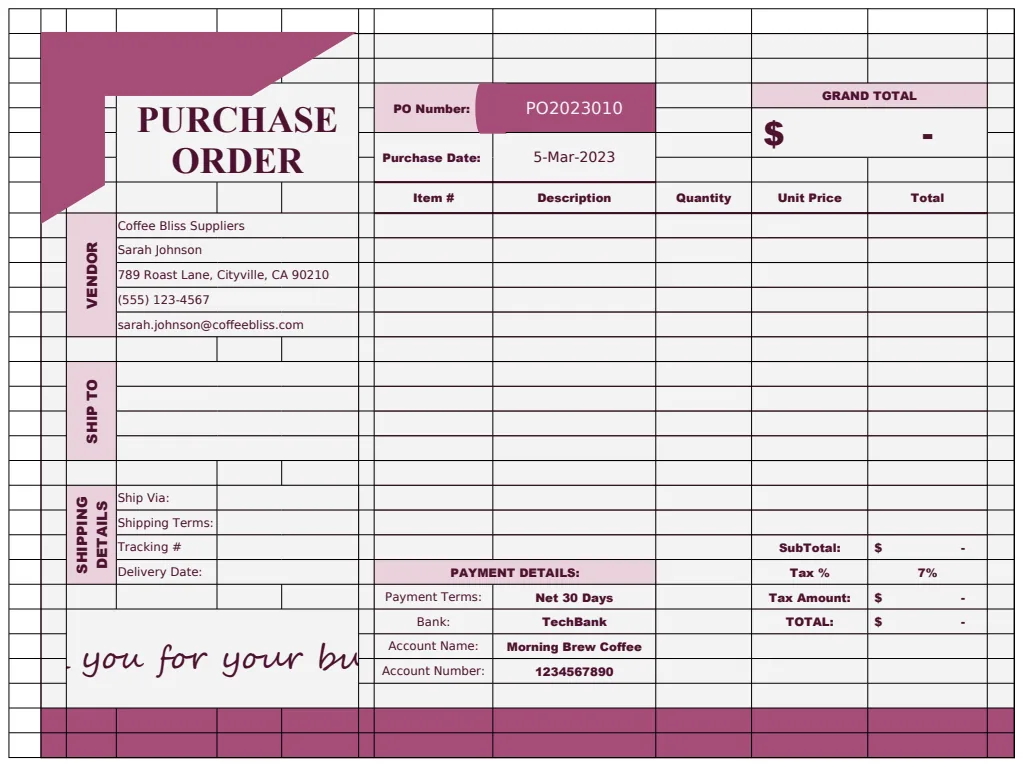
For anyone managing multiple projects, keeping track of tasks, deadlines, and team assignments can become a significant hurdle. Without a centralized system, information gets lost, tasks slip through the cracks, and overall project momentum suffers. Google Sheets templates designed for project management can bring order to this chaos. These templates often include features for task assignment, progress tracking, and milestone visualization, allowing for a clear overview of project status at a glance.
A robust project management template can be the difference between a project that runs smoothly and one that’s a constant scramble. Look for templates that allow you to assign specific tasks to team members, set due dates, and update completion percentages. Some even integrate with calendars or offer Gantt chart-like views for visualizing timelines.
Sales and Profit Analysis Tools
Understanding your product’s financial performance is critical for sustainable growth. If you’re unsure which products are generating the most profit or where your costs are highest, you’re essentially flying blind. Templates that analyze sales data against costs provide the clarity needed to make informed decisions about pricing, inventory, and marketing efforts.
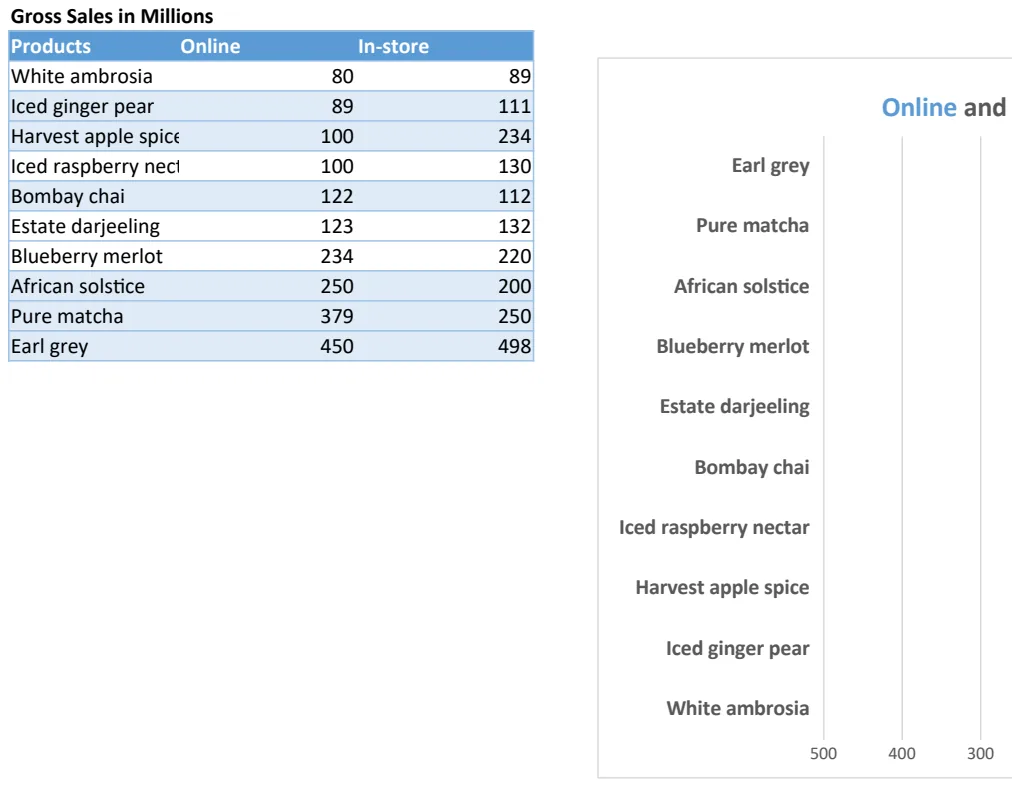
For instance, a template like the Sales Product Cost vs Profit Analysis can help you see exactly how much profit each product line is generating month over month. This kind of detailed breakdown is invaluable for identifying high-performing products and areas that need adjustment. It moves beyond simple sales figures to uncover the true profitability of your offerings.
Streamlining Pricing and Quoting
Creating accurate and competitive pricing can be surprisingly time-consuming, especially when dealing with custom orders or multiple product variations. Manually calculating costs, adding markups, and factoring in potential volume discounts can lead to errors and slow down your sales process. Having a dedicated tool for this ensures consistency and speed.
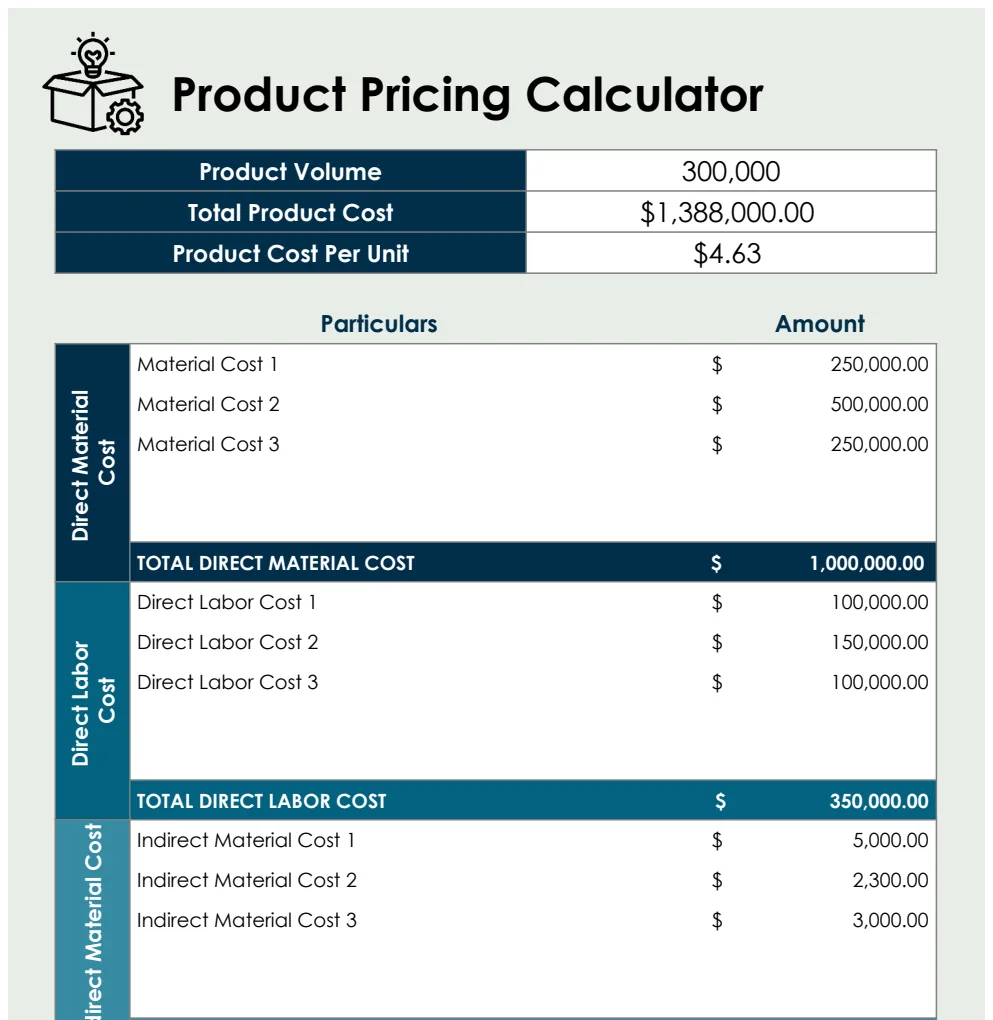
The Product Pricing Calculator Template is an excellent example of how a specialized template can boost productivity. It automates the complex calculations involved in pricing, allowing you to generate quotes quickly and confidently. This frees up sales teams to focus on closing deals rather than getting bogged down in spreadsheet formulas.
Personal Productivity and Task Management
Beyond team projects and sales, individual productivity is also a key area where Google Sheets templates can shine. From daily to-do lists to habit trackers and personal finance organizers, these templates help individuals manage their time and responsibilities more effectively. They provide a structured way to capture tasks, set priorities, and monitor progress towards personal goals.
A simple to-do list template might seem basic, but when populated with clear action items and deadlines, it becomes a powerful tool for staying on track. More advanced personal templates can include features for time blocking, goal setting, and even tracking personal spending habits, all contributing to a more organized and productive personal life.
Creating Your Own Product Backlog
For software development teams or product managers, organizing features and requirements is paramount. A well-defined product backlog ensures that development efforts are aligned with strategic goals and that user needs are met. Manually tracking these items can quickly become unwieldy, especially as a product evolves.
A template designed for organizing a product backlog, such as the Product Backlog with User Stories, provides a structured approach. It allows you to define features as user stories, assign priorities, and link them to specific development sprints. This clarity is essential for efficient product development and ensures that the team is always working on the most valuable items.
Leveraging Conditional Formatting for Clarity
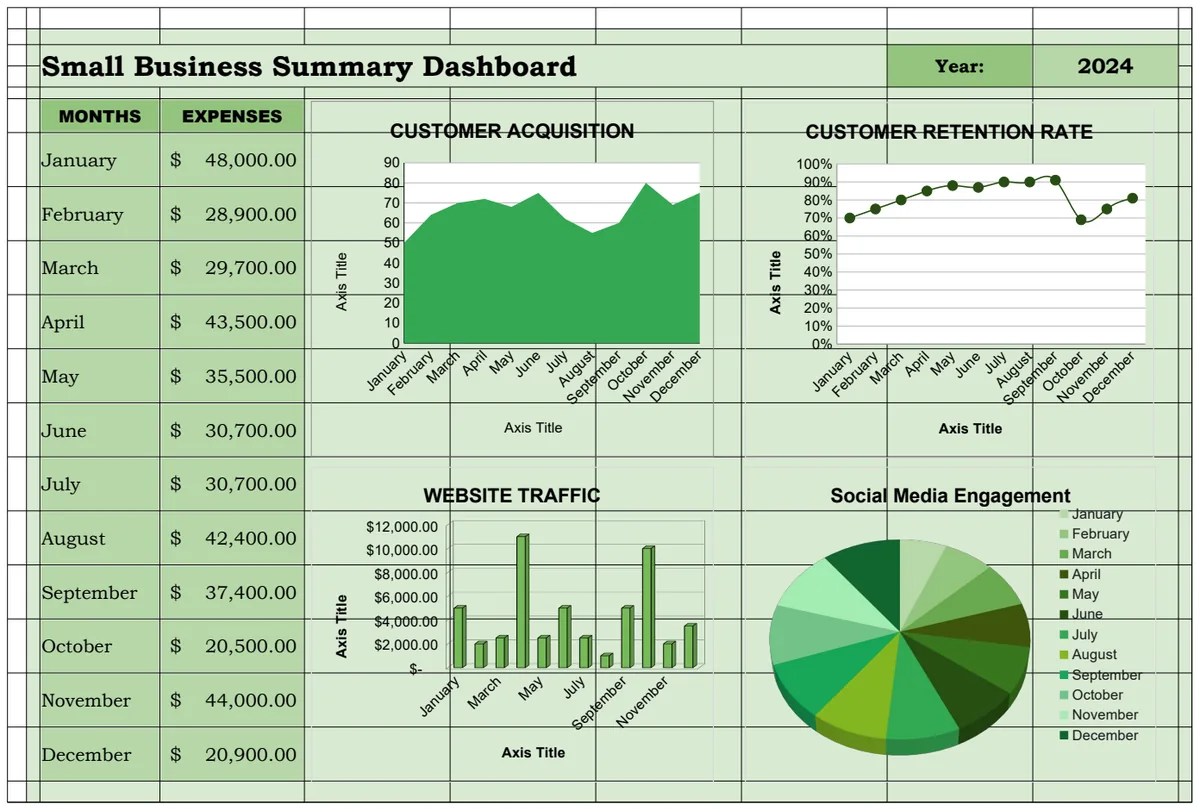
One of the most visually impactful ways to boost productivity within any spreadsheet is by using conditional formatting. This feature allows you to automatically highlight cells based on specific criteria, making it easy to spot trends, identify outliers, or track progress at a glance. For example, in a sales tracking sheet, you could use conditional formatting to highlight sales figures above a certain target in green, and those below in red.
In a project management template, you might color-code tasks based on their status (e.g., red for overdue, yellow for in progress, green for complete) or by the assigned team member. This visual cue drastically reduces the time spent scanning rows of data, allowing you to quickly assess the overall health of your projects or sales pipeline.
Common Mistakes to Avoid
- Over-complicating: Trying to build a system that does everything can lead to a spreadsheet that’s difficult to use and maintain. Start with a template that solves your most pressing problem.
- Ignoring Data Entry Discipline: Even the best template is useless if the data going into it is inaccurate or incomplete. Establish clear guidelines for data entry and stick to them.
- Not Customizing: Templates are a starting point. Don't be afraid to tweak column headers, add extra fields, or adjust formulas to better fit your specific workflow.
- Forgetting About Sharing and Collaboration: If you’re working with a team, ensure the template you choose is easily shareable and supports collaborative editing in Google Sheets.
What if I need a template for something very specific?
If your needs are highly specialized, you might find that a general template needs customization. Examine the structure of the pre-built templates and see how easily you can adapt them. Often, adding a few custom columns or modifying existing formulas can make a general template perfectly suited to a niche task. For instance, if you need to track something beyond simple product profitability, you might add columns for marketing spend per product or customer acquisition cost.
Can I combine templates?
Yes, you absolutely can. You might use a sales analysis template to identify top-performing products and then feed those insights into a pricing calculator template to refine your quoting strategy. The key is to ensure your data is consistent and that the output of one sheet can be easily used as the input for another. This often involves exporting data from one template and importing it into another, or using formulas like IMPORTRANGE to link sheets directly, though that requires careful setup.
How much do these templates cost?
The templates available through OpenWorksheet are part of a one-time purchase for unlimited downloads, priced at $9. This provides access to the entire library, allowing you to download and use any template as many times as you need for your personal or business use. You can explore the full collection at /templates.
Are these templates difficult to set up?
Generally, no. The goal of these templates is to be ready to use out of the box. You typically just need to open the template, make a copy to your Google Drive, and begin entering your data. Some advanced templates might have a brief setup guide or require you to input initial parameters, but the core functionality is designed for immediate use, saving you hours of setup time.