10 Best Client Tracker CRM Software for 2026: Boost Your Sales
A client tracker CRM is a system that records every interaction, deal stage, and follow-up task for each customer or prospect in a single, searchable timeline. It differs from a basic contact list by...
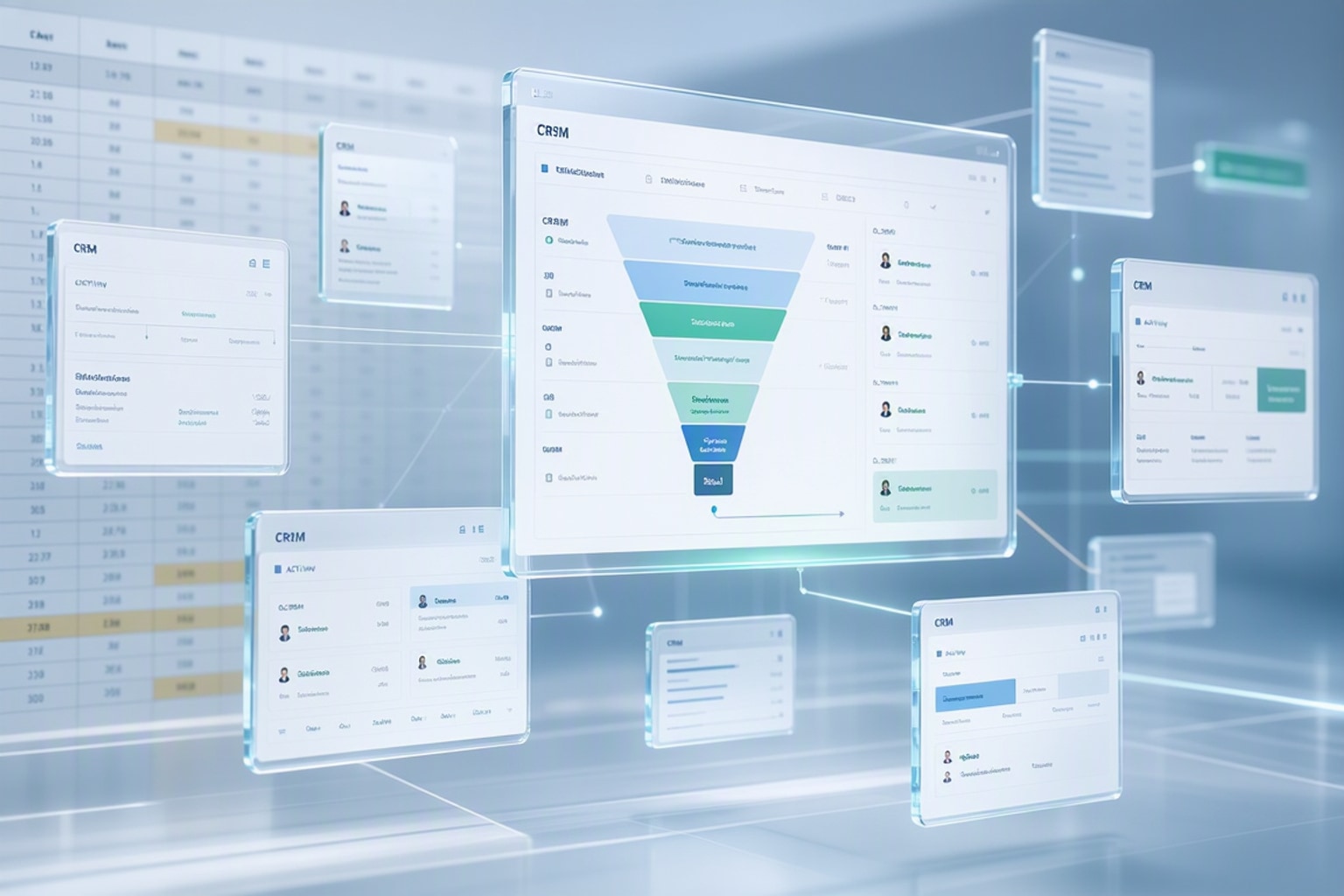
A client tracker CRM is a system that records every interaction, deal stage, and follow-up task for each customer or prospect in a single, searchable timeline. It differs from a basic contact list by automating reminders, logging emails and calls automatically, and moving clients through pipeline stages without manual updates. In 2026, businesses use client tracker CRMs to reduce response times, prevent lost leads, and give every team member instant visibility into customer history without digging through inboxes or shared drives.
The shift from spreadsheet to CRM software happens when manual data entry costs more time than the subscription fee. PCMag notes that CRM software is "far more capable than spreadsheets for this purpose, especially if your customer list is large or if you want to integrate data from other business services." Businesses that close 10 or fewer deals per month often manage fine in a structured spreadsheet. Once you hit 20+ active clients, multiple team members, or recurring follow-up sequences, automation and integration justify the switch.
When to Use a Spreadsheet vs. When to Upgrade to CRM Software
Spreadsheets work when you need a lightweight client list with basic contact details, deal values, and next-action dates. They cost nothing, require no onboarding, and give you full control over columns and formulas. Dedicated CRM platforms add automation, email sync, pipeline visualization, and team collaboration features that spreadsheets cannot replicate without heavy scripting.
The tipping point arrives when you spend more than two hours per week updating your spreadsheet, chasing down who contacted which client, or manually sending follow-up reminders. At that stage, a CRM's automation and centralized activity log reclaim enough time to justify the monthly cost per user.
Starting with a Spreadsheet Client Tracker: What Works and What Breaks
A functional spreadsheet client tracker includes columns for client name, company, email, phone, deal stage, deal value, last contact date, next action, and assigned team member. You can add conditional formatting to highlight overdue follow-ups and use dropdown lists to standardize deal stages. This setup handles 50 clients comfortably for a solo operator or small team.
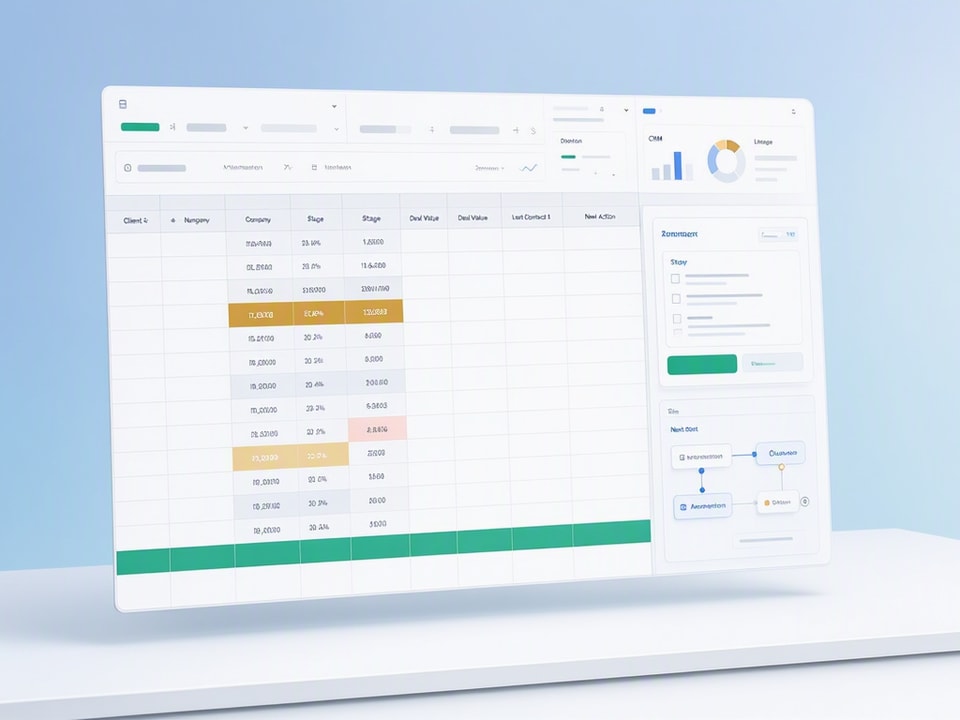
Problems emerge when multiple people edit the sheet simultaneously, when you need to log every email thread automatically, or when you want to trigger follow-up emails based on deal stage changes. Spreadsheets also lack native mobile apps, so field updates require laptop access or clunky mobile browser editing. Version control becomes a headache when team members save conflicting copies or overwrite each other's notes.
Signs You've Outgrown Your Spreadsheet Client Tracker
You have outgrown your spreadsheet when you manually copy-paste email threads into notes fields, when duplicate client entries appear because team members did not check existing rows, or when you miss follow-ups because no automated reminder pinged you. Other red flags include spending 30 minutes per week cleaning up formatting, losing track of who last contacted a client, and lacking a unified view of all touchpoints across email, calls, and meetings.
If your team asks "Did anyone follow up with this lead?" more than once per week, or if you cannot generate a pipeline report without exporting and pivoting data in another tool, a CRM will solve those friction points immediately. The cost of a lost deal due to poor follow-up almost always exceeds the annual subscription cost of a mid-tier CRM.
Top Client Tracker CRM Software for 2026: Feature Comparison and Ratings
HubSpot CRM leads with a 9.1 overall rating and 9.3 for features, offering a robust free tier and enterprise-grade automation. Salesforce Sales Cloud scores 8.6 overall and 9.2 for features, suited for complex sales organizations that need deep customization. Zoho CRM achieves 8.3 overall with an 8.7 feature score and 8.1 value score, balancing affordability with core CRM capabilities. Copper CRM integrates natively with Google Workspace at $23 per user per month, eliminating the need to leave Gmail. Manatal provides ATS and CRM functionality at $15 per user per month, targeting recruiting agencies. monday CRM blends project management with client tracking, delivering 70% efficiency gains in administrative tasks through automation.
These ratings reflect current performance as of June 2026, based on feature depth, ease of use, integration ecosystems, and pricing transparency. Businesses should verify current pricing and trial availability directly, as vendors adjust tiers and feature access throughout the year.
HubSpot CRM: Best Overall for Features and Scalability
HubSpot CRM earns a 9.1 overall rating and 9.3 for features, making it the top choice for businesses that want a free entry point with a clear upgrade path. The free tier includes unlimited users, contact and deal tracking, email integration, and basic automation. Paid tiers add advanced workflows, custom reporting, and sales forecasting without forcing you to rebuild your data structure.
HubSpot excels at centralizing marketing, sales, and service data in one platform, so customer interactions flow seamlessly from ad click to closed deal to support ticket. Teams that plan to scale beyond 100 clients or add marketing automation benefit from staying within the HubSpot ecosystem rather than stitching together separate tools. The mobile app mirrors desktop functionality, letting sales reps log calls and update deal stages from the field without lag.
Salesforce Sales Cloud: Enterprise-Grade Client Tracking
Salesforce Sales Cloud scores 8.6 overall and 9.2 for features, offering unmatched customization for complex sales processes and large teams. It supports custom objects, approval workflows, territory management, and AI-driven lead scoring through Einstein Analytics. Enterprises with multi-stage sales cycles, compliance requirements, or deep integration needs choose Salesforce despite its steeper learning curve.
The platform's AppExchange marketplace provides thousands of third-party integrations, from accounting software to industry-specific tools. Smaller businesses often find Salesforce overkill unless they need role-based permissions, audit trails, or multi-currency deal tracking. Implementation typically requires a dedicated admin or consultant, so factor setup time and training costs into your decision.
Zoho CRM: Best Value for Small to Mid-Sized Teams
Zoho CRM achieves an 8.3 overall rating, 8.7 for features, and 8.1 for value, positioning it as the best balance between affordability and capability for teams of 5 to 50 users. Plans start at $14 per user per month and include automation, custom modules, email integration, and mobile access. Zoho's interface feels less polished than HubSpot or Salesforce, but it delivers the same core functionality at a fraction of the cost.
Zoho integrates natively with Zoho Books, Zoho Campaigns, and other Zoho suite products, making it a strong choice if you already use Zoho for accounting or email marketing. The platform supports workflows that auto-assign leads, send follow-up emails, and update deal stages based on activity, reducing manual pipeline management. Businesses that prioritize budget over brand recognition find Zoho CRM provides everything they need without enterprise pricing.
Copper CRM: Built for Google Workspace Users
Copper CRM costs $23 per user per month and embeds directly into Gmail and Google Calendar, eliminating the need to switch tabs or manually log emails. It automatically captures email threads, meeting notes, and contact details from your inbox, building a complete client timeline without data entry. Teams that live in Google Workspace see immediate productivity gains because Copper surfaces client context inside the tools they already use.
Copper's pipeline view uses drag-and-drop cards to move deals through stages, and automation rules trigger follow-ups or task assignments based on stage changes. It lacks the advanced reporting and customization of Salesforce but excels at simplicity and Google integration. If your team uses Microsoft 365 instead of Google Workspace, Copper offers no advantage over competitors.
Manatal: Budget-Friendly CRM for Recruiting Agencies
Manatal combines applicant tracking system (ATS) and CRM features at $15 per user per month, targeting recruiting agencies that manage both candidates and client companies. It includes resume parsing, job posting to multiple boards, interview scheduling, and client pipeline tracking in one platform. Agencies that previously juggled separate ATS and CRM tools consolidate workflows and reduce subscription costs by switching to Manatal.
The platform's AI-driven candidate recommendations and automated email sequences reduce time-to-fill for open roles. Manatal's CRM side tracks client companies, hiring managers, and deal stages, so recruiters maintain visibility into both sides of the placement process. Businesses outside recruiting will find more value in general-purpose CRMs with broader integration ecosystems.
monday CRM: Project Management Meets Client Tracking
monday CRM increases efficiency by 70% in administrative tasks through automation, according to user reports. It combines project boards, client pipelines, and task management in a single visual interface, making it ideal for teams that need to track client projects alongside sales deals. Users can build custom workflows that move deals, assign tasks, and send notifications based on form submissions, stage changes, or deadline triggers.
One user noted, "Without monday CRM, we'd be chasing updates and fixing errors. Now we're focused on growing the program, not just keeping up with it." Another reported, "In a couple of weeks, all of the team members were using monday CRM fully. The automations and the many integrations, make monday CRM the best CRM in the market right now." monday CRM fits agencies, consultancies, and service businesses that deliver projects to clients and need to manage both the sales pipeline and the delivery timeline in one tool.
Recommended Resources
Skip the blank-sheet setup
Start with a structured client tracker before you customize or upgrade to full CRM software
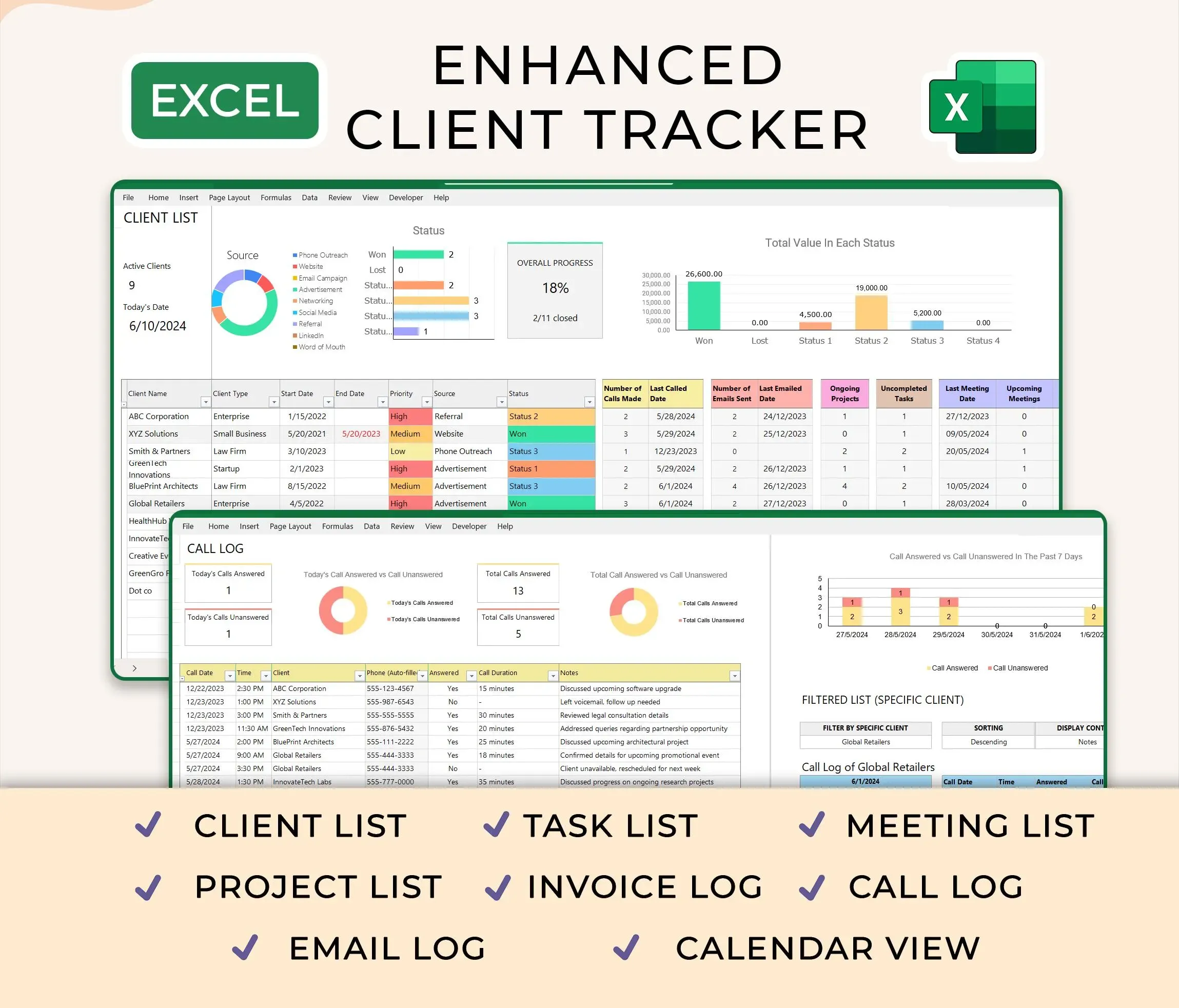
Ultimate Client Tracker CRM Template – Google Sheet & Ms Excel Versions
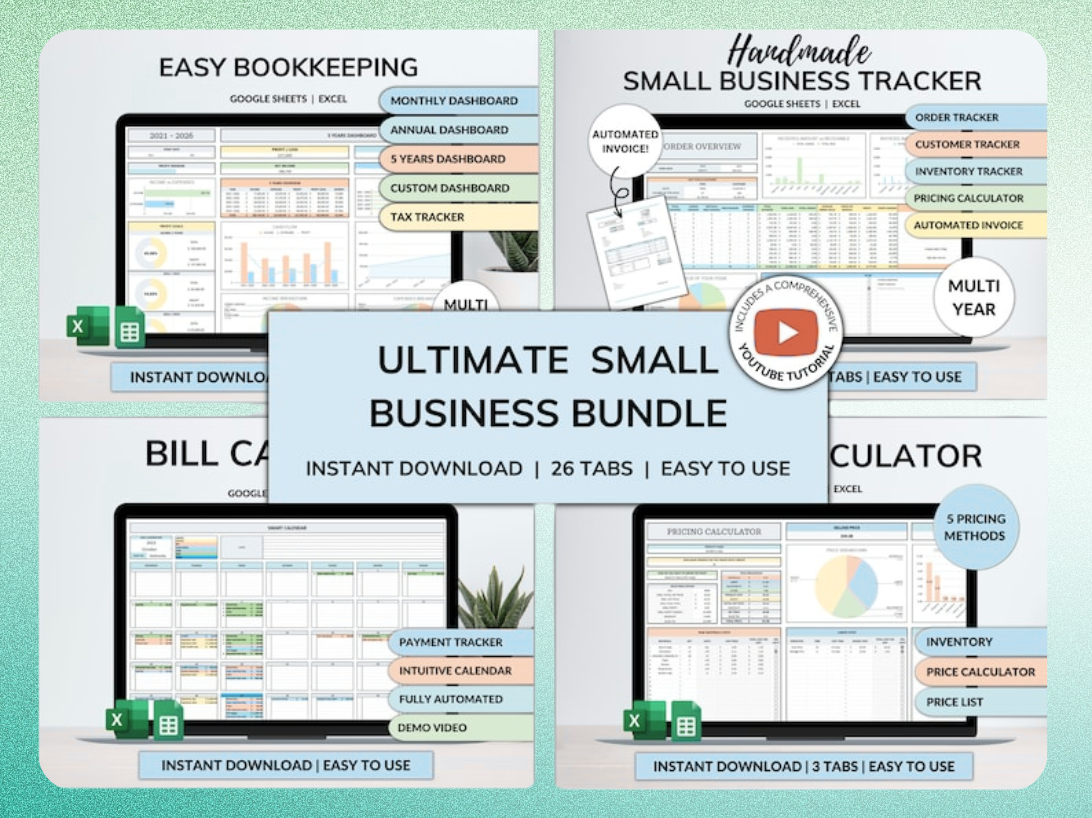
Ultimate Small Business Bundle Templates - Google Sheet + Ms Excel
All-in-One Spreadsheets for Bookkeeping, Inventory, Orders, Billing & Pricing Save Hours Every Week: Automate data entry and dashboards so you can focus on growth, not spreadsheets.
Essential Features to Look for in a Client Tracker CRM
Automation, custom fields, email integration, activity timelines, reporting, and mobile access form the core feature set that separates useful CRMs from glorified contact lists. Automation reduces manual follow-ups and prevents leads from stalling in the pipeline. Custom fields let you capture industry-specific data without forcing your process into generic templates. Email integration logs every conversation automatically, building a complete client history without copy-pasting. Activity timelines show every call, email, meeting, and note in chronological order, so any team member can pick up a client relationship mid-conversation. Reporting and dashboards surface pipeline health, forecasted revenue, and overdue tasks in real time. Mobile access lets field sales reps update deals and log calls without waiting to return to their desks.
Businesses should prioritize features that eliminate their current pain points rather than chasing the longest feature list. If you lose deals due to missed follow-ups, automation matters more than advanced reporting. If your team struggles with visibility, email integration and activity timelines take priority over custom fields.
Automation: Follow-Ups, Task Assignment, and Pipeline Movement
Automation rules trigger actions based on deal stage changes, contact form submissions, or elapsed time since last activity. A common workflow automatically assigns new leads to sales reps based on territory or round-robin rotation, sends a welcome email, and schedules a follow-up task for three days later. Another rule moves a deal to "Closed Lost" if no activity occurs for 30 days and notifies the manager.
These automations prevent leads from falling through cracks when reps juggle dozens of active deals. They also standardize follow-up timing across the team, ensuring every prospect receives consistent outreach regardless of which rep handles the account. Businesses that implement automation report spending 30-50% less time on administrative tasks and closing 10-20% more deals due to faster response times.
Custom Fields and Segmentation for Personalized Client Management
Custom fields let you track industry-specific data like project type, budget range, decision timeline, or referral source without cluttering standard contact fields. A consulting firm might add fields for service tier, contract renewal date, and account health score. A real estate agency might track property type, price range, and financing status. These fields enable segmentation, so you can filter clients by criteria and run targeted campaigns or reports.
Segmentation also powers personalized automation. You can send different follow-up sequences to enterprise leads versus small business leads, or trigger different task assignments based on deal size. CRMs with flexible custom fields adapt to your sales process instead of forcing you to adapt to their data model.
Email Integration and Communication Tracking
Email integration syncs your inbox with the CRM, automatically logging sent and received emails to the correct client record. Advanced integrations track email opens, link clicks, and reply times, giving reps insight into prospect engagement. Some CRMs also log calendar events and phone calls, building a complete communication timeline.
This visibility matters for team collaboration. When a rep goes on vacation or a client escalates to a manager, anyone can review the email history and pick up the conversation without asking the original rep for context. It also surfaces patterns like unresponsive prospects or clients who engage heavily but never convert, helping managers coach reps and refine messaging.
Reporting and Dashboards: Tracking Sales Performance in Real Time
Reporting and dashboards aggregate pipeline data into visual charts that show deal velocity, win rates, forecasted revenue, and rep performance. A basic dashboard might display total pipeline value, deals closing this month, overdue tasks, and conversion rates by stage. Advanced reports break down performance by product, region, rep, or lead source.
Real-time dashboards let managers spot problems before they compound. If a rep's pipeline drops below target or deals stall in a particular stage, managers can intervene with coaching or process adjustments. Forecasting reports help finance teams predict cash flow and plan hiring or inventory based on expected closed deals.
How to Choose the Right Client Tracker CRM for Your Business
Choose based on business size, industry, budget, existing tools, and growth plans. Solopreneurs and freelancers need lightweight CRMs or structured spreadsheet trackers that handle low-volume client management without complexity. Small businesses with 5-20 employees should prioritize automation and integrations that reduce manual work and connect to existing accounting or email marketing tools. Growing teams need scalability, role permissions, and multi-stage pipelines that support specialized sales processes. Niche industries benefit from specialized CRMs that match their workflows, such as ATS-CRM hybrids for recruiting or project-CRM combos for agencies.
Budget constraints often push early-stage businesses toward free tiers or spreadsheet templates until they hit the pain points that justify paid CRM subscriptions. Existing tool ecosystems matter because switching costs add up. If your team uses Google Workspace, a CRM with native Gmail integration saves more time than a feature-rich platform that requires constant tab-switching.
For Solopreneurs and Freelancers: Start Simple or Use a Spreadsheet Template
Solopreneurs managing fewer than 20 active clients often find full CRM software overkill. A structured spreadsheet tracker with columns for client name, project status, next action, and deal value provides enough visibility without monthly subscription costs. You can add conditional formatting to highlight overdue tasks and use filter views to focus on high-priority clients.
The Ultimate Client Tracker CRM Template offers a pre-built structure in both Google Sheets and Excel, so you skip the blank-sheet setup and start tracking clients immediately. It includes formulas for deal value totals, overdue task alerts, and pipeline stage summaries. Freelancers who bill hourly or per project can customize fields to track time spent, invoices sent, and payment status alongside client interactions.
If your client list grows beyond 50 or you add a part-time assistant, consider upgrading to HubSpot's free tier or Zoho CRM's entry plan to gain automation and email integration without losing your existing data structure.
For Small Businesses: Balance Features and Budget
Small businesses with 5-20 employees need CRMs that automate repetitive tasks, integrate with accounting and email marketing tools, and support basic reporting without enterprise complexity. Zoho CRM and HubSpot's free tier both fit this profile, offering automation, custom fields, and mobile access at low or no cost. Teams should prioritize ease of use and onboarding speed over advanced features they will not use for six months.
Businesses still in the spreadsheet phase can use the Ultimate Small Business Bundle to manage bookkeeping, inventory, orders, billing, and client tracking in connected spreadsheets before committing to multiple software subscriptions. The bundle automates data entry and dashboards, saving hours each week while you evaluate whether a dedicated CRM justifies the cost.
When you do upgrade, import your spreadsheet data via CSV and map fields carefully to avoid losing historical client interactions or deal notes.
For Growing Teams: Prioritize Scalability and Collaboration
Growing teams need CRMs that handle role permissions, territory assignments, approval workflows, and multi-stage pipelines without breaking as headcount doubles. Salesforce, HubSpot's paid tiers, and Zoho CRM all scale to hundreds of users, but Salesforce offers the deepest customization for complex sales processes. Teams should evaluate how easily the CRM supports adding new users, creating custom reports, and integrating with existing business systems.
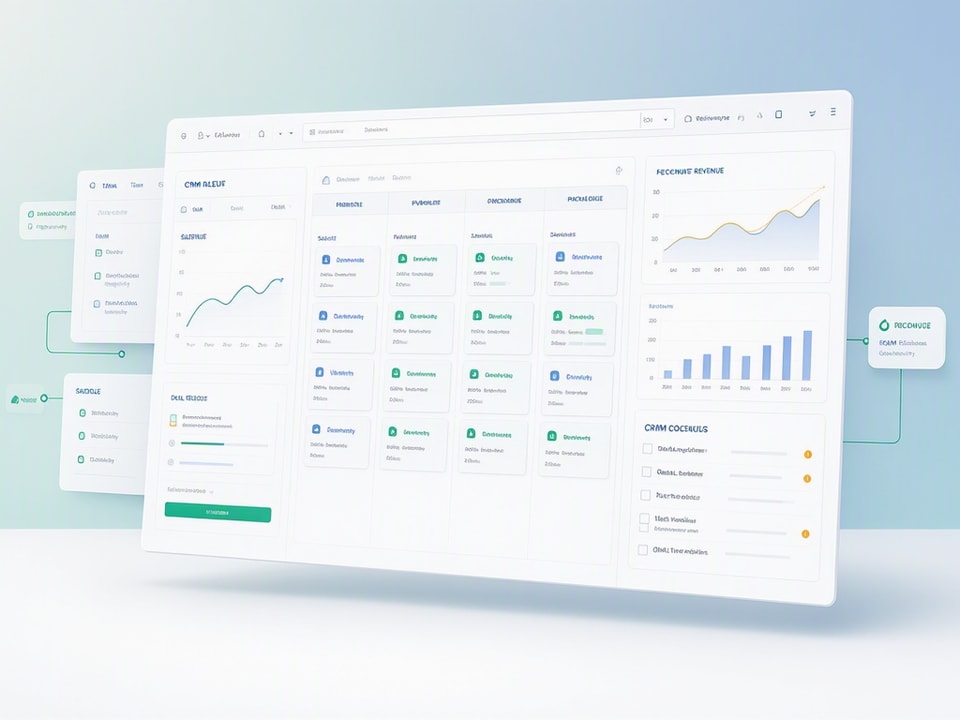
Collaboration features like shared notes, @mentions, and activity feeds ensure every team member sees the latest client interactions without asking for updates in Slack. Role permissions prevent junior reps from editing closed deals or viewing sensitive pricing data. Territory management assigns leads automatically based on geography, industry, or account size, reducing manual routing and speeding up response times.
For Niche Industries: Match CRM to Workflow
Recruiting agencies benefit from ATS-CRM hybrids like Manatal that track both candidates and client companies in one platform. Real estate teams need CRMs that integrate with MLS listings and property databases. Creative agencies often prefer project-CRM combos like monday CRM that manage client relationships alongside deliverable timelines. Consulting firms prioritize CRMs with proposal tracking, contract management, and billable hour logging.
Specialized CRMs reduce setup time and eliminate the need for custom integrations because they include industry-specific fields, workflows, and reports out of the box. The trade-off is less flexibility if your process differs from the CRM's assumptions. Businesses with unique workflows may find general-purpose CRMs like HubSpot or Zoho easier to customize than specialized platforms that lock you into predefined structures.
Step-by-Step: Setting Up Your First Client Tracker CRM
Initial setup involves importing contacts, defining pipeline stages, configuring automation, and training your team. Skipping any step leads to incomplete data, confusing workflows, or low adoption rates. Allocate two to four hours for setup and another two hours for team training, even with simple CRMs.
Start by exporting your existing client list from spreadsheets, email contacts, or previous CRM systems as a CSV file. Clean the data before import by removing duplicates, standardizing phone number formats, and filling in missing email addresses. Define your sales pipeline stages based on your actual process, not generic templates. Configure automation rules for the most repetitive tasks first, such as lead assignment and follow-up reminders. Set up dashboards that surface high-priority clients and upcoming tasks, so reps check the CRM daily. Train your team on data entry standards, automation triggers, and reporting access to ensure consistent usage.
Importing and Cleaning Your Client Data
Export your client list as a CSV file with columns for first name, last name, email, phone, company, deal stage, deal value, and any custom fields you plan to track. Open the CSV in a spreadsheet and remove duplicate rows by sorting on email address and deleting repeated entries. Standardize phone numbers to a single format, such as (555) 123-4567 or +1-555-123-4567, so the CRM can parse them correctly.
Fill in missing email addresses by cross-referencing LinkedIn profiles or previous email threads. If you cannot find an email, leave the field blank rather than entering placeholder text that breaks email automation. Map your CSV columns to the CRM's fields during import, ensuring first name goes to first name, not company name. Most CRMs preview the mapping before finalizing the import, so review carefully to avoid scrambling your data.
After import, spot-check 10-20 records to confirm fields populated correctly and no data was lost. Run a duplicate detection tool if your CRM offers one, merging any records that slipped through your pre-import cleanup.
Designing Your Sales Pipeline and Deal Stages
Define pipeline stages that match your actual sales process, not generic templates like "Lead, Qualified, Proposal, Closed." A consulting firm might use "Initial Call, Discovery, Proposal Sent, Negotiation, Contract Signed." A product company might use "Demo Scheduled, Trial Active, Pricing Discussed, Purchase Order Received, Onboarding." Each stage should represent a distinct step that requires a different action or decision.
Limit stages to five to seven to avoid overwhelming reps with granular updates. Too many stages slow down pipeline movement and make reporting harder to interpret. Each stage should have clear entry and exit criteria, so reps know when to move a deal forward or backward. Document these criteria in a shared guide and review them during team training.
Some CRMs let you assign probability percentages to each stage, which feeds into forecasting reports. Set probabilities based on historical win rates at each stage, not aspirational guesses. If you close 30% of deals that reach the proposal stage, assign 30% probability to that stage.
Configuring Automation Rules and Follow-Up Sequences
Start with automation rules that eliminate your most repetitive manual tasks. A common first rule assigns new leads to sales reps based on round-robin rotation or territory. Another rule sends a welcome email when a lead enters the pipeline and schedules a follow-up task for three days later. A third rule moves deals to "Closed Lost" if no activity occurs for 30 days and notifies the manager.
Follow-up sequences automate multi-step email campaigns triggered by deal stage changes or contact form submissions. A basic sequence might send an initial outreach email, wait three days, send a follow-up if no reply, wait five days, and send a final check-in before marking the lead as unresponsive. Personalize templates with merge fields for first name, company, and deal details so emails feel human, not robotic.
Test each automation rule with dummy data before activating it on live client records. Verify that emails send to the correct recipients, tasks assign to the right team members, and deals move to the expected stages. Poorly configured automation can spam clients or overwrite important data, so review rules quarterly to catch unintended behavior.
Setting Up Dashboards and Reports for Daily Use
Create dashboards that surface high-priority clients, overdue tasks, and upcoming deadlines, so reps check the CRM daily instead of treating it as an end-of-week chore. A basic sales rep dashboard might show deals closing this week, tasks due today, and pipeline value by stage. A manager dashboard adds team performance metrics, win rates, and forecasted revenue.
Pin frequently used reports to the dashboard for one-click access. Common reports include pipeline by rep, deals closed this month, conversion rates by stage, and average deal size. Schedule weekly or monthly reports to email automatically, so stakeholders receive updates without logging into the CRM.
Customize dashboard widgets to match your team's priorities. If follow-up speed matters most, add a widget showing average response time or overdue tasks. If deal velocity is the focus, display average days in each pipeline stage. Dashboards lose value when cluttered with too many metrics, so limit each view to five to seven widgets.
Common Mistakes When Implementing a Client Tracker CRM
Over-customizing too early wastes time building features you will not use for months. Skipping team training leads to inconsistent data entry and low adoption rates. Ignoring data hygiene allows duplicates, incomplete records, and outdated information to accumulate. Choosing features over usability results in a powerful CRM that nobody wants to use daily.
Another common mistake is failing to define clear ownership for CRM maintenance. Without a designated admin, automation rules break, custom fields proliferate, and reports drift out of sync with business needs. Businesses also underestimate the time required to migrate historical data from spreadsheets or previous CRMs, leading to rushed imports that lose valuable client context.
Finally, many teams treat the CRM as a reporting tool for managers rather than a daily productivity tool for reps. If reps perceive the CRM as extra work that benefits someone else, they will enter minimal data and revert to personal spreadsheets or email folders. Successful implementations emphasize how the CRM saves reps time through automation, email integration, and mobile access.
Free and Premium Client Tracker Templates for Spreadsheet Users
Businesses not ready for full CRM software can use spreadsheet-based client tracker templates to organize contacts, deals, and follow-ups without monthly subscription costs. A well-structured template includes columns for client name, company, contact details, deal stage, deal value, last contact date, next action, and assigned team member. Conditional formatting highlights overdue tasks, and formulas calculate total pipeline value and conversion rates by stage.
The Ultimate Client Tracker CRM Template provides a ready-to-use structure in Google Sheets and Excel, so you skip the blank-sheet setup and start tracking clients immediately. It includes pre-built formulas, dropdown lists for deal stages, and dashboard summaries that visualize pipeline health. Freelancers and small teams can customize fields to match their sales process without learning CRM software or paying monthly fees.
For businesses managing multiple operational areas alongside client tracking, the Ultimate Small Business Bundle combines bookkeeping, inventory, orders, billing, and client management in connected spreadsheets. It automates data entry and dashboards, saving hours each week while you decide whether a
Get the newsletter
One sharp idea every Sunday.
No fluff. No sales pitches. Just the best of what we publish, hand-picked.
Continue Reading
Related Articles
7 Free CRM Excel Templates for Small Businesses in 2026
Small businesses often start lean, and that includes their customer relationship management. A free CRM spreadsheet gives you immediate control over your client data without the immediate cost of dedi...
10+ Free CRM Excel & Google Sheets Templates for 2026
Small businesses still run on spreadsheets in 2026. A free CRM Excel template gives you contact tracking, deal stages, and follow-up reminders without monthly software fees or forced onboarding calls....
Excel vs. Google Sheets for Small Business: 2026 Guide
Small businesses run on spreadsheets. Whether you track clients, inventory, invoices, or marketing spend, you need a platform that handles your data without slowing your team down. The 2026 choice bet...