Excel vs. Google Sheets for Small Business: 2026 Guide
Small businesses run on spreadsheets. Whether you track clients, inventory, invoices, or marketing spend, you need a platform that handles your data without slowing your team down. The 2026 choice bet...
Small businesses run on spreadsheets. Whether you track clients, inventory, invoices, or marketing spend, you need a platform that handles your data without slowing your team down. The 2026 choice between Excel and Google Sheets isn't about brand loyalty or which tool you learned first. It's about collaboration style, AI capabilities, cost structure, and whether your workflows need desktop power or cloud simplicity.
Excel dominates when you need advanced data modeling, offline access, and complex financial reporting. Google Sheets wins when your team works remotely, you need instant sharing, and you want zero setup friction. Both platforms added serious AI upgrades in the past year, and both raised prices for business users in mid-2026. The right choice depends on team size, budget, and which features actually save you time versus which ones sit unused.
This guide breaks down the cost differences, collaboration tools, AI accuracy, and decision framework you need to pick the platform that fits your workflow in 2026.
Cost Breakdown: Free Plans, Business Subscriptions, and Hidden Expenses
Google Sheets is free for individual users with a Google account. You get 15 GB of shared storage across Drive, Gmail, and Photos, which covers most solo founders and freelancers. Microsoft offers Excel through the web app for free, but the feature set is limited compared to the desktop version. If you need offline access, advanced formulas, or macros, you'll need a paid subscription.
For teams, Google Workspace starts at $6 per user per month for the Business Starter plan, which includes Sheets, Docs, Drive, and Gmail with 30 GB of storage per user. Microsoft 365 Business Basic costs $6 per user per month and includes web-only versions of Excel, Word, and PowerPoint. The desktop apps require Business Standard at $12.50 per user per month. Microsoft announced price increases effective July 2026, pushing some business tiers up by 10-15% depending on region.
The gap widens when you factor in AI features. Gemini in Google Sheets is included in Workspace plans at no extra cost for basic tasks like formula suggestions and data cleanup. Excel Copilot requires a separate $30 per user per month add-on for Agent Mode, Python integration, and image analysis. For a five-person team, that's an extra $150 monthly just for AI tools.
When the Free Version Is All You Need
If you're a solo founder tracking clients, a freelancer managing invoices, or a small team under five people who mostly need shared access to simple trackers, the free versions cover your needs. Google Sheets handles CRM tracking, expense logs, and project timelines without hitting storage limits. The web version of Excel works for basic budgeting and invoicing as long as you save files to OneDrive and don't need pivot tables or Power Query.
Free plans fall short when you need more than 15 GB of storage, require desktop Excel features like macros or advanced pivot tables, or want priority support. Teams that collaborate daily will hit friction with the free Excel web app because co-authoring is slower and version control is manual. At that point, paying $6-12 per user per month eliminates the workarounds and saves more time than the subscription costs.
Subscription Costs for Teams: Google Workspace vs. Microsoft 365
For a team of three to ten employees, Google Workspace Business Starter at $6 per user per month gives you real-time collaboration, 30 GB per user, and Gemini AI basics. Business Standard at $12 per user per month bumps storage to 2 TB per user and adds advanced security controls. Microsoft 365 Business Basic matches the $6 price point but only includes web apps. Business Standard at $12.50 per user per month adds desktop Excel, Outlook, and Teams.
The July 2026 price increases affect Microsoft 365 more than Google Workspace. Business Premium jumped from $22 to $25 per user per month, and enterprise tiers saw similar hikes. Google held pricing steady through mid-2026, though Workspace AI Premium (which includes advanced Gemini features) costs an additional $30 per user per month, matching Microsoft's Copilot add-on.
Storage matters more than most teams expect. A business with heavy file sharing, video calls, and years of archived spreadsheets will outgrow 30 GB quickly. Google's 2 TB per user at the $12 tier handles most small businesses. Microsoft's 1 TB per user in Business Standard works if you're disciplined about archiving old files.
Hidden Costs: Add-ons, Training, and Migration Time
Third-party integrations add up fast. Zapier starts at $19.99 per month for 750 tasks, and most small businesses need the $49 tier for 2,000 tasks once they connect Sheets or Excel to Stripe, Slack, and email marketing tools. Specialized add-ons like inventory management plugins or accounting connectors often charge $10-30 per month per user.
Training costs hit harder when switching platforms. A team fluent in Excel will lose productivity for two to four weeks while learning Sheets formulas, sharing protocols, and mobile workflows. The reverse is true when moving from Sheets to Excel. Budget at least 10-15 hours of internal training time per employee, plus potential consultant fees if you're migrating complex macros or data models.
Migration time is the hidden cost no one budgets for. Moving 50+ spreadsheets from Excel to Sheets (or vice versa) takes days of manual cleanup because formulas don't always translate, formatting breaks, and macros require complete rewrites. If your business runs on a dozen interconnected workbooks with custom VBA scripts, expect weeks of developer time to rebuild in Google Apps Script or Python.
Real-Time Collaboration: How Each Platform Handles Team Workflows
Collaboration speed determines how fast your team can update inventory, log client calls, or adjust budgets without emailing files back and forth. Google Sheets was built for simultaneous editing from day one. Excel added cloud collaboration through OneDrive and SharePoint, but the experience still lags behind Sheets in 2026, especially on mobile devices.
Real-time editing means multiple people can type in the same spreadsheet at the same moment without overwriting each other's changes. Google Sheets handles this natively. You see colored cursors showing where teammates are working, changes appear instantly, and version history tracks every edit with timestamps and user names. Excel through OneDrive supports co-authoring, but updates sync every few seconds instead of instantly, and the desktop app sometimes forces you to refresh manually.

Comment threads and task assignments work differently on each platform. Sheets lets you tag teammates with @mentions, assign action items, and resolve threads once tasks are complete. Excel added similar features in 2025, but the interface is clunkier and notifications don't integrate as smoothly with Outlook or Teams. If your team already lives in Microsoft 365, Excel comments sync with Teams channels. If you're in Google Workspace, Sheets comments flow into Gmail and Calendar.
Google Sheets: Built for Cloud-First Collaboration
Google Sheets assumes you're always online and working with a team. Shareable links let you grant view, comment, or edit access in seconds without forcing recipients to create accounts. You can publish a sheet to the web as a live-updating dashboard or embed it in a website. Version history is automatic and granular, so you can restore any previous state or see exactly who changed which cell at what time.
Mobile editing on Sheets is faster than Excel because the app was designed for touch-first interaction. You can update inventory from a warehouse floor, log expenses from a job site, or review dashboards during a commute without waiting for desktop sync. The Android and iOS apps support offline editing, but you need to enable it manually for each file.
Google Workspace integration means Sheets connects natively to Gmail, Calendar, Drive, and Meet. You can pull data from Forms responses, link to Calendar events, or attach sheets directly to emails without downloading files. For teams already using Gmail for business, this eliminates the friction of switching between apps.
Excel: Collaboration Through OneDrive and SharePoint
Excel's collaboration story improved significantly in 2025-2026, but it still assumes you'll work offline part of the time. Co-authoring through OneDrive works well when everyone uses the desktop app and saves to the cloud, but the experience breaks down if one person works in the web app while another uses desktop Excel. Changes sync, but not instantly, and conflicting edits sometimes require manual merging.
SharePoint adds enterprise-grade permissions and audit trails, which matter for businesses with compliance requirements or complex approval workflows. You can lock cells, require check-in/check-out for edits, and track who accessed a file even if they didn't make changes. Google Sheets offers similar controls through Workspace Enterprise, but the default sharing model is more open.
Offline work is Excel's biggest collaboration advantage. The desktop app works fully without internet access, syncing changes when you reconnect. Google Sheets requires you to enable offline mode in Chrome and pre-load files, and some features like add-ons and scripts don't work offline. For businesses with unreliable internet or field teams without constant connectivity, Excel's offline capability is non-negotiable.
AI and Automation in 2026: Gemini vs. Copilot for Small Business Tasks
AI transformed spreadsheet work in the past year. Google's Gemini in Sheets achieved a 70.48% success rate on the SpreadsheetBench dataset in March 2026, approaching human-expert performance on tasks like formula generation, data cleanup, and table summarization. Microsoft's Excel Copilot added Agent Mode and Python integration, letting you analyze images, run complex data models, and automate multi-step workflows without writing code.
The contest now turns on AI accuracy inside the spreadsheet. Both platforms handle basic tasks like writing VLOOKUP formulas or summarizing columns. The difference shows up in edge cases: messy data with inconsistent formatting, multi-sheet models with complex dependencies, or requests that require domain knowledge like accounting rules or inventory formulas.
Gemini in Sheets is included in standard Google Workspace plans for basic features. You type a natural language prompt like "calculate total revenue by month" or "clean up duplicate entries in column B," and Gemini generates the formula or suggests corrections. Advanced features like multi-sheet analysis and custom automation require Workspace AI Premium at $30 per user per month.
Excel Copilot costs $30 per user per month on top of your Microsoft 365 subscription. The base version writes formulas, explains existing spreadsheets, and suggests pivot table layouts. Agent Mode, added in late 2025, lets Copilot run multi-step tasks like "import this CSV, clean the data, create a pivot table, and generate a chart." Python integration means you can analyze images, run statistical models, and build custom functions without leaving Excel.
Gemini in Google Sheets: Smart Formulas and Data Cleanup
Gemini excels at fixing messy data and generating formulas for common business tasks. If you import a client list with inconsistent phone number formats, Gemini can standardize the column in seconds. If you need to calculate profit margins across 200 products, you describe the formula in plain English and Gemini writes it.
The most useful small business applications are auto-generating SUMIFS and QUERY formulas, cleaning imported data from exports that mix date formats or currency symbols, and summarizing tables into readable insights. Gemini can also suggest chart types based on your data and explain why a formula is returning an error.
Limitations show up when you need industry-specific logic or multi-sheet dependencies. Gemini sometimes suggests formulas that work in isolation but break when you copy them down a column with changing references. It's best for speeding up tasks you already understand rather than teaching you advanced spreadsheet techniques from scratch.
Excel Copilot: Advanced Analysis and Agent Mode
Excel Copilot's Python integration sets it apart for data-heavy businesses. You can upload an image of a handwritten invoice or receipt, and Copilot extracts the data into structured columns using optical character recognition. You can run statistical analysis, build forecasting models, or automate repetitive tasks across multiple workbooks without writing VBA macros.
Agent Mode handles multi-step workflows that would normally require manual intervention. You can ask Copilot to "import sales data from this CSV, remove duplicates, calculate monthly growth rates, and create a dashboard," and it executes each step in sequence. This saves hours on tasks like monthly reporting, financial close processes, or inventory audits.
The cost is harder to justify for small businesses that don't need Python-level analysis or image processing. If your spreadsheet work is mostly tracking, simple formulas, and basic charts, Gemini in Sheets delivers 80% of the value at no extra cost. Copilot makes sense when you're running complex financial models, analyzing large datasets, or automating workflows that currently take hours of manual work each week.
When to Choose Excel: Advanced Data Analysis and Power Features
Excel pulls ahead when you need pivot tables with calculated fields, Power Query for merging data from multiple sources, or macros that automate repetitive tasks across dozens of files. The desktop app handles larger datasets faster than Google Sheets, and offline access matters for businesses with unreliable internet or field teams working without connectivity.
For complex tasks, Excel's depth justifies the learning curve and subscription cost. If your business runs on financial models with interconnected sheets, conditional formatting rules, and custom functions, Excel's feature set is unmatched. Google Sheets can replicate some of this functionality with add-ons and scripts, but the native experience is slower and less polished.
The desktop app's performance advantage is measurable. Excel handles spreadsheets with 100,000+ rows without lag, while Google Sheets starts slowing down around 50,000 rows depending on formula complexity. If you're analyzing sales data, processing inventory exports, or running financial reports with years of history, Excel's speed saves real time.
Power Query and Data Modeling for Financial Reporting
Power Query lets you connect to external databases, clean and transform data, and refresh reports with a single click. You can merge data from QuickBooks exports, bank statements, and sales platforms into a single financial dashboard without manual copy-paste. The transformations are repeatable, so monthly reporting becomes a refresh operation instead of rebuilding the same formulas.

Data modeling with Power Pivot turns Excel into a lightweight business intelligence tool. You can create relationships between tables, build calculated measures using DAX formulas, and analyze millions of rows without performance issues. This matters for businesses that outgrew basic spreadsheets but aren't ready for dedicated BI platforms like Tableau or Power BI.
The learning curve is steep. Power Query and Power Pivot require understanding data relationships, transformation logic, and DAX syntax. Budget 20-40 hours of training time per employee, or hire a consultant to build the initial models. Once set up, the time savings compound every month.
Offline Work and Desktop Performance
Offline access is Excel's clearest advantage over Google Sheets in 2026. The desktop app works fully without internet, syncing changes when you reconnect. You can build models on a plane, update inventory in a warehouse with spotty WiFi, or review financials during a power outage without losing functionality.
Google Sheets requires enabling offline mode in Chrome and pre-loading files. Some features like add-ons, scripts, and real-time collaboration don't work offline. If your business depends on constant connectivity, this isn't an issue. If your team works in remote locations, travels frequently, or faces unreliable internet, Excel's offline capability is essential.
Desktop performance matters when working with large files, complex formulas, or heavy formatting. Excel handles conditional formatting across thousands of rows, recalculates complex formulas faster, and opens files with dozens of sheets without lag. Google Sheets works well for files under 10 MB, but larger workbooks slow down or hit browser memory limits.
When to Choose Google Sheets: Simplicity, Speed, and Team Access
Google Sheets wins when your team needs instant sharing, mobile-first access, and zero setup friction. The platform assumes you're working with others, so collaboration features are built in rather than bolted on. For everyday use, Sheets is sufficient and user-friendly, especially for businesses that prioritize speed over depth.
The barrier to entry is lower than Excel. New employees can start using Sheets immediately without training because the interface is simpler and most features are discoverable. Sharing a sheet takes seconds, and recipients don't need software licenses or accounts to view files. This matters for businesses that collaborate with clients, contractors, or partners who aren't on your company plan.
Mobile editing is faster and more reliable on Sheets than Excel. The Android and iOS apps handle touch input better, load files faster on cellular connections, and sync changes instantly. If your team logs data in the field, updates inventory from a warehouse, or reviews dashboards during commutes, Sheets delivers a smoother mobile experience.
Fast Setup for CRM, Inventory, and Order Tracking
Google Sheets simplifies common small business workflows with templates and integrations. You can set up a CRM tracker in 10 minutes by starting with a template, customizing columns for your business, and sharing it with your team. No installation, no file management, no version control headaches.
Inventory tracking in Sheets works well for businesses with under 5,000 SKUs. You can use conditional formatting to highlight low stock, QUERY formulas to filter by category, and importrange functions to pull data from multiple sheets. Integration with Google Forms lets warehouse staff scan barcodes and update inventory from mobile devices without touching the spreadsheet directly.
Order tracking connects naturally to other Workspace tools. You can link to Gmail for order confirmations, Calendar for delivery schedules, and Drive for storing invoices. The Ultimate Small Business Bundle Templates includes pre-built sheets for bookkeeping, inventory, orders, and billing that work in both Sheets and Excel, saving hours of setup time.
Integrations with 1,000+ Third-Party Apps
Google Sheets integrates with over 1,000 third-party apps through native connectors, Zapier, and API access. You can pull data from Stripe for revenue tracking, push updates to Slack for team notifications, or sync with Mailchimp for email campaign results. Most integrations require no coding and can be set up in 15-30 minutes.
Popular small business integrations include Stripe for payment tracking, QuickBooks for accounting sync, Shopify for e-commerce data, HubSpot for CRM, and Asana for project management. Each integration eliminates manual data entry and reduces the risk of errors from copy-paste workflows.
The Google Workspace ecosystem is the biggest integration advantage. Sheets connects natively to Forms for data collection, Apps Script for custom automation, and Looker Studio for advanced dashboards. If your business already uses Gmail, Drive, and Calendar, adding Sheets creates a unified workflow without switching between platforms.
Essential Small Business Spreadsheets: What to Build First
Every small business needs six core spreadsheets: CRM for client tracking, inventory for stock management, accounting for income and expenses, marketing tracking for campaign performance, a KPI dashboard for business metrics, and project management for task accountability. Building these from scratch takes days. Starting with templates cuts setup time to hours.
The order matters. Start with accounting because you need accurate financial records from day one for taxes and decision-making. Add CRM next because client relationships drive revenue. Inventory comes third if you sell physical products. Marketing tracking and KPI dashboards follow once you have baseline data to analyze. Project management can wait until your team grows beyond three people and informal communication breaks down.
Each spreadsheet should solve a specific pain point, not track data for the sake of tracking. If you're not using a metric to make decisions, don't waste time collecting it. The best small business spreadsheets are simple, updated regularly, and shared with the people who need the information.
Recommended Resources
Skip the blank-sheet setup
Start with tested templates that include formulas, dashboards, and instructions so you can customize instead of building from scratch
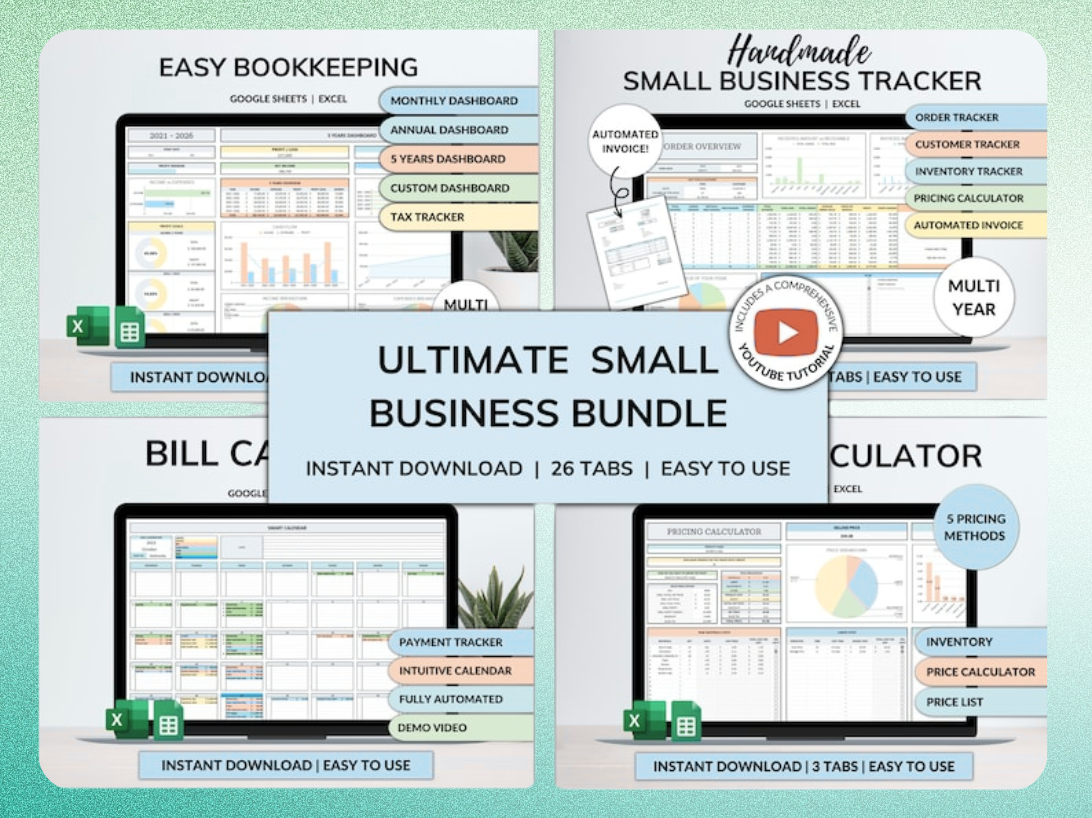
Ultimate Small Business Bundle Templates - Google Sheet + Ms Excel
All-in-One Spreadsheets for Bookkeeping, Inventory, Orders, Billing & Pricing Save Hours Every Week: Automate data entry and dashboards so you can focus on growth, not spreadsheets.
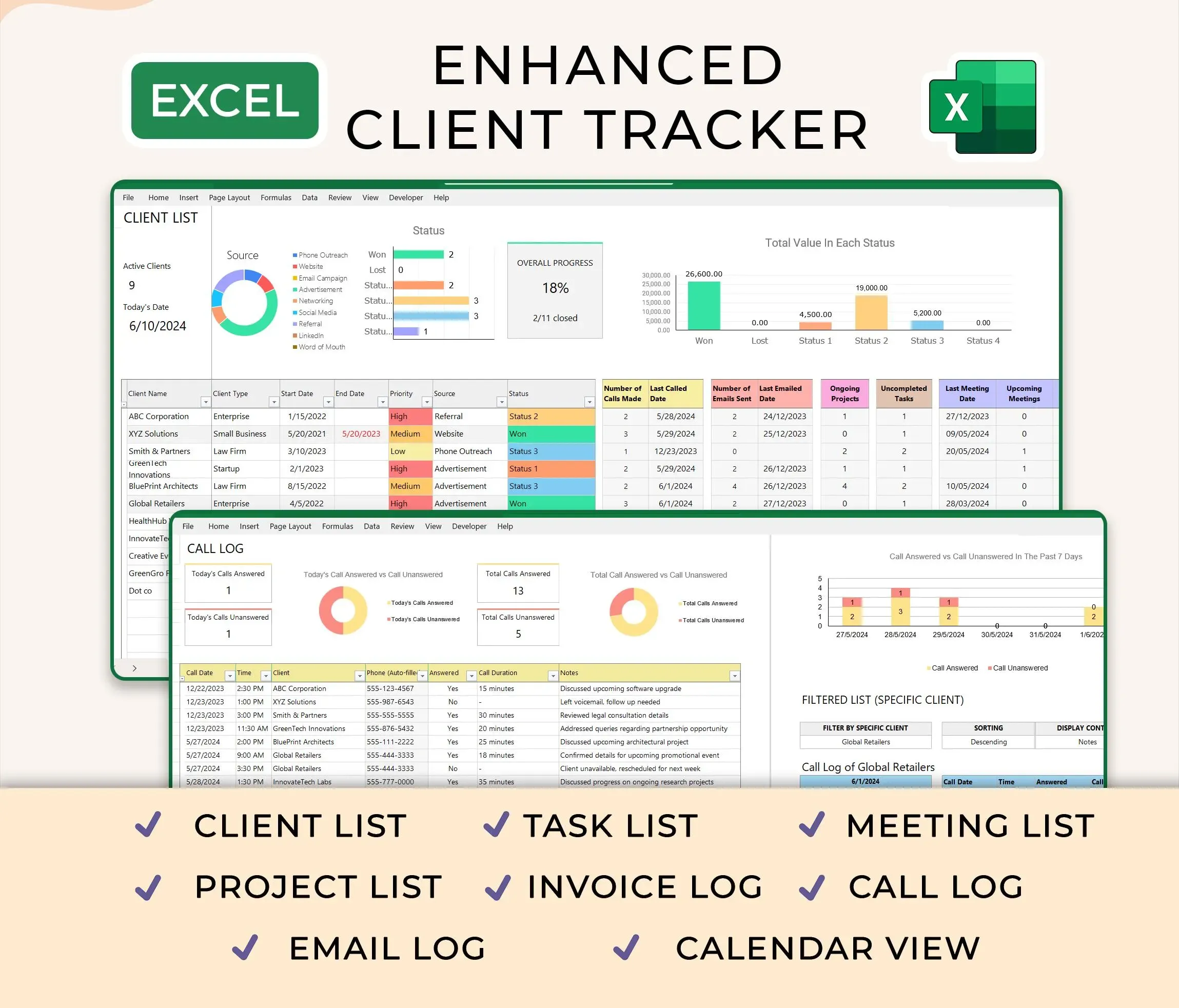
Ultimate Client Tracker CRM Template – Google Sheet & Ms Excel Versions
CRM and Client Tracking
A CRM spreadsheet tracks client contact information, communication history, deal stages, and follow-up tasks. The essential columns are client name, email, phone, company, deal value, stage (lead, qualified, proposal, closed), last contact date, next follow-up date, and notes. Add conditional formatting to highlight overdue follow-ups and deals stuck in one stage too long.
Follow-up automation works through Google Forms or Zapier. When a team member logs a client call, a script can calculate the next follow-up date based on deal stage and send a reminder email. This prevents leads from falling through the cracks and ensures consistent communication.
The Ultimate Client Tracker CRM Template includes pre-built formulas for deal pipeline tracking, automated follow-up reminders, and a dashboard view of sales metrics. It works in both Google Sheets and Excel, so you can choose the platform that fits your team's workflow without rebuilding the structure.
Inventory and Order Management
Inventory tracking requires columns for SKU, product name, category, quantity on hand, reorder point, supplier, cost, and last updated date. Use conditional formatting to highlight items below reorder points and SUMIF formulas to calculate total inventory value by category. Add a separate sheet for incoming orders and use VLOOKUP or XLOOKUP to update quantities automatically.
Reorder alerts can be automated with Apps Script in Sheets or Power Automate in Excel. When inventory drops below the reorder point, the script sends an email to your purchasing team with the product details and suggested order quantity. This prevents stockouts and reduces the manual work of checking inventory levels daily.
Integration with invoicing streamlines order fulfillment. When you mark an order as shipped, a script can generate an invoice, email it to the customer, and update inventory quantities. This eliminates duplicate data entry and reduces errors from manual updates.
Accounting and Bookkeeping Basics
An accounting spreadsheet tracks income, expenses, profit, and cash flow. The basic structure includes columns for date, description, category, amount, payment method, and whether the transaction is income or expense. Use pivot tables or SUMIFS formulas to calculate totals by category and month. Add a separate sheet for tax-deductible expenses to simplify year-end reporting.
Tax prep becomes easier when you categorize expenses consistently throughout the year. Use data validation to create dropdown lists for categories, ensuring everyone on your team uses the same labels. Track mileage separately if you claim vehicle deductions, and keep digital receipts linked in a notes column.
Graduate to QuickBooks or Xero when you need multi-currency support, automatic bank feeds, payroll processing, or financial reports that meet accounting standards. Most businesses can run on spreadsheets until they hit $250,000 in annual revenue or hire their first full-time employee.
Marketing Campaign Tracking and KPI Dashboards
Marketing tracking monitors ad spend, impressions, clicks, conversions, and ROI across channels. Essential columns include campaign name, platform (Google Ads, Facebook, email), start date, end date, budget, spend, impressions, clicks, conversions, revenue, and ROI. Use formulas to calculate cost per click, conversion rate, and return on ad spend automatically.
KPI dashboards pull data from multiple sheets into a single view. Use importrange functions to combine data from accounting, CRM, and marketing sheets. Build charts for monthly revenue, customer acquisition cost, lifetime value, and profit margins. Update the dashboard weekly or monthly depending on how fast your metrics change.
Conditional formatting makes dashboards scannable at a glance. Highlight metrics that are above target in green, below target in red, and on track in yellow. This lets you spot problems quickly without reading every number.
Project Management and Task Tracking
Project management spreadsheets track tasks, owners, deadlines, status, and dependencies. The basic structure includes columns for task name, assigned to, start date, due date, status (not started, in progress, blocked, complete), priority, and notes. Use conditional formatting to highlight overdue tasks and Gantt-style formatting to visualize timelines.
Status columns with data validation dropdowns ensure consistent tracking. Define clear status options and train your team to update tasks as they progress. Weekly reviews of overdue and blocked tasks keep projects moving and surface roadblocks early.
Team accountability improves when everyone can see who owns which tasks and when they're due. Shared spreadsheets work well for teams under 10 people. Larger teams or complex projects with many dependencies benefit from dedicated project management tools like Asana or Monday, but spreadsheets handle the basics without adding another subscription.
Common Mistakes Small Businesses Make with Spreadsheets
Small businesses waste time overcomplicating formulas, skipping backups, ignoring templates, and choosing platforms based on brand familiarity instead of workflow needs. These mistakes compound over time, creating technical debt that slows decision-making and increases error rates.
The biggest mistake is building custom spreadsheets when a tested template would save hours and deliver better structure. Most businesses don't need unique formulas or layouts. They need standard trackers with clear columns, reliable calculations, and instructions for customization. Starting with a template and adapting it to your business is faster and less error-prone than building from scratch.
Version control failures cause lost data and wasted time. Teams that email spreadsheet attachments instead of using shared cloud files end up with conflicting versions, duplicate entries, and no clear record of who changed what. Cloud collaboration eliminates this problem, but only if you train your team to use shared links instead of downloading and re-uploading files.
Overbuilding When a Template Would Save Hours
Custom spreadsheets take longer to build, contain more errors, and are harder for new team members to understand than templates designed by spreadsheet professionals. If you're spending more than two hours setting up a CRM, inventory tracker, or financial model, you're overbuilding. Templates provide tested formulas, clear column headers, and documentation that explains how to customize for your business.
The time to build custom is when your
Get the newsletter
One sharp idea every Sunday.
No fluff. No sales pitches. Just the best of what we publish, hand-picked.
Continue Reading
Related Articles
7 Free CRM Excel Templates for Small Businesses in 2026
Small businesses often start lean, and that includes their customer relationship management. A free CRM spreadsheet gives you immediate control over your client data without the immediate cost of dedi...
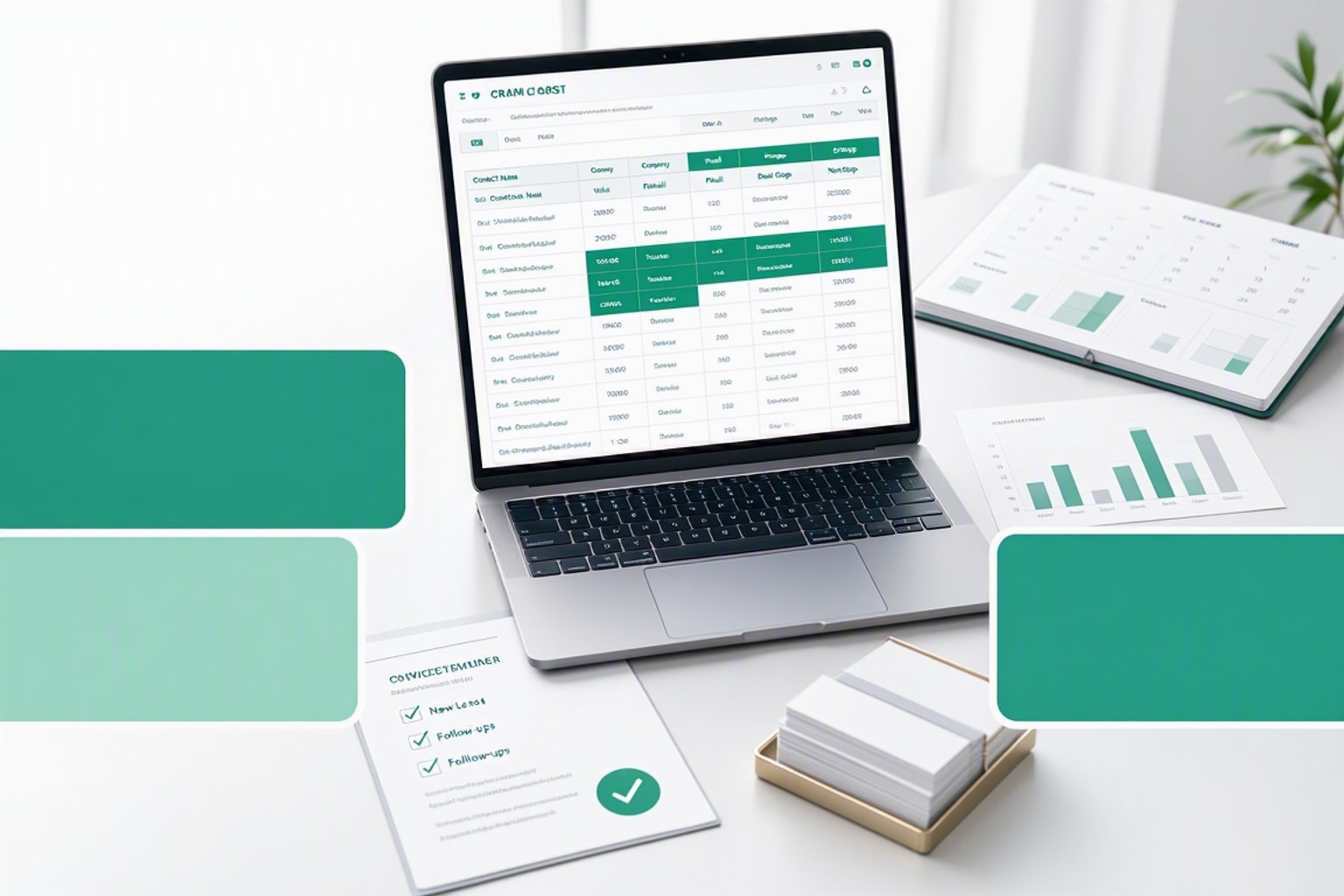
10+ Free CRM Excel & Google Sheets Templates for 2026
Small businesses still run on spreadsheets in 2026. A free CRM Excel template gives you contact tracking, deal stages, and follow-up reminders without monthly software fees or forced onboarding calls....

Top 31 Digital Products to Sell in 2026: A Creator's Guide
Digital products let you build once and sell forever. No shipping costs, no inventory headaches, no manufacturing delays. You create a spreadsheet template, ebook, or Notion dashboard today and delive...